Source Code
<div class="pp-wrap">
  <div class="pp-head">
    <h3>Paste-to-Populate Table</h3>
    <p class="pp-sub">Copy cells from Excel, Google Sheets, or a CSV file, then click the paste zone and press Ctrl+V (or Cmd+V).</p>
  </div>

  <div class="pp-pastezone" id="ppZone" tabindex="0">
    <span class="pp-icon">⎘</span>
    <span>Click here, then paste tab or comma-separated data</span>
  </div>

  <div class="pp-options">
    <label><input type="checkbox" id="ppHeaderRow" checked> First pasted row is the header</label>
    <button type="button" id="ppSample">Load sample data</button>
    <button type="button" id="ppClear">Clear table</button>
    <span class="pp-status" id="ppStatus"></span>
  </div>

  <div class="pp-scroll">
    <table class="pp-table" id="ppTable">
      <thead id="ppThead"></thead>
      <tbody id="ppTbody">
        <tr><td class="pp-empty" colspan="6">No data yet — paste something above, or click "Load sample data".</td></tr>
      </tbody>
    </table>
  </div>
</div>
* { box-sizing: border-box; margin: 0; padding: 0; }
body { font-family: system-ui, sans-serif; background: #f8fafc; padding: 26px 16px; }
.pp-wrap { max-width: 760px; margin: 0 auto; background: #fff; border: 1px solid #e2e8f0; border-radius: 14px; overflow: hidden; }
.pp-head { padding: 18px 20px 4px; }
.pp-head h3 { font-size: 16px; font-weight: 800; color: #1e293b; }
.pp-sub { font-size: 12.5px; color: #94a3b8; margin-top: 4px; }
.pp-pastezone {
margin: 14px 20px 0; padding: 22px; border: 2px dashed #c7d2fe; border-radius: 12px;
background: #eef2ff; display: flex; flex-direction: column; align-items: center; gap: 6px;
font-size: 13px; color: #4338ca; font-weight: 600; cursor: text; text-align: center;
transition: background .15s, border-color .15s;
}
.pp-pastezone:hover { background: #e0e7ff; }
.pp-pastezone:focus { outline: none; background: #e0e7ff; border-color: #6366f1; }
.pp-pastezone.flash { background: #d1fae5; border-color: #34d399; }
.pp-icon { font-size: 22px; }
.pp-options { display: flex; align-items: center; gap: 14px; flex-wrap: wrap; padding: 14px 20px; font-size: 12.5px; color: #475569; }
.pp-options label { display: flex; align-items: center; gap: 6px; cursor: pointer; }
.pp-options button { border: 1px solid #e2e8f0; background: #f8fafc; color: #334155; font-size: 12px; font-weight: 700; padding: 6px 12px; border-radius: 8px; cursor: pointer; font-family: inherit; }
.pp-options button:hover { background: #f1f5f9; }
.pp-status { margin-left: auto; color: #16a34a; font-weight: 700; }
.pp-scroll { overflow-x: auto; border-top: 1px solid #e2e8f0; }
.pp-table { border-collapse: collapse; width: 100%; min-width: 480px; }
.pp-table th { text-align: left; padding: 10px 14px; font-size: 11px; font-weight: 800; text-transform: uppercase; letter-spacing: .05em; color: #64748b; background: #f8fafc; border-bottom: 1px solid #e2e8f0; white-space: nowrap; }
.pp-table td { padding: 9px 14px; font-size: 13px; color: #334155; border-bottom: 1px solid #f1f5f9; white-space: nowrap; }
.pp-table tbody tr:hover td { background: #f8fafc; }
.pp-table tbody tr:last-child td { border-bottom: none; }
.pp-empty { text-align: center; color: #94a3b8; font-style: italic; padding: 28px 14px !important; white-space: normal !important; }var zone = document.getElementById('ppZone');
var headerBox = document.getElementById('ppHeaderRow');
var thead = document.getElementById('ppThead');
var tbody = document.getElementById('ppTbody');
var status = document.getElementById('ppStatus');
var sampleBtn = document.getElementById('ppSample');
var clearBtn = document.getElementById('ppClear');
function say(msg) {
status.textContent = msg;
setTimeout(function () { status.textContent = ''; }, 2500);
}
// Excel/Sheets copy tab-separates cells and newline-separates rows.
// A plain CSV export usually comma-separates instead, so pick a delimiter per line.
function parseRows(text) {
var lines = text.replace(/\r\n/g, '\n').split('\n').filter(function (l) { return l.trim() !== ''; });
return lines.map(function (line) {
var delim = line.indexOf('\t') !== -1 ? '\t' : ',';
return line.split(delim).map(function (cell) { return cell.trim().replace(/^"|"$/g, ''); });
});
}
function render(rows) {
thead.innerHTML = '';
tbody.innerHTML = '';
if (!rows.length) {
tbody.innerHTML = '<tr><td class="pp-empty" colspan="6">No data yet — paste something above, or click "Load sample data".</td></tr>';
return;
}
var useHeader = headerBox.checked;
var headerCells = useHeader ? rows[0] : rows[0].map(function (_, i) { return 'Column ' + (i + 1); });
var bodyRows = useHeader ? rows.slice(1) : rows;
var headTr = document.createElement('tr');
headerCells.forEach(function (h) {
var th = document.createElement('th');
th.textContent = h;
headTr.appendChild(th);
});
thead.appendChild(headTr);
bodyRows.forEach(function (row) {
var tr = document.createElement('tr');
headerCells.forEach(function (_, i) {
var td = document.createElement('td');
td.textContent = row[i] !== undefined ? row[i] : '';
tr.appendChild(td);
});
tbody.appendChild(tr);
});
say('Populated ' + bodyRows.length + ' row' + (bodyRows.length === 1 ? '' : 's') + ', ' + headerCells.length + ' column' + (headerCells.length === 1 ? '' : 's') + '.');
}
var currentRows = [];
zone.addEventListener('paste', function (e) {
e.preventDefault();
var text = (e.clipboardData || window.clipboardData).getData('text');
if (!text) return;
currentRows = parseRows(text);
render(currentRows);
zone.classList.add('flash');
setTimeout(function () { zone.classList.remove('flash'); }, 350);
});
headerBox.addEventListener('change', function () {
if (currentRows.length) render(currentRows);
});
sampleBtn.addEventListener('click', function () {
var sample = 'Product\tCategory\tPrice\tStock\n' +
'Wireless Mouse\tElectronics\t24.99\t142\n' +
'Standing Desk\tFurniture\t389.00\t18\n' +
'Notebook (5-pack)\tOffice\t8.50\t310\n' +
'USB-C Hub\tElectronics\t34.00\t76';
currentRows = parseRows(sample);
render(currentRows);
});
clearBtn.addEventListener('click', function () {
currentRows = [];
render(currentRows);
});Learn Coding Visually
Learn to code with interactive, live-preview playgrounds — HTML, CSS, JavaScript, React & more.
 HTML Playground42 lessons · Click-based · Live preview
 CSS PlaygroundLearn CSS with a live editor
 JavaScript Playground60 lessons · DOM · Async · Canvas
 React PlaygroundLearn React with a live code editor
 GSAP PlaygroundLearn GSAP animation interactively
 SVG Playground44 lessons · shapes · paths · animation
 SCSS Playground45 lessons · Sass modules · tokens
 Tailwind PlaygroundLearn Tailwind CSS with a live editor
 Bootstrap 5 Playground50 lessons · live preview
CSV Paste-to-Populate Table — Excel Clipboard Import JS
CSV Paste-to-Populate Table · Tables · Plain HTML, CSS & JS · Live preview
What's included
Features
About this UI Snippet
CSV Paste-to-Populate Table — Populating Rows Directly from a Clipboard Paste Event
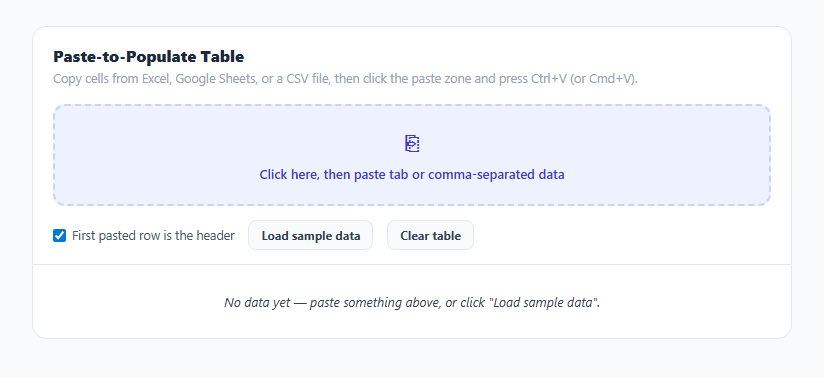
Uploading a CSV file is the wrong amount of friction when a user just wants to hand a table a handful of rows they already have selected in a spreadsheet. This snippet skips the file picker entirely: click a paste zone, press Ctrl+V (or Cmd+V), and whatever was copied from Excel, Google Sheets, or a plain CSV file renders directly as table rows, with an automatic guess at whether the first row is a header.
Listening for the native paste event
The paste zone is a focusable <div tabindex="0"> with a paste event listener — the same native browser event any input or textarea receives when a user pastes, available on any focusable element. e.preventDefault() stops the browser from also inserting the raw pasted text as literal DOM content inside the div, since the goal is to *parse* the clipboard payload, not display it verbatim. The actual data comes from (e.clipboardData || window.clipboardData).getData('text'), reading the plain-text representation of whatever was on the clipboard at paste time.
Why tab-or-comma delimiter detection matters
Copying a cell range out of Excel or Google Sheets puts the data on the clipboard as tab-separated rows, one row per newline — spreadsheet software uses tabs specifically so that commas embedded in real cell content (like "1,200" or "Smith, John") don't get misread as extra columns. A plain .csv file, by contrast, is comma-separated. parseRows() checks each line for a tab character first and only falls back to splitting on commas if none is found, so the same paste zone correctly handles both a spreadsheet range and a raw CSV blob pasted as text, without asking the user which format they are using.
First-row-is-header is a toggle, not a guess
Rather than trying to heuristically detect whether the first pasted row "looks like" a header (a genuinely unreliable guess — a header row and a data row can both be plain words), the snippet exposes a checkbox that is on by default and simply re-renders from the same parsed currentRows array whenever it changes. This keeps the behavior predictable: what the user sees is exactly what the checkbox says, and toggling it re-derives column headers as Column 1, Column 2, etc. when unchecked, without needing to re-paste.
Rendering rows without a template library
render() rebuilds <thead> and <tbody> from scratch on every paste or option change, creating one <th> per header cell and one <tr>/<td> set per body row with plain DOM APIs — deliberately simple because the whole point of the snippet is the parsing and paste-handling logic, not a virtualized or diffed render, which would be overkill for the size of data a clipboard paste realistically carries.
A sample-data button as a substitute for real clipboard access
Because triggering a real paste programmatically is not something a webpage is allowed to do (clipboard access requires an actual user paste gesture, by design, for security), a "Load sample data" button runs the exact same parseRows() and render() pipeline against a hardcoded tab-separated string — letting anyone see the feature work immediately without needing to open a spreadsheet first, while still exercising the identical code path a real paste would use.
Build with AI
Build, Understand, Optimize, and Extend It With AI
Paste this snippet's HTML, CSS, and JS into an AI coding assistant like Claude and ask it to explain exactly why the parser checks for a tab character before falling back to a comma, and why the clipboard cannot be read without a genuine user-initiated paste gesture. It is also a good candidate for extension — ask it to add proper RFC 4180 CSV quoted-field parsing for embedded commas and newlines, validate that every pasted row has a consistent column count and flag mismatches, or add per-column type inference (numbers, dates, currency) so pasted numeric columns render right-aligned automatically.
Prompt to recreate it
Copy this into your AI assistant of choice to build the effect from scratch, or as a jumping-off point for your own variant:
Build a table that populates itself from a clipboard paste event in plain HTML, CSS, and JavaScript — no upload input, no library.

Requirements:
- A focusable paste-target element (not a text input) that listens for the native "paste" event and calls preventDefault() so the raw text is not also inserted as literal content into the element.
- Read the pasted plain text from the paste event's clipboardData, then parse it into rows: split on newlines for rows, and for each line detect whether it contains a tab character (use tab as the delimiter, matching an Excel/Google Sheets clipboard paste) or otherwise fall back to comma-splitting (matching a plain CSV paste) — do this delimiter detection per line, not once globally.
- A checkbox, checked by default, controlling whether the first parsed row is treated as the table's header row (used as column labels) or whether generic "Column 1, Column 2, ..." labels should be generated instead. Toggling it must re-render immediately from the already-parsed data without requiring a new paste.
- Render the parsed rows into a real <table> with <thead> and <tbody>, rebuilding both from scratch on every paste or option change using plain DOM methods.
- Because a real clipboard paste cannot be triggered programmatically by the page itself, include a "Load sample data" button that runs the exact same parsing and rendering functions against a hardcoded tab-separated multi-line string, so the feature is demonstrably testable without needing an external spreadsheet.
- Show a brief status message after each paste reporting how many rows and columns were populated, and provide a "Clear table" button that resets to an explicit empty state.
Want to tighten it up first? Run this prompt through the AI Prompt Studio to score it across 8 quality dimensions, catch anti-patterns, and tune the wording for Claude, ChatGPT, or Gemini before you paste it in.
Step by step
How to Use
- 1Copy a range from a spreadsheetSelect a range of cells in Excel or Google Sheets (or any tab/comma-separated text) and copy it with Ctrl+C or Cmd+C.
- 2Click the paste zone, then pasteClick inside the dashed box to focus it, then press Ctrl+V or Cmd+V — the table below populates immediately.
- 3Toggle the header row optionUncheck "First pasted row is the header" if your clipboard data has no header row — columns are relabeled Column 1, 2, 3 automatically.
- 4Try it without a spreadsheetClick "Load sample data" to see the exact same parsing pipeline run against a built-in tab-separated sample.
- 5Clear and paste againClick "Clear table" to reset, then paste a different range — each paste fully replaces the previous table content.
- 6Wire it to your own data modelRead currentRows after any paste to get a plain 2D array of strings ready to send to your backend or app state.
Real-world uses
Common Use Cases
Got questions?
Frequently Asked Questions
Copying a cell range out of Excel or Google Sheets puts tab-separated values on the clipboard, specifically so commas that appear inside real cell content (like "1,200" or "Smith, John") are not mistaken for column separators. Checking each line for a tab first and only falling back to commas means the same paste zone correctly handles both a spreadsheet range and a plain comma-separated CSV blob.
Browsers deliberately do not allow a webpage to programmatically trigger a real paste event or read the clipboard without an actual user gesture, for security reasons. The sample button runs the identical parseRows() and render() functions against a hardcoded string instead, so you can see the feature work without needing to copy something from a real spreadsheet first.
Rendering iterates using the header row's column count as the source of truth; a shorter data row renders empty cells for any missing trailing columns, and any extra columns beyond the header count are simply not shown. For strict validation you would want to detect and flag column-count mismatches before rendering.
This snippet strips simple surrounding double quotes but does not implement full RFC 4180 CSV quoting (an embedded comma or newline inside a quoted field). For strict CSV files with quoted fields containing delimiters, use a dedicated CSV parsing function or library instead of the simple split-based parser here.
currentRows holds the parsed 2D array of string rows at all times after a paste, sample load, or clear. Read it directly, or extend the paste and sample handlers to also call your own onData(rows) callback right after render() runs.
Yes. Keep the parsed rows in component state instead of a plain variable, run parseRows() inside the paste event handler exactly as here, and let your framework's templating re-render the table from that state — the parsing logic itself needs no changes.