Source Code
<section class="mtg-wrap">
  <span class="mtg-tag">event.touches · live debug view</span>
  <h1>Touch point visualizer</h1>
  <p id="mtgStatus">On a touchscreen, place multiple fingers on the pad below \u2014 each gets a live numbered marker. On desktop, drag the mouse to simulate a single point.</p>

  <div class="mtg-pad" id="mtgPad">
    <p class="mtg-pad-hint" id="mtgPadHint">Touch or click-drag here</p>
  </div>

  <div class="mtg-legend">
    <span class="mtg-count" id="mtgCount">0 active points</span>
    <span class="mtg-mode" id="mtgMode">Waiting for input\u2026</span>
  </div>
</section>*{box-sizing:border-box;margin:0;padding:0}
body{font-family:system-ui,-apple-system,sans-serif;background:radial-gradient(120% 90% at 50% 0%,#1a1030,#050308 60%);color:#fff;min-height:100vh;display:flex;align-items:center;justify-content:center;padding:26px}
.mtg-wrap{width:100%;max-width:600px;text-align:center}
.mtg-tag{display:inline-block;font-size:10.5px;font-weight:700;letter-spacing:.14em;text-transform:uppercase;color:#f0abfc;background:rgba(240,171,252,.1);border:1px solid rgba(240,171,252,.3);padding:5px 12px;border-radius:99px;margin-bottom:14px}
.mtg-wrap h1{font-size:clamp(24px,5.5vw,32px);font-weight:800;letter-spacing:-.02em}
.mtg-wrap p{font-size:13.5px;color:#b7a9d1;margin-top:8px;line-height:1.6}
.mtg-pad{position:relative;margin:22px 0 14px;height:280px;border-radius:16px;overflow:hidden;border:1.5px dashed rgba(240,171,252,.28);background:#0a0712;touch-action:none;-webkit-user-select:none;user-select:none;cursor:crosshair}
.mtg-pad-hint{position:absolute;inset:0;display:flex;align-items:center;justify-content:center;color:#4d4361;font-size:13px;font-weight:600;pointer-events:none}
.mtg-point{position:absolute;width:56px;height:56px;margin:-28px 0 0 -28px;border-radius:50%;display:flex;align-items:center;justify-content:center;font:800 16px system-ui;color:#1a0620;pointer-events:none;box-shadow:0 0 0 3px rgba(255,255,255,.15),0 10px 26px -8px rgba(0,0,0,.6)}
.mtg-point .mtg-id{position:absolute;bottom:-20px;left:50%;transform:translateX(-50%);font-size:10px;color:#c9b8e0;font-weight:700;white-space:nowrap}
.mtg-legend{display:flex;justify-content:space-between;gap:10px;flex-wrap:wrap;font-size:12px;color:#8a7ea6}
.mtg-count{font-weight:700;color:#f0abfc}var pad = document.getElementById('mtgPad');
var padHint = document.getElementById('mtgPadHint');
var statusEl = document.getElementById('mtgStatus');
var countEl = document.getElementById('mtgCount');
var modeEl = document.getElementById('mtgMode');
var COLORS = ['#f0abfc', '#38bdf8', '#4ade80', '#fbbf24', '#fb7185', '#a78bfa', '#f472b6', '#22d3ee'];
var markers = {}; // id -> DOM element, keyed by touch identifier (or 'mouse')
function markerFor(id) {
if (markers[id]) return markers[id];
var el = document.createElement('div');
el.className = 'mtg-point';
var colorIndex = Object.keys(markers).length % COLORS.length;
el.style.background = COLORS[colorIndex];
el.innerHTML = '\u2022<span class="mtg-id">#' + id + '</span>';
pad.appendChild(el);
markers[id] = el;
padHint.style.display = 'none';
return el;
}
function positionMarker(id, x, y) {
var rect = pad.getBoundingClientRect();
var el = markerFor(id);
el.style.left = (x - rect.left) + 'px';
el.style.top = (y - rect.top) + 'px';
}
function removeMarker(id) {
var el = markers[id];
if (el) { el.remove(); delete markers[id]; }
if (Object.keys(markers).length === 0) padHint.style.display = 'flex';
}
function updateLegend() {
var n = Object.keys(markers).length;
countEl.textContent = n + ' active point' + (n === 1 ? '' : 's');
}
// --- Real multi-touch tracking ---
// event.touches is the live list of every finger currently on the surface;
// each Touch object carries a stable .identifier across touchmove events for
// that same finger, which is what lets each marker track one specific finger
// rather than jumping between whichever touch happened to be reported first.
function onTouchStart(e) {
modeEl.textContent = 'Real touch input (' + e.touches.length + ' finger' + (e.touches.length === 1 ? '' : 's') + ')';
for (var i = 0; i < e.changedTouches.length; i++) {
var t = e.changedTouches[i];
positionMarker(t.identifier, t.clientX, t.clientY);
}
updateLegend();
}
function onTouchMove(e) {
e.preventDefault();
for (var i = 0; i < e.touches.length; i++) {
var t = e.touches[i];
positionMarker(t.identifier, t.clientX, t.clientY);
}
modeEl.textContent = 'Real touch input (' + e.touches.length + ' finger' + (e.touches.length === 1 ? '' : 's') + ')';
}
function onTouchEnd(e) {
for (var i = 0; i < e.changedTouches.length; i++) {
removeMarker(e.changedTouches[i].identifier);
}
updateLegend();
if (e.touches.length === 0) modeEl.textContent = 'Waiting for input\u2026';
}
pad.addEventListener('touchstart', onTouchStart, { passive: true });
pad.addEventListener('touchmove', onTouchMove, { passive: false });
pad.addEventListener('touchend', onTouchEnd);
pad.addEventListener('touchcancel', onTouchEnd);
// --- Desktop fallback: a single mouse-driven point, since a normal desktop
// has no real multi-touch hardware to visualize. Uses the same marker/legend
// functions as the touch path so the rendering logic is identical either way.
var mouseDown = false;
pad.addEventListener('mousedown', function (e) {
mouseDown = true;
modeEl.textContent = 'Mouse simulation (single point \u2014 desktop has no multi-touch)';
positionMarker('mouse', e.clientX, e.clientY);
updateLegend();
});
window.addEventListener('mousemove', function (e) {
if (!mouseDown) return;
positionMarker('mouse', e.clientX, e.clientY);
});
window.addEventListener('mouseup', function () {
if (!mouseDown) return;
mouseDown = false;
removeMarker('mouse');
updateLegend();
modeEl.textContent = 'Waiting for input\u2026';
});Learn Coding Visually
Learn to code with interactive, live-preview playgrounds — HTML, CSS, JavaScript, React & more.
 HTML Playground42 lessons · Click-based · Live preview
 CSS PlaygroundLearn CSS with a live editor
 JavaScript Playground60 lessons · DOM · Async · Canvas
 React PlaygroundLearn React with a live code editor
 GSAP PlaygroundLearn GSAP animation interactively
 SVG Playground44 lessons · shapes · paths · animation
 SCSS Playground45 lessons · Sass modules · tokens
 Tailwind PlaygroundLearn Tailwind CSS with a live editor
 Bootstrap 5 Playground50 lessons · live preview
Multi-Touch Gesture Visualizer — Free event.touches Debug Snippet
Multi-Touch Gesture Visualizer · Mobile · Plain HTML, CSS & JS · Live preview
What's included
Features
About this UI Snippet
Multi-Touch Gesture Visualizer — Every Real Touch Point, Live
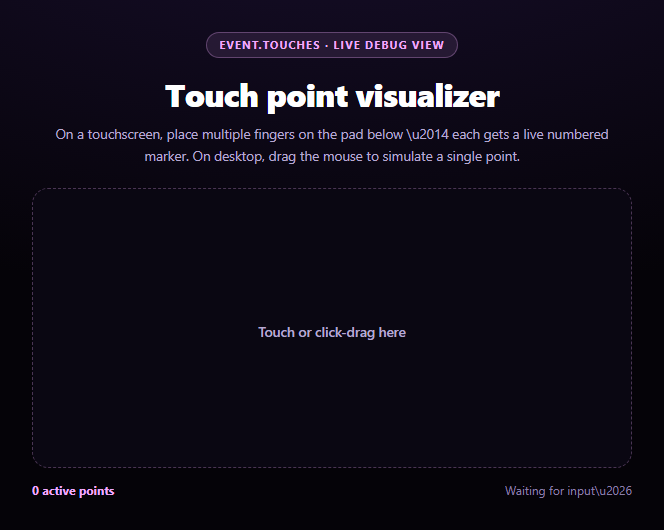
This is a debugging and teaching tool: place multiple fingers on the pad and each one gets its own numbered marker that tracks that exact finger in real time, using the browser's real event.touches list rather than a simulated animation. It is the same class of raw touch data that drives the pinch math in pinch & scroll zoom image viewer, made visible on its own.
event.touches vs. event.changedTouches
Touch events expose two different lists that are easy to conflate. event.touches is *every* finger currently on the surface, used here in touchmove to reposition every active marker each frame. event.changedTouches is only the fingers that changed *in this specific event* — new ones in touchstart, lifted ones in touchend — which is exactly what's needed to create a marker for a finger that just landed or remove one that just lifted, without touching the markers for fingers that didn't change.
Stable identifiers keep markers attached to the right finger
Each Touch object carries an identifier that stays constant for that specific finger across every event until it lifts. Markers are keyed by that identifier in a markers object, so when you move three fingers at once, each marker tracks the one finger it was created for — swapping which finger moves fastest never causes two markers to jump or swap positions, because the mapping is by identifier, not by array order (which touch order is not guaranteed to preserve).
Why desktop needs a fallback path
A typical desktop has no touchscreen, so there is nothing real to visualize with event.touches — showing a blank pad would make the demo look broken rather than platform-limited. A parallel mousedown/mousemove/mouseup path drives the exact same positionMarker/removeMarker functions with a single synthetic identifier ('mouse'), so desktop visitors still see the marker mechanics working, clearly labeled as a single-point simulation rather than real multi-touch.
One rendering path, two input sources
Both the touch handlers and the mouse handlers funnel through the same markerFor/positionMarker/removeMarker/updateLegend functions — the only difference between the real and simulated paths is which identifier is used and how many points can exist at once. This keeps the marker rendering logic honest: whatever you see on a touchscreen is driven by the identical code path, just fed by real hardware instead of a mouse.
Customizing it
Add per-finger trail history to visualize gesture paths, color-code markers by gesture type, or feed the same touches list into a custom pinch/rotate detector modeled on pinch & scroll zoom image viewer. Pair it with swipe cards as a debugging aid while building your own gesture.
Build with AI
Build, Understand, Optimize, and Extend It With AI
You don't have to puzzle out the touches versus changedTouches distinction on your own. Paste this snippet's HTML, CSS, and JS into an AI coding assistant like Claude and ask it to explain exactly why touchmove reads from event.touches (every currently active finger) while touchstart and touchend read from event.changedTouches (only the fingers that changed in that specific event), and how each Touch object's stable identifier is what lets a marker stay attached to one specific finger across many events instead of jumping between whichever touch happens to be reported first. The same assistant can help you optimize it — for instance asking whether repositioning every marker's left/top via direct style writes on every touchmove could be batched inside a single requestAnimationFrame for smoother rendering with many simultaneous fingers. It's also useful for extending the visualizer: ask it to draw a fading trail behind each marker showing its recent path, compute and display the live distance and angle between exactly two touch points (the same math a pinch-to-zoom or rotate gesture would use), or add a pressure/force readout for devices that report Touch.force. Treat the code less like a finished artifact and more like a starting point for a conversation.
Prompt to recreate it
Copy this into your AI assistant of choice to build the effect from scratch, or as a jumping-off point for your own variant:
Build a "multi-touch gesture visualizer" in plain HTML, CSS, and JavaScript using the real Touch Events API — no gesture library, no simulated/fake touch data.

Requirements:
- A bounded pad element that listens for touchstart, touchmove, touchend, and touchcancel, with touch-action: none so gestures on it don't scroll or zoom the page.
- On touchstart and touchend, iterate event.changedTouches (only the touches that changed in that specific event) to create a new marker for each newly-placed finger or remove the marker for each newly-lifted finger. On touchmove, iterate the full event.touches list (every currently active finger) to reposition every active marker in real time.
- Track each marker using the corresponding Touch object's stable identifier property as a key (e.g. in a plain object or Map), not by array index or order, so that with multiple fingers down simultaneously each marker continues to track the exact same physical finger throughout the gesture even as other fingers join or leave.
- Position each marker using getBoundingClientRect() on the pad combined with the touch's clientX/clientY, rendering a distinctly colored, numbered circle exactly at that live coordinate.
- Since a typical desktop computer has no real multi-touch hardware, add a mousedown/mousemove/mouseup fallback path that drives the identical marker-creation/position/removal functions using a single fixed identifier, so desktop visitors see a working single-point simulation rather than a blank, apparently broken pad — and label in the UI whether the current input is real touch or the mouse simulation.
- Display a live count of currently active points and ensure that lifting all fingers (or releasing the mouse) fully clears all markers and resets the display back to its empty state.
Want to tighten it up first? Run this prompt through the AI Prompt Studio to score it across 8 quality dimensions, catch anti-patterns, and tune the wording for Claude, ChatGPT, or Gemini before you paste it in.
Step by step
How to Use
- 1Paste HTML, CSS, and JSAn empty touch pad renders with a hint in the center.
- 2On a touchscreen, place a fingerA numbered, colored marker appears at that exact point.
- 3Add more fingersEach gets its own marker that tracks it independently.
- 4Move your fingersMarkers follow live via touchmove and event.touches.
- 5Lift a fingerIts marker disappears; the others keep tracking correctly.
- 6On desktop, click-dragA single simulated marker follows the mouse instead.
Real-world uses
Common Use Cases
Got questions?
Frequently Asked Questions
event.touches is the complete list of every finger currently touching the surface at the moment of the event, used here to reposition all active markers on every touchmove. event.changedTouches is only the subset of fingers that changed specifically in this event — newly placed fingers in touchstart, or newly lifted ones in touchend — which is exactly the right list for creating or removing individual markers without disturbing the ones that did not change.
Every Touch object has an identifier property that remains constant for that specific finger from the moment it touches down until it lifts, even while other fingers join or leave. Markers are stored in an object keyed by that identifier, so repositioning or removing a marker always targets the exact finger it was created for, regardless of the order fingers appear in the touches array on any given event.
A typical desktop computer has no touchscreen, so event.touches would simply never fire there, leaving the demo pad blank and looking broken rather than platform-limited. A parallel mousedown/mousemove/mouseup path drives the identical marker-rendering functions with a single synthetic identifier, clearly labeled in the UI as a one-point mouse simulation rather than real multi-touch.
No — both paths call the same markerFor, positionMarker, removeMarker, and updateLegend functions. The only difference is which identifier is used (a real touch's stable identifier versus the fixed string 'mouse') and how many simultaneous points can exist (many on real touch, exactly one via mouse), so the visualization logic itself is identical and trustworthy either way.
Keep the markers map in a ref rather than state, since it is mutated on every touchmove and doesn't need to trigger a re-render itself — instead, imperatively create/update/remove DOM nodes for markers the way the vanilla version does, or maintain a small array in state updated only on touchstart/touchend (not touchmove) if you want React to own the marker elements. Attach listeners to the pad's ref in a mount effect with cleanup.