Source Code
<div class="sss-phone">
<div class="sss-screen">
<div class="sss-status"><span>9:41</span><span class="sss-batt"><i></i></span></div>
<header class="sss-head">
<b>Settings</b>
</header>
<div class="sss-search-wrap">
<div class="sss-search">
<svg width="15" height="15" viewBox="0 0 24 24" fill="none" stroke="currentColor" stroke-width="2.3"><circle cx="11" cy="11" r="7"/><line x1="21" y1="21" x2="16.65" y2="16.65"/></svg>
<input type="text" id="sssInput" placeholder="Search settings">
<button id="sssClear" hidden aria-label="Clear search">×</button>
</div>
</div>
<div class="sss-list" id="sssList"></div>
<p class="sss-empty" id="sssEmpty" hidden>No settings found for "<span id="sssEmptyQuery"></span>"</p>
</div>
</div>*{box-sizing:border-box;margin:0;padding:0}
html{scrollbar-width:none;-ms-overflow-style:none}
html::-webkit-scrollbar{display:none}
body{font-family:system-ui,-apple-system,sans-serif;background:#1e293b;display:flex;justify-content:center;align-items:center;min-height:100vh;padding:24px;scrollbar-width:none;-ms-overflow-style:none}
body::-webkit-scrollbar{display:none}
.sss-phone{width:288px;height:600px;background:#0b1220;border-radius:46px;padding:12px;box-shadow:0 30px 60px -20px rgba(0,0,0,.6),inset 0 0 0 2px #1e293b}
.sss-screen{width:100%;height:100%;border-radius:34px;overflow:hidden;background:#f8fafc;color:#0f172a;display:flex;flex-direction:column}
.sss-status{display:flex;justify-content:space-between;align-items:center;padding:13px 24px 0;font-size:13px;font-weight:700}
.sss-batt{width:22px;height:11px;border:1.4px solid currentColor;border-radius:3px;position:relative;display:inline-block}
.sss-batt::after{content:'';position:absolute;right:-3px;top:3px;width:2px;height:5px;background:currentColor;border-radius:0 1px 1px 0}
.sss-batt i{position:absolute;left:1.4px;top:1.4px;bottom:1.4px;width:82%;background:currentColor;border-radius:1px}
.sss-head{padding:12px 20px 8px}
.sss-head b{font-size:22px;font-weight:800}
.sss-search-wrap{padding:6px 16px 10px}
.sss-search{display:flex;align-items:center;gap:8px;background:#fff;border:1.5px solid #e2e8f0;border-radius:12px;padding:10px 12px;color:#94a3b8}
.sss-search input{flex:1;border:none;outline:none;font-size:13.5px;font-family:inherit;color:#0f172a;background:none}
.sss-search input::placeholder{color:#94a3b8}
.sss-search button{background:#e2e8f0;color:#475569;border:none;width:18px;height:18px;border-radius:50%;font-size:12px;cursor:pointer;line-height:1;flex-shrink:0}
.sss-list{flex:1;overflow-y:auto;padding:4px 16px 20px;scrollbar-width:none;-ms-overflow-style:none}
.sss-list::-webkit-scrollbar{display:none}
.sss-group-label{font-size:11px;font-weight:800;color:#94a3b8;text-transform:uppercase;letter-spacing:.5px;padding:14px 4px 6px}
.sss-group{background:#fff;border-radius:14px;overflow:hidden;border:1px solid #eef2f7}
.sss-row{display:flex;align-items:center;gap:12px;padding:12px 14px;border-bottom:1px solid #f1f5f9;cursor:pointer}
.sss-row:last-child{border-bottom:none}
.sss-row-icon{width:30px;height:30px;border-radius:9px;display:flex;align-items:center;justify-content:center;font-size:15px;flex-shrink:0}
.sss-row-text{flex:1;min-width:0}
.sss-row-title{font-size:13.5px;font-weight:600}
.sss-row-title mark{background:#fef08a;color:inherit;border-radius:2px}
.sss-row-sub{font-size:11px;color:#94a3b8;margin-top:1px}
.sss-row-chevron{color:#cbd5e1;font-size:16px;flex-shrink:0}
.sss-toggle{width:40px;height:24px;border-radius:12px;background:#e2e8f0;position:relative;flex-shrink:0;cursor:pointer;transition:background .15s;border:none}
.sss-toggle::after{content:'';position:absolute;top:2px;left:2px;width:20px;height:20px;border-radius:50%;background:#fff;box-shadow:0 1px 3px rgba(0,0,0,.25);transition:left .15s}
.sss-toggle.on{background:#4f46e5}
.sss-toggle.on::after{left:18px}
.sss-empty{text-align:center;color:#94a3b8;font-size:12.5px;padding:60px 30px}
.sss-empty span{font-weight:700;color:#475569}var settings = [
{ group: 'Account', icon: '\uD83D\uDC64', color: '#eef2ff', title: 'Profile information', sub: 'Name, email, photo', type: 'nav' },
{ group: 'Account', icon: '\uD83D\uDD10', color: '#fef2f2', title: 'Password and security', sub: 'Change password, 2FA', type: 'nav' },
{ group: 'Account', icon: '\uD83D\uDCB3', color: '#f0fdf4', title: 'Billing and plan', sub: 'Manage subscription', type: 'nav' },
{ group: 'Notifications', icon: '\uD83D\uDD14', color: '#fffbeb', title: 'Push notifications', sub: 'Alerts on this device', type: 'toggle', on: true },
{ group: 'Notifications', icon: '\uD83D\uDCE7', color: '#eff6ff', title: 'Email notifications', sub: 'Weekly digest and updates', type: 'toggle', on: true },
{ group: 'Notifications', icon: '\uD83D\uDCF1', color: '#f5f3ff', title: 'SMS alerts', sub: 'Critical alerts only', type: 'toggle', on: false },
{ group: 'Privacy', icon: '\uD83D\uDC41', color: '#f0f9ff', title: 'Profile visibility', sub: 'Who can see your profile', type: 'nav' },
{ group: 'Privacy', icon: '\uD83D\uDCCD', color: '#fdf4ff', title: 'Location sharing', sub: 'Share live location', type: 'toggle', on: false },
{ group: 'Appearance', icon: '\uD83C\uDF19', color: '#f1f5f9', title: 'Dark mode', sub: 'Match system or force dark', type: 'toggle', on: false },
{ group: 'Appearance', icon: '\uD83D\uDD24', color: '#fefce8', title: 'Text size', sub: 'Adjust reading size', type: 'nav' },
{ group: 'Support', icon: '\uD83D\uDCAC', color: '#ecfeff', title: 'Contact support', sub: 'Get help from our team', type: 'nav' },
{ group: 'Support', icon: '\u2139\uFE0F', color: '#f8fafc', title: 'About and version', sub: 'App version 4.2.1', type: 'nav' }
];
var input = document.getElementById('sssInput');
var clearBtn = document.getElementById('sssClear');
var list = document.getElementById('sssList');
var empty = document.getElementById('sssEmpty');
var emptyQuery = document.getElementById('sssEmptyQuery');
function highlight(text, query) {
if (!query) return text;
var idx = text.toLowerCase().indexOf(query.toLowerCase());
if (idx === -1) return text;
return text.slice(0, idx) + '<mark>' + text.slice(idx, idx + query.length) + '</mark>' + text.slice(idx + query.length);
}
function toggleSetting(item) {
item.on = !item.on;
}
function render(query) {
var q = (query || '').trim().toLowerCase();
var filtered = settings.filter(function (item) {
return !q || item.title.toLowerCase().indexOf(q) !== -1 || item.sub.toLowerCase().indexOf(q) !== -1;
});
if (filtered.length === 0) {
list.innerHTML = '';
empty.hidden = false;
emptyQuery.textContent = query;
return;
}
empty.hidden = true;
var groups = [];
filtered.forEach(function (item) {
var g = groups.filter(function (grp) { return grp.name === item.group; })[0];
if (!g) { g = { name: item.group, items: [] }; groups.push(g); }
g.items.push(item);
});
list.innerHTML = groups.map(function (g) {
var rows = g.items.map(function (item) {
var control = item.type === 'toggle'
? '<button class="sss-toggle' + (item.on ? ' on' : '') + '" data-title="' + item.title + '" aria-label="Toggle ' + item.title + '"></button>'
: '<span class="sss-row-chevron">›</span>';
return '<div class="sss-row" data-toggle="' + (item.type === 'toggle' ? item.title : '') + '">' +
'<span class="sss-row-icon" style="background:' + item.color + '">' + item.icon + '</span>' +
'<span class="sss-row-text">' +
'<span class="sss-row-title">' + highlight(item.title, q) + '</span>' +
'<span class="sss-row-sub">' + highlight(item.sub, q) + '</span>' +
'</span>' +
control +
'</div>';
}).join('');
return '<p class="sss-group-label">' + g.name + '</p><div class="sss-group">' + rows + '</div>';
}).join('');
}
input.addEventListener('input', function () {
clearBtn.hidden = input.value.length === 0;
render(input.value);
});
clearBtn.addEventListener('click', function () {
input.value = '';
clearBtn.hidden = true;
render('');
input.focus();
});
list.addEventListener('click', function (e) {
var toggleBtn = e.target.closest('.sss-toggle');
if (!toggleBtn) return;
var title = toggleBtn.dataset.title;
var item = settings.filter(function (s) { return s.title === title; })[0];
if (item) {
toggleSetting(item);
render(input.value);
}
});
render('');Learn Coding Visually
Learn to code with interactive, live-preview playgrounds — HTML, CSS, JavaScript, React & more.
 HTML Playground42 lessons · Click-based · Live preview
 CSS PlaygroundLearn CSS with a live editor
 JavaScript Playground60 lessons · DOM · Async · Canvas
 React PlaygroundLearn React with a live code editor
 GSAP PlaygroundLearn GSAP animation interactively
 SVG Playground44 lessons · shapes · paths · animation
 SCSS Playground45 lessons · Sass modules · tokens
 Tailwind PlaygroundLearn Tailwind CSS with a live editor
 Bootstrap 5 Playground50 lessons · live preview
What's included
Features
About this UI Snippet
Mobile Settings Search Screen — Instant Filter, Highlighting & Working Toggles
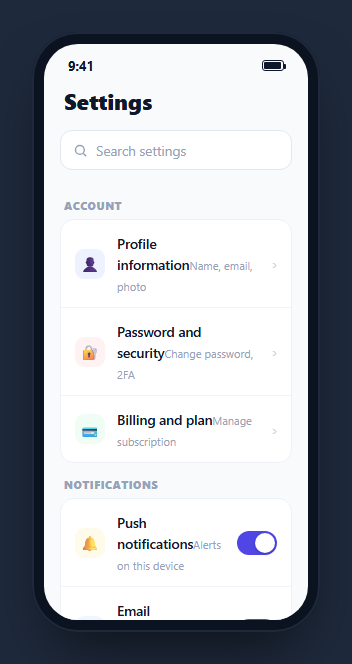
Once a settings screen grows past a couple dozen rows, scrolling through grouped sections to find one specific option becomes slower than just knowing its name and typing it. This snippet adds a real search field above a grouped settings list — filtering happens on every keystroke, matched substrings are visually highlighted, and every toggle switch in the filtered results still actually works, not just the ones visible before searching.
One settings array drives search, grouping, and toggling
Every setting is one object in a flat settings array with a group, icon, title, sub, and a type of either 'nav' or 'toggle' (with an on boolean for toggles). render(query) filters this single array, then re-groups the filtered results by group on the fly — there is no separate pre-grouped data structure to keep in sync with the flat searchable list.
Filtering matches both the title and the subtitle
The filter predicate checks item.title and item.sub against the lowercased query, so searching "2FA" finds "Password and security" (whose sub-line mentions 2FA) even though the word doesn't appear in the row's title. This mirrors how a real settings search should behave — users often remember what a setting does before they remember what it's officially called.
Matches are highlighted, not just present
highlight(text, query) finds the first case-insensitive match of the query inside a string and wraps it in a <mark> tag. This gives the same at-a-glance scanning benefit as a real search UI (like a browser's find-in-page) instead of a plain filtered list, where a user might otherwise need to re-read every row to see why it matched.
Groups appear and disappear based on what's left
Since render() rebuilds the group structure from the filtered array on every keystroke, a group with zero matching rows simply doesn't get a <p class="sss-group-label"> rendered at all — group headers are a byproduct of filtering, not separately hidden or shown.
Toggles keep working after filtering
Clicking a toggle button looks the underlying setting object up from settings by its title via toggleSetting(), flips its on boolean, and re-runs render(input.value) with the current search term still applied — so switching a toggle while a search is active does not clear the search or lose the user's place in the filtered list.
An explicit no-results state
When the filtered array is empty, the list is cleared and a "No settings found for…" message appears with the actual typed query echoed back, rather than leaving a blank scroll area that could be mistaken for a loading or broken state.
Wiring it to real settings persistence
Replace the in-memory on boolean flips inside toggleSetting() with an API call (or a local settings store write) that actually persists the preference, and load the initial settings array's toggle states from the user's saved preferences rather than the hardcoded demo defaults.
Build with AI
Build, Understand, Optimize, and Extend It With AI
Rather than tracing the filter-and-regroup logic by hand, paste this snippet's HTML, CSS, and JS into an AI coding assistant like Claude and ask it to explain exactly how render() derives both the highlighted matched text and the regrouped section structure from one flat settings array and the current search query on every keystroke. The same assistant can help you optimize it, for instance asking whether the search should debounce its filtering for a very large settings list instead of re-rendering the whole grouped structure on every keystroke. It is also useful for extending the screen: ask it to persist toggle changes to a real backend or local settings store, add recent or suggested searches above the results, or support multi-word queries that must all match rather than a single substring. Treat the code less like a finished artifact and more like a starting point for a conversation.
Prompt to recreate it
Copy this into your AI assistant of choice to build the effect from scratch, or as a jumping-off point for your own variant:
Build a mobile "settings screen with live search" in plain HTML, CSS, and JavaScript, framed inside a CSS phone mockup, no library.

Requirements:
- A single JavaScript array of setting objects, each with a group name, an icon, a title, a subtitle, and a type of either a navigation row (chevron) or a toggle row (on/off switch with its own boolean state) — this one array is the only source of truth for the list, its grouping, and each toggle's state.
- A search input above the list that filters the array on every keystroke against both each item's title and its subtitle text (case-insensitive substring match), and re-groups only the matching items under their original group headers, with groups that have zero matches simply not appearing.
- The portion of each visible row's title and subtitle that matches the current search query must be visually highlighted (wrapped in a mark element), not just present in the filtered list.
- Toggle switches within the filtered results must remain fully functional: clicking one flips its underlying boolean state in the shared array and re-renders the list with the current search term still applied, without clearing the search or losing the filtered view.
- A clear (X) button inside the search field must appear only when there is text entered, and clicking it must reset the search, show the full unfiltered list again, and refocus the input.
- When no settings match the current query, show an explicit empty-state message that includes the actual typed search term, rather than leaving a blank list.
Want to tighten it up first? Run this prompt through the AI Prompt Studio to score it across 8 quality dimensions, catch anti-patterns, and tune the wording for Claude, ChatGPT, or Gemini before you paste it in.
Step by step
How to Use
- 1Paste HTML, CSS, and JSA grouped settings list renders with an empty search field above it.
- 2Type in the search fieldThe list filters instantly on every keystroke, matching against both each row's title and its subtitle.
- 3Watch the matched text highlightThe matching substring inside each visible row is wrapped in a yellow highlight.
- 4Tap a toggle switchIt flips on/off immediately, even while a search filter is currently applied.
- 5Clear the searchTap the X button inside the search field to reset the list and refocus the input.
- 6Wire it to real persistenceReplace the in-memory toggle state with an API call or local settings store write inside toggleSetting().
Real-world uses
Common Use Cases
Got questions?
Frequently Asked Questions
Both a row's title and its subtitle text, compared case-insensitively. This means a query can match a row even if the search term only appears in the descriptive subtitle rather than the row's displayed title.
The highlight() function finds the first case-insensitive occurrence of the search query within a string and wraps just that substring in a <mark> tag, leaving the rest of the text unwrapped so only the actual match is visually highlighted.
render() rebuilds the grouped structure from the filtered array on every keystroke. A group with zero rows remaining after filtering simply never gets a group label rendered, since group headers are derived from whatever items are currently visible rather than toggled separately.
Yes — clicking a toggle looks up the underlying setting object by its title, flips its on/off boolean, and re-runs render() with the current search text still applied, so the search filter and scroll context are preserved after toggling.
The list is cleared and an explicit "No settings found" message appears with the actual typed query echoed back, so an empty result reads as a deliberate no-matches state rather than a blank or broken screen.
Yes. Keep settings as state, derive a filtered and grouped structure from it and the search query in a computed/useMemo value, and render the highlight by splitting the matched substring into separate text and <mark> nodes.