Source Code
<div class="frc-page">
<main class="frc-content"><p>↑ Page content above the footer</p></main>
<footer class="frc">
<div class="frc-inner">
<div class="frc-notice" id="frcNotice">
<div class="frc-notice-text">
<b>Prices shown in <span id="frcCurrentCurrency">USD</span></b>
<p id="frcRegionText">Detecting your region…</p>
</div>
<button class="frc-change" id="frcChangeBtn">Change region</button>
</div>
<div class="frc-picker" id="frcPicker" hidden>
<p class="frc-picker-label">Select your region</p>
<div class="frc-options" id="frcOptions"></div>
</div>
<div class="frc-bottom">
<div class="frc-col">
<p class="frc-brand">Northline</p>
<p class="frc-copy">© 2026 Northline Inc.</p>
</div>
<ul class="frc-links">
<li><a href="#">Pricing</a></li>
<li><a href="#">Docs</a></li>
<li><a href="#">Privacy</a></li>
</ul>
</div>
</div>
</footer>
</div>*{box-sizing:border-box;margin:0;padding:0}
body{font-family:system-ui,-apple-system,sans-serif;background:#fafaf9}
.frc-page{min-height:100vh;display:flex;flex-direction:column}
.frc-content{flex:1;display:flex;align-items:center;justify-content:center;color:#a8a29e;font-size:13px;padding:50px 20px}
.frc{background:#fff;border-top:1px solid #e2e8f0}
.frc-inner{max-width:820px;margin:0 auto;padding:30px 24px 26px}
.frc-notice{display:flex;align-items:center;justify-content:space-between;gap:14px;flex-wrap:wrap;background:#eef2ff;border:1px solid #c7d2fe;border-radius:14px;padding:14px 18px}
.frc-notice-text b{font-size:13.5px;color:#312e81}
.frc-notice-text p{font-size:12px;color:#4338ca;margin-top:2px}
.frc-change{flex-shrink:0;background:#4f46e5;color:#fff;border:none;border-radius:10px;padding:9px 16px;font-size:12.5px;font-weight:700;cursor:pointer;font-family:inherit;transition:background .15s}
.frc-change:hover{background:#4338ca}
.frc-picker{margin-top:10px;background:#f8fafc;border:1px solid #e2e8f0;border-radius:14px;padding:14px 16px;animation:frcDrop .18s ease}
@keyframes frcDrop{from{opacity:0;transform:translateY(-6px)}to{opacity:1;transform:none}}
.frc-picker-label{font-size:11.5px;font-weight:700;color:#64748b;text-transform:uppercase;letter-spacing:.4px;margin-bottom:10px}
.frc-options{display:grid;grid-template-columns:repeat(2,1fr);gap:8px}
.frc-option{display:flex;align-items:center;gap:9px;background:#fff;border:1.5px solid #e2e8f0;border-radius:10px;padding:9px 12px;cursor:pointer;font-family:inherit;text-align:left;font-size:12.5px;color:#1e293b;transition:border-color .15s}
.frc-option:hover{border-color:#a5b4fc}
.frc-option.selected{border-color:#4f46e5;background:#eef2ff}
.frc-option-flag{font-size:16px}
.frc-option-name{font-weight:600}
.frc-option-currency{margin-left:auto;font-size:11px;color:#94a3b8;font-weight:700}
.frc-bottom{display:flex;align-items:center;justify-content:space-between;flex-wrap:wrap;gap:12px;padding-top:20px;margin-top:20px;border-top:1px solid #f1f5f9}
.frc-brand{color:#0f172a;font-weight:800;font-size:14px;margin-bottom:4px}
.frc-copy{font-size:11.5px;color:#94a3b8}
.frc-links{list-style:none;display:flex;gap:16px;flex-wrap:wrap}
.frc-links a{color:#64748b;text-decoration:none;font-size:12.5px}
.frc-links a:hover{color:#0f172a}
@media (max-width:480px){ .frc-options{grid-template-columns:1fr} .frc-notice{flex-direction:column;align-items:stretch} .frc-change{width:100%} }var regions = [
{ code: 'US', name: 'United States', currency: 'USD', flag: '\uD83C\uDDFA\uD83C\uDDF8' },
{ code: 'EU', name: 'European Union', currency: 'EUR', flag: '\uD83C\uDDEA\uD83C\uDDFA' },
{ code: 'GB', name: 'United Kingdom', currency: 'GBP', flag: '\uD83C\uDDEC\uD83C\uDDE7' },
{ code: 'IN', name: 'India', currency: 'INR', flag: '\uD83C\uDDEE\uD83C\uDDF3' },
{ code: 'JP', name: 'Japan', currency: 'JPY', flag: '\uD83C\uDDEF\uD83C\uDDF5' },
{ code: 'AU', name: 'Australia', currency: 'AUD', flag: '\uD83C\uDDE6\uD83C\uDDFA' }
];
var currentCode = 'US';
var currencyEl = document.getElementById('frcCurrentCurrency');
var regionTextEl = document.getElementById('frcRegionText');
var changeBtn = document.getElementById('frcChangeBtn');
var picker = document.getElementById('frcPicker');
var optionsEl = document.getElementById('frcOptions');
function findRegion(code) {
return regions.filter(function (r) { return r.code === code; })[0];
}
function applyRegion(code) {
currentCode = code;
var region = findRegion(code);
currencyEl.textContent = region.currency;
regionTextEl.textContent = 'Showing pricing for ' + region.name + '. Availability and tax may vary by region.';
renderOptions();
}
function renderOptions() {
optionsEl.innerHTML = regions.map(function (r) {
var selected = r.code === currentCode ? ' selected' : '';
return '<button class="frc-option' + selected + '" data-code="' + r.code + '">' +
'<span class="frc-option-flag">' + r.flag + '</span>' +
'<span class="frc-option-name">' + r.name + '</span>' +
'<span class="frc-option-currency">' + r.currency + '</span>' +
'</button>';
}).join('');
}
changeBtn.addEventListener('click', function () {
picker.hidden = !picker.hidden;
});
optionsEl.addEventListener('click', function (e) {
var btn = e.target.closest('.frc-option');
if (!btn) return;
applyRegion(btn.dataset.code);
picker.hidden = true;
});
setTimeout(function () { applyRegion('US'); }, 500);Learn Coding Visually
Learn to code with interactive, live-preview playgrounds — HTML, CSS, JavaScript, React & more.
 HTML Playground42 lessons · Click-based · Live preview
 CSS PlaygroundLearn CSS with a live editor
 JavaScript Playground60 lessons · DOM · Async · Canvas
 React PlaygroundLearn React with a live code editor
 GSAP PlaygroundLearn GSAP animation interactively
 SVG Playground44 lessons · shapes · paths · animation
 SCSS Playground45 lessons · Sass modules · tokens
 Tailwind PlaygroundLearn Tailwind CSS with a live editor
 Bootstrap 5 Playground50 lessons · live preview
Region & Currency Availability Footer — Free Snippet
Region & Currency Availability Footer · Footers · Plain HTML, CSS & JS · Live preview
What's included
Features
About this UI Snippet
Region & Currency Footer Notice — Detected Region with a Working Picker
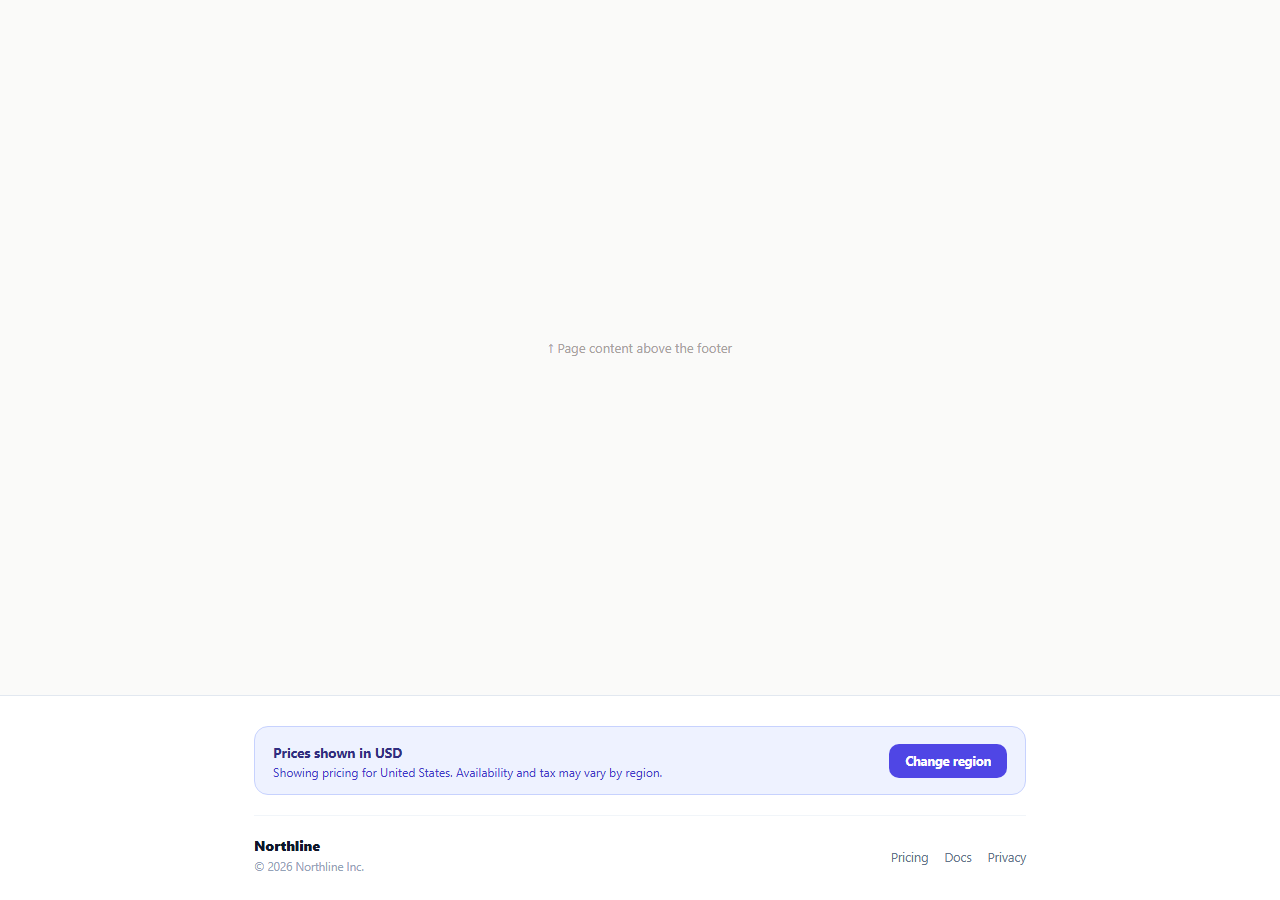
Showing a price without stating the currency or region it applies to leaves an international visitor guessing whether $49 means US dollars, and whether the product is even available where they are. This snippet adds a small footer notice stating the currently detected region and currency plainly, with a "Change region" control that opens a real picker grid rather than a static disclaimer sentence.
A notice that states its assumption out loud
#frcNotice reads "Prices shown in USD" with a sub-line naming the specific region and flagging that availability and tax may vary. Stating the assumption explicitly — rather than silently showing region-specific pricing with no label — is what actually earns trust from a visitor browsing from outside the assumed region, since a wrong silent guess reads as a bug while a wrong stated guess is just one click away from being corrected.
One array driving both the notice and the picker
The regions array holds { code, name, currency, flag } objects. applyRegion(code) looks the region up with findRegion() and updates the notice's currency and region text directly from that one object — no separate currency-to-region mapping to keep synchronized elsewhere in the code.
A picker grid, not a plain dropdown
Clicking "Change region" toggles #frcPicker, revealing a responsive grid of .frc-option buttons built by renderOptions(), each showing a flag emoji, region name, and currency code. A native <select> would work, but a visible grid lets a visitor confirm both the region name and its currency together at a glance before picking, rather than reading a flat list of currency codes alone.
Selecting closes the picker and updates state in one step
Clicking any .frc-option calls applyRegion() with that option's data-code, which updates currentCode, re-renders the notice text, re-renders the options grid (so the newly selected region gets the .selected highlight), and hides the picker — all from one function, so the notice and the picker's own selected-state marker can never disagree about which region is active.
Simulated geo-detection
The notice starts with "Detecting your region…" and calls applyRegion('US') after a setTimeout, standing in for a real IP-based geolocation lookup. This avoids the notice flashing a wrong default region before detection completes, and gives an obvious place to plug in a real geo-IP service.
Wiring it to real detection and persistence
Replace the setTimeout stand-in with a real call to an IP-geolocation API (or a server-set header your frontend reads) to pick the initial currentCode, and persist an explicit user override in localStorage or a cookie so a visitor who manually picks a different region does not get reset to the detected one on their next visit.
Build with AI
Build, Understand, Optimize, and Extend It With AI
Rather than tracing the shared-state logic by hand, paste this snippet's HTML, CSS, and JS into an AI coding assistant like Claude and ask it to explain exactly how applyRegion() keeps the notice text and the picker's selected-option highlight consistent by deriving both from the same currentCode variable and regions array. The same assistant can help you optimize it, for instance asking whether the initial detected region should come from a server-rendered header instead of a client-side geo-IP call, to avoid a visible flash of the wrong default. It is also useful for extending the footer: ask it to persist an explicit user override in localStorage so it survives a page reload, wire actual currency conversion into displayed prices when the region changes, or add a search input to the picker for a longer region list. Treat the code less like a finished artifact and more like a starting point for a conversation.
Prompt to recreate it
Copy this into your AI assistant of choice to build the effect from scratch, or as a jumping-off point for your own variant:
Build a footer "region and currency" availability notice in plain HTML, CSS, and JavaScript, no library.

Requirements:
- A notice box in the footer stating the currently assumed pricing currency and region in plain text (e.g. "Prices shown in USD" with a sub-line naming the specific region), plus a "Change region" button.
- A single JavaScript array of region objects (code, display name, currency code, flag emoji) that is the one source of truth for both the notice text and a picker UI — no separate hardcoded currency-to-region mapping elsewhere.
- Clicking "Change region" must toggle open a responsive grid of selectable region options (not a plain native select dropdown), each showing its flag, name, and currency code, with the currently active region visually highlighted.
- Selecting a different region option must update the notice's stated currency and region text, re-render the picker so the newly selected option becomes the highlighted one, and close the picker — all driven from one shared piece of state so the notice and the picker's highlight can never disagree.
- The notice must start in a "Detecting your region…" placeholder state and only show a specific region after a short simulated delay via setTimeout, standing in for a real IP-geolocation lookup.
Want to tighten it up first? Run this prompt through the AI Prompt Studio to score it across 8 quality dimensions, catch anti-patterns, and tune the wording for Claude, ChatGPT, or Gemini before you paste it in.
Step by step
How to Use
- 1Paste HTML, CSS, and JSThe notice shows "Detecting your region…" then settles on United States / USD after a short simulated delay.
- 2Click "Change region"A grid of region options with flags, names, and currency codes drops open below the notice.
- 3Click a different regionThe notice text, currency label, and the picker's selected highlight all update together, and the picker closes.
- 4Add a new regionAdd a { code, name, currency, flag } object to the regions array in the JS panel.
- 5Wire it to real geolocationReplace the setTimeout stand-in with a real IP-geolocation API call to set the initial detected region.
- 6Persist a manual overrideSave the user's chosen currentCode to localStorage so it survives their next visit instead of resetting to the detected region.
Real-world uses
Common Use Cases
Got questions?
Frequently Asked Questions
In this demo, applyRegion('US') is called after a simulated delay via setTimeout, standing in for a real IP-based geolocation lookup. Replace that call with a real geo-IP API result (or a server-set region header your frontend reads) to detect the visitor's actual region.
Both are re-rendered from the same currentCode variable inside applyRegion(): the notice text is set directly from the matched region object, and renderOptions() re-builds the picker grid, adding the selected class only to the option whose code matches currentCode.
Not in this demo by itself — it updates the notice's currency label and region text. Wire real price values (or a currency-conversion call) to update alongside currentCode wherever prices are rendered on the page.
Add or remove a { code, name, currency, flag } object in the regions array in the JS panel. Both the notice and the picker grid read from this array, so no other markup needs to change.
Not in this demo — it resets to the detected default on reload. Persist currentCode to localStorage or a cookie when applyRegion() is called from a user click (versus the initial detection call) to remember an explicit override.
Yes. Keep regions as a constant array, track currentCode in state, derive the notice text and each option's selected styling from a comparison against that state, and call your real geolocation API inside an effect on mount to set the initial value.