Source Code
<div class="demo">
  <div class="perm-card">
    <div class="perm-head">
      <div class="avatar">RP</div>
      <div>
        <span class="perm-name">Rahul Patel</span>
        <span class="perm-email">rahul@company.com</span>
      </div>
    </div>

    <label class="perm-field">
      <span>Role</span>
      <select id="roleSelect">
        <option value="viewer">Viewer</option>
        <option value="editor" selected>Editor</option>
        <option value="admin">Admin</option>
        <option value="custom">Custom</option>
      </select>
    </label>

    <div class="perm-list" id="permList">
      <label class="perm-row"><input type="checkbox" data-perm="view" checked disabled /><span>View content</span></label>
      <label class="perm-row"><input type="checkbox" data-perm="comment" checked /><span>Comment</span></label>
      <label class="perm-row"><input type="checkbox" data-perm="edit" checked /><span>Edit content</span></label>
      <label class="perm-row"><input type="checkbox" data-perm="publish" /><span>Publish changes</span></label>
      <label class="perm-row"><input type="checkbox" data-perm="invite" /><span>Invite members</span></label>
      <label class="perm-row"><input type="checkbox" data-perm="billing" /><span>Manage billing</span></label>
    </div>

    <p class="perm-note" id="permNote">Editors can edit and comment, but can't publish or manage the team.</p>
  </div>
</div>
* { box-sizing: border-box; margin: 0; padding: 0; }
body { font-family: system-ui, sans-serif; background: #f8fafc; display: flex; align-items: center; justify-content: center; min-height: 100vh; padding: 24px; }
.perm-card { width: 320px; max-width: 100%; background: #fff; border: 1px solid #e2e8f0; border-radius: 16px; padding: 20px; display: flex; flex-direction: column; gap: 16px; }
.perm-head { display: flex; align-items: center; gap: 10px; }
.avatar { width: 38px; height: 38px; border-radius: 50%; background: #6366f1; color: #fff; display: flex; align-items: center; justify-content: center; font-size: 13px; font-weight: 700; flex-shrink: 0; }
.perm-head div:last-child { display: flex; flex-direction: column; }
.perm-name { font-size: 13px; font-weight: 700; color: #111827; }
.perm-email { font-size: 11px; color: #94a3b8; }
.perm-field { display: flex; flex-direction: column; gap: 6px; }
.perm-field span { font-size: 11.5px; font-weight: 600; color: #64748b; }
.perm-field select { padding: 9px 11px; border: 1.5px solid #e2e8f0; border-radius: 9px; font-size: 12.5px; font-family: inherit; color: #111827; background: #fff; }
.perm-field select:focus-visible { outline: none; border-color: #6366f1; box-shadow: 0 0 0 3px rgba(99,102,241,0.15); }
.perm-list { display: flex; flex-direction: column; gap: 9px; border-top: 1px solid #f1f5f9; padding-top: 12px; }
.perm-row { display: flex; align-items: center; gap: 9px; font-size: 12.5px; color: #334155; font-weight: 600; cursor: pointer; }
.perm-row input { width: 16px; height: 16px; accent-color: #6366f1; cursor: pointer; flex-shrink: 0; }
.perm-row input:disabled { cursor: not-allowed; }
.perm-row input:disabled ~ span { color: #94a3b8; }
.perm-note { font-size: 11.5px; color: #94a3b8; line-height: 1.5; background: #f8fafc; border-radius: 9px; padding: 9px 11px; }const roleSelect = document.getElementById('roleSelect');
const permList = document.getElementById('permList');
const permNote = document.getElementById('permNote');
const checkboxes = Array.from(permList.querySelectorAll('input[data-perm]'));
const rolePresets = {
viewer: { perms: ['view'], note: "Viewers can only view content — they can't comment, edit, or manage the team." },
editor: { perms: ['view', 'comment', 'edit'], note: "Editors can edit and comment, but can't publish or manage the team." },
admin: { perms: ['view', 'comment', 'edit', 'publish', 'invite', 'billing'], note: 'Admins have full access, including publishing, inviting members, and billing.' },
custom: { perms: null, note: 'Custom role — check exactly the permissions this person should have.' },
};
function applyPreset(role) {
const preset = rolePresets[role];
permNote.textContent = preset.note;
checkboxes.forEach((cb) => {
const perm = cb.dataset.perm;
if (perm === 'view') return; // always on, never editable
if (role === 'custom') {
cb.disabled = false;
} else {
cb.checked = preset.perms.includes(perm);
cb.disabled = true;
}
});
}
roleSelect.addEventListener('change', () => applyPreset(roleSelect.value));
// If someone manually unchecks/checks a box while on a preset role... they can't,
// since non-custom roles disable the checkboxes. But if a user starts on Custom
// and manually builds a permission set that happens to exactly match a preset,
// we leave the role as Custom rather than guessing — presets are only applied
// top-down (role -> checkboxes), never inferred bottom-up (checkboxes -> role).
applyPreset(roleSelect.value);Learn Coding Visually
Learn to code with interactive, live-preview playgrounds — HTML, CSS, JavaScript, React & more.
 HTML Playground42 lessons · Click-based · Live preview
 CSS PlaygroundLearn CSS with a live editor
 JavaScript Playground60 lessons · DOM · Async · Canvas
 React PlaygroundLearn React with a live code editor
 GSAP PlaygroundLearn GSAP animation interactively
 SVG Playground44 lessons · shapes · paths · animation
 SCSS Playground45 lessons · Sass modules · tokens
 Tailwind PlaygroundLearn Tailwind CSS with a live editor
 Bootstrap 5 Playground50 lessons · live preview
User Role Permission Card — Role Presets Driving Conditional Checkbox State
User Role Card with Conditional Permission Checkboxes · Cards · Plain HTML, CSS & JS · Live preview
What's included
Features
About this UI Snippet
User Role Permission Card — Presets That Actually Drive Checkbox State
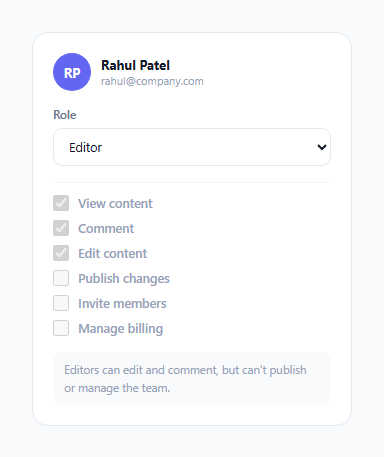
Role-based access control UIs often show a role dropdown next to a permissions checklist that don't actually interact — picking "Admin" doesn't visibly change what's checked below it, leaving the user to manually reconcile the two. This card fixes that: selecting a role actively sets and locks the matching permission checkboxes, and only switching to "Custom" hands manual control back to the user.
Role presets are data, not scattered if/else logic
rolePresets is a single object mapping each role name to its exact permission list and a plain-language explanation — { perms: ['view', 'comment', 'edit'], note: '...' }. applyPreset(role) reads from this one source of truth rather than branching through role-specific conditionals inline, so adding a new role or adjusting what "Editor" includes means editing one object entry, not hunting through scattered logic.
Checkboxes are genuinely locked under a preset role, not just pre-checked
For any role other than Custom, every checkbox (besides the always-on "View content") gets both its checked state *and* its disabled attribute set together — cb.checked = preset.perms.includes(perm); cb.disabled = true;. The disabled state matters as much as the checked state: without it, a user could manually toggle a box while "Editor" is still selected in the dropdown, creating a permission set that silently no longer matches what the role name claims to grant. Locking the checkboxes is what keeps the displayed role and the actual granted permissions honest with each other.
Custom mode is the deliberate escape hatch, and only Custom
Selecting "Custom" removes the disabled attribute from every checkbox, handing control back to the user to build an arbitrary permission set. Critically, the reverse direction is intentionally *not* implemented — if a user manually builds a custom permission set that happens to exactly match, say, the Editor preset, the role dropdown is deliberately left on "Custom" rather than the code trying to guess and silently switch it back to "Editor." Inferring a role from a checkbox state is a much easier place to get subtly wrong than applying a role's known preset downward, so this snippet only ever goes one direction.
The always-on "View content" permission
The view checkbox is permanently checked and disabled regardless of role, modeling the realistic constraint that a role can't actually exist in most systems without at least view access — the checkbox reflects that baseline explicitly rather than letting a user (even in Custom mode) construct a role that can, say, comment but not view.
Build with AI
Build, Understand, Optimize, and Extend It With AI
Ask an AI assistant to explain why this snippet deliberately avoids inferring a role name from a manually-built Custom permission set, and what subtle bugs or confusing UX could result from attempting that reverse inference. It's also worth asking for a version that shows a diff/warning when switching away from Custom would discard manually-set permissions that don't match any preset, or one that supports per-permission "requires" dependencies (e.g. Publish automatically requires Edit).
Prompt to recreate it
Copy this into your AI assistant of choice to build the effect from scratch, or as a jumping-off point for your own variant:
Build a user role/permissions card in HTML, CSS and vanilla JavaScript where selecting a role from a dropdown automatically sets and locks a matching set of permission checkboxes, with a "Custom" role that unlocks manual editing — no external libraries.

Requirements:
- A role dropdown with at least three named preset roles (e.g. Viewer, Editor, Admin) plus a "Custom" option, and a list of permission checkboxes below it (e.g. view, comment, edit, publish, invite, manage billing).
- Define each preset role's exact set of granted permissions and an explanatory note string in a single, easily-editable data structure (not scattered conditional branches) that both the checkbox states and the note text are derived from.
- When a named preset role is selected, every checkbox (except a baseline "view" permission that is always checked) must be set to match that role's exact permission list AND become genuinely disabled, preventing manual edits while a named role is active.
- When "Custom" is selected, every checkbox except the baseline "view" permission must become editable again, preserving whatever state they were last in.
- Do NOT attempt to detect when a manually-built Custom permission combination happens to match a named preset and auto-switch the dropdown back to that preset — role selection should only ever flow one direction, from role to checkboxes.
- The baseline "view" permission checkbox must remain checked and disabled in every role, including Custom.
Want to tighten it up first? Run this prompt through the AI Prompt Studio to score it across 8 quality dimensions, catch anti-patterns, and tune the wording for Claude, ChatGPT, or Gemini before you paste it in.
Step by step
How to Use
- 1Change the role dropdownWatch the permission checkboxes and note text update together, with checkboxes locked for every role except Custom.
- 2Select Custom to edit permissions manuallyEvery checkbox except "View content" becomes editable, letting you build an arbitrary permission set.
- 3Edit the rolePresets object to change what each role grantsUpdate the perms array and note string for any role in the JS panel — the UI updates automatically from that single source.
- 4Add a new roleAdd a new <option> to the select and a matching entry in rolePresets with its own perms array and note.
- 5Add or remove permission typesAdd a new .perm-row checkbox with a unique data-perm value, and include that value in whichever roles' perms arrays should grant it.
Real-world uses
Common Use Cases
Got questions?
Frequently Asked Questions
Disabling them prevents a user from manually toggling a permission while a named role is still shown as selected, which would create a mismatch between what the role name implies and what's actually granted. Locking the checkboxes under a preset keeps the two honestly in sync.
The role dropdown stays on "Custom" — the code deliberately never tries to infer a role name from a checkbox combination and switch the dropdown automatically, since that kind of reverse inference is much easier to get subtly wrong than the one-directional role-to-checkboxes flow this snippet implements.
No — it's permanently checked and disabled regardless of which role is selected, including Custom, modeling the common real-world constraint that a role can't meaningfully exist without at least baseline view access.
Add a new <option value="contributor"> to the role <select>, and add a matching "contributor" entry to the rolePresets object in JavaScript with its own perms array and explanatory note string — the rest of the logic picks it up automatically.
Yes — at any point you can read the current permission set with checkboxes.filter(cb => cb.checked).map(cb => cb.dataset.perm), which works identically whether the state came from a preset role or manual Custom selection.
No — switching away from Custom to a named role immediately overwrites every checkbox's state (except View) with that role's exact preset, discarding whatever custom combination was previously set. Switching back to Custom afterward starts from that role's preset as the new baseline, not the earlier custom set.