Source Code
<div class="wrap">
  <div class="table-head">
    <h2 class="table-title">Quarterly Revenue by Region</h2>
    <span class="hint" id="hint">Scroll to see more columns →</span>
  </div>
  <div class="table-scroll" id="scrollArea">
    <div class="shadow-left" id="shadowLeft"></div>
    <div class="shadow-right" id="shadowRight"></div>
    <table class="tbl">
      <thead>
        <tr>
          <th class="pin-col">Region</th>
          <th>Q1 2024</th>
          <th>Q2 2024</th>
          <th>Q3 2024</th>
          <th>Q4 2024</th>
          <th>Q1 2025</th>
          <th>Q2 2025</th>
          <th>Q3 2025</th>
          <th>Q4 2025</th>
          <th>YoY growth</th>
        </tr>
      </thead>
      <tbody id="tbody"></tbody>
    </table>
  </div>
</div>
* { box-sizing: border-box; margin: 0; padding: 0; }
body { font-family: system-ui, sans-serif; background: #f8fafc; min-height: 100vh; padding: 32px 20px; }
.wrap { max-width: 720px; margin: 0 auto; }
.table-head { display: flex; align-items: center; justify-content: space-between; margin-bottom: 12px; gap: 12px; }
.table-title { font-size: 17px; font-weight: 800; color: #0f172a; }
.hint { font-size: 11.5px; color: #94a3b8; font-weight: 600; white-space: nowrap; transition: opacity 0.3s; }
.hint.hidden { opacity: 0; }
.table-scroll { position: relative; overflow-x: auto; border-radius: 12px; box-shadow: 0 1px 6px rgba(0,0,0,0.06); }
.tbl { width: 100%; min-width: 900px; border-collapse: collapse; background: #fff; }
.tbl thead tr { background: #f8fafc; }
.tbl th { padding: 11px 16px; text-align: right; font-size: 11px; font-weight: 700; text-transform: uppercase; letter-spacing: 0.4px; color: #64748b; border-bottom: 1px solid #e2e8f0; white-space: nowrap; }
.tbl th.pin-col, .tbl td.pin-col { text-align: left; position: sticky; left: 0; background: #f8fafc; z-index: 2; }
.tbl td.pin-col { background: #fff; font-weight: 700; color: #0f172a; }
.tbl td { padding: 11px 16px; text-align: right; border-bottom: 1px solid #f1f5f9; font-size: 13px; color: #334155; font-variant-numeric: tabular-nums; white-space: nowrap; }
.tbl tbody tr:last-child td { border-bottom: none; }
.tbl tbody tr:hover td:not(.pin-col) { background: #fafafa; }
.tbl tbody tr:hover td.pin-col { background: #f8fafc; }
.growth-val { font-weight: 700; }
.growth-val.pos { color: #16a34a; }
.growth-val.neg { color: #dc2626; }
.shadow-left, .shadow-right { position: absolute; top: 0; bottom: 0; width: 28px; pointer-events: none; opacity: 0; transition: opacity 0.2s ease; z-index: 3; }
.shadow-left { left: 0; background: linear-gradient(90deg, rgba(15,23,42,0.14), transparent); }
.shadow-right { right: 0; background: linear-gradient(-90deg, rgba(15,23,42,0.14), transparent); }
.shadow-left.visible, .shadow-right.visible { opacity: 1; }const REGIONS = [
{ name: 'North America', values: [4.2, 4.5, 4.4, 4.9, 4.8, 5.1, 5.3, 5.7], growth: 16.3 },
{ name: 'EMEA', values: [3.1, 3.0, 3.3, 3.6, 3.5, 3.4, 3.6, 3.9], growth: 8.3 },
{ name: 'APAC', values: [2.4, 2.6, 2.9, 3.1, 3.4, 3.8, 4.1, 4.6], growth: 48.4 },
{ name: 'Latin America', values: [1.1, 1.0, 1.2, 1.3, 1.2, 1.1, 1.3, 1.4], growth: 7.7 },
{ name: 'Rest of World', values: [0.6, 0.7, 0.7, 0.8, 0.9, 0.9, 1.0, 1.1], growth: 22.2 },
];
function render() {
document.getElementById('tbody').innerHTML = REGIONS.map(r => {
const cells = r.values.map(v => '<td>$' + v.toFixed(1) + 'M</td>').join('');
const up = r.growth >= 0;
return '<tr>' +
'<td class="pin-col">' + r.name + '</td>' +
cells +
'<td><span class="growth-val ' + (up ? 'pos' : 'neg') + '">' + (up ? '+' : '') + r.growth.toFixed(1) + '%</span></td>' +
'</tr>';
}).join('');
}
function updateShadows() {
const el = document.getElementById('scrollArea');
const maxScroll = el.scrollWidth - el.clientWidth;
const atStart = el.scrollLeft <= 2;
const atEnd = el.scrollLeft >= maxScroll - 2;
document.getElementById('shadowLeft').classList.toggle('visible', !atStart);
document.getElementById('shadowRight').classList.toggle('visible', !atEnd && maxScroll > 0);
const hint = document.getElementById('hint');
if (el.scrollLeft > 4) hint.classList.add('hidden');
}
const scrollArea = document.getElementById('scrollArea');
render();
updateShadows();
scrollArea.addEventListener('scroll', updateShadows, { passive: true });
window.addEventListener('resize', updateShadows);Learn Coding Visually
Learn to code with interactive, live-preview playgrounds — HTML, CSS, JavaScript, React & more.
 HTML Playground42 lessons · Click-based · Live preview
 CSS PlaygroundLearn CSS with a live editor
 JavaScript Playground60 lessons · DOM · Async · Canvas
 React PlaygroundLearn React with a live code editor
 GSAP PlaygroundLearn GSAP animation interactively
 SVG Playground44 lessons · shapes · paths · animation
 SCSS Playground45 lessons · Sass modules · tokens
 Tailwind PlaygroundLearn Tailwind CSS with a live editor
 Bootstrap 5 Playground50 lessons · live preview
Table with Scroll Shadow Indicators — Free HTML CSS JS Snippet
Table with Scroll Shadow Indicators · Tables · Plain HTML, CSS & JS · Live preview
What's included
Features
About this UI Snippet
Table with Scroll Shadow Indicators — Sticky Row Labels & Direction-Aware Edge Fades
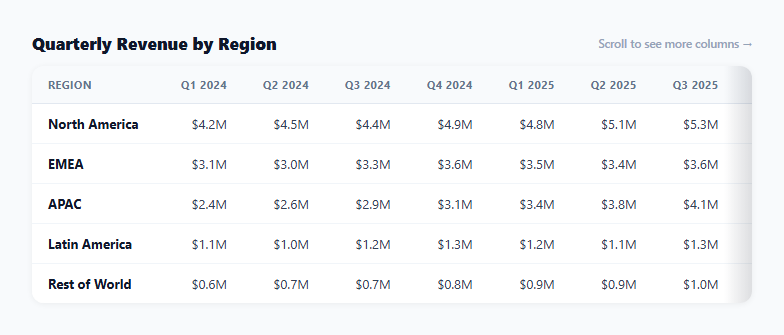
A wide table that simply gets clipped by its container gives no visual hint that there's more to see off to the side — a user has to accidentally discover horizontal scrolling exists. This snippet solves that with two things working together: a sticky first column so row labels stay readable no matter how far the table is scrolled, and a pair of subtle edge-fade shadows that appear and disappear based on actual scroll position, telling the user exactly which direction still has more content.
Shadows reflect real scroll state, not a static hint
updateShadows() runs on every scroll event (and on load, and on resize) and computes atStart/atEnd by comparing el.scrollLeft against 0 and against el.scrollWidth - el.clientWidth (the maximum possible scroll offset). The left shadow's .visible class is toggled to exactly !atStart, and the right shadow's to !atEnd — so at the very start of the table, only the right shadow shows (there's more to the right, nothing to the left); scrolled to the middle, both shadows show; scrolled fully right, only the left shadow shows. A shadow that stayed visible on both sides regardless of actual position would be actively misleading rather than helpful.
A tiny threshold, not an exact zero comparison
The atStart/atEnd checks use <= 2 and >= maxScroll - 2 rather than comparing to exactly 0 or maxScroll. Sub-pixel rounding in how browsers report scrollLeft on high-density displays or with certain zoom levels can leave a value like 0.4 instead of a clean 0 — a strict equality check would then leave a shadow incorrectly visible at the true edge. The small tolerance absorbs that rounding noise.
Sticky first column via position: sticky, not JS positioning
The .pin-col cells use position: sticky; left: 0 — a pure-CSS technique that keeps the region-name column pinned to the left edge of the scrollable container while every other column scrolls beneath it, with no JavaScript needed to reposition anything on scroll. An explicit background on the pinned cells (matching the row's hover or default state) is required so the scrolling columns behind it don't visually bleed through as they pass underneath.
The one-time hint that gets out of the way
A small "Scroll to see more columns →" hint appears next to the table title on load and fades out the first time scrollLeft moves past a few pixels — a nudge for users who might not notice the shadow alone on first glance, without persisting as visual clutter once the user has already discovered they can scroll.
Build with AI
Build, Understand, Optimize, and Extend It With AI
Paste this snippet's HTML, CSS, and JS into an AI coding assistant like Claude and ask it to explain exactly why the start/end scroll-position checks use a small numeric tolerance instead of comparing scrollLeft directly to 0 and to the maximum scroll value, and what visual bug a strict equality check could cause on certain displays. The same assistant can help optimize it — for instance asking whether the scroll listener should be throttled or debounced for very large tables where recalculating shadow visibility on every scroll event might be unnecessary overhead. It's also useful for extending the table: ask it to add a second sticky column, animate the sticky column's shadow separately from the scroll-edge shadows, or make the hint text reappear if the user scrolls back to the very start after having scrolled away. Treat the code less like a finished artifact and more like a starting point for a conversation.
Prompt to recreate it
Copy this into your AI assistant of choice to build the effect from scratch, or as a jumping-off point for your own variant:
Build a wide, horizontally scrollable data table in plain HTML, CSS, and JavaScript with fading scroll-shadow indicators on its left and right edges — no framework, no library.

Requirements:
- The table must be wider than its container (force this with a minimum table width) so it scrolls horizontally inside an overflow-x: auto wrapper.
- The first column must remain pinned to the left edge as the rest of the table scrolls beneath it, implemented with the CSS sticky-positioning technique (not JavaScript-driven repositioning), and must have its own explicit background color so scrolling columns do not visually show through underneath it.
- Add two absolutely positioned shadow/gradient overlays, one on the left edge and one on the right edge of the scroll container, each hidden by default via opacity, and write a function that runs on every scroll event to toggle each shadow's visibility based on the container's actual current scroll position — the left shadow must only appear when the table has been scrolled away from its starting position, and the right shadow must only appear when there is still more content to scroll to on the right, using a small numeric tolerance rather than an exact equality check against 0 or the maximum scroll offset (since scroll position can be a non-integer value in some browsers).
- Also recalculate shadow visibility on window resize, since a browser resize can change whether the table has any horizontal overflow at all.
- Include a small one-time textual hint (for example "scroll to see more columns") near the table that is visible on initial load and permanently fades away the first time the user scrolls the table horizontally by even a few pixels.
Want to tighten it up first? Run this prompt through the AI Prompt Studio to score it across 8 quality dimensions, catch anti-patterns, and tune the wording for Claude, ChatGPT, or Gemini before you paste it in.
Step by step
How to Use
- 1Scroll the table horizontallyShadows fade in on whichever side still has more content, and fade out once you reach that edge — try scrolling all the way right, then back.
- 2Notice the sticky first columnThe Region column stays pinned to the left as you scroll, so row labels are never lost off-screen.
- 3Resize the browser windowThe shadow visibility recalculates automatically on resize in case the table's scrollability changes.
- 4Replace REGIONS with real dataUpdate the array with your own row labels, column values, and growth figures — extra columns work automatically since cells are generated from r.values.
- 5Adjust the shadow width or intensityEdit the width and background gradient opacity on .shadow-left / .shadow-right in the CSS panel.
- 6Export in your formatClick "HTML" for a standalone file, "JSX" for a React component, or "Tailwind" for a Tailwind CSS version.
Real-world uses
Common Use Cases
Got questions?
Frequently Asked Questions
updateShadows() compares el.scrollLeft to 0 (the start) and to el.scrollWidth minus el.clientWidth (the maximum scrollable offset, the end). The left shadow becomes visible whenever the table is not at the start, and the right shadow whenever it is not at the end — so the shadows always reflect exactly how much scrollable content remains on each side.
Browsers can report scrollLeft as a non-integer value (like 0.4px) due to sub-pixel rendering, especially on high-density displays or certain zoom levels. A strict === 0 check could then fail to detect the true start position, leaving the left shadow incorrectly visible. The small numeric tolerance (<= 2) absorbs that rounding noise reliably.
The .pin-col cells use the CSS position: sticky with left: 0, which keeps them pinned to the left edge of their nearest scrolling ancestor (the .table-scroll container) as the user scrolls horizontally. An explicit background color is set on those cells specifically so the other columns do not show through as they scroll underneath the pinned column.
Yes — a window resize event listener also calls updateShadows(), since resizing can change whether the table even has overflow at all (a table that fit inside a wide viewport with no shadows might suddenly need them once the viewport narrows).
Add more numbers to each region's values array and a matching <th> header cell in the HTML — the row-rendering code maps over r.values to generate one <td> per entry automatically, so no other JavaScript changes are needed for additional columns.
Yes — the scroll-shadow logic in updateShadows() is entirely independent of the sticky column CSS. Remove the position: sticky rules from .pin-col if you only want the fading edge-shadow scroll indicator without a pinned column.