Learn Coding Visually
Learn to code with interactive, live-preview playgrounds — HTML, CSS, JavaScript, React & more.
 HTML Playground42 lessons · Click-based · Live preview
 CSS PlaygroundLearn CSS with a live editor
 JavaScript Playground60 lessons · DOM · Async · Canvas
 React PlaygroundLearn React with a live code editor
 GSAP PlaygroundLearn GSAP animation interactively
 SVG Playground44 lessons · shapes · paths · animation
 SCSS Playground45 lessons · Sass modules · tokens
 Tailwind PlaygroundLearn Tailwind CSS with a live editor
 Bootstrap 5 Playground50 lessons · live preview
Full Page Scroll — Snap Sections + Dot Nav HTML CSS JS
Full Page Scroll · Layouts · Plain HTML, CSS & JS · Live preview
What's included
Features
About this UI Snippet
Full Page Scroll — Snapping Full-Viewport Sections with a Dot Navigator

The full-page scroll layout (the fullPage.js look) presents content as a series of full-viewport panels that snap into place one at a time as you scroll, with a dot navigator down the side. This snippet builds it with native CSS scroll-snap and vanilla JavaScript — no fullPage.js, no library — getting the smooth, jank-free behaviour that older scroll-hijacking scripts struggled with.
Native scroll-snap, not scroll hijacking
The scroller is a container with scroll-snap-type: y mandatory, and each 100vh section has scroll-snap-align: start. The browser handles snapping each section to the top as you scroll, swipe, or fling — using native, momentum-aware scrolling. This is the modern replacement for the old approach of intercepting wheel events and animating scrollTop yourself, which fought the browser and felt laggy. Native snap is smoother, respects the OS scroll physics, and needs almost no code.
A dot navigator that tracks the active section
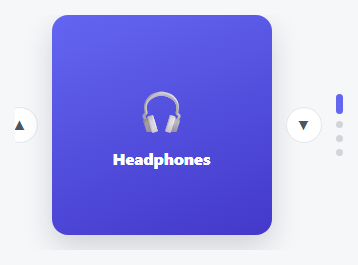
Down the side, a dot navigator shows which section you are on. Rather than computing scroll positions, an IntersectionObserver watches the sections (scoped to the scroller, with a 0.6 threshold) and marks the dot for whichever section is mostly in view. This works no matter how the user got there — wheel, trackpad, touch swipe, keyboard, or clicking a dot — because it observes the result, not the input. Observing visibility is the robust way to sync nav state with scroll.
Click and keyboard navigation
Clicking a dot scrolls smoothly to that section with scrollIntoView({ behavior: 'smooth' }), and Arrow/Page keys move one section at a time (clamped to the ends). Both go through one goTo(), and because the active dot is driven by the observer, the indicator updates correctly when the smooth scroll lands — there is no separate state to keep in sync. Supporting keyboard and dots alongside natural scrolling makes the layout accessible and navigable every way users expect.
Hidden scrollbar, full control kept
The scrollbar is hidden for the clean full-page look, but the container stays fully scrollable by every means and the dots provide an always-visible position indicator and jump control — so hiding the bar never traps the user. Each section is a flex-centred panel with a gradient background and large type, the typical full-page presentation style.
Drop-in and adaptable
Add or remove <section> panels and the dots and observers adapt automatically. Put any content in the sections, swap the gradients for images, and adjust the threshold. It is a clear, dependency-free reference for CSS scroll-snap full-page layouts and IntersectionObserver-driven navigation. The 0.6 intersection threshold is also a useful knob: a lower value flips the active dot as soon as a section starts entering view, while a higher one (as used here) waits until a section dominates the viewport, which avoids the indicator flickering between two dots while the user is mid-scroll past the boundary between them.
Build with AI
Build, Understand, Optimize, and Extend It With AI
You don't have to reason through the observer-versus-scroll-position tradeoff by hand. Paste this snippet's HTML, CSS, and JS into an AI coding assistant like Claude and ask it to explain exactly why the active dot is driven by an IntersectionObserver watching each section rather than by computing scrollTop directly, and what the 0.6 threshold specifically controls about when a dot flips versus a lower or higher value. The same assistant can help optimize it — ask whether observing all sections against the scroller root has any cost worth caring about with many more sections, or whether the keydown handler should ignore Arrow keys when focus is inside a text input on a real page. It's also useful for extending the layout: have it add horizontal sub-sections within one vertical panel, a progress indicator that shows scroll fraction within the current section, or URL hash syncing so a direct link opens on the right section. Treat the code less like a finished artifact and more like a starting point for a conversation.
Prompt to recreate it
Copy this into your AI assistant of choice to build the effect from scratch, or as a jumping-off point for your own variant:
Build a "full page scroll" layout with snapping full-viewport sections and a dot navigator, in plain HTML, CSS, and JavaScript using native CSS scroll-snap and IntersectionObserver — no scroll-hijacking libraries, no manual scrollTop animation.

Requirements:
- A scrollable container with scroll-snap-type set to the y axis and mandatory strictness, containing several full-viewport-height sections, each with scroll-snap-align set to start, and each themed with its own background.
- Hide the scrollbar visually (cross-browser) while keeping the container fully scrollable by wheel, trackpad, touch, and keyboard — never disable native scrolling.
- Generate a fixed-position dot navigator with one button per section, built dynamically in JavaScript from however many sections exist rather than hard-coded to a specific count.
- Use a single IntersectionObserver scoped to the scroll container (not the viewport) watching every section, with a threshold high enough that a dot only becomes active once its section dominates the visible area (avoiding the indicator flickering between two dots while scrolling past the boundary between them). Whichever section intersects should mark its corresponding dot active and unmark all others — this must be the only mechanism that sets the active dot, regardless of whether the user scrolled, swiped, clicked a dot, or used the keyboard.
- Clicking a dot must smooth-scroll its section into view (via scrollIntoView with smooth behavior) rather than directly toggling the active class itself — the observer should be what updates the indicator once the scroll lands.
- Add a keydown listener so ArrowDown/PageDown and ArrowUp/PageUp move exactly one section forward or backward (clamped so it can't scroll past the first or last section), reusing the same navigation function the dots use.
Want to tighten it up first? Run this prompt through the AI Prompt Studio to score it across 8 quality dimensions, catch anti-patterns, and tune the wording for Claude, ChatGPT, or Gemini before you paste it in.
Source Code
<div class="fps" id="fps">
  <section class="fps-sec" style="--bg:linear-gradient(135deg,#6366f1,#8b5cf6)"><div><span class="fps-kicker">01</span><h2>Welcome</h2><p>Scroll, swipe, or use arrow keys. Each section snaps into place.</p></div></section>
  <section class="fps-sec" style="--bg:linear-gradient(135deg,#0ea5e9,#22c55e)"><div><span class="fps-kicker">02</span><h2>Features</h2><p>Full-viewport sections with scroll snap and a dot navigator.</p></div></section>
  <section class="fps-sec" style="--bg:linear-gradient(135deg,#f59e0b,#ef4444)"><div><span class="fps-kicker">03</span><h2>Pricing</h2><p>The active dot tracks which section is in view via IntersectionObserver.</p></div></section>
  <section class="fps-sec" style="--bg:linear-gradient(135deg,#ec4899,#8b5cf6)"><div><span class="fps-kicker">04</span><h2>Contact</h2><p>Keyboard up/down and the dots both scroll to a section smoothly.</p></div></section>
</div>
<nav class="fps-dots" id="fpsDots" aria-label="Sections"></nav>*{box-sizing:border-box;margin:0;padding:0}
html,body{height:100%}
body{font-family:system-ui,-apple-system,sans-serif}
/* The scroller: full-viewport sections that snap on the y-axis. */
.fps{height:100vh;overflow-y:scroll;scroll-snap-type:y mandatory;scroll-behavior:smooth;scrollbar-width:none}
.fps::-webkit-scrollbar{display:none}
.fps-sec{height:100vh;scroll-snap-align:start;display:flex;align-items:center;justify-content:center;padding:24px;color:#fff;background:var(--bg);text-align:center}
.fps-sec>div{max-width:460px}
.fps-kicker{display:inline-block;font-size:13px;font-weight:800;letter-spacing:.2em;opacity:.7;margin-bottom:14px}
.fps-sec h2{font-size:46px;font-weight:800;margin-bottom:14px;letter-spacing:-.02em}
.fps-sec p{font-size:16px;line-height:1.6;opacity:.92}
.fps-dots{position:fixed;right:22px;top:50%;transform:translateY(-50%);display:flex;flex-direction:column;gap:13px;z-index:10}
.fps-dot{width:11px;height:11px;border-radius:50%;border:2px solid rgba(255,255,255,.8);background:transparent;cursor:pointer;padding:0;transition:background .2s,transform .2s}
.fps-dot.fps-active{background:#fff;transform:scale(1.35)}var scroller = document.getElementById('fps');
var sections = Array.prototype.slice.call(scroller.querySelectorAll('.fps-sec'));
var dotsEl = document.getElementById('fpsDots');
var current = 0;
dotsEl.innerHTML = sections.map(function (_, i) {
return '<button type="button" class="fps-dot" data-i="' + i + '" aria-label="Go to section ' + (i + 1) + '"></button>';
}).join('');
var dots = dotsEl.querySelectorAll('.fps-dot');
function setActive(i) {
current = i;
dots.forEach(function (d, k) { d.classList.toggle('fps-active', k === i); });
}
function goTo(i) {
i = Math.max(0, Math.min(sections.length - 1, i));
sections[i].scrollIntoView({ behavior: 'smooth' });
}
// Track which section is in view (works for wheel, swipe, and programmatic scroll).
var observer = new IntersectionObserver(function (entries) {
entries.forEach(function (e) {
if (e.isIntersecting) setActive(sections.indexOf(e.target));
});
}, { root: scroller, threshold: 0.6 });
sections.forEach(function (s) { observer.observe(s); });
dotsEl.addEventListener('click', function (e) {
var dot = e.target.closest('.fps-dot');
if (dot) goTo(+dot.dataset.i);
});
// Arrow / Page keys jump one section at a time.
window.addEventListener('keydown', function (e) {
if (e.key === 'ArrowDown' || e.key === 'PageDown') { e.preventDefault(); goTo(current + 1); }
else if (e.key === 'ArrowUp' || e.key === 'PageUp') { e.preventDefault(); goTo(current - 1); }
});
setActive(0);Step by step
How to Use
- 1Paste HTML, CSS, and JSFour full-viewport sections render with a dot navigator on the right.
- 2Scroll or swipeEach section snaps into place; the active dot tracks which one is in view.
- 3Use the dotsClick any dot to smooth-scroll to that section.
- 4Use the keyboardArrow Up/Down or Page Up/Down move one section at a time.
- 5Add or remove sectionsAdd a <section class="fps-sec"> — the dots and observers adapt automatically.
- 6Put in your contentReplace the section content and swap gradients for images or your own backgrounds.
Real-world uses
Common Use Cases
Got questions?
Frequently Asked Questions
fullPage.js and similar libraries hijack the wheel/touch events and animate the scroll position themselves, which adds weight and can feel laggy or fight the browser. This snippet uses native CSS scroll-snap (scroll-snap-type: y mandatory with scroll-snap-align on each 100vh section), so the browser does the snapping with real momentum scrolling — smoother, lighter, and no library. The JS only handles the dot indicator and keyboard/click navigation.
An IntersectionObserver scoped to the scroll container watches each section with a 0.6 threshold; when a section becomes mostly visible, its dot is marked active. This observes the outcome rather than the input, so it stays correct whether the user scrolled with the wheel, swiped on touch, pressed a key, or clicked a dot — there is no scroll-position math to drift.
Yes. A dot click calls scrollIntoView({ behavior: 'smooth' }) to scroll to that section; it does not set the active dot directly. When the smooth scroll lands and the section crosses the observer threshold, the observer marks it active. Because one mechanism (the observer) owns the active state, the indicator is always correct regardless of how navigation was triggered.
Hiding the scrollbar (scrollbar-width: none and the WebKit pseudo-element) gives the clean, app-like full-page look. It is purely cosmetic — the container remains fully scrollable by wheel, trackpad, touch, and keyboard, and the always-visible dot navigator provides position feedback and a jump control. So the user is never trapped or left without a way to navigate.
Render the sections from an array and keep the active index in state. Set up the IntersectionObserver in a useEffect (React), onMounted/onUnmounted (Vue), or ngAfterViewInit/ngOnDestroy (Angular), disconnecting on cleanup, and add the keydown listener similarly. The scroll-snap CSS and scrollIntoView navigation are framework-agnostic — only the observer lifecycle and active state move into the framework.