
Learn Coding Visually
Learn to code with interactive, live-preview playgrounds — HTML, CSS, JavaScript, React & more.
 HTML Playground42 lessons · Click-based · Live preview
 CSS PlaygroundLearn CSS with a live editor
 JavaScript Playground60 lessons · DOM · Async · Canvas
 React PlaygroundLearn React with a live code editor
 GSAP PlaygroundLearn GSAP animation interactively
 SVG Playground44 lessons · shapes · paths · animation
 SCSS Playground45 lessons · Sass modules · tokens
 Tailwind PlaygroundLearn Tailwind CSS with a live editor
 Bootstrap 5 Playground50 lessons · live preview
Muuri Filterable Masonry Grid — JS-Positioned Layout Snippet
Muuri Filterable Masonry Grid · Layouts · Plain HTML, CSS & JS · Live preview
What's included
Features
About this UI Snippet
Muuri Filterable Masonry Grid — Why JS-Positioned Layout Enables Smooth Filtering
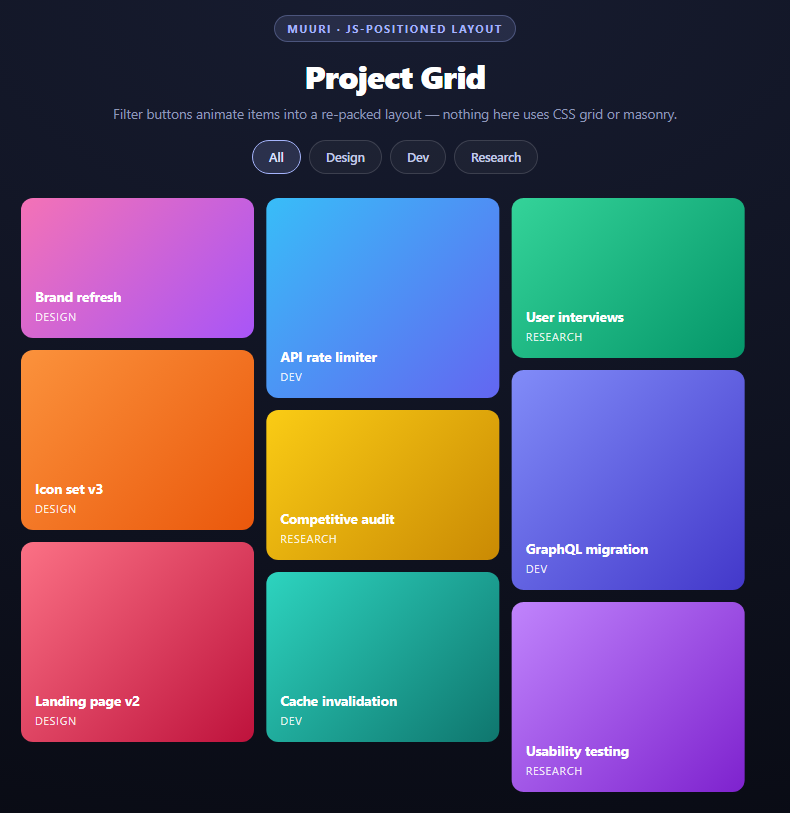
CSS grid and CSS multi-column ("CSS masonry") both lay out items using the browser's native box model — the browser computes final positions internally and you never get to see, intercept, or animate the transition between two different layouts. Filter five items out of a CSS grid and the rest *snap* into their new slots; there is no browser API for tweening a grid-template change smoothly per item.
Muuri takes a fundamentally different approach: every grid item is position: absolute, and Muuri itself computes an (x, y) pixel offset for each item and applies it as a transform: translate(). The grid container has no native layout algorithm at all — it's just a positioned box that Muuri's JS fills.
Why absolute positioning is the whole trick
Because Muuri owns every item's coordinates directly, changing which items are visible or how they're packed is just "compute a new set of (x, y) pairs and animate each item's transform from its old pair to its new one." That's a plain CSS transition (or Muuri's own tweening, layoutDuration + layoutEasing here) applied independently per element — completely ordinary DOM animation, not a browser-internal recalculation you have no hook into.
This is the mechanical reason filtering looks the way it does in this demo: when you click "Design," Muuri doesn't reflow the grid and let items jump — it fades out and hides items that don't match, then recomputes a fresh packed layout for the ones that remain and animates every survivor to its new position, closing the gaps left behind. fillGaps: true in the layout option specifically controls the packing algorithm to backfill empty space rather than leaving holes, which matters a lot once several items are hidden.
The filter call
grid.filter(function (item) { return item.getElement().getAttribute('data-tag') === filter; })
.filter() takes a predicate function and runs it against every item currently in the grid. Items that return true stay visible and get included in the next layout pass; items that return false are hidden (Muuri toggles a muuri-item-hidden class and animates opacity/scale down) and excluded from the packing calculation entirely — they don't just become invisible, they stop taking up space, which is what allows the remaining items to flow up and fill the gap.
Reading the DOM instead of a data model
Notice the predicate reads data-tag straight off the item's live DOM element via item.getElement(). Muuri doesn't require a separate data layer — each grid item *is* a DOM node, and Muuri item objects are thin wrappers that expose that node plus position/state metadata. This keeps the filtering logic trivial: no need to keep a JS array in sync with the DOM, because the DOM already holds the category.
Reusing it
Swap fillGaps: true for false if you want strict row-order packing instead of the tightest possible fill. Combine multiple predicates for AND/OR filtering (price range and category together), or replace the button-driven filter with a text search that filters on title. Pair this with draggable dashboard widgets once you also want users to manually reorder the packed layout, not just filter it.
Build with AI
Build, Understand, Optimize, and Extend It With AI
The key idea to interrogate here is the tradeoff Muuri makes: giving up native browser layout in exchange for full animation control. Ask an AI assistant like Claude to explain concretely why CSS grid can't animate a layout change the way Muuri does, tracing through what "position: absolute plus JS-computed transform" buys you that "grid-template-columns recalculation" doesn't. Then ask it to add a second filter dimension (say, a height range) combined with the existing category filter using AND logic inside the same predicate. Good extensions: add a search input that filters by title text, animate new items being added to the grid with grid.add(), or combine this with drag reordering per the dashboard widgets snippet so users can both filter and manually rearrange the same grid.
Prompt to recreate it
Copy this into your AI assistant of choice to build the effect from scratch, or as a jumping-off point for your own variant:
Build a filterable masonry grid using Muuri (v0.9, from a CDN) in plain HTML, CSS, and JavaScript.

Requirements:
- Generate 9 grid items from a JS array, each with a title, a category tag (design/dev/research), a randomized/varied height, and a gradient background color, appended as absolutely-positioned divs into a Muuri grid container.
- Initialize Muuri on the container with dragEnabled: false, a layoutDuration and layoutEasing for the repack transition, and layout: { fillGaps: true } so hidden items' space gets backfilled by the tightest possible pack rather than leaving gaps.
- Render category filter buttons (All, Design, Dev, Research). Clicking one must call grid.filter() with a predicate function that reads each item's category via item.getElement().getAttribute('data-tag') — do NOT maintain a separate JS data array for filtering state, read the category straight off the live DOM element each time.
- In the about/explanation content for this snippet, explain clearly why Muuri's approach (every item absolutely positioned, with x/y computed and animated by JS via transform) is what makes a smooth animated filter/repack transition possible, in contrast to native CSS grid or CSS multi-column masonry, where the browser computes final positions internally and gives no hook for animating between two different layouts — items there just snap into place.
- Style it as a dark grid of card tiles with a gradient background per card, a title and category label, and pill-style filter buttons above the grid with an active state.
- Keep all JavaScript in var/function style, no ES modules.
Want to tighten it up first? Run this prompt through the AI Prompt Studio to score it across 8 quality dimensions, catch anti-patterns, and tune the wording for Claude, ChatGPT, or Gemini before you paste it in.
Source Code
<div class="mfg-stage">
  <div class="mfg-head">
    <span class="mfg-tag">Muuri · JS-positioned layout</span>
    <h2>Project Grid</h2>
    <p>Filter buttons animate items into a re-packed layout — nothing here uses CSS grid or masonry.</p>
  </div>
  <div class="mfg-filters" id="mfgFilters">
    <button class="mfg-fbtn is-on" data-filter="all">All</button>
    <button class="mfg-fbtn" data-filter="design">Design</button>
    <button class="mfg-fbtn" data-filter="dev">Dev</button>
    <button class="mfg-fbtn" data-filter="research">Research</button>
  </div>
  <div class="mfg-grid" id="mfgGrid"></div>
</div>*{box-sizing:border-box;margin:0;padding:0}
body{font-family:system-ui,-apple-system,sans-serif;background:radial-gradient(120% 100% at 50% 0%,#171c30,#090b14);color:#fff;min-height:100vh;padding:32px 24px}
.mfg-stage{width:min(760px,96vw);margin:0 auto;display:flex;flex-direction:column;align-items:center;gap:18px}
.mfg-head{text-align:center}
.mfg-tag{display:inline-block;font-size:11px;font-weight:700;letter-spacing:.14em;text-transform:uppercase;color:#a5b4fc;background:rgba(165,180,252,.12);border:1px solid rgba(165,180,252,.3);padding:5px 12px;border-radius:99px;margin-bottom:12px}
.mfg-head h2{font-size:clamp(24px,5vw,32px);font-weight:800;letter-spacing:-.02em}
.mfg-head p{font-size:13.5px;color:#8e97b8;margin-top:7px}
.mfg-filters{display:flex;gap:8px;flex-wrap:wrap;justify-content:center}
.mfg-fbtn{padding:8px 16px;border-radius:99px;border:1px solid rgba(255,255,255,.14);background:rgba(255,255,255,.04);color:#c3cbe8;font:600 12.5px system-ui;cursor:pointer;transition:background .18s,border-color .18s,color .18s}
.mfg-fbtn:hover{background:rgba(255,255,255,.09);color:#fff}
.mfg-fbtn.is-on{border-color:#a5b4fc;background:rgba(165,180,252,.16);color:#dbe0ff}
.mfg-grid{position:relative;width:100%}
.mfg-item{position:absolute;width:calc(33.333% - 8px);padding:6px;z-index:1}
.mfg-item.muuri-item-releasing{z-index:2}
.mfg-item.muuri-item-dragging{z-index:3}
.mfg-item.muuri-item-hidden{z-index:0}
.mfg-card{border-radius:12px;padding:14px;display:flex;flex-direction:column;justify-content:flex-end;gap:4px;color:#fff}
.mfg-card strong{font-size:13.5px}
.mfg-card span{font-size:11px;opacity:.85;text-transform:uppercase;letter-spacing:.06em}
@media (max-width:560px){.mfg-item{width:calc(50% - 8px)}}var items = [
{ title: 'Brand refresh', tag: 'design', h: 140, grad: 'linear-gradient(135deg,#f472b6,#a855f7)' },
{ title: 'API rate limiter', tag: 'dev', h: 200, grad: 'linear-gradient(135deg,#38bdf8,#6366f1)' },
{ title: 'User interviews', tag: 'research', h: 160, grad: 'linear-gradient(135deg,#34d399,#059669)' },
{ title: 'Icon set v3', tag: 'design', h: 180, grad: 'linear-gradient(135deg,#fb923c,#ea580c)' },
{ title: 'GraphQL migration', tag: 'dev', h: 220, grad: 'linear-gradient(135deg,#818cf8,#4338ca)' },
{ title: 'Competitive audit', tag: 'research', h: 150, grad: 'linear-gradient(135deg,#facc15,#ca8a04)' },
{ title: 'Landing page v2', tag: 'design', h: 200, grad: 'linear-gradient(135deg,#fb7185,#be123c)' },
{ title: 'Cache invalidation', tag: 'dev', h: 170, grad: 'linear-gradient(135deg,#2dd4bf,#0f766e)' },
{ title: 'Usability testing', tag: 'research', h: 190, grad: 'linear-gradient(135deg,#c084fc,#7e22ce)' },
];
var gridEl = document.getElementById('mfgGrid');
items.forEach(function (item) {
var el = document.createElement('div');
el.className = 'mfg-item';
el.setAttribute('data-tag', item.tag);
el.innerHTML = '<div class="mfg-card" style="height:' + item.h + 'px;background:' + item.grad + '">' +
'<strong>' + item.title + '</strong><span>' + item.tag + '</span></div>';
gridEl.appendChild(el);
});
var grid = new Muuri('#mfgGrid', {
dragEnabled: false,
layoutDuration: 400,
layoutEasing: 'ease',
layout: { fillGaps: true },
});
document.querySelectorAll('.mfg-fbtn').forEach(function (btn) {
btn.addEventListener('click', function () {
document.querySelectorAll('.mfg-fbtn').forEach(function (b) { b.classList.remove('is-on'); });
btn.classList.add('is-on');
var filter = btn.dataset.filter;
grid.filter(function (item) {
if (filter === 'all') return true;
return item.getElement().getAttribute('data-tag') === filter;
});
});
});Step by step
How to Use
- 1Add the Muuri CDNInclude muuri.min.js from the CDN panel — a single script tag, no build step.
- 2Paste HTML, CSS, and JSNine variable-height cards build themselves from a JS array and Muuri packs them.
- 3Click a category filtergrid.filter() hides non-matching items and repacks the rest with an animated transition.
- 4Watch items fill gapsfillGaps: true in the layout option makes remaining items flow up to close empty space.
- 5Compare to CSS gridResize the window — items reflow via Muuri's JS layout, not a browser-native grid track.
- 6Add draggabilitySet dragEnabled: true to let users manually reorder items on top of the filtering.
Real-world uses
Common Use Cases
Got questions?
Frequently Asked Questions
CSS grid and multi-column layout are computed internally by the browser's layout engine, which gives you no hook to animate a transition between two different layouts — items just snap to their new grid-template position. Muuri sidesteps this by never using native grid placement at all: every item is position: absolute with coordinates Muuri computes and animates itself via transform, so a layout change is just an ordinary per-element transition.
Items whose predicate returns false get a muuri-item-hidden state, animate out (fade/scale down), and are excluded from the next layout pass entirely — they stop occupying space in the packing algorithm. Items that return true participate in a fresh layout calculation and animate to their newly packed position.
It is a packing-algorithm setting: true makes the layout algorithm backfill any empty space left by hidden or unevenly-sized items, producing the tightest possible pack. false packs more strictly in original item order, which can leave visible gaps when items of different heights are interspersed.
Each Muuri item is a thin wrapper around a real DOM node — the category is stored directly on that node as a data-tag attribute, so there's no separate JS array to keep in sync with the DOM. Reading it via item.getElement().getAttribute('data-tag') keeps the DOM as the single source of truth.
Set dragEnabled: true in the Muuri constructor options — filtering and dragging are independent features that both operate on the same absolutely-positioned item model, so enabling drag doesn't require changing the filter logic at all. See the draggable dashboard widgets snippet for the drag-specific configuration.
Yes — item width is set in CSS (here, 33.333% per item, 50% on narrow screens via a media query), and Muuri recalculates the packed layout whenever the grid is refreshed or the window resizes, since it measures actual rendered item dimensions rather than assuming a fixed grid track size.