Source Code
<div class="container py-5 d-flex justify-content-center">
  <div class="bsct-wrap">
    <div id="bsctCarousel" class="carousel slide" data-bs-ride="carousel">
      <div class="carousel-inner rounded">
        <div class="carousel-item active"><img src="https://picsum.photos/id/1018/800/450" class="d-block w-100" alt="Slide 1"></div>
        <div class="carousel-item"><img src="https://picsum.photos/id/1022/800/450" class="d-block w-100" alt="Slide 2"></div>
        <div class="carousel-item"><img src="https://picsum.photos/id/1039/800/450" class="d-block w-100" alt="Slide 3"></div>
        <div class="carousel-item"><img src="https://picsum.photos/id/1052/800/450" class="d-block w-100" alt="Slide 4"></div>
      </div>
      <button class="carousel-control-prev" type="button" data-bs-target="#bsctCarousel" data-bs-slide="prev">
        <span class="carousel-control-prev-icon"></span>
      </button>
      <button class="carousel-control-next" type="button" data-bs-target="#bsctCarousel" data-bs-slide="next">
        <span class="carousel-control-next-icon"></span>
      </button>
    </div>

    <div class="d-flex gap-2 mt-3 justify-content-center" id="bsctThumbs">
      <img src="https://picsum.photos/id/1018/120/80" class="bsct-thumb active" data-index="0" alt="Thumbnail 1">
      <img src="https://picsum.photos/id/1022/120/80" class="bsct-thumb" data-index="1" alt="Thumbnail 2">
      <img src="https://picsum.photos/id/1039/120/80" class="bsct-thumb" data-index="2" alt="Thumbnail 3">
      <img src="https://picsum.photos/id/1052/120/80" class="bsct-thumb" data-index="3" alt="Thumbnail 4">
    </div>
  </div>
</div>
.bsct-wrap { width: 100%; max-width: 720px; }
.bsct-thumb {
width: 90px;
height: 60px;
object-fit: cover;
border-radius: 6px;
cursor: pointer;
border: 3px solid transparent;
opacity: 0.7;
transition: opacity 0.15s ease, border-color 0.15s ease;
}
.bsct-thumb:hover { opacity: 1; }
.bsct-thumb.active { border-color: #0d6efd; opacity: 1; }const carouselEl = document.getElementById('bsctCarousel');
const carousel = bootstrap.Carousel.getOrCreateInstance(carouselEl);
const thumbs = Array.from(document.querySelectorAll('.bsct-thumb'));
function setActiveThumb(index) {
thumbs.forEach(t => t.classList.toggle('active', Number(t.dataset.index) === index));
}
thumbs.forEach(thumb => {
thumb.addEventListener('click', () => {
const index = Number(thumb.dataset.index);
// to() is Bootstrap's own Carousel API for jumping straight to a slide
// index, rather than simulating repeated next()/prev() calls.
carousel.to(index);
setActiveThumb(index);
});
});
// Bootstrap fires 'slid.bs.carousel' with the new slide index whenever the
// active slide changes, whether from a thumbnail click, the Prev/Next
// controls, or the carousel's own auto-advance timer.
carouselEl.addEventListener('slid.bs.carousel', event => {
setActiveThumb(event.to);
});Learn Coding Visually
Learn to code with interactive, live-preview playgrounds — HTML, CSS, JavaScript, React & more.
 HTML Playground42 lessons · Click-based · Live preview
 CSS PlaygroundLearn CSS with a live editor
 JavaScript Playground60 lessons · DOM · Async · Canvas
 React PlaygroundLearn React with a live code editor
 GSAP PlaygroundLearn GSAP animation interactively
 SVG Playground44 lessons · shapes · paths · animation
 SCSS Playground45 lessons · Sass modules · tokens
 Tailwind PlaygroundLearn Tailwind CSS with a live editor
 Bootstrap 5 Playground50 lessons · live preview
Bootstrap Image Carousel with Thumbnails — Free JS Snippet
Bootstrap Image Carousel with Thumbnails · Layouts · Plain HTML, CSS & JS · Live preview
What's included
Features
About this UI Snippet
Bootstrap Image Carousel with Thumbnails — HTML, CSS & JavaScript
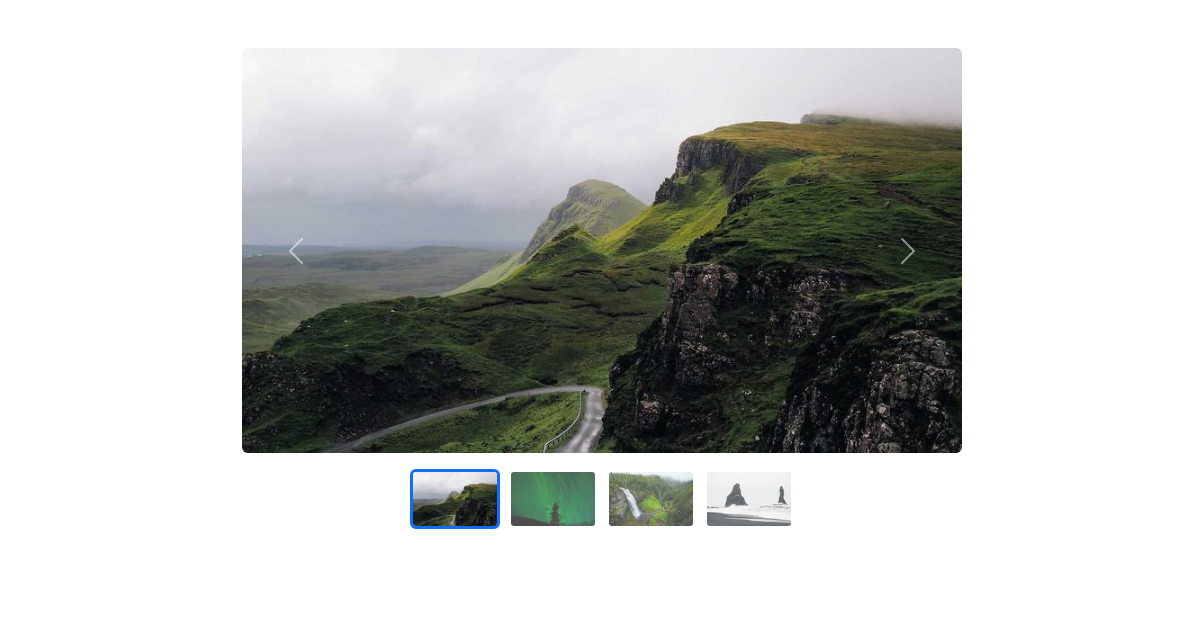
Syncing a thumbnail strip to a carousel only really works if it stays correct no matter what caused the slide to change — a thumbnail click, the Prev/Next arrows, or the carousel's own auto-advance timer — so this snippet is built around Bootstrap's real bootstrap.Carousel JavaScript API and its events rather than manually tracking slide state by hand. The main carousel is a standard Bootstrap carousel component with data-bs-ride="carousel" for auto-advance, and a single instance is obtained once with bootstrap.Carousel.getOrCreateInstance(carouselEl) — using getOrCreateInstance instead of new bootstrap.Carousel() avoids ever accidentally creating a second, conflicting instance bound to the same element.
Each thumbnail in #bsctThumbs carries its slide position in a data-index attribute. Clicking one calls the Carousel instance's own carousel.to(index) method — Bootstrap's documented API for jumping directly to a specific slide — instead of simulating that jump with repeated next()/prev() calls, which would be both slower and visually wrong for jumping more than one slide at a time. Immediately after calling to(), setActiveThumb(index) adds the active class (a blue border via .bsct-thumb.active) to the matching thumbnail and removes it from every other one.
The detail that makes this genuinely correct rather than just working for thumbnail clicks is the slid.bs.carousel listener attached to the carousel element itself: Bootstrap fires that event — with an event.to property containing the new slide's index — every time the active slide finishes changing, regardless of *why* it changed. That means clicking the carousel's own Prev/Next controls, or simply waiting for data-bs-ride="carousel"'s auto-advance timer to roll over to the next slide, both trigger the exact same setActiveThumb(event.to) call that a thumbnail click does. Without listening to that event and instead only updating the active thumbnail from the click handler, the thumbnail strip would silently fall out of sync the moment the carousel auto-advanced or the user used the arrow controls — a bug that is easy to miss when testing only by clicking thumbnails.
Thumbnails use object-fit: cover at a fixed 90×60 size so that images of different source aspect ratios still produce a uniform, gap-free thumbnail row instead of stretching or leaving letterboxed bars around mismatched images.
Hover and active states are handled entirely in CSS rather than JavaScript: .bsct-thumb starts at opacity: 0.7 so unselected thumbnails visually recede, :hover raises that to full opacity as a lightweight affordance that a thumbnail is clickable, and .active combines full opacity with a persistent 3px blue border — keeping all three states as pure CSS rules driven by one JS-toggled class means the visual feedback never falls out of sync with the actual click-handling logic.
Build with AI
Build, Understand, Optimize, and Extend It With AI
Ask an AI assistant like Claude to auto-scroll the thumbnail strip so the active thumbnail is always kept in view when the carousel auto-advances past the visible thumbnails, or to add slide captions synced to each carousel-item.
Prompt to recreate it
Copy this into your AI assistant of choice to build the effect from scratch, or as a jumping-off point for your own variant:
Build a Bootstrap 5.3 image carousel synced with thumbnails using the real Bootstrap CDN (bootstrap.min.css and bootstrap.bundle.min.js), not custom CSS made to resemble Bootstrap.

Requirements:
- A real Bootstrap carousel component with data-bs-ride="carousel" for auto-advance, containing at least four slides with Prev/Next controls.
- A row of clickable thumbnail images below the carousel, one per slide, each storing its slide index in a data attribute.
- Clicking a thumbnail must jump the carousel directly to that slide using the Bootstrap Carousel JavaScript API's to(index) method obtained via bootstrap.Carousel.getOrCreateInstance, not simulated next()/prev() calls.
- The currently active thumbnail must be visually highlighted (e.g. a colored border), and that highlight must update correctly not only on thumbnail clicks but also when the carousel advances via its own Prev/Next controls or its auto-advance timer — listen for Bootstrap's slid.bs.carousel event to keep it in sync in all cases.
- Thumbnails should use object-fit: cover at a fixed size so they display uniformly regardless of the source images' aspect ratios.
Want to tighten it up first? Run this prompt through the AI Prompt Studio to score it across 8 quality dimensions, catch anti-patterns, and tune the wording for Claude, ChatGPT, or Gemini before you paste it in.
Step by step
How to Use
- 1Load the snippetA large carousel image is shown above a row of four smaller thumbnails, with the first thumbnail highlighted with a blue border.
- 2Click the third thumbnailThe main carousel jumps directly to that slide and the blue border moves to the clicked thumbnail.
- 3Click the carousel's own Next arrowThe main image advances and the thumbnail highlight automatically moves to match, without clicking a thumbnail at all.
- 4Wait without touching anythingThe carousel auto-advances to the next slide on its own timer, and the correct thumbnail highlights itself in sync.
- 5Click back and forth between thumbnailsThe main image always jumps immediately to the exact slide clicked, never animating through the slides in between.
Real-world uses
Common Use Cases
Got questions?
Frequently Asked Questions
Yes. Create the bootstrap.Carousel instance inside useEffect with a ref to the carousel element (React), inside onMounted with a template ref (Vue), or inside ngAfterViewInit with ViewChild (Angular), attach the slid.bs.carousel listener there, and remove it in the cleanup/ngOnDestroy hook; the to() calls and event handling logic stay identical across frameworks since they operate on the underlying DOM element Bootstrap manages.
getOrCreateInstance returns an existing Carousel instance already bound to that element if one exists, or creates one if not, preventing the bug of accidentally instantiating two separate Carousel objects on the same element, which can cause conflicting auto-advance timers or duplicate event bindings.
Yes — the slid.bs.carousel listener fires with the new slide index every time the active slide changes for any reason, including the carousel's own auto-advance timer, so setActiveThumb() runs consistently regardless of whether a human or the timer caused the change.
to(index) jumps the carousel directly to the specified slide index in one transition, while next() and prev() only move one slide at a time — using to() means clicking the fourth thumbnail from the first slide jumps straight there instead of animating through the second and third slides first.
The carousel markup and JavaScript rely on Bootstrap's own Carousel component and CSS transitions, so keep bootstrap.bundle.min.js loaded for the carousel behavior even in a Tailwind-styled page, and simply restyle the thumbnail strip and its active-state border with Tailwind utility classes.
Wrap the thumbnail container in a horizontally scrollable flex row (overflow-x: auto, flex-nowrap) so extra thumbnails scroll instead of wrapping, while the data-index-based click and sync logic continues to work unchanged.