
Learn Coding Visually
Learn to code with interactive, live-preview playgrounds — HTML, CSS, JavaScript, React & more.
 HTML Playground42 lessons · Click-based · Live preview
 CSS PlaygroundLearn CSS with a live editor
 JavaScript Playground60 lessons · DOM · Async · Canvas
 React PlaygroundLearn React with a live code editor
 GSAP PlaygroundLearn GSAP animation interactively
 SVG Playground44 lessons · shapes · paths · animation
 SCSS Playground45 lessons · Sass modules · tokens
 Tailwind PlaygroundLearn Tailwind CSS with a live editor
 Bootstrap 5 Playground50 lessons · live preview
Rough.js Sketchy Annotation Highlight — Canvas-Over-Text Snippet
Rough.js Sketchy Annotation Highlight · Misc · Plain HTML, CSS & JS · Live preview
What's included
Features
About this UI Snippet
Rough.js Sketchy Annotation Highlight — Sketching Over Real Text, Never Rasterizing It
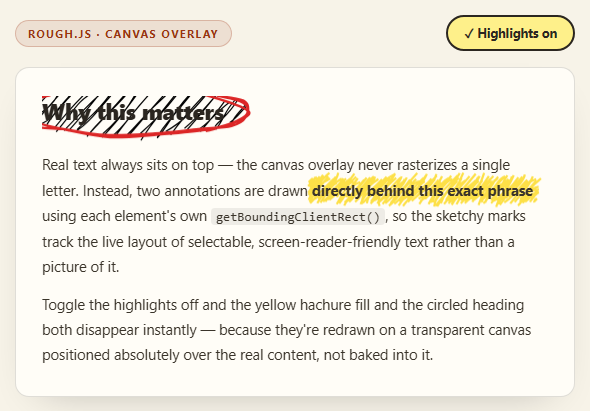
A common but wrong way to build a "hand-marked-up document" look is to render the whole page to an image and draw on top of that image — which immediately kills text selection, screen readers, find-in-page, and SEO. This snippet does the opposite: the text stays completely real, semantic HTML, and a transparent <canvas> is layered on top purely for decoration, never touching the text itself.
The layering: canvas behind, text in front
css
#rahCanvas { position: absolute; top:0; left:0; width:100%; height:100%; z-index:1; pointer-events:none; }
.rah-heading, .rah-body { position: relative; z-index: 2; }
The canvas is absolutely positioned to fill its wrapper and sits at z-index: 1. The real heading and paragraph text are given position: relative (so z-index applies) and z-index: 2, placing them visually *above* the canvas. Rough.js draws a solid yellow hachure fill and a red circle onto the canvas, but because the text sits on a higher stacking layer, it renders on top of those marks rather than being covered by them — exactly like a real highlighter marked on paper *underneath* a sheet of already-printed text would show through. pointer-events: none on the canvas ensures clicks, text selection, and cursor interaction all pass straight through to the real text beneath it; the canvas is purely visual.
Finding where to draw: getBoundingClientRect()
Rough.js has no idea where your text is — it only knows pixel coordinates on the canvas. To sketch a highlight *behind a specific phrase*, this snippet reads that phrase's real, current rendered position:
js
var markRect = mark.getBoundingClientRect();
rc.rectangle(markRect.left - wrapRect.left - 3, markRect.top - wrapRect.top - 2, markRect.width + 6, markRect.height + 4, {...});
getBoundingClientRect() returns the element's position relative to the *viewport*, not the canvas. Since the canvas is positioned relative to .rah-canvas-wrap, every coordinate has to be converted into that same coordinate space by subtracting the wrapper's own getBoundingClientRect() offset — markRect.left - wrapRect.left. Skip that subtraction and the highlight would be drawn using absolute viewport coordinates, landing wildly off-position anywhere the wrapper isn't flush with the page's top-left corner. The small -3/+6 padding adjustments pad the sketch slightly larger than the exact text box, which is what makes a highlighter mark look drawn *around* text rather than clipped exactly to its font metrics.
The circle uses an ellipse, not a literal circle primitive
rc.ellipse(cx, cy, width, height, {...}) draws a sketched oval centered at (cx, cy) — Rough.js has no separate "circle" primitive; a circle is just an ellipse with equal width and height. Sizing it larger than the heading's own bounding box (+16/+12 padding) is what makes the annotation read as "circling" the heading rather than tracing its exact outline.
Why it redraws on toggle and resize, not just once
Both the enabled/disabled toggle and the window resize listener call the same drawAnnotations() function, which re-measures every element's getBoundingClientRect() from scratch before drawing. This matters because text can reflow — a resize could wrap the paragraph differently, moving the highlighted phrase to a new line entirely — and a canvas mark drawn once at page-load coordinates would silently drift out of alignment with the text it's supposed to be marking. Re-measuring on every redraw keeps the sketch locked to wherever the text actually is right now, not where it was when the page first loaded.
Reusing it
Add more data-annotate phrases and loop over document.querySelectorAll('[data-annotate="highlight"]') instead of hardcoding a single .rah-mark lookup, or add an underline annotation type using rc.line() beneath a word instead of a full rectangle. Pair this with the hand-drawn bar chart snippet to see the same rough.canvas() setup used for chart geometry instead of text markup.
Build with AI
Build, Understand, Optimize, and Extend It With AI
The mechanism worth really understanding here is the z-index/getBoundingClientRect combination that lets a canvas decorate real text without ever rasterizing it. Ask an AI assistant like Claude to trace through exactly why pointer-events: none is necessary given that the canvas is a later DOM sibling stacked visually behind the text via z-index — the stacking order and the hit-testing order aren't the same thing, which trips people up. Then ask what specifically would go wrong if the coordinate conversion (subtracting the wrapper's rect offset) were skipped. Good extensions: support multiple highlighted phrases via a shared data attribute and a loop, add an underline annotation drawn with rc.line() beneath a word instead of a full highlight rectangle, animate the highlight sketching in with a growing-width reveal, or persist which annotations are active in localStorage. Pair with the hand-drawn bar chart snippet to see rough.canvas() used for chart geometry instead of DOM text annotation.
Prompt to recreate it
Copy this into your AI assistant of choice to build the effect from scratch, or as a jumping-off point for your own variant:
Build a "sketchy annotation overlay" for real text using Rough.js (v4.6, from a CDN) in plain HTML, CSS, and JavaScript.

Requirements:
- Render a real article-style block: a heading and one or two paragraphs of real, selectable, semantic HTML text — never rasterize any of this text into an image or canvas. One specific inline phrase inside a paragraph must have a distinguishing class/attribute to be targeted for a highlight annotation.
- Add a <canvas> element absolutely positioned to exactly overlay its text-containing wrapper (position: absolute; top:0; left:0; width:100%; height:100%), given a LOWER z-index than the text content (which needs position: relative and a higher z-index to stack above the canvas), and pointer-events: none so clicks and text selection pass through to the real text beneath it untouched.
- Using rough.canvas(canvasEl), draw two annotations every time a drawAnnotations() function runs: (1) a highlighter-style rectangle behind the specific highlighted phrase, using { fill: 'yellow' or a yellow hex, fillStyle: 'hachure', roughness: 2.5, stroke: 'none' }, sized and positioned from that phrase's own getBoundingClientRect() with a few pixels of padding; and (2) a hand-drawn circle/ellipse (via rc.ellipse, since Rough.js has no separate circle primitive) around the heading, sized larger than the heading's own bounding box so it reads as circling it, not tracing its exact outline.
- Critically: since getBoundingClientRect() returns viewport-relative coordinates but the canvas is positioned relative to its own wrapper element, subtract the WRAPPER's own getBoundingClientRect() offset from each target element's rect before drawing, so the sketch lands in the correct position relative to the canvas rather than at raw viewport coordinates.
- Add a toggle button that flips highlights on/off by re-running drawAnnotations() (clearing the canvas and skipping the draw calls when off), and a window resize listener that also calls drawAnnotations() so reflowed text never leaves a stale, misaligned annotation.
- Style it as a light paper-like article card with a bold sans-serif heading and readable body copy. Keep all JavaScript in var/function style, no ES modules.
Want to tighten it up first? Run this prompt through the AI Prompt Studio to score it across 8 quality dimensions, catch anti-patterns, and tune the wording for Claude, ChatGPT, or Gemini before you paste it in.
Source Code
<div class="rah-stage">
  <div class="rah-toolbar">
    <span class="rah-tag">Rough.js · canvas overlay</span>
    <button class="rah-btn is-on" id="rahToggle">✓ Highlights on</button>
  </div>
  <article class="rah-article">
    <div class="rah-canvas-wrap">
      <h2 class="rah-heading" data-annotate="circle">Why this matters</h2>
      <canvas id="rahCanvas"></canvas>
      <p class="rah-body">
        Real text always sits on top — the canvas overlay never rasterizes a single letter. Instead, two annotations are drawn
        <span class="rah-mark" data-annotate="highlight">directly behind this exact phrase</span>
        using each element's own <code>getBoundingClientRect()</code>, so the sketchy marks track the live layout of selectable, screen-reader-friendly text rather than a picture of it.
      </p>
      <p class="rah-body">
        Toggle the highlights off and the yellow hachure fill and the circled heading both disappear instantly — because they're redrawn on a transparent canvas positioned absolutely over the real content, not baked into it.
      </p>
    </div>
  </article>
</div>*{box-sizing:border-box;margin:0;padding:0}
body{font-family:system-ui,-apple-system,sans-serif;background:#f7f3e8;color:#2b2620;min-height:100vh;display:flex;align-items:center;justify-content:center;padding:24px}
.rah-stage{width:min(560px,94vw);display:flex;flex-direction:column;gap:16px}
.rah-toolbar{display:flex;align-items:center;justify-content:space-between;gap:12px}
.rah-tag{font-size:11px;font-weight:700;letter-spacing:.12em;text-transform:uppercase;color:#9a3412;background:rgba(154,52,18,.1);border:1px solid rgba(154,52,18,.25);padding:5px 12px;border-radius:99px}
.rah-btn{padding:8px 16px;border-radius:99px;border:2px solid #2b2620;background:#fff;color:#2b2620;font:700 12.5px system-ui;cursor:pointer}
.rah-btn.is-on{background:#fef08a}
.rah-article{background:#fffdf7;border:1px solid rgba(43,38,32,.15);border-radius:14px;padding:28px 26px;box-shadow:0 16px 40px -26px rgba(0,0,0,.3)}
.rah-canvas-wrap{position:relative}
#rahCanvas{position:absolute;top:0;left:0;width:100%;height:100%;pointer-events:none;z-index:1}
.rah-heading{position:relative;z-index:2;font-size:22px;font-weight:800;letter-spacing:-.01em;margin-bottom:14px;display:inline-block}
.rah-body{position:relative;z-index:2;font-size:14.5px;line-height:1.75;color:#3a342a;margin-top:12px}
.rah-mark{position:relative;font-weight:700}
code{background:rgba(43,38,32,.08);padding:1px 5px;border-radius:4px;font-size:13px}var canvas = document.getElementById('rahCanvas');
var wrap = canvas.parentElement;
var ctx = canvas.getContext('2d');
var rc = rough.canvas(canvas);
var enabled = true;
function sizeCanvas() {
var rect = wrap.getBoundingClientRect();
canvas.width = rect.width;
canvas.height = rect.height;
}
function drawAnnotations() {
sizeCanvas();
ctx.clearRect(0, 0, canvas.width, canvas.height);
if (!enabled) return;
var wrapRect = wrap.getBoundingClientRect();
var mark = document.querySelector('.rah-mark');
var markRect = mark.getBoundingClientRect();
rc.rectangle(
markRect.left - wrapRect.left - 3,
markRect.top - wrapRect.top - 2,
markRect.width + 6,
markRect.height + 4,
{ fill: '#fde047', fillStyle: 'hachure', hachureGap: 3.2, fillWeight: 2.2, roughness: 2.5, stroke: 'none' }
);
var heading = document.querySelector('.rah-heading');
var hRect = heading.getBoundingClientRect();
var cx = hRect.left - wrapRect.left + hRect.width / 2;
var cy = hRect.top - wrapRect.top + hRect.height / 2;
var rx = hRect.width / 2 + 16;
var ry = hRect.height / 2 + 12;
rc.ellipse(cx, cy, rx * 2, ry * 2, { stroke: '#dc2626', strokeWidth: 2.4, roughness: 2.2, fill: 'none' });
}
document.getElementById('rahToggle').addEventListener('click', function () {
enabled = !enabled;
this.classList.toggle('is-on', enabled);
this.textContent = enabled ? '✓ Highlights on' : 'Highlights off';
drawAnnotations();
});
window.addEventListener('resize', drawAnnotations);
drawAnnotations();Step by step
How to Use
- 1Add the Rough.js CDNInclude rough.umd.js from the CDN panel — a single script tag exposing the rough global.
- 2Paste HTML, CSS, and JSA text block renders with a highlighted phrase and a circled heading already sketched in.
- 3Toggle highlights off/onThe button flips a boolean and calls drawAnnotations() again — no text is ever touched.
- 4Select the highlighted textThe phrase is real, selectable HTML; the yellow mark sits purely behind it on the canvas.
- 5Resize the windowA resize listener re-measures element positions so marks never drift out of alignment.
- 6Add more annotationsQuery additional elements by a data attribute and draw a rectangle or ellipse behind each one.
Real-world uses
Common Use Cases
Got questions?
Frequently Asked Questions
The canvas is positioned absolutely and given a lower z-index (1) than the real text elements, which have position: relative and z-index: 2. Both being stacking contexts on the same page, the browser paints the canvas first and the text second, so the yellow hachure fill visually sits behind the text rather than obscuring it — the same visual relationship as a highlighter mark showing through printed paper.
Without it, the canvas element — which fully overlaps the text as an absolutely-positioned layer — would intercept mouse clicks and text selection, since it sits in front in the DOM tree order even though it renders visually behind via z-index. pointer-events: none makes the canvas transparent to all pointer interaction, so clicks and selection pass straight through to the real text underneath.
getBoundingClientRect() always returns coordinates relative to the browser viewport, not relative to any parent element. Since the canvas is positioned relative to its wrapper (top: 0; left: 0 within .rah-canvas-wrap), a coordinate has to be converted into "distance from the wrapper's top-left corner" by subtracting the wrapper's own rect offset — otherwise the sketch would be drawn using raw viewport coordinates and land in the wrong place unless the wrapper happened to be at the page's exact top-left corner.
Text can reflow when the viewport changes size — a narrower window might wrap the highlighted phrase onto a different line entirely. Because the canvas coordinates were computed from getBoundingClientRect() at draw time, a stale draw would leave the highlight rectangle in its original position while the actual text moved elsewhere. Re-running drawAnnotations() on resize re-measures every target element fresh, so the marks always track the current layout.
Rough.js does not provide a separate circle primitive — a circle is simply an ellipse whose width and height happen to be equal. Using rc.ellipse(cx, cy, width, height, options) with independently controllable width and height also makes it trivial to fit an oval annotation around text of any aspect ratio, not just perfectly square regions.
Give each target phrase a shared attribute like data-annotate="highlight", then inside drawAnnotations() use document.querySelectorAll('[data-annotate="highlight"]') and loop over the results, computing and drawing a rectangle for each one's own getBoundingClientRect() the same way the single .rah-mark lookup does now.