Source Code
<div class="demo">
  <button class="async-btn" id="asyncBtn" data-state="idle">
    <span class="btn-spinner" aria-hidden="true"></span>
    <svg class="btn-icon icon-success" width="16" height="16" viewBox="0 0 24 24" fill="none" stroke="currentColor" stroke-width="3" stroke-linecap="round" stroke-linejoin="round"><path d="M20 6 9 17l-5-5"/></svg>
    <svg class="btn-icon icon-error" width="16" height="16" viewBox="0 0 24 24" fill="none" stroke="currentColor" stroke-width="3" stroke-linecap="round"><path d="M18 6 6 18M6 6l12 12"/></svg>
    <span class="btn-text" id="btnText">Save changes</span>
  </button>
  <p class="hint">~35% of clicks simulate a failure — click repeatedly to see every state</p>
</div>
* { box-sizing: border-box; margin: 0; padding: 0; }
body { font-family: system-ui, sans-serif; background: #f8fafc; display: flex; align-items: center; justify-content: center; min-height: 100vh; padding: 24px; flex-direction: column; gap: 12px; }
.async-btn { display: inline-flex; align-items: center; gap: 8px; background: #4f46e5; color: #fff; border: none; padding: 12px 22px; border-radius: 11px; font-size: 13.5px; font-weight: 700; cursor: pointer; font-family: inherit; transition: background 0.2s; min-width: 140px; justify-content: center; }
.async-btn:hover:not(:disabled) { background: #4338ca; }
.async-btn:disabled { cursor: not-allowed; }
.btn-spinner { display: none; width: 15px; height: 15px; border: 2px solid rgba(255,255,255,0.35); border-top-color: #fff; border-radius: 50%; }
.btn-icon { display: none; }
.async-btn[data-state="loading"] { background: #6366f1; }
.async-btn[data-state="loading"] .btn-spinner { display: inline-block; animation: spin 0.7s linear infinite; }
@keyframes spin { to { transform: rotate(360deg); } }
.async-btn[data-state="success"] { background: #16a34a; }
.async-btn[data-state="success"] .icon-success { display: inline-block; }
.async-btn[data-state="error"] { background: #dc2626; }
.async-btn[data-state="error"] .icon-error { display: inline-block; }
.hint { font-size: 11.5px; color: #94a3b8; max-width: 280px; text-align: center; }const btn = document.getElementById('asyncBtn');
const btnText = document.getElementById('btnText');
const LABELS = {
idle: 'Save changes',
loading: 'Saving…',
success: 'Saved!',
error: 'Failed — retry',
};
let resetTimer = null;
function setState(state) {
btn.dataset.state = state;
btnText.textContent = LABELS[state];
btn.disabled = state === 'loading';
}
// Simulates an async save request with realistic latency and a genuine failure rate.
function fakeSave() {
return new Promise((resolve, reject) => {
setTimeout(() => {
if (Math.random() < 0.35) reject(new Error('Save failed'));
else resolve();
}, 900 + Math.random() * 500);
});
}
async function handleClick() {
// Ignore clicks while a save is actively in flight — the button is also
// natively disabled during "loading", but this guards against any edge
// case where a click could still slip through (e.g. Enter key repeat).
if (btn.dataset.state === 'loading') return;
clearTimeout(resetTimer);
setState('loading');
try {
await fakeSave();
setState('success');
} catch (err) {
setState('error');
}
// Return to idle automatically after a pause, but only from a terminal
// state (success/error) — never interrupt an in-flight loading state.
resetTimer = setTimeout(() => {
if (btn.dataset.state !== 'loading') setState('idle');
}, 1800);
}
btn.addEventListener('click', handleClick);Learn Coding Visually
Learn to code with interactive, live-preview playgrounds — HTML, CSS, JavaScript, React & more.
 HTML Playground42 lessons · Click-based · Live preview
 CSS PlaygroundLearn CSS with a live editor
 JavaScript Playground60 lessons · DOM · Async · Canvas
 React PlaygroundLearn React with a live code editor
 GSAP PlaygroundLearn GSAP animation interactively
 SVG Playground44 lessons · shapes · paths · animation
 SCSS Playground45 lessons · Sass modules · tokens
 Tailwind PlaygroundLearn Tailwind CSS with a live editor
 Bootstrap 5 Playground50 lessons · live preview
Async Submit Button — Correct Idle/Loading/Success/Error State Machine
Async Submit Button — Idle/Loading/Success/Error State Machine · Buttons · Plain HTML, CSS & JS · Live preview
What's included
Features
About this UI Snippet
Async Submit Button — A Real State Machine, Not Just a Spinner Swap
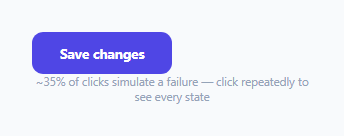
Many "loading button" implementations only handle two states — normal and spinning — leaving success and failure to some other part of the page. This snippet implements the full four-state lifecycle an async button click actually goes through: idle → loading → (success or error) → back to idle, all driven from one data-state attribute that both the CSS and the button's own text derive from.
One attribute drives everything, so states can't visually disagree
btn.dataset.state is the single source of truth — CSS attribute selectors ([data-state="loading"], [data-state="success"], etc.) control the background color and which icon/spinner is visible, while LABELS[state] supplies the matching button text from one lookup object. Because both the visual styling and the text label read from the exact same state value, it's structurally impossible for the button to show, say, a green success background alongside "Saving…" text — the two can never independently drift out of sync since they're never set separately.
Genuinely disabled during the request, not just visually dimmed
btn.disabled = state === 'loading' sets the button's real native disabled property specifically during the loading state — preventing a second click (or an Enter-key repeat while focused) from firing a duplicate save request while the first one is still in flight. The click handler also independently checks if (btn.dataset.state === 'loading') return; as a defensive second guard, so even an edge case that somehow bypasses the native disabled state still can't trigger an overlapping request.
The auto-reset only fires from a terminal state, never interrupting loading
After success or error, a setTimeout schedules a return to idle — but its callback explicitly re-checks if (btn.dataset.state !== 'loading') before actually resetting. This matters because if a user clicks again quickly right as an old reset timer is about to fire, that stale timer must not force the button back to idle mid-way through a brand-new loading request; clearTimeout(resetTimer) at the start of every new click additionally cancels any pending reset from a previous cycle, but the state re-check inside the timeout callback is a second layer of protection against exactly this kind of stale-timer bug.
Why this generalizes to essentially any async button
The pattern here — one state variable, one place that sets it, CSS and text both deriving from it, a disabled guard during the async operation, and a safe auto-reset — is the same shape needed for any button that fires a request and needs to report success or failure back to the user, whether that's a form save, a "like" action, or an inline delete confirmation.
Build with AI
Build, Understand, Optimize, and Extend It With AI
Ask an AI assistant to explain why deriving both the button's visual styling and its text label from a single state value (rather than several independent flags) prevents an entire category of "impossible" visual bugs, and to walk through the specific stale-timer race condition that the reset callback's state re-check is guarding against. It's also worth asking for a version that shows a specific error message from the caught exception rather than a generic "Failed — retry" label, or one that automatically retries a failed request once with a short delay before surfacing the error state to the user.
Prompt to recreate it
Copy this into your AI assistant of choice to build the effect from scratch, or as a jumping-off point for your own variant:
Build a single reusable async action button in HTML, CSS and vanilla JavaScript implementing a genuine idle/loading/success/error state machine — no external libraries.

Requirements:
- Use a single state attribute (e.g. a data-state attribute on the button) as the one source of truth that both drives the button's visual appearance (background color, spinner, success/error icon) via CSS selectors and its displayed text label via a JavaScript lookup, so the two representations can never visually disagree with each other.
- On click, transition to a "loading" state showing a spinner, during which the button must be genuinely disabled (using the native disabled attribute) to prevent duplicate submissions, and the click handler itself must also explicitly guard against re-entry as a second layer of protection.
- Simulate an async save operation with a Promise that resolves after a realistic randomized delay and has a genuine random chance of failing (e.g. around 35%) rather than an always-succeeds mock.
- On success, transition to a distinct "success" state (different color, checkmark icon, updated text); on failure, transition to a distinct "error" state (different color, X icon, updated text).
- After reaching success or error, automatically return the button to "idle" after a short pause — but ensure that if a new click starts a fresh loading cycle before that pause elapses, the pending auto-reset does not incorrectly interrupt the new loading state.
Want to tighten it up first? Run this prompt through the AI Prompt Studio to score it across 8 quality dimensions, catch anti-patterns, and tune the wording for Claude, ChatGPT, or Gemini before you paste it in.
Step by step
How to Use
- 1Click the button repeatedly to see all four statesAbout 65% of attempts succeed (green check) and 35% fail (red X), with automatic return to idle after each.
- 2Replace fakeSave() with a real requestSwap the setTimeout/Math.random simulation for an actual fetch() call — keep the same resolve-on-success/reject-on-failure Promise contract.
- 3Customize the label text per stateEdit the LABELS object to change what the button displays in each of the four states.
- 4Adjust the auto-reset delayChange the 1800ms value controlling how long a success/error state remains visible before reverting to idle.
- 5Reuse the state machine for other actionsThe same setState()/handleClick() structure works for any async button — just swap what happens inside the try block.
Real-world uses
Common Use Cases
Got questions?
Frequently Asked Questions
A single state value makes the four states mutually exclusive by construction — there's no way to end up with isLoading and isSuccess both true at once, which is a real bug that can happen with separate boolean flags if one is forgotten to be reset. Both the CSS and the button text derive from this one value, so they can never disagree.
Two layers: the button's native disabled attribute is set to true specifically during the loading state (preventing clicks and Enter-key activation), and the click handler additionally checks the current state explicitly at its very start and returns early if a request is already in flight.
clearTimeout(resetTimer) at the start of every click cancels any pending reset scheduled by a previous click cycle, and the reset callback itself also re-checks the current state before resetting — so a new loading state started by a fresh click can never be prematurely reverted by a stale timer from an earlier click.
Yes — after reaching either success or error, a timer automatically returns the button to idle after a pause (1.8 seconds by default), so the user doesn't have to manually reset it before trying again or moving on.
Replace the body of fakeSave() with an actual fetch() or async API call, keeping the same contract: resolve the returned Promise on success, reject it (ideally with a meaningful Error) on failure. The rest of handleClick()'s logic works unchanged against that contract.
Yes — inside the catch block in handleClick(), you can inspect the caught error and, for example, set different label text or a different button state depending on the specific failure reason, rather than treating every failure identically.