Learn Coding Visually
Learn to code with interactive, live-preview playgrounds — HTML, CSS, JavaScript, React & more.
 HTML Playground42 lessons · Click-based · Live preview
 CSS PlaygroundLearn CSS with a live editor
 JavaScript Playground60 lessons · DOM · Async · Canvas
 React PlaygroundLearn React with a live code editor
 GSAP PlaygroundLearn GSAP animation interactively
 SVG Playground44 lessons · shapes · paths · animation
 SCSS Playground45 lessons · Sass modules · tokens
 Tailwind PlaygroundLearn Tailwind CSS with a live editor
 Bootstrap 5 Playground50 lessons · live preview
Konva Drag & Snap Shapes — Grid-Snapping Canvas Objects Snippet
Konva Drag & Snap Shapes · Misc · Plain HTML, CSS & JS · Live preview
What's included
Features
About this UI Snippet
Konva Drag & Snap Shapes — Snapping on Release, Not Mid-Drag
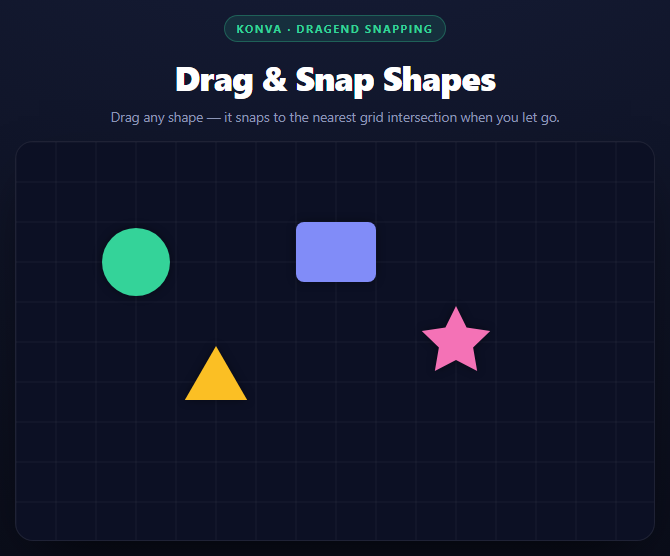
Grid-snapping feels obvious until you implement it: snap too eagerly and the shape jitters under the pointer, fighting the user's hand; snap too late and it never feels precise. Konva's event model — separate dragmove and dragend events per shape — makes the right answer easy: follow the pointer exactly while dragging, and snap only once, on release.
Two layers, two responsibilities
The stage holds a gridLayer (static guide lines, drawn once) and a shapeLayer (the draggable shapes). Konva layers are each backed by their own <canvas> element, so redrawing the shape layer during a drag never touches the grid layer's pixels — the browser only repaints what changed. This is the core reason Konva scales to more complex scenes than manually managing one shared canvas: retained shapes on separate layers let you redraw selectively instead of clearing and redrawing everything on every frame.
The snap math
function snap(value) { return Math.round(value / GRID) * GRID; }
Dividing by the grid size, rounding to the nearest integer, and multiplying back is the standard "round to nearest multiple" formula. Applied independently to x and y in the dragend handler, it moves the shape to the nearest grid intersection regardless of which direction it was dragged from.
Why snapping happens on dragend, not dragmove
shape.on('dragend', function () { shape.position({ x: snap(shape.x()), y: snap(shape.y()) }); ... });
If this logic ran on dragmove instead, the shape's position would be overwritten with a snapped value on every pointer-move event while dragging — visually, the shape would jump between grid points rather than following the cursor, which reads as broken rather than assistive. Running it only once, in dragend, gives you the best of both: free-form movement while the mouse is down, a satisfying settle onto the grid the instant it's released.
Drag feedback
dragstart calls shape.moveToTop() so the shape being dragged always renders above the others (Konva's z-order follows each layer's internal child array, and moveToTop() moves the node to the end of it), and drops its opacity to 0.85 as a lightweight "lifted" cue, both reverted in dragend.
batchDraw vs draw
Event handlers call shapeLayer.batchDraw() rather than .draw(). batchDraw schedules a redraw on the next animation frame and coalesces multiple calls within the same frame into one actual repaint, which matters once several shapes could be moving or updating within the same tick — .draw() forces an immediate synchronous repaint every single call.
Build with AI
Build, Understand, Optimize, and Extend It With AI
The core design decision in this snippet is timing \u2014 snapping on dragend rather than dragmove \u2014 so start a conversation there. Paste the code into an AI assistant like Claude and ask it to explain what visibly breaks if the snap logic moves into a dragmove handler instead, and why Konva's separate dragstart/dragmove/dragend events make that choice trivial to express compared to a raw canvas implementation tracking pointer state by hand. Then ask about the gridLayer/shapeLayer split \u2014 why keeping static content on a separate Konva layer from animated or draggable content is a broadly useful pattern for canvas performance. To extend it: add collision detection so shapes can't snap onto an already-occupied grid cell, persist shape positions to localStorage and restore them on load, add a right-click context menu to delete a shape, or make the grid size adjustable via a live slider that redraws the guide lines.
Prompt to recreate it
Copy this into your AI assistant of choice to build the effect from scratch, or as a jumping-off point for your own variant:
Build a canvas of draggable shapes that snap to a grid on release, using Konva.js (v9, from a CDN) in plain HTML, CSS, and JavaScript.

Requirements:
- A Konva.Stage with two Konva.Layer instances: one holding a static background grid of thin lines spaced by a GRID constant (drawn once with a loop over Konva.Line objects), and one holding the draggable shapes \u2014 kept separate so dragging a shape never triggers a redraw of the grid layer.
- At least 4 different Konva shape types (e.g. Circle, Rect, Star, RegularPolygon), each created with draggable(true) and a drop shadow, initially positioned already aligned to the grid.
- A reusable makeDraggable(shape) helper wiring: dragstart (moveToTop() plus a slight opacity reduction as a "lifted" visual cue), and dragend (round shape.x()/shape.y() to the nearest multiple of GRID using Math.round(value / GRID) * GRID, apply it with shape.position(), and restore full opacity). Crucially, do NOT snap during dragmove \u2014 the shape must follow the pointer smoothly while dragging and only snap once, on release.
- Cursor feedback: grab cursor on hover, grabbing while actively dragging.
- Use layer.batchDraw() rather than layer.draw() in the event handlers for efficient batched repaints.
- Style it as a dark canvas panel with a subtle grid and colorful shapes with soft shadows, inside a bordered, shadowed container.
Want to tighten it up first? Run this prompt through the AI Prompt Studio to score it across 8 quality dimensions, catch anti-patterns, and tune the wording for Claude, ChatGPT, or Gemini before you paste it in.
Source Code
<div class="kds-stage">
<div class="kds-head">
<span class="kds-tag">Konva · dragend snapping</span>
<h2>Drag & Snap Shapes</h2>
<p>Drag any shape — it snaps to the nearest grid intersection when you let go.</p>
</div>
<div id="kdsContainer" class="kds-container"></div>
</div>*{box-sizing:border-box;margin:0;padding:0}
body{font-family:system-ui,-apple-system,sans-serif;background:radial-gradient(120% 100% at 50% 0%,#161d38,#080a14);color:#fff;min-height:100vh;display:flex;align-items:center;justify-content:center;padding:24px}
.kds-stage{width:min(640px,94vw);display:flex;flex-direction:column;align-items:center;gap:16px}
.kds-head{text-align:center}
.kds-tag{display:inline-block;font-size:11px;font-weight:700;letter-spacing:.14em;text-transform:uppercase;color:#34d399;background:rgba(52,211,153,.12);border:1px solid rgba(52,211,153,.3);padding:5px 12px;border-radius:99px;margin-bottom:12px}
.kds-head h2{font-size:clamp(24px,5vw,34px);font-weight:800;letter-spacing:-.02em}
.kds-head p{font-size:13.5px;color:#8e97b8;margin-top:7px}
.kds-container{width:100%;aspect-ratio:8/5;border-radius:18px;overflow:hidden;background:#0c1024;border:1px solid rgba(255,255,255,.08);box-shadow:0 24px 60px -24px rgba(0,0,0,.8);cursor:grab}var GRID = 40;
var container = document.getElementById('kdsContainer');
var width = container.clientWidth || 600;
var height = container.clientHeight || 375;
var stage = new Konva.Stage({
container: 'kdsContainer',
width: width,
height: height
});
var gridLayer = new Konva.Layer();
var shapeLayer = new Konva.Layer();
stage.add(gridLayer);
stage.add(shapeLayer);
// Grid lines are drawn once as static guide shapes on their own layer,
// separate from the draggable shapes, so dragging never has to redraw them.
for (var x = 0; x <= width; x += GRID) {
gridLayer.add(new Konva.Line({ points: [x, 0, x, height], stroke: 'rgba(255,255,255,0.06)', strokeWidth: 1 }));
}
for (var y = 0; y <= height; y += GRID) {
gridLayer.add(new Konva.Line({ points: [0, y, width, y], stroke: 'rgba(255,255,255,0.06)', strokeWidth: 1 }));
}
function snap(value) {
return Math.round(value / GRID) * GRID;
}
function makeDraggable(shape) {
shape.draggable(true);
shape.on('dragstart', function () {
shape.moveToTop();
shape.opacity(0.85);
shapeLayer.batchDraw();
});
// The snap itself happens only on dragend: snapping continuously during
// dragmove would make the shape jump and fight the pointer, so the shape
// follows the pointer smoothly and only settles onto the grid on release.
shape.on('dragend', function () {
shape.position({ x: snap(shape.x()), y: snap(shape.y()) });
shape.opacity(1);
shapeLayer.batchDraw();
});
shape.on('mouseenter', function () { stage.container().style.cursor = 'grab'; });
shape.on('mousedown touchstart', function () { stage.container().style.cursor = 'grabbing'; });
shape.on('mouseup touchend', function () { stage.container().style.cursor = 'grab'; });
}
var circle = new Konva.Circle({ x: snap(120), y: snap(120), radius: 34, fill: '#34d399', shadowColor: 'black', shadowBlur: 10, shadowOpacity: 0.4 });
var rect = new Konva.Rect({ x: snap(280), y: snap(80), width: 80, height: 60, fill: '#818cf8', cornerRadius: 8, shadowColor: 'black', shadowBlur: 10, shadowOpacity: 0.4 });
var star = new Konva.Star({ x: snap(440), y: snap(200), numPoints: 5, innerRadius: 18, outerRadius: 36, fill: '#f472b6', shadowColor: 'black', shadowBlur: 10, shadowOpacity: 0.4 });
var triangle = new Konva.RegularPolygon({ x: snap(200), y: snap(240), sides: 3, radius: 36, fill: '#fbbf24', shadowColor: 'black', shadowBlur: 10, shadowOpacity: 0.4 });
[circle, rect, star, triangle].forEach(function (shape) {
makeDraggable(shape);
shapeLayer.add(shape);
});
shapeLayer.draw();Step by step
How to Use
- 1Add the Konva CDNInclude konva.min.js from the CDN panel — it attaches a global Konva object.
- 2Paste HTML, CSS, and JSA stage renders with a guide grid and four draggable shapes.
- 3Drag any shapeIt follows the pointer freely, lifting slightly and moving to the top.
- 4Release to snapdragend rounds x and y to the nearest grid intersection.
- 5Add more shapesCreate any Konva shape, call makeDraggable(shape), and add it to shapeLayer.
- 6Change the grid sizeEdit the GRID constant — both the drawn lines and the snap math read from it.
Real-world uses
Common Use Cases
Got questions?
Frequently Asked Questions
Snapping on every dragmove event would overwrite the shape\u2019s position with a rounded value on each pointer move, making it visibly jump between grid points instead of following the cursor. Snapping only once, on dragend, keeps movement smooth while dragging and settles the shape precisely on release.
Each Konva layer is its own canvas element. Keeping static grid lines on gridLayer means dragging a shape only triggers a redraw of shapeLayer \u2014 the grid\u2019s canvas is never touched, which is cheaper than redrawing both together.
Math.round(value / GRID) * GRID divides the coordinate by the grid size, rounds to the nearest whole number of grid units, then multiplies back \u2014 the standard formula for rounding a number to the nearest multiple of another.
draw() forces an immediate synchronous repaint on every call. batchDraw() schedules a redraw for the next animation frame and merges multiple calls within that frame into a single repaint, which is more efficient when several updates happen close together.
Replace the snap function with coordinate-specific math for that grid \u2014 for example, converting to axial hex coordinates, rounding those, and converting back \u2014 while keeping the same dragend-only trigger pattern.
In dragend, after computing the snapped position, check shapeLayer.getIntersection or iterate the other shapes\u2019 positions for a collision; if the target cell is occupied, revert to the shape\u2019s previous snapped position instead of applying the new one.