

Learn Coding Visually
Learn to code with interactive, live-preview playgrounds — HTML, CSS, JavaScript, React & more.
 HTML Playground42 lessons · Click-based · Live preview
 CSS PlaygroundLearn CSS with a live editor
 JavaScript Playground60 lessons · DOM · Async · Canvas
 React PlaygroundLearn React with a live code editor
 GSAP PlaygroundLearn GSAP animation interactively
 SVG Playground44 lessons · shapes · paths · animation
 SCSS Playground45 lessons · Sass modules · tokens
 Tailwind PlaygroundLearn Tailwind CSS with a live editor
 Bootstrap 5 Playground50 lessons · live preview
Interact.js Pinch-Zoom Image — Draggable & Pinch-Zoom Viewer Snippet
Interact.js Pinch-Zoom Image · Misc · Plain HTML, CSS & JS · Live preview
What's included
Features
About this UI Snippet
Interact.js Pinch-Zoom Image — How Gesture Events Give You Pinch-Zoom
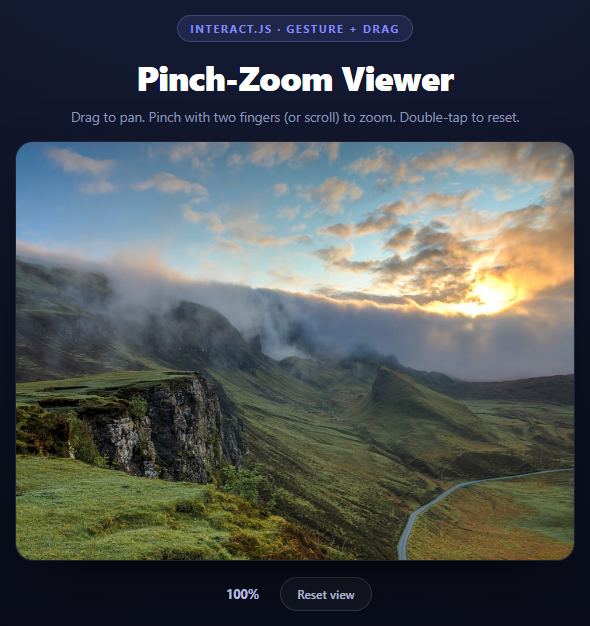
Native pinch-zoom in a browser usually means fighting the page's own zoom-and-scroll behavior, or reaching for a heavy image-viewer library. interact.js solves this with a dedicated gesturable interaction that reports two-finger pinch as a clean delta value, combined with its draggable interaction for panning — both running on the same element without conflicting.
Two interactions, one element
interact(frame).draggable({...}).gesturable({...}) chains both interactions onto the same DOM node. interact.js's pointer engine is built to disambiguate them automatically: a single-finger touch or mouse drag fires draggable's move listener, while a two-finger touch fires gesturable's move listener instead. You don't have to detect touch count yourself.
Why event.ds and not event.scale
The gesture listener reads event.ds, the incremental change in scale since the previous move event, and adds it onto state.scale:
state.scale = clampScale(state.scale + event.ds);
This matters because interact.js also exposes event.scale, a value relative to the *start* of the current gesture (resetting to 1 every time a new pinch begins). Using event.scale directly would snap the image back to whatever scale it was at when the previous pinch started, discarding all zoom accumulated in gestures before it. Accumulating ds onto a persistent state.scale variable is what lets you pinch, let go, pinch again, and keep building on the same zoom level.
Clamping without fighting the gesture
clampScale() bounds every update to [0.6, 4]. Because the clamp is applied to the *result* rather than blocking the gesture, over-pinching just stalls visually at the limit instead of feeling broken — the finger delta keeps arriving, state.scale keeps trying to move, but Math.min/Math.max hold the rendered value still until the fingers reverse direction.
Panning: separate accumulator, same transform
draggable's move listener adds event.dx/event.dy (the per-frame pointer delta) onto state.x/state.y. Both pan and zoom write into the same state object and both call the same apply(), which composes a single CSS transform string: translate to re-center the image, translate by the pan offset, then scale. Because transform is a compositor-only property, panning and zooming stay smooth even on a fairly large image.
The wheel fallback
Touch devices get real pinch gestures; desktop users don't have fingers, so a wheel listener adjusts state.scale by a fixed step per tick, with preventDefault() so the page itself doesn't scroll while the cursor is over the frame.
Reset on double-tap
A lightweight double-tap detector — comparing Date.now() against the previous pointerup timestamp — resets state to its identity values and reapplies the transform, giving you a way back to the original framing without a page reload.
Build with AI
Build, Understand, Optimize, and Extend It With AI
This snippet is a good jumping-off point for a conversation about gesture math rather than just gesture syntax. Paste the code into an AI assistant like Claude and ask it to explain precisely why event.ds (an incremental delta) is used for accumulating zoom instead of event.scale (a gesture-relative absolute value), and what visibly breaks if you swap one for the other — try it and watch the image snap back on every new pinch. Then ask how you would add inertia to the zoom the same way draggable already has inertia on the pan, or how to make the zoom center on the pinch midpoint rather than the image's fixed center. To extend it: add rotation via gesturable's event.da (angle delta), constrain panning so the image can never be dragged fully off-frame, or add a minimap thumbnail showing which part of the zoomed image is currently in view.
Prompt to recreate it
Copy this into your AI assistant of choice to build the effect from scratch, or as a jumping-off point for your own variant:
Build a pannable, pinch-zoomable image viewer using interact.js (v1.10, from a CDN) in plain HTML, CSS, and JavaScript.

Requirements:
- A framed container holding an <img> that fills it via object-fit: cover, positioned absolutely and centered with translate(-50%, -50%) as its base transform.
- Chain interact(frame).draggable({...}).gesturable({...}) on the frame element so both panning and pinch-zooming work on the same element without manual touch-count detection.
- In draggable's move listener, accumulate event.dx/event.dy onto persistent state.x/state.y variables (not read back from the current CSS transform, since transform strings are lossy to re-parse).
- In gesturable's move listener, accumulate event.ds (the incremental scale delta since the last move event, NOT event.scale which is relative to gesture start) onto a persistent state.scale variable, and clamp it between 0.6 and 4 with a clampScale helper.
- Compose state.x, state.y, and state.scale into a single CSS transform string applied once per update: translate(-50%,-50%) translate(x,y) scale(s).
- Add a desktop fallback: a wheel event listener (with preventDefault so the page doesn't scroll) that nudges state.scale by a fixed step per tick, using the same clampScale helper.
- Implement double-tap-to-reset: compare Date.now() against the previous pointerup timestamp, and if under ~320ms, reset state to x:0, y:0, scale:1 and reapply the transform. Also add a visible "Reset view" button that does the same.
- Show the current zoom percentage in a label that updates on every transform change.
- Set touch-action: none on the frame so the browser's native scroll/zoom never competes with the gesture, and give the frame a dark, polished card look with rounded corners and a soft shadow.
Want to tighten it up first? Run this prompt through the AI Prompt Studio to score it across 8 quality dimensions, catch anti-patterns, and tune the wording for Claude, ChatGPT, or Gemini before you paste it in.
Source Code
<div class="pzi-stage">
  <div class="pzi-head">
    <span class="pzi-tag">interact.js · gesture + drag</span>
    <h2>Pinch-Zoom Viewer</h2>
    <p>Drag to pan. Pinch with two fingers (or scroll) to zoom. Double-tap to reset.</p>
  </div>
  <div class="pzi-frame" id="pziFrame">
    <img id="pziImg" class="pzi-img" src="https://images.unsplash.com/photo-1470071459604-3b5ec3a7fe05?w=1200&q=80" alt="Mountain landscape" draggable="false" />
  </div>
  <div class="pzi-meta">
    <span id="pziZoom">100%</span>
    <button class="pzi-reset" id="pziReset">Reset view</button>
  </div>
</div>*{box-sizing:border-box;margin:0;padding:0}
body{font-family:system-ui,-apple-system,sans-serif;background:radial-gradient(120% 100% at 50% 0%,#161d38,#080a14);color:#fff;min-height:100vh;display:flex;align-items:center;justify-content:center;padding:24px}
.pzi-stage{width:min(560px,94vw);display:flex;flex-direction:column;align-items:center;gap:16px}
.pzi-head{text-align:center}
.pzi-tag{display:inline-block;font-size:11px;font-weight:700;letter-spacing:.14em;text-transform:uppercase;color:#818cf8;background:rgba(129,140,248,.12);border:1px solid rgba(129,140,248,.3);padding:5px 12px;border-radius:99px;margin-bottom:12px}
.pzi-head h2{font-size:clamp(24px,5vw,34px);font-weight:800;letter-spacing:-.02em}
.pzi-head p{font-size:13.5px;color:#8e97b8;margin-top:7px}
.pzi-frame{position:relative;width:100%;aspect-ratio:4/3;border-radius:18px;overflow:hidden;background:#0c1024;border:1px solid rgba(255,255,255,.08);box-shadow:0 24px 60px -24px rgba(0,0,0,.8);touch-action:none;cursor:grab;user-select:none}
.pzi-frame:active{cursor:grabbing}
.pzi-img{position:absolute;top:50%;left:50%;width:100%;height:100%;object-fit:cover;transform:translate(-50%,-50%) translate(0px,0px) scale(1);will-change:transform;pointer-events:none}
.pzi-meta{display:flex;align-items:center;gap:14px;font-size:12.5px;color:#9aa3c4}
#pziZoom{font-weight:700;color:#c7d0ff;min-width:48px;text-align:center}
.pzi-reset{padding:8px 16px;border-radius:99px;border:1px solid rgba(255,255,255,.14);background:rgba(255,255,255,.04);color:#c3cbe8;font:600 12px system-ui;cursor:pointer;transition:background .18s,border-color .18s,color .18s}
.pzi-reset:hover{background:rgba(255,255,255,.09);color:#fff;border-color:#818cf8}var MIN_SCALE = 0.6, MAX_SCALE = 4;
var img = document.getElementById('pziImg');
var frame = document.getElementById('pziFrame');
var zoomLabel = document.getElementById('pziZoom');
// The current transform state lives on plain vars, not read back from
// the DOM each time, because CSS transform strings are lossy to re-parse.
var state = { x: 0, y: 0, scale: 1 };
function clampScale(s) {
return Math.max(MIN_SCALE, Math.min(MAX_SCALE, s));
}
function apply() {
img.style.transform = 'translate(-50%, -50%) translate(' + state.x + 'px, ' + state.y + 'px) scale(' + state.scale + ')';
zoomLabel.textContent = Math.round(state.scale * 100) + '%';
}
function resetView() {
state.x = 0; state.y = 0; state.scale = 1;
apply();
}
interact(frame)
.draggable({
inertia: true,
listeners: {
move: function (event) {
state.x += event.dx;
state.y += event.dy;
apply();
}
}
})
.gesturable({
listeners: {
move: function (event) {
// event.ds is the CHANGE in scale since the previous gesturemove,
// not an absolute value, so it accumulates onto the current scale.
state.scale = clampScale(state.scale + event.ds);
apply();
}
}
});
// Desktop fallback: mouse wheel zoom, centered on the cursor's position
// so the point under the pointer stays put while the image scales.
frame.addEventListener('wheel', function (e) {
e.preventDefault();
var delta = e.deltaY > 0 ? -0.12 : 0.12;
state.scale = clampScale(state.scale + delta);
apply();
}, { passive: false });
var lastTap = 0;
frame.addEventListener('pointerup', function () {
var now = Date.now();
if (now - lastTap < 320) resetView();
lastTap = now;
});
document.getElementById('pziReset').addEventListener('click', resetView);
apply();Step by step
How to Use
- 1Add the interact.js CDNInclude interactjs from the CDN panel — no build step, it attaches a global interact function.
- 2Paste HTML, CSS, and JSA framed image is ready to pan and zoom immediately.
- 3Drag to pandraggable() reports pointer deltas that accumulate into an x/y offset.
- 4Pinch or scroll to zoomgesturable() handles two-finger pinch; a wheel listener covers desktop mice.
- 5Double-tap or click ResetBoth paths restore scale 1 and offset 0,0.
- 6Swap the image sourceChange the img src attribute — the viewer logic is image-agnostic.
Real-world uses
Common Use Cases
Got questions?
Frequently Asked Questions
event.scale is relative to the start of the current pinch gesture and resets to 1 every time a new pinch begins, so using it directly would discard all zoom accumulated in earlier gestures. event.ds is the incremental change since the previous move event, so adding it onto a persistent state.scale variable lets zoom build up across multiple separate pinches.
That centers the image inside the frame before any pan or zoom is applied, so scale and translate both happen around a predictable origin instead of the image's default top-left corner.
Edit the MIN_SCALE and MAX_SCALE constants at the top of the script. clampScale() reads both on every update, for gesture, wheel, and any future zoom input.
gesturable responds to real multi-touch pinch gestures, which desktop mice cannot produce. The wheel listener is a separate, simpler zoom path so the demo also works with a mouse.
No — interact.js's pointer engine disambiguates by touch count. A single point of contact drives draggable's listeners; two points drive gesturable's. You never need to branch on touch count yourself.
Track the rate of change of state.scale between move events, then on gesture end run a short requestAnimationFrame loop that keeps applying a decaying fraction of that rate until it drops below a small threshold, clamping with the same clampScale function.