


Learn Coding Visually
Learn to code with interactive, live-preview playgrounds — HTML, CSS, JavaScript, React & more.
 HTML Playground42 lessons · Click-based · Live preview
 CSS PlaygroundLearn CSS with a live editor
 JavaScript Playground60 lessons · DOM · Async · Canvas
 React PlaygroundLearn React with a live code editor
 GSAP PlaygroundLearn GSAP animation interactively
 SVG Playground44 lessons · shapes · paths · animation
 SCSS Playground45 lessons · Sass modules · tokens
 Tailwind PlaygroundLearn Tailwind CSS with a live editor
 Bootstrap 5 Playground50 lessons · live preview
Babylon.js Spinning Product Viewer — 3D Orbit Canvas Snippet
Babylon.js Spinning Product Viewer · Misc · Plain HTML, CSS & JS · Live preview
What's included
Features
About this UI Snippet
Babylon.js Spinning Product Viewer — ArcRotateCamera and the Render Loop
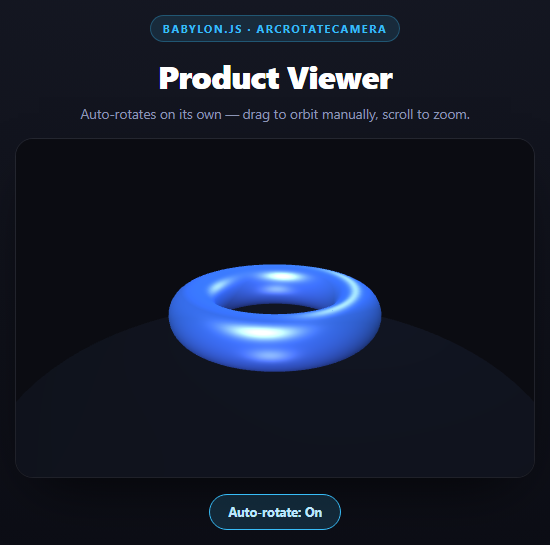
Product viewers are one of the clearest cases where a 2D CSS trick won't do — you actually need a camera that can orbit a 3D object in true depth. Babylon.js ships exactly the camera type this needs, and getting a polished result comes down to understanding two things: how ArcRotateCamera parameterizes orbit, and how registerBeforeRender drives continuous motion without fighting the render loop.
ArcRotateCamera is spherical, not free-look
new BABYLON.ArcRotateCamera('camera', alpha, beta, radius, target, scene) places the camera using spherical coordinates around a target point rather than a position and look direction:
- `alpha` — the horizontal (azimuthal) angle around the target, in radians.
- `beta` — the vertical (polar) angle from the top, in radians. Math.PI / 2 points straight at the equator; smaller values look down from above.
- `radius` — the distance from the target.
This is the correct camera model for a product viewer because the user should only ever be able to look *at* the product from different angles, never fly past it or lose it off-screen — something a free-look/universal camera would allow by default. camera.attachControl(canvas, true) wires up pointer drag to alpha/beta and wheel/pinch to radius with zero extra code.
Clamping and disabling the parts you don't want
Three lines turn the generic orbit camera into a constrained product-viewer camera:
camera.lowerRadiusLimit = 3.5; camera.upperRadiusLimit = 10; camera.panningSensibility = 0;
The radius limits stop the user zooming through the product or so far out it becomes a speck. panningSensibility = 0 disables the camera's built-in panning (which would let the target point itself be dragged off-center, breaking the "always orbiting the product" guarantee) — it's a single property rather than a custom control scheme.
The render loop, and why auto-rotation lives in registerBeforeRender
engine.runRenderLoop(function () { scene.render(); }) is Babylon's main loop, calling scene.render() on every animation frame the browser gives it (effectively requestAnimationFrame, managed internally). scene.registerBeforeRender(callback) registers a function that runs immediately before each of those renders — the idiomatic place for continuous per-frame state changes like:
if (autoRotate) { product.rotation.y += 0.006; }
Incrementing rotation here, rather than in a setInterval, guarantees the spin rate is tied to actual rendered frames — it can never drift out of sync with what's on screen, and it automatically pauses correctly if the tab is backgrounded and requestAnimationFrame stops firing.
Coordinating auto-rotate with manual drag
Manual orbiting (via attachControl) and the automatic idle spin both ultimately affect what the camera sees, but they operate on different objects — attachControl moves the *camera's* alpha/beta, while auto-rotate spins the *product mesh's* own rotation.y. Without any coordination, a user dragging to orbit would fight against the product still spinning underneath them. The pointerdown listener on the canvas simply flips autoRotate to false the instant a drag starts, so control cleanly hands from automatic to manual.
Three-point-style lighting
A HemisphericLight (soft ambient/key fill from above), plus two PointLights with tinted diffuse colors positioned to one side (cool blue "fill") and behind (warm pink "rim"), approximate a photography three-point setup entirely with cheap, real-time lights — no baked lightmaps or HDR environment needed for a simple showcase mesh.
Reusing it
Swap the torus for an imported .glb/.gltf model via BABYLON.SceneLoader.ImportMeshAsync and everything else — camera, lighting, auto-rotate — works unchanged. Pair it with a Babylon.js Orbit Camera Showcase for animated preset-angle camera moves instead of continuous idle spin.
Build with AI
Build, Understand, Optimize, and Extend It With AI
This snippet is a compact reference for Babylon.js's core scene-setup pattern, so it's worth using an AI assistant to go deeper on the parts that generalize. Paste the code into Claude and ask it to explain exactly what alpha, beta, and radius represent geometrically in ArcRotateCamera, and why a spherical parameterization is preferable to a free-look camera specifically for a "look at one object" use case. Then ask what would happen to the auto-rotation if registerBeforeRender were replaced with a setInterval(fn, 16) instead, and why that would be a strictly worse choice (frame-rate independence, background-tab behavior, jank under load). To extend it: ask it to add a set of material-swap buttons that change mat.diffuseColor to simulate product color variants, add a subtle idle "breathing" scale animation combined with the rotation, load a real .glb model via SceneLoader instead of the primitive torus, or add an environment reflection using a CubeTexture for a more premium studio look.
Prompt to recreate it
Copy this into your AI assistant of choice to build the effect from scratch, or as a jumping-off point for your own variant:
Build a 3D product viewer using Babylon.js (from a CDN, global namespace BABYLON) in plain HTML, CSS, and JavaScript with a single <canvas> element.

Requirements:
- Initialize a BABYLON.Engine on the canvas and a BABYLON.Scene with a dark clear color.
- Use an ArcRotateCamera targeting the origin, with attachControl(canvas, true) enabling drag-to-orbit and wheel-to-zoom out of the box. Set lowerRadiusLimit and upperRadiusLimit to sane values so zoom is clamped, and set panningSensibility to 0 so the camera can only orbit, never pan off the product.
- Create a primitive mesh (a torus or box standing in for a product) with a StandardMaterial that has distinct diffuse and specular colors so it reads as a lit, reflective object rather than flat-shaded.
- Add a small ground disc beneath it with its own darker material, for context.
- Set up approximate three-point lighting: one HemisphericLight for soft ambient/key light, and two PointLights with different tinted diffuse colors positioned to create a fill light and a rim light.
- Auto-rotate the product mesh continuously by incrementing its rotation.y inside scene.registerBeforeRender (not setInterval), at a slow constant rate.
- Add a toggle button that turns auto-rotation on/off, and make starting a manual drag on the canvas automatically pause auto-rotation.
- Call engine.runRenderLoop(() => scene.render()) to start rendering, and resize the engine on window resize.
- Style the page as a dark panel with the canvas taking up most of the width at a fixed height, rounded corners, and a subtle border.
Want to tighten it up first? Run this prompt through the AI Prompt Studio to score it across 8 quality dimensions, catch anti-patterns, and tune the wording for Claude, ChatGPT, or Gemini before you paste it in.
Source Code
<div class="bsp-stage">
  <div class="bsp-head">
    <span class="bsp-tag">Babylon.js · ArcRotateCamera</span>
    <h2>Product Viewer</h2>
    <p>Auto-rotates on its own — drag to orbit manually, scroll to zoom.</p>
  </div>
  <canvas id="bspCanvas"></canvas>
  <div class="bsp-controls">
    <button class="bsp-btn is-on" id="bspAutoBtn">Auto-rotate: On</button>
  </div>
</div>*{box-sizing:border-box;margin:0;padding:0}
body{font-family:system-ui,-apple-system,sans-serif;background:radial-gradient(120% 100% at 50% 0%,#171a26,#0a0b12);color:#fff;min-height:100vh;display:flex;align-items:center;justify-content:center;padding:24px}
.bsp-stage{width:min(520px,94vw);display:flex;flex-direction:column;align-items:center;gap:16px}
.bsp-head{text-align:center}
.bsp-tag{display:inline-block;font-size:11px;font-weight:700;letter-spacing:.14em;text-transform:uppercase;color:#38bdf8;background:rgba(56,189,248,.12);border:1px solid rgba(56,189,248,.3);padding:5px 12px;border-radius:99px;margin-bottom:12px}
.bsp-head h2{font-size:clamp(24px,5vw,32px);font-weight:800;letter-spacing:-.02em}
.bsp-head p{font-size:13.5px;color:#8e97b8;margin-top:7px}
#bspCanvas{width:100%;height:340px;border-radius:18px;border:1px solid rgba(255,255,255,.08);box-shadow:0 24px 60px -24px rgba(0,0,0,.8);display:block;touch-action:none;cursor:grab}
#bspCanvas:active{cursor:grabbing}
.bsp-controls{display:flex;gap:10px}
.bsp-btn{padding:9px 18px;border-radius:99px;border:1px solid rgba(255,255,255,.14);background:rgba(255,255,255,.05);color:#c3cbe8;font:700 12.5px system-ui;cursor:pointer;transition:background .15s,border-color .15s,color .15s}
.bsp-btn.is-on{border-color:#38bdf8;background:rgba(56,189,248,.16);color:#bde7fd}var canvas = document.getElementById('bspCanvas');
var engine = new BABYLON.Engine(canvas, true, { preserveDrawingBuffer: true, stencil: true });
var scene = new BABYLON.Scene(engine);
scene.clearColor = new BABYLON.Color4(0.043, 0.047, 0.07, 1);
// ArcRotateCamera orbits a target point using spherical coordinates (alpha,
// beta, radius) rather than a free-look position -- exactly the model a
// product viewer needs, since the user should only ever look AT the product,
// never fly away from it.
var camera = new BABYLON.ArcRotateCamera('camera', Math.PI / 3, Math.PI / 2.6, 6, BABYLON.Vector3.Zero(), scene);
camera.attachControl(canvas, true);
camera.lowerRadiusLimit = 3.5;
camera.upperRadiusLimit = 10;
camera.wheelPrecision = 40;
camera.pinchPrecision = 80;
camera.panningSensibility = 0; // disable panning, keep this an orbit-only viewer
var keyLight = new BABYLON.HemisphericLight('key', new BABYLON.Vector3(0.4, 1, 0.3), scene);
keyLight.intensity = 0.9;
var fillLight = new BABYLON.PointLight('fill', new BABYLON.Vector3(-3, 2, -2), scene);
fillLight.intensity = 0.5;
fillLight.diffuse = new BABYLON.Color3(0.5, 0.7, 1);
var rimLight = new BABYLON.PointLight('rim', new BABYLON.Vector3(2, -1, 3), scene);
rimLight.intensity = 0.35;
rimLight.diffuse = new BABYLON.Color3(1, 0.6, 0.8);
var product = BABYLON.MeshBuilder.CreateTorus('product', { diameter: 2.4, thickness: 0.7, tessellation: 64 }, scene);
var mat = new BABYLON.StandardMaterial('mat', scene);
mat.diffuseColor = new BABYLON.Color3(0.22, 0.45, 0.95);
mat.specularColor = new BABYLON.Color3(0.9, 0.9, 1);
mat.specularPower = 32;
mat.emissiveColor = new BABYLON.Color3(0.02, 0.03, 0.08);
product.material = mat;
var ground = BABYLON.MeshBuilder.CreateDisc('ground', { radius: 4, tessellation: 64 }, scene);
ground.rotation.x = Math.PI / 2;
ground.position.y = -1.4;
var groundMat = new BABYLON.StandardMaterial('groundMat', scene);
groundMat.diffuseColor = new BABYLON.Color3(0.06, 0.07, 0.1);
groundMat.specularColor = new BABYLON.Color3(0, 0, 0);
ground.material = groundMat;
var autoRotate = true;
var lastUserFrame = 0;
// registerBeforeRender runs once per rendered frame, before Babylon draws it
// -- the standard place to put continuous per-frame logic like this idle
// auto-rotation, since it is automatically paced to the render loop rather
// than a separate setInterval that could drift out of sync with rendering.
scene.registerBeforeRender(function () {
if (autoRotate) {
product.rotation.y += 0.006;
}
});
var autoBtn = document.getElementById('bspAutoBtn');
autoBtn.addEventListener('click', function () {
autoRotate = !autoRotate;
autoBtn.textContent = 'Auto-rotate: ' + (autoRotate ? 'On' : 'Off');
autoBtn.classList.toggle('is-on', autoRotate);
});
// Manual orbit via camera.attachControl already works out of the box; we
// just pause the product's own idle spin while the user is actively
// dragging the camera so the two motions don't fight each other.
canvas.addEventListener('pointerdown', function () { autoRotate = false; autoBtn.textContent = 'Auto-rotate: Off'; autoBtn.classList.remove('is-on'); });
engine.runRenderLoop(function () { scene.render(); });
window.addEventListener('resize', function () { engine.resize(); });Step by step
How to Use
- 1Add the Babylon.js CDNInclude the babylon.js UMD build for the global BABYLON namespace.
- 2Paste HTML, CSS, and JSA canvas renders a blue torus auto-rotating on a dark ground disc.
- 3Watch it auto-rotateregisterBeforeRender increments rotation.y by a small amount every frame.
- 4Drag to orbit manuallyArcRotateCamera.attachControl wires pointer drag to alpha/beta with no extra code.
- 5Scroll or pinch to zoomThe wheel adjusts camera radius, clamped between lowerRadiusLimit and upperRadiusLimit.
- 6Swap in a real modelReplace CreateTorus with BABYLON.SceneLoader.ImportMeshAsync for a .glb product model.
Real-world uses
Common Use Cases
Got questions?
Frequently Asked Questions
ArcRotateCamera is parameterized around a fixed target point (alpha, beta, radius) rather than free position and rotation, so it is structurally impossible for the user to fly away from or lose the product -- exactly the constraint a product viewer needs. UniversalCamera would require you to hand-write that constraint yourself.
It lives inside scene.registerBeforeRender(), which Babylon calls once per rendered frame right before rendering it. Using setInterval instead would run on wall-clock time independent of the actual render loop, which can drift out of sync with frame rate, keep running even if rendering pauses (e.g. a hidden tab), and generally produce less smooth motion than an update tied directly to requestAnimationFrame-driven rendering.
They rotate different things: attachControl changes the camera's alpha/beta around a stationary product, while auto-rotate changes the product mesh's own rotation.y. To avoid both happening at once and looking chaotic, a pointerdown listener on the canvas sets autoRotate to false the instant a drag starts, handing control cleanly to the user.
By default ArcRotateCamera also supports panning (dragging the target point itself off-center) and unlimited zoom. Both break the "always looking at the product" guarantee a product viewer needs -- panningSensibility = 0 disables panning entirely, and lowerRadiusLimit/upperRadiusLimit stop the camera from zooming through the mesh or out to where it becomes indistinguishable from the background.
Replace the CreateTorus call with BABYLON.SceneLoader.ImportMeshAsync("", "https://your-cdn/", "model.glb", scene), which returns a promise resolving with the imported meshes -- everything else (camera, lights, auto-rotate logic, resize handling) works unchanged since they operate on the scene, not the specific mesh.
Create the canvas via a ref, and initialize the Engine/Scene/camera/meshes once inside a useEffect (React) or onMounted (Vue) with an empty dependency array, storing the engine instance so you can call engine.dispose() on unmount to free the WebGL context. Keep the render loop and resize listener registration inside that same effect.