


Learn Coding Visually
Learn to code with interactive, live-preview playgrounds — HTML, CSS, JavaScript, React & more.
 HTML Playground42 lessons · Click-based · Live preview
 CSS PlaygroundLearn CSS with a live editor
 JavaScript Playground60 lessons · DOM · Async · Canvas
 React PlaygroundLearn React with a live code editor
 GSAP PlaygroundLearn GSAP animation interactively
 SVG Playground44 lessons · shapes · paths · animation
 SCSS Playground45 lessons · Sass modules · tokens
 Tailwind PlaygroundLearn Tailwind CSS with a live editor
 Bootstrap 5 Playground50 lessons · live preview
Babylon.js Orbit Camera Showcase — Animated Preset Angles Snippet
Babylon.js Orbit Camera Showcase · Misc · Plain HTML, CSS & JS · Live preview
What's included
Features
About this UI Snippet
Babylon.js Orbit Camera Showcase — Tweening a Camera Instead of Snapping It
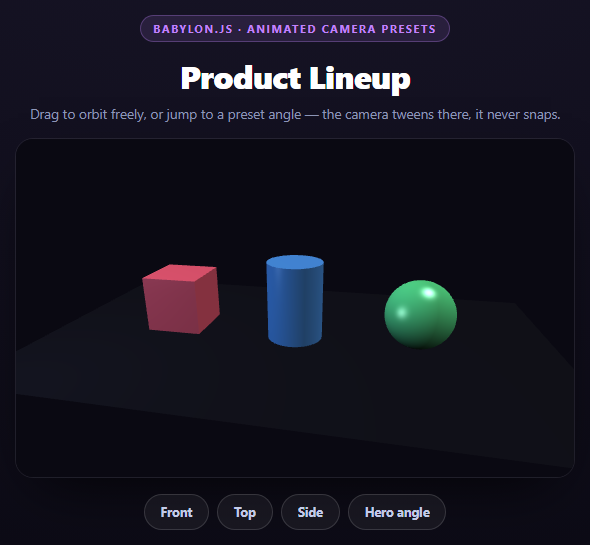
A "view from the top" button that just sets camera.alpha = x; camera.beta = y; directly works, but it looks broken — the camera teleports instantly, which reads as a glitch rather than a deliberate cut. A showcase camera should move the way a cinematographer would move it: smoothly, over a believable duration, with easing. Babylon.js's Animation class is what makes that possible without hand-rolling a tween loop.
Why direct assignment isn't enough
camera.alpha, camera.beta, and camera.radius are just numbers on the camera object — assigning them directly changes the camera's spherical position for the *next rendered frame*, with zero interpolation in between. That's fine for initial setup, wrong for a "go to this preset" button.
Building a per-property Animation
For each of the three properties, this snippet builds a BABYLON.Animation:
var alphaAnim = new BABYLON.Animation('alphaAnim', 'alpha', frameRate, BABYLON.Animation.ANIMATIONTYPE_FLOAT, BABYLON.Animation.ANIMATIONLOOPMODE_CONSTANT);
The constructor's second argument, 'alpha', is the literal property name on the target object Babylon will animate — this is why the same Animation class works for meshes, lights, materials, or cameras: it just needs a property name and a target object with that property. setKeys() then defines the keyframes:
alphaAnim.setKeys([{ frame: 0, value: camera.alpha }, { frame: 45, value: target.alpha }]);
Frame 0 is always the camera's current live value, not a hardcoded starting point — this is what makes goToPreset() work correctly no matter where the camera currently is, including mid-transition to a different preset.
Easing, and why CubicEase in EASEINOUT mode
var easing = new BABYLON.CubicEase(); easing.setEasingMode(BABYLON.EasingFunction.EASINGMODE_EASEINOUT); anim.setEasingFunction(easing); — without this, Babylon interpolates keyframes linearly, which looks mechanical for a camera move. Ease-in-out accelerates out of the starting angle and decelerates into the target, the same shape as a real camera operator's move, and is applied identically to all three animated properties so alpha, beta, and radius all arrive with the same timing character.
Running three animations on one target together
camera.animations = [alphaAnim, betaAnim, radiusAnim]; scene.beginAnimation(camera, 0, durationFrames, false, 1); — assigning an array to camera.animations and calling beginAnimation once runs all three simultaneously and in lockstep, since they share the same frame range and frame rate. This is simpler than three separate beginAnimation calls and guarantees they finish at exactly the same frame.
Interrupting an in-flight tween
stopActiveAnims() calls scene.stopAnimation(camera) before starting a new preset transition or the instant the user starts dragging manually. Without this, clicking a second preset mid-tween — or grabbing the camera while it's still animating — would leave two animations racing to control the same alpha/beta/radius values, producing visibly jittery, fighting motion.
Clamped, slightly inertial manual control
camera.lowerBetaLimit/upperBetaLimit stop the user orbiting all the way under the ground plane or to a useless top-down flip. camera.inertia = 0.82 gives manual drags a small coast-and-settle after release — not enough to feel loose, just enough that release doesn't feel like an abrupt stop, echoing the same "nothing in this scene should snap" philosophy as the preset tweens.
Reusing it
This preset-tween pattern applies to any showroom, architectural walkthrough, or configurator that needs "jump to this named view" buttons. Pair it with a Babylon.js Spinning Product Viewer for continuous idle rotation instead of discrete preset stops.
Build with AI
Build, Understand, Optimize, and Extend It With AI
This snippet is a good foundation for exploring Babylon.js's generic Animation system, which works on any object/property pair, not just cameras. Paste it into an AI assistant like Claude and ask it to explain why the Animation constructor takes the property name as a string ('alpha') rather than a direct reference, and what that implies about how Babylon looks up and writes to the target object each frame. Then ask what would happen if durationFrames were set very low (e.g. 5) versus very high (e.g. 300) at the same frameRate, and how that maps to real seconds (durationFrames / frameRate). To extend it: ask it to add a "tour" mode that automatically cycles through all four presets in sequence with a pause between each, add a custom easing function instead of CubicEase for a different feel (BackEase for a slight overshoot, BounceEase for a playful settle), or animate a light's intensity alongside the camera move so each preset also has its own lighting mood.
Prompt to recreate it
Copy this into your AI assistant of choice to build the effect from scratch, or as a jumping-off point for your own variant:
Build a 3D showcase scene with animated camera preset buttons using Babylon.js (from a CDN, global namespace BABYLON) in plain HTML, CSS, and JavaScript with a single <canvas> element.

Requirements:
- Initialize a BABYLON.Engine and Scene, and an ArcRotateCamera with attachControl enabled for manual drag-to-orbit, with lowerRadiusLimit/upperRadiusLimit and lowerBetaLimit/upperBetaLimit all set to sane clamped ranges, plus a moderate camera.inertia value so releasing a drag coasts slightly instead of stopping dead.
- Add a ground plane and at least three differently shaped primitive meshes (e.g. box, cylinder, sphere) arranged in a row along the x-axis at different positions, each with a distinct StandardMaterial color, to form a small "product lineup".
- Add basic lighting (a HemisphericLight plus at least one PointLight).
- Define at least 4 named camera presets as plain objects specifying target alpha, beta, and radius values.
- Implement a goToPreset(name) function that builds a BABYLON.Animation for each of alpha, beta, and radius, with frame 0 set to the camera's CURRENT live value (not a hardcoded start) and the final frame set to the preset's target value. Apply a BABYLON.CubicEase with EASINGMODE_EASEINOUT to each animation. Assign all three animations to camera.animations and start them together with a single scene.beginAnimation call so they animate in lockstep over the same duration -- the camera must visibly tween to the preset, never snap instantly.
- Before starting a new preset animation, call scene.stopAnimation(camera) to cancel any animation already in progress, so rapid preset switching or manual dragging never fights an in-flight tween.
- Add a pointerdown listener on the canvas that also stops any active preset animation, so starting a manual drag immediately hands control back to the user.
- Render four preset buttons below the canvas; highlight whichever was most recently clicked, and clear the highlight when the user drags manually.
- Style it as a dark themed panel with the canvas as the focal element and pill-shaped preset buttons below it.
Want to tighten it up first? Run this prompt through the AI Prompt Studio to score it across 8 quality dimensions, catch anti-patterns, and tune the wording for Claude, ChatGPT, or Gemini before you paste it in.
Source Code
<div class="boc-stage">
  <div class="boc-head">
    <span class="boc-tag">Babylon.js · animated camera presets</span>
    <h2>Product Lineup</h2>
    <p>Drag to orbit freely, or jump to a preset angle — the camera tweens there, it never snaps.</p>
  </div>
  <canvas id="bocCanvas"></canvas>
  <div class="boc-presets">
    <button class="boc-btn" data-view="front">Front</button>
    <button class="boc-btn" data-view="top">Top</button>
    <button class="boc-btn" data-view="side">Side</button>
    <button class="boc-btn" data-view="hero">Hero angle</button>
  </div>
</div>*{box-sizing:border-box;margin:0;padding:0}
body{font-family:system-ui,-apple-system,sans-serif;background:radial-gradient(120% 100% at 50% 0%,#181528,#0a0912);color:#fff;min-height:100vh;display:flex;align-items:center;justify-content:center;padding:24px}
.boc-stage{width:min(560px,94vw);display:flex;flex-direction:column;align-items:center;gap:16px}
.boc-head{text-align:center}
.boc-tag{display:inline-block;font-size:11px;font-weight:700;letter-spacing:.14em;text-transform:uppercase;color:#c084fc;background:rgba(192,132,252,.12);border:1px solid rgba(192,132,252,.3);padding:5px 12px;border-radius:99px;margin-bottom:12px}
.boc-head h2{font-size:clamp(24px,5vw,32px);font-weight:800;letter-spacing:-.02em}
.boc-head p{font-size:13.5px;color:#8e97b8;margin-top:7px}
#bocCanvas{width:100%;height:340px;border-radius:18px;border:1px solid rgba(255,255,255,.08);box-shadow:0 24px 60px -24px rgba(0,0,0,.85);display:block;touch-action:none;cursor:grab}
#bocCanvas:active{cursor:grabbing}
.boc-presets{display:flex;gap:8px;flex-wrap:wrap;justify-content:center}
.boc-btn{padding:9px 16px;border-radius:99px;border:1px solid rgba(255,255,255,.14);background:rgba(255,255,255,.05);color:#c3cbe8;font:700 12.5px system-ui;cursor:pointer;transition:background .15s,border-color .15s,color .15s}
.boc-btn:hover{background:rgba(255,255,255,.1)}
.boc-btn.is-active{border-color:#c084fc;background:rgba(192,132,252,.16);color:#e9d5ff}var canvas = document.getElementById('bocCanvas');
var engine = new BABYLON.Engine(canvas, true, { preserveDrawingBuffer: true, stencil: true });
var scene = new BABYLON.Scene(engine);
scene.clearColor = new BABYLON.Color4(0.04, 0.035, 0.07, 1);
var camera = new BABYLON.ArcRotateCamera('camera', -Math.PI / 2.3, Math.PI / 2.6, 8, new BABYLON.Vector3(0, 0.6, 0), scene);
camera.attachControl(canvas, true);
camera.lowerRadiusLimit = 5;
camera.upperRadiusLimit = 13;
camera.lowerBetaLimit = 0.15;
camera.upperBetaLimit = Math.PI / 2 + 0.3;
// inertia gives manual drag a bit of coast-and-settle instead of stopping
// the instant the pointer releases -- a small value keeps it subtle.
camera.inertia = 0.82;
camera.angularSensibilityX = 900;
camera.angularSensibilityY = 900;
new BABYLON.HemisphericLight('key', new BABYLON.Vector3(0.3, 1, 0.2), scene).intensity = 0.85;
var fill = new BABYLON.PointLight('fill', new BABYLON.Vector3(-4, 2, -3), scene);
fill.intensity = 0.4;
fill.diffuse = new BABYLON.Color3(0.6, 0.75, 1);
var ground = BABYLON.MeshBuilder.CreateGround('ground', { width: 10, height: 6 }, scene);
var groundMat = new BABYLON.StandardMaterial('groundMat', scene);
groundMat.diffuseColor = new BABYLON.Color3(0.07, 0.07, 0.1);
groundMat.specularColor = new BABYLON.Color3(0, 0, 0);
ground.material = groundMat;
// A small lineup of three product stand-ins at different heights/colors,
// arranged along x so the "product lineup" reads clearly from the front
// preset and rearranges visually as the camera orbits.
var LINEUP = [
{ build: function () { return BABYLON.MeshBuilder.CreateBox('p1', { size: 1.1 }, scene); }, x: -2.4, color: [0.95, 0.35, 0.45] },
{ build: function () { return BABYLON.MeshBuilder.CreateCylinder('p2', { diameter: 1.1, height: 1.8, tessellation: 32 }, scene); }, x: 0, color: [0.3, 0.6, 0.95] },
{ build: function () { return BABYLON.MeshBuilder.CreateSphere('p3', { diameter: 1.3, segments: 32 }, scene); }, x: 2.4, color: [0.35, 0.9, 0.55] },
];
LINEUP.forEach(function (item) {
var mesh = item.build();
mesh.position.x = item.x;
mesh.position.y = 0.65;
var mat = new BABYLON.StandardMaterial('mat' + item.x, scene);
mat.diffuseColor = new BABYLON.Color3(item.color[0], item.color[1], item.color[2]);
mat.specularColor = new BABYLON.Color3(0.8, 0.8, 0.85);
mesh.material = mat;
});
var PRESETS = {
front: { alpha: -Math.PI / 2.3, beta: Math.PI / 2.6, radius: 8 },
top: { alpha: -Math.PI / 2.3, beta: 0.35, radius: 9 },
side: { alpha: 0, beta: Math.PI / 2.4, radius: 7.5 },
hero: { alpha: -Math.PI / 3.4, beta: Math.PI / 2.9, radius: 6.5 },
};
var activeAnims = [];
function stopActiveAnims() {
activeAnims.forEach(function (a) { scene.stopAnimation(a); });
activeAnims = [];
}
// Tween the camera's alpha/beta/radius to a preset using Babylon's built-in
// Animation class rather than assigning the values directly -- a direct
// assignment would jump-cut instantly, which reads as broken/glitchy for a
// showcase camera that is supposed to feel deliberate and cinematic.
function animateTo(prop, from, to, frameRate, durationFrames) {
var anim = new BABYLON.Animation('anim_' + prop, prop, frameRate, BABYLON.Animation.ANIMATIONTYPE_FLOAT, BABYLON.Animation.ANIMATIONLOOPMODE_CONSTANT);
anim.setKeys([
{ frame: 0, value: from },
{ frame: durationFrames, value: to },
]);
var easing = new BABYLON.CubicEase();
easing.setEasingMode(BABYLON.EasingFunction.EASINGMODE_EASEINOUT);
anim.setEasingFunction(easing);
camera.animations = [anim];
var runtime = scene.beginAnimation(camera, 0, durationFrames, false, 1, undefined, undefined, true);
return runtime;
}
function goToPreset(name) {
var target = PRESETS[name];
if (!target) return;
stopActiveAnims();
var frameRate = 30;
var durationFrames = 45;
var alphaAnim = new BABYLON.Animation('alphaAnim', 'alpha', frameRate, BABYLON.Animation.ANIMATIONTYPE_FLOAT, BABYLON.Animation.ANIMATIONLOOPMODE_CONSTANT);
alphaAnim.setKeys([{ frame: 0, value: camera.alpha }, { frame: durationFrames, value: target.alpha }]);
var betaAnim = new BABYLON.Animation('betaAnim', 'beta', frameRate, BABYLON.Animation.ANIMATIONTYPE_FLOAT, BABYLON.Animation.ANIMATIONLOOPMODE_CONSTANT);
betaAnim.setKeys([{ frame: 0, value: camera.beta }, { frame: durationFrames, value: target.beta }]);
var radiusAnim = new BABYLON.Animation('radiusAnim', 'radius', frameRate, BABYLON.Animation.ANIMATIONTYPE_FLOAT, BABYLON.Animation.ANIMATIONLOOPMODE_CONSTANT);
radiusAnim.setKeys([{ frame: 0, value: camera.radius }, { frame: durationFrames, value: target.radius }]);
var easing = new BABYLON.CubicEase();
easing.setEasingMode(BABYLON.EasingFunction.EASINGMODE_EASEINOUT);
[alphaAnim, betaAnim, radiusAnim].forEach(function (a) { a.setEasingFunction(easing); });
camera.animations = [alphaAnim, betaAnim, radiusAnim];
var runtime = scene.beginAnimation(camera, 0, durationFrames, false, 1);
activeAnims.push(runtime.animatable || runtime);
}
document.querySelectorAll('.boc-btn').forEach(function (btn) {
btn.addEventListener('click', function () {
document.querySelectorAll('.boc-btn').forEach(function (b) { b.classList.remove('is-active'); });
btn.classList.add('is-active');
goToPreset(btn.dataset.view);
});
});
// A manual drag should cancel any in-flight preset tween, otherwise the
// animation keeps fighting the user's own input every frame.
canvas.addEventListener('pointerdown', function () {
stopActiveAnims();
document.querySelectorAll('.boc-btn').forEach(function (b) { b.classList.remove('is-active'); });
});
engine.runRenderLoop(function () { scene.render(); });
window.addEventListener('resize', function () { engine.resize(); });Step by step
How to Use
- 1Add the Babylon.js CDNInclude the babylon.js UMD build for the global BABYLON namespace.
- 2Paste HTML, CSS, and JSA three-object product lineup renders on a ground plane with an orbit camera.
- 3Drag to orbit freelyattachControl handles manual rotation with a touch of inertia via camera.inertia.
- 4Click a preset buttonFront, Top, Side, and Hero angle each tween the camera there over 45 frames with easing.
- 5Click a preset mid-tweenThe in-flight animation is stopped and a new one starts cleanly from the current position.
- 6Drag manually mid-tweenStarting a drag cancels the active preset animation so it never fights your input.
Real-world uses
Common Use Cases
Got questions?
Frequently Asked Questions
Setting them directly changes the camera position instantly on the next render, with no interpolation -- the camera would teleport to the new angle, which looks like a glitch rather than a deliberate transition. Wrapping each property in a BABYLON.Animation and calling scene.beginAnimation() interpolates smoothly across a chosen number of frames instead.
Each Animation's first keyframe (frame 0) is set to the camera's current live value -- camera.alpha, camera.beta, camera.radius -- read at the moment the button is clicked, not a hardcoded prior position. That guarantees the tween always starts from wherever the camera actually is.
goToPreset() calls stopActiveAnims(), which calls scene.stopAnimation(camera) before building the new animations. That cancels whatever transition was still running so the new one starts cleanly from the camera's current (mid-transition) position, rather than the two animations fighting to control the same properties.
Linear interpolation between keyframes moves at a constant angular speed the entire transition, which feels mechanical for a camera move. Ease-in-out accelerates away from the start and decelerates into the end, matching how a real camera operator would perform the same move, and it is applied identically to alpha, beta, and radius so all three arrive with matching timing.
beta is the vertical polar angle of the orbit. Without limits, dragging far enough would let the camera orbit underneath the ground plane or flip to a disorienting straight-down angle. Clamping beta to a sensible range keeps every manually reachable angle looking intentional.
Set up the engine, scene, camera, meshes, and preset definitions once inside a useEffect (React) or onMounted (Vue), and expose a goToPreset function via a ref or emitted event that UI buttons call -- the animation logic itself needs no changes since it operates directly on the camera instance, not component state.