Learn Coding Visually
Learn to code with interactive, live-preview playgrounds — HTML, CSS, JavaScript, React & more.
 HTML Playground42 lessons · Click-based · Live preview
 CSS PlaygroundLearn CSS with a live editor
 JavaScript Playground60 lessons · DOM · Async · Canvas
 React PlaygroundLearn React with a live code editor
 GSAP PlaygroundLearn GSAP animation interactively
 SVG Playground44 lessons · shapes · paths · animation
 SCSS Playground45 lessons · Sass modules · tokens
 Tailwind PlaygroundLearn Tailwind CSS with a live editor
 Bootstrap 5 Playground50 lessons · live preview
Fabric.js Shape Annotation Tool — Image Markup Canvas Snippet
Fabric.js Shape Annotation Tool · Misc · Plain HTML, CSS & JS · Live preview
What's included
Features
About this UI Snippet
Fabric.js Shape Annotation Tool — Layering Shapes Over a Locked Image
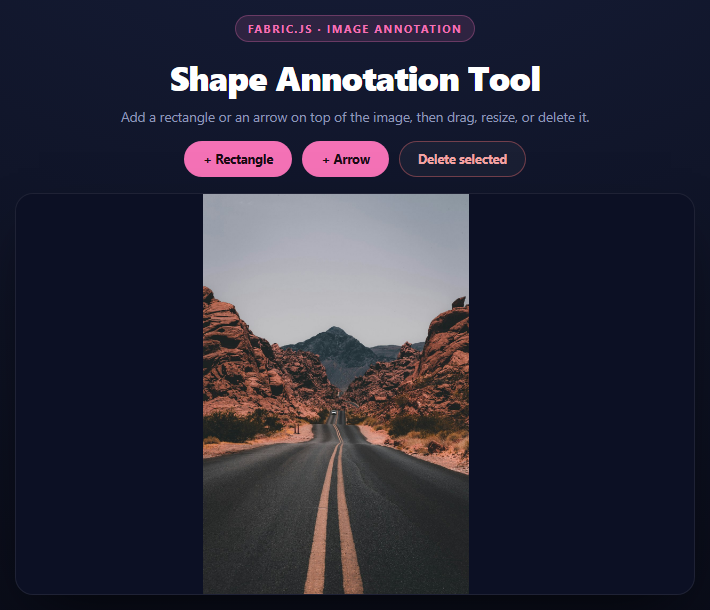
Image annotation tools need two clearly separated layers: the image itself, which should never move, and the markup drawn on top of it, which should move and resize freely. Fabric.js gives you this separation natively through backgroundImage, a distinct rendering layer from the canvas's normal object stack.
The image is not a canvas object
fabric.Image.fromURL() loads the image, and instead of canvas.add(img), this snippet calls canvas.setBackgroundImage(img, ...). That's the key decision: a background image is drawn on every frame *underneath* every regular object, but it is never part of canvas.getObjects(), never selectable, and never at risk of being dragged or deleted by a stray click or a keyboard shortcut aimed at an annotation. Annotation shapes are added as ordinary objects, so they always render on top and are the only things the delete key or toolbar can touch.
Fitting the image to the canvas
Images rarely arrive at exactly the canvas's dimensions, so the load callback computes scale = Math.min(canvas.width / img.width, canvas.height / img.height) — a classic "contain" fit that scales the image down by whichever axis is more constrained, then centers it with left/top offsets computed from the leftover space on each axis.
Rectangles: a direct shape
A rectangle annotation is a single fabric.Rect with a translucent fill and a solid stroke, so it reads as a highlighted region rather than an opaque box obscuring the image underneath it. cornerColor and transparentCorners: false are cosmetic but matter for annotation tools specifically — the default thin, semi-transparent resize handles are hard to see against a busy photo, so a solid brand-colored handle is easier to grab precisely.
Arrows: a group, because Fabric has no arrow primitive
Fabric ships rectangles, circles, lines, and polygons, but no arrow shape. This snippet builds one from two primitives: a fabric.Line for the shaft and a fabric.Triangle for the head, rotated to point along the line's direction:
var angle = (Math.atan2(y2 - y1, x2 - x1) * 180) / Math.PI + 90;
Math.atan2 gives the line's angle in radians; converting to degrees and adding 90° compensates for fabric.Triangle's default orientation (pointing straight up, i.e. 0° already means "up," so at a 0-radian/rightward line the triangle needs a literal quarter turn to point along it). Both the line and triangle are created with selectable: false, evented: false individually, then wrapped in a fabric.Group — this is what makes the *pair* draggable and resizable as one arrow rather than two independently-selectable shapes.
Deleting an annotation
The delete button and the Delete/Backspace key both call canvas.getActiveObject() to find whatever shape is currently selected, remove it with canvas.remove(), and clear the selection with canvas.discardActiveObject() so Fabric doesn't keep trying to render selection handles around an object that no longer exists.
Build with AI
Build, Understand, Optimize, and Extend It With AI
This snippet's most interesting piece of math is the arrowhead rotation, so start there. Paste the code into an AI assistant like Claude and ask it to explain why Math.atan2(y2-y1, x2-x1) converted to degrees needs +90 added before it correctly orients fabric.Triangle along the line \u2014 the answer hinges on the triangle's default "pointing up" orientation not lining up with atan2's "measured from the positive x-axis" convention. Then ask what would need to change if you wanted the arrowhead to scale with strokeWidth, or if you wanted to drag just the endpoint of an arrow to reshape it rather than moving the whole group. To extend it: add a text-label annotation type using fabric.IText, add a freehand pen annotation mode alongside the shapes, add an undo/redo stack backed by canvas.toJSON() snapshots, or export the annotated composite (image + shapes) as a single flattened PNG via canvas.toDataURL().
Prompt to recreate it
Copy this into your AI assistant of choice to build the effect from scratch, or as a jumping-off point for your own variant:
Build an image annotation tool using Fabric.js (v5, from a CDN) in plain HTML, CSS, and JavaScript.

Requirements:
- Load an image with fabric.Image.fromURL and set it as the canvas's background image via canvas.setBackgroundImage (NOT as a regular canvas.add object), so it is never selectable or draggable. Compute a "contain" fit scale (Math.min of width-ratio and height-ratio) and center the scaled image using the leftover space on each axis.
- A toolbar with an "Add rectangle" button that adds a fabric.Rect annotation with a translucent fill and solid colored stroke, offset slightly from the previous one so repeated additions don't stack exactly.
- An "Add arrow" button that builds an arrow from a fabric.Line (the shaft, selectable: false) and a fabric.Triangle (the arrowhead, selectable: false) rotated to point along the line's direction using Math.atan2(y2-y1, x2-x1) converted to degrees plus a 90-degree correction for the triangle's default upward orientation \u2014 then wraps both into one fabric.Group so the arrow moves and resizes as a single unit.
- A "Delete selected" button and a document-level Delete/Backspace keydown handler that both call canvas.getActiveObject(), canvas.remove() it, and canvas.discardActiveObject() to clear the selection.
- Give every annotation a solid, high-contrast cornerColor and transparentCorners: false so resize handles stay visible against a busy photo.
- Style it as a dark toolbar above a bordered, shadowed canvas board.
Want to tighten it up first? Run this prompt through the AI Prompt Studio to score it across 8 quality dimensions, catch anti-patterns, and tune the wording for Claude, ChatGPT, or Gemini before you paste it in.
Source Code
<div class="fat-stage">
  <div class="fat-head">
    <span class="fat-tag">Fabric.js · image annotation</span>
    <h2>Shape Annotation Tool</h2>
    <p>Add a rectangle or an arrow on top of the image, then drag, resize, or delete it.</p>
  </div>
  <div class="fat-toolbar">
    <button class="fat-btn" id="fatRect">+ Rectangle</button>
    <button class="fat-btn" id="fatArrow">+ Arrow</button>
    <button class="fat-btn fat-btn-danger" id="fatDelete">Delete selected</button>
  </div>
  <div class="fat-board">
    <canvas id="fatCanvas"></canvas>
  </div>
</div>*{box-sizing:border-box;margin:0;padding:0}
body{font-family:system-ui,-apple-system,sans-serif;background:radial-gradient(120% 100% at 50% 0%,#161d38,#080a14);color:#fff;min-height:100vh;display:flex;align-items:center;justify-content:center;padding:24px}
.fat-stage{width:min(680px,94vw);display:flex;flex-direction:column;align-items:center;gap:16px}
.fat-head{text-align:center}
.fat-tag{display:inline-block;font-size:11px;font-weight:700;letter-spacing:.14em;text-transform:uppercase;color:#f472b6;background:rgba(244,114,182,.12);border:1px solid rgba(244,114,182,.3);padding:5px 12px;border-radius:99px;margin-bottom:12px}
.fat-head h2{font-size:clamp(24px,5vw,34px);font-weight:800;letter-spacing:-.02em}
.fat-head p{font-size:13.5px;color:#8e97b8;margin-top:7px}
.fat-toolbar{display:flex;flex-wrap:wrap;gap:10px;justify-content:center}
.fat-btn{padding:9px 18px;border-radius:99px;border:1px solid rgba(244,114,182,.5);background:#f472b6;color:#1a0b14;font:700 12.5px system-ui;cursor:pointer;transition:transform .15s,background .18s}
.fat-btn:hover{transform:translateY(-1px);background:#f890c5}
.fat-btn-danger{background:rgba(255,255,255,.04);color:#f3a4a4;border-color:rgba(248,113,113,.4)}
.fat-btn-danger:hover{background:rgba(248,113,113,.12);color:#fecaca}
.fat-board{width:100%;border-radius:18px;overflow:hidden;background:#0c1024;border:1px solid rgba(255,255,255,.08);box-shadow:0 24px 60px -24px rgba(0,0,0,.8)}var canvas = new fabric.Canvas('fatCanvas', { width: 640, height: 400 });
// Load the base image as the canvas backgroundImage rather than an object,
// so it can never be accidentally selected, dragged, or deleted along
// with the annotations drawn on top of it.
fabric.Image.fromURL(
'https://images.unsplash.com/photo-1500530855697-b586d89ba3ee?w=1000&q=80',
function (img) {
var scale = Math.min(canvas.width / img.width, canvas.height / img.height);
img.scale(scale);
canvas.setBackgroundImage(img, canvas.renderAll.bind(canvas), {
left: (canvas.width - img.width * scale) / 2,
top: (canvas.height - img.height * scale) / 2
});
},
{ crossOrigin: 'anonymous' }
);
var annotationCount = 0;
function nextOffset() {
annotationCount++;
return (annotationCount % 6) * 16;
}
function addRectangle() {
var offset = nextOffset();
var rect = new fabric.Rect({
left: 60 + offset,
top: 60 + offset,
width: 140,
height: 90,
fill: 'rgba(244,114,182,0.15)',
stroke: '#f472b6',
strokeWidth: 2,
rx: 3,
ry: 3,
cornerColor: '#f472b6',
transparentCorners: false
});
canvas.add(rect);
canvas.setActiveObject(rect);
canvas.requestRenderAll();
}
function addArrow() {
var offset = nextOffset();
var x1 = 80 + offset, y1 = 250, x2 = 260 + offset, y2 = 200;
// A line for the shaft plus a small rotated triangle for the arrowhead,
// combined into one fabric.Group so the pair moves, rotates, and
// resizes together as a single "arrow" annotation.
var line = new fabric.Line([x1, y1, x2, y2], {
stroke: '#f472b6',
strokeWidth: 3,
selectable: false,
evented: false
});
var angle = (Math.atan2(y2 - y1, x2 - x1) * 180) / Math.PI + 90;
var head = new fabric.Triangle({
left: x2,
top: y2,
originX: 'center',
originY: 'center',
angle: angle,
width: 16,
height: 18,
fill: '#f472b6',
selectable: false,
evented: false
});
var group = new fabric.Group([line, head], {
cornerColor: '#f472b6',
transparentCorners: false
});
canvas.add(group);
canvas.setActiveObject(group);
canvas.requestRenderAll();
}
document.getElementById('fatRect').addEventListener('click', addRectangle);
document.getElementById('fatArrow').addEventListener('click', addArrow);
document.getElementById('fatDelete').addEventListener('click', function () {
var active = canvas.getActiveObject();
if (!active) return;
canvas.remove(active);
canvas.discardActiveObject();
canvas.requestRenderAll();
});
document.addEventListener('keydown', function (e) {
if ((e.key === 'Delete' || e.key === 'Backspace') && canvas.getActiveObject() && document.activeElement.tagName !== 'INPUT') {
canvas.remove(canvas.getActiveObject());
canvas.discardActiveObject();
canvas.requestRenderAll();
}
});Step by step
How to Use
- 1Add the Fabric.js CDNInclude fabric.min.js from the CDN panel — it attaches a global fabric object.
- 2Paste HTML, CSS, and JSThe image loads as a locked background layer on a Fabric canvas.
- 3Add a rectangleCreates a translucent, resizable highlight box on top of the image.
- 4Add an arrowBuilds a Line + Triangle group pointing from one spot to another.
- 5Drag or resize an annotationEvery shape uses Fabric\u2019s built-in selection and transform handles.
- 6Delete a selected shapeThe toolbar button or the Delete/Backspace key removes the active object.
Real-world uses
Common Use Cases
Got questions?
Frequently Asked Questions
A background image renders on every frame beneath all regular objects but is never part of canvas.getObjects(), so it cannot be selected, dragged, resized, or accidentally deleted by the same controls that manage the annotation shapes.
The load callback computes scale = Math.min(canvas.width / img.width, canvas.height / img.height), a contain-fit that picks whichever axis is more constrained, then centers the scaled image using leftover space computed from both axes.
Fabric.js has no built-in arrow primitive. Combining a Line (the shaft) with a rotated Triangle (the head) into a fabric.Group lets the two pieces move, resize, and rotate together as a single selectable annotation.
Math.atan2(y2-y1, x2-x1) gives the line\u2019s angle in radians relative to the positive x-axis. fabric.Triangle points straight up by default (0deg = up), so after converting to degrees, 90 is added to rotate the triangle from "up" to "along the line."
So only the wrapping Group is selectable. Without it, Fabric would let a user grab the line or triangle independently, breaking the arrow apart into two separately draggable pieces.
Add a fabric.IText the same way the rectangles are added \u2014 canvas.add(new fabric.IText(\"Label\", {...})) followed by canvas.setActiveObject() \u2014 and it gets the same drag, resize, and delete behavior as the other annotation types for free.