Learn Coding Visually
Learn to code with interactive, live-preview playgrounds — HTML, CSS, JavaScript, React & more.
 HTML Playground42 lessons · Click-based · Live preview
 CSS PlaygroundLearn CSS with a live editor
 JavaScript Playground60 lessons · DOM · Async · Canvas
 React PlaygroundLearn React with a live code editor
 GSAP PlaygroundLearn GSAP animation interactively
 SVG Playground44 lessons · shapes · paths · animation
 SCSS Playground45 lessons · Sass modules · tokens
 Tailwind PlaygroundLearn Tailwind CSS with a live editor
 Bootstrap 5 Playground50 lessons · live preview
PDF.js Viewer with Thumbnails, Zoom and Rotate — Free JavaScript Snippet
PDF.js Viewer with Thumbnails, Zoom and Rotate · Media · Plain HTML, CSS & JS · Live preview
What's included
Features
About this UI Snippet
Build Your Own PDF Viewer With PDF.js — Thumbnails, Zoom and Rotation
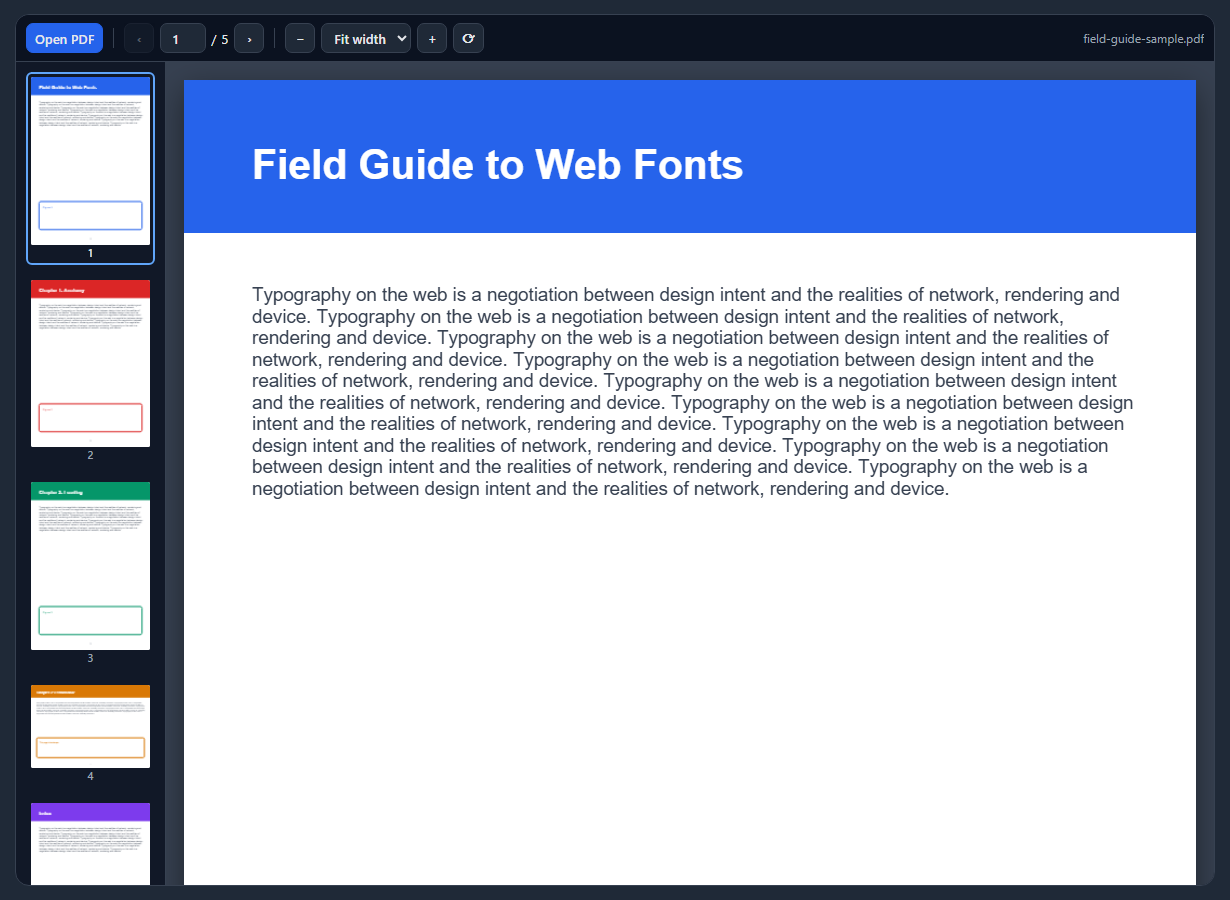
Browsers can show PDFs natively, but an embedded native viewer can't be styled, controlled or integrated with the rest of your UI. PDF.js — the engine behind Firefox's built-in viewer — gives you the rendering and leaves the interface to you. This snippet builds a compact viewer with the controls people expect.
Load, get a page, render to canvas
pdfjsLib.getDocument({ data }) parses the file and resolves to a document. getPage(n) returns a page, getViewport({ scale, rotation }) computes its size and transform, and page.render({ canvasContext, viewport }) draws it onto a canvas. Everything else in a viewer is state around those calls: current page, zoom level and rotation.
Sharp on high-DPI screens
The canvas is rendered at scale × devicePixelRatio and then shrunk back with CSS width and height, so text stays crisp on Retina and 4K displays instead of looking blurry.
Fit width, including rotated pages
Fit width divides the available stage width by the page's width at scale 1 — measured *with the current rotation*, because a rotated portrait page is as wide as it was tall. The sample includes a landscape page to show mixed orientations.
Cancel before re-rendering
Clicking zoom twice quickly would start two renders on the same canvas and produce a corrupted page. The snippet keeps the current renderTask, cancels it, waits for it to settle, then starts the new render; the RenderingCancelledException from a cancelled task is expected and ignored.
Thumbnails
Every page is also rendered into a small canvas in the sidebar. Clicking one jumps to it, and the current page is marked with aria-current="page" and scrolled into view.
Private file opening
Opening a local file reads it with the File API; nothing is uploaded. A generated five-page sample is shown on load.
Build with AI
Build, Understand, Optimize, and Extend It With AI
Paste this viewer into an AI assistant like Claude and ask it to explain render cancellation and device-pixel-ratio scaling. Ask it to add a continuous scroll mode that lazily renders pages as they enter view, a text layer for selection, printing, or pinch-to-zoom on touch devices. It can also help migrate the code to PDF.js 4's ES module build.
Prompt to recreate it
Copy this into your AI assistant of choice to build the effect from scratch, or as a jumping-off point for your own variant:
Build a PDF viewer with PDF.js 3 (classic build from a CDN, window.pdfjsLib) in plain HTML, CSS and JavaScript on a dark theme, using jsPDF only to generate a sample document.

Requirements:
- Generate a five-page sample PDF (one landscape page) with jsPDF and open it on load; also open local files from a file input, with an error message if a file can't be read.
- A toolbar with previous/next buttons, a page-number input with total, zoom out/in buttons, a zoom select (fit width and 50–200%), a rotate button and the file name.
- Render the current page to a canvas at scale × devicePixelRatio with CSS size set to the unscaled size, supporting rotation and a fit-width mode that accounts for rotation.
- Cancel any in-progress render task before starting a new one, ignoring the cancellation error.
- A sidebar of page thumbnails that jump to a page on click and mark the current page with aria-current, hidden on small screens.
- Keyboard shortcuts on the focused page area: arrows and Page Up/Down to navigate, + and − to zoom; re-fit on window resize.
Want to tighten it up first? Run this prompt through the AI Prompt Studio to score it across 8 quality dimensions, catch anti-patterns, and tune the wording for Claude, ChatGPT, or Gemini before you paste it in.
Source Code
<div class="pv">
  <div class="pv-toolbar" role="toolbar" aria-label="PDF controls">
    <label class="pv-open">Open PDF<input type="file" id="pvFile" accept="application/pdf"></label>
    <span class="pv-sep"></span>
    <button type="button" id="pvPrev" aria-label="Previous page">‹</button>
    <label class="pv-page"><input id="pvNum" type="number" min="1" value="1" aria-label="Page number"> / <span id="pvCount">–</span></label>
    <button type="button" id="pvNext" aria-label="Next page">›</button>
    <span class="pv-sep"></span>
    <button type="button" id="pvOut" aria-label="Zoom out">−</button>
    <select id="pvZoom" aria-label="Zoom level">
      <option value="fit">Fit width</option><option value="0.5">50%</option><option value="0.75">75%</option>
      <option value="1">100%</option><option value="1.25">125%</option><option value="1.5">150%</option><option value="2">200%</option>
    </select>
    <button type="button" id="pvIn" aria-label="Zoom in">+</button>
    <button type="button" id="pvRot" aria-label="Rotate 90 degrees">⟳</button>
    <span class="pv-name" id="pvName"></span>
  </div>
  <div class="pv-body">
    <nav class="pv-thumbs" id="pvThumbs" aria-label="Page thumbnails"></nav>
    <div class="pv-stage" id="pvStage" tabindex="0" aria-label="Page view"><canvas id="pvCanvas"></canvas></div>
  </div>
</div>*{box-sizing:border-box;margin:0;padding:0}
body{font-family:system-ui,-apple-system,sans-serif;background:#1f2937;color:#e5e7eb;height:100vh;padding:14px;overflow:hidden}
.pv{height:100%;display:flex;flex-direction:column;max-width:1200px;margin:0 auto;background:#111827;border:1px solid #374151;border-radius:14px;overflow:hidden}
.pv-toolbar{display:flex;align-items:center;gap:6px;padding:8px 10px;background:#0b1220;border-bottom:1px solid #374151;flex-wrap:wrap}
.pv-toolbar button,.pv-toolbar select,.pv-open{background:#1f2937;color:#e5e7eb;border:1px solid #374151;border-radius:7px;height:30px;min-width:30px;padding:0 8px;font:600 13px system-ui;cursor:pointer}
.pv-toolbar button:disabled{opacity:.35;cursor:default}
.pv-open{display:inline-flex;align-items:center;background:#2563eb;border-color:#2563eb}
.pv-open input{position:absolute;width:1px;height:1px;opacity:0}
.pv-open:focus-within,.pv-toolbar :focus-visible{outline:2px solid #60a5fa;outline-offset:1px}
.pv-page{display:flex;align-items:center;gap:5px;font-size:13px}
.pv-page input{width:46px;height:30px;background:#1f2937;color:#e5e7eb;border:1px solid #374151;border-radius:7px;text-align:center;font:600 13px system-ui}
.pv-sep{width:1px;height:20px;background:#374151;margin:0 4px}
.pv-name{margin-left:auto;font-size:12px;color:#9ca3af;overflow:hidden;text-overflow:ellipsis;white-space:nowrap;max-width:260px}
.pv-body{flex:1;display:flex;min-height:0}
.pv-thumbs{width:150px;flex:0 0 auto;overflow-y:auto;padding:10px;border-right:1px solid #374151;display:flex;flex-direction:column;gap:10px;scrollbar-width:thin}
@media (max-width:640px){.pv-thumbs{display:none}}
.pv-thumbs button{background:none;border:2px solid transparent;border-radius:6px;padding:3px;cursor:pointer;color:#9ca3af;font:600 11px system-ui}
.pv-thumbs button canvas{width:100%;display:block;background:#fff;border-radius:2px}
.pv-thumbs button[aria-current="page"]{border-color:#60a5fa;color:#e5e7eb}
.pv-thumbs button:focus-visible{outline:2px solid #60a5fa}
.pv-stage{flex:1;overflow:auto;padding:18px;display:grid;place-items:start center;background:#374151;scrollbar-width:thin}
.pv-stage:focus-visible{outline:2px solid #60a5fa;outline-offset:-2px}
#pvCanvas{background:#fff;box-shadow:0 10px 30px rgba(0,0,0,.45)}pdfjsLib.GlobalWorkerOptions.workerSrc = 'https://cdn.jsdelivr.net/npm/pdfjs-dist@3.11.174/build/pdf.worker.min.js';
var pdf = null, pageNum = 1, zoom = 'fit', rotation = 0, renderTask = null;
var currentScale = 1; // the scale actually used by the last render (fit width included)
var canvas = document.getElementById('pvCanvas');
var stage = document.getElementById('pvStage');
var thumbs = document.getElementById('pvThumbs');
// A sample document built with jsPDF so the viewer opens with something to
// show and no network request for a file.
function sampleBytes() {
var doc = new jspdf.jsPDF({ unit: 'pt', format: 'a4' });
var colors = [[37, 99, 235], [220, 38, 38], [5, 150, 105], [217, 119, 6], [124, 58, 237]];
var titles = ['Field Guide to Web Fonts', 'Chapter 1: Anatomy', 'Chapter 2: Loading', 'Chapter 3: Performance', 'Index'];
titles.forEach(function (title, i) {
if (i) doc.addPage(i === 3 ? 'a4' : 'a4', i === 3 ? 'landscape' : 'portrait');
var W = doc.internal.pageSize.getWidth(), H = doc.internal.pageSize.getHeight();
doc.setFillColor.apply(doc, colors[i]);
doc.rect(0, 0, W, 90, 'F');
doc.setTextColor(255, 255, 255);
doc.setFont('helvetica', 'bold'); doc.setFontSize(24);
doc.text(title, 40, 58);
doc.setTextColor(55, 65, 81); doc.setFont('helvetica', 'normal'); doc.setFontSize(11);
var para = 'Typography on the web is a negotiation between design intent and the realities of network, rendering and device. ';
doc.text(doc.splitTextToSize(para.repeat(9), W - 80), 40, 130);
doc.setDrawColor.apply(doc, colors[i]); doc.setLineWidth(2);
doc.roundedRect(40, H - 220, W - 80, 140, 8, 8);
doc.setFontSize(13); doc.setTextColor.apply(doc, colors[i]);
doc.text(i === 3 ? 'This page is landscape' : 'Figure ' + (i + 1), 60, H - 185);
doc.setFontSize(9); doc.setTextColor(156, 163, 175);
doc.text(String(i + 1), W / 2, H - 28, { align: 'center' });
});
return doc.output('arraybuffer');
}
async function open(data, name) {
if (pdf) pdf.destroy();
pdf = await pdfjsLib.getDocument({ data: data }).promise;
pageNum = 1; rotation = 0;
document.getElementById('pvCount').textContent = pdf.numPages;
document.getElementById('pvNum').max = pdf.numPages;
document.getElementById('pvName').textContent = name;
buildThumbs();
render();
}
async function buildThumbs() {
thumbs.innerHTML = '';
var doc = pdf;
for (var n = 1; n <= doc.numPages; n++) {
var page = await doc.getPage(n);
if (doc !== pdf) return; // a different file was opened meanwhile
var vp = page.getViewport({ scale: 110 / page.getViewport({ scale: 1 }).width });
var c = document.createElement('canvas');
c.width = vp.width; c.height = vp.height;
var b = document.createElement('button');
b.type = 'button';
b.setAttribute('aria-label', 'Go to page ' + n);
b.dataset.n = n;
b.appendChild(c);
b.insertAdjacentHTML('beforeend', '<div>' + n + '</div>');
thumbs.appendChild(b);
await page.render({ canvasContext: c.getContext('2d'), viewport: vp }).promise;
}
markThumb();
}
function markThumb() {
thumbs.querySelectorAll('button').forEach(function (b) {
if (Number(b.dataset.n) === pageNum) { b.setAttribute('aria-current', 'page'); b.scrollIntoView({ block: 'nearest' }); }
else b.removeAttribute('aria-current');
});
}
async function render() {
if (!pdf) return;
var page = await pdf.getPage(pageNum);
// "Fit width" depends on rotation: a rotated page is as wide as it was tall.
var base = page.getViewport({ scale: 1, rotation: rotation });
var scale = zoom === 'fit' ? (stage.clientWidth - 36) / base.width : Number(zoom);
currentScale = scale;
var dpr = window.devicePixelRatio || 1;
var vp = page.getViewport({ scale: scale * dpr, rotation: rotation });
// Cancel a render still in progress before starting another on the same
// canvas; two renders drawing at once produce a garbled page.
if (renderTask) { renderTask.cancel(); try { await renderTask.promise; } catch (e) {} }
canvas.width = vp.width;
canvas.height = vp.height;
canvas.style.width = (vp.width / dpr) + 'px';
canvas.style.height = (vp.height / dpr) + 'px';
renderTask = page.render({ canvasContext: canvas.getContext('2d'), viewport: vp });
try { await renderTask.promise; } catch (e) { if (e.name !== 'RenderingCancelledException') throw e; }
renderTask = null;
document.getElementById('pvNum').value = pageNum;
document.getElementById('pvPrev').disabled = pageNum <= 1;
document.getElementById('pvNext').disabled = pageNum >= pdf.numPages;
markThumb();
}
function go(n) { if (!pdf) return; pageNum = Math.min(pdf.numPages, Math.max(1, n)); render(); }
var LEVELS = [0.5, 0.75, 1, 1.25, 1.5, 2];
function stepZoom(dir) {
// From "fit width", step relative to the scale fit actually produced.
var current = currentScale;
var next = dir > 0 ? LEVELS.find(function (l) { return l > current + 0.01; }) : LEVELS.slice().reverse().find(function (l) { return l < current - 0.01; });
if (next === undefined) return;
zoom = String(next);
document.getElementById('pvZoom').value = zoom;
render();
}
document.getElementById('pvPrev').addEventListener('click', function () { go(pageNum - 1); });
document.getElementById('pvNext').addEventListener('click', function () { go(pageNum + 1); });
document.getElementById('pvNum').addEventListener('change', function (e) { go(Number(e.target.value) || 1); });
document.getElementById('pvZoom').addEventListener('change', function (e) { zoom = e.target.value; render(); });
document.getElementById('pvIn').addEventListener('click', function () { stepZoom(1); });
document.getElementById('pvOut').addEventListener('click', function () { stepZoom(-1); });
document.getElementById('pvRot').addEventListener('click', function () { rotation = (rotation + 90) % 360; render(); });
thumbs.addEventListener('click', function (e) { var b = e.target.closest('button'); if (b) go(Number(b.dataset.n)); });
stage.addEventListener('keydown', function (e) {
if (e.key === 'ArrowRight' || e.key === 'PageDown') { e.preventDefault(); go(pageNum + 1); }
if (e.key === 'ArrowLeft' || e.key === 'PageUp') { e.preventDefault(); go(pageNum - 1); }
if (e.key === '+' || e.key === '=') stepZoom(1);
if (e.key === '-') stepZoom(-1);
});
var rt;
window.addEventListener('resize', function () { if (zoom === 'fit') { clearTimeout(rt); rt = setTimeout(render, 120); } });
document.getElementById('pvFile').addEventListener('change', function (e) {
var f = e.target.files[0];
if (!f) return;
f.arrayBuffer().then(function (buf) { return open(new Uint8Array(buf), f.name); })
.catch(function (err) { document.getElementById('pvName').textContent = 'Could not open ' + f.name + ': ' + err.message; });
});
open(new Uint8Array(sampleBytes()), 'field-guide-sample.pdf');Step by step
How to Use
- 1Browse the sampleA five-page document opens with thumbnails on the left.
- 2NavigateUse ‹ ›, type a page number, click a thumbnail, or arrow keys on the page.
- 3ZoomFit width, preset levels, or + and − (buttons or keys).
- 4Rotate⟳ turns the page 90° at a time; fit width adjusts.
- 5Open your own PDFIt's read locally and never uploaded.
Real-world uses
Common Use Cases
Got questions?
Frequently Asked Questions
Load the document with pdfjsLib.getDocument({ url }) or ({ data }), get a page with getPage(n), create a viewport with getViewport({ scale }), size a canvas to the viewport and call page.render({ canvasContext, viewport }).
The canvas is being drawn at CSS pixel size on a high-DPI screen. Render at scale × window.devicePixelRatio and set the canvas's CSS width and height to the unscaled size.
Pass rotation (0, 90, 180 or 270) to getViewport. Remember that width and height swap at 90 and 270 degrees when calculating fit-to-width.
Two renders are drawing into the same canvas. Keep the render task, call cancel() on it before starting a new render, and ignore the RenderingCancelledException it rejects with.
PDF.js 3.x ships a classic pdf.min.js that defines window.pdfjsLib. Version 4 and later are ES modules, which you load with a module script or a bundler.