You Might Also Like
Learn Coding Visually
Learn to code with interactive, live-preview playgrounds — HTML, CSS, JavaScript, React & more.
 HTML Playground42 lessons · Click-based · Live preview
 CSS PlaygroundLearn CSS with a live editor
 JavaScript Playground60 lessons · DOM · Async · Canvas
 React PlaygroundLearn React with a live code editor
 GSAP PlaygroundLearn GSAP animation interactively
 SVG Playground44 lessons · shapes · paths · animation
 SCSS Playground45 lessons · Sass modules · tokens
 Tailwind PlaygroundLearn Tailwind CSS with a live editor
 Bootstrap 5 Playground50 lessons · live preview
Filter Tabs Gallery — Free HTML CSS JS Filterable Image Grid Snippet
Filter Tabs Gallery · Navigation · Plain HTML, CSS & JS · Live preview
What's included
Features
About this UI Snippet
Filter Tabs Gallery — HTML, CSS & JavaScript Filterable Grid
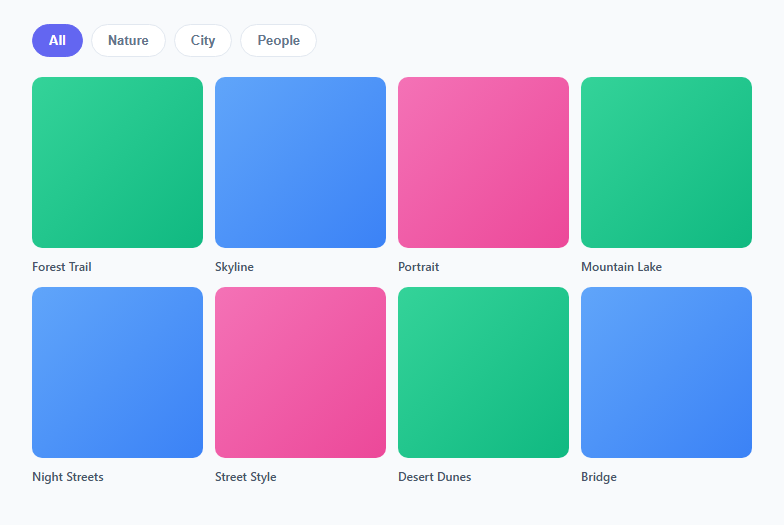
Portfolio sites, stock photo pages, and product catalogs all need a way to narrow a large grid down to a relevant subset without a page reload. This snippet pairs a row of pill-shaped filter tabs with a responsive image grid, where clicking a tab instantly shows only the matching items with a soft fade-and-scale transition.
The gallery uses a single source of truth: every .gallery-item carries a data-category attribute (nature, city, or people). The filter tabs carry a matching data-filter attribute. No duplicate lists or hidden state to keep in sync — the DOM attribute is the state.
How the filtering logic works
Clicking a tab calls filterGallery(btn), which reads btn.dataset.filter. It then loops over every .gallery-item and checks whether filter === 'all' or the item's dataset.category matches. Items that don't match get the .hidden class toggled on; items that do match get it removed. This is a single pass over the grid, so it scales fine to a few hundred items without any noticeable delay.
How the fade-and-scale transition works
Rather than just toggling display: none, hidden items transition their opacity to 0 and transform: scale(0.85) down slightly, using a 0.25s CSS transition. Once faded out, the .hidden class also collapses the item's box (width/height: 0, position: absolute, overflow: hidden) so the remaining visible items reflow into a clean grid instead of leaving gaps. Because the collapse properties and the opacity/transform properties are on the same class, the fade plays first visually before the layout collapses — the effect reads as a gentle "items melt away" rather than an abrupt jump.
Extending the categories
Add a new tab button with a new data-filter value, then tag any gallery items with the matching data-category. No JavaScript changes are required — the loop works for any number of categories.
Build with AI
Build, Understand, Optimize, and Extend It With AI
Paste this snippet into an AI coding assistant and ask it to walk through why the .hidden class combines opacity/transform transitions with box-collapsing properties in the same class — that combination is what makes the exit feel like a smooth fade instead of a layout jump. You can also ask it to convert the single-select filter into a multi-select one using a Set of active categories, or to add a "count" badge on each tab showing how many items match. It's a good exercise in seeing how far you can push a pattern using only data attributes as state before you actually need a JS framework.
Prompt to recreate it
Copy this into your AI assistant of choice to build the effect from scratch, or as a jumping-off point for your own variant:
Build a "filter tabs gallery" in plain HTML, CSS, and vanilla JavaScript.

Requirements:
- A row of pill-shaped filter buttons (All, plus at least three specific categories), each carrying a data-filter attribute, with exactly one marked active at a time.
- A responsive image grid below the tabs where every grid item carries a data-category attribute matching one of the filter values.
- A single filterGallery(btn) function that reads the clicked button's data-filter, updates the active class on the tabs, and loops once over all grid items toggling a .hidden class based on whether data-category matches the filter (or the filter is "all").
- The .hidden state must combine a CSS opacity/transform transition (for a fade-and-scale effect) with box-collapsing (zero width/height, absolute positioning) so that hidden items don't leave gaps and visible items reflow into a clean grid.
- The grid must be responsive (at least 4 columns on desktop collapsing to 2 on narrow viewports) using a single media query.
- No external libraries, no build step, and the pattern must support adding new categories purely by adding new markup — no JavaScript changes.
Want to tighten it up first? Run this prompt through the AI Prompt Studio to score it across 8 quality dimensions, catch anti-patterns, and tune the wording for Claude, ChatGPT, or Gemini before you paste it in.
Step by step
How to Use
- 1Load the snippetClick "Filter Tabs Gallery" in the sidebar Library tab to load the HTML, CSS, and JS panels.
- 2Click through the filtersTry All, Nature, City, and People in the preview to see the fade-and-scale filtering in action.
- 3Swap in your own imagesReplace the gradient .thumb divs with <img> tags, or set background-image on each .thumb in the CSS panel.
- 4Add more categoriesAdd a new filter tab with a data-filter value and tag matching gallery items with the same data-category. No JS changes needed.
- 5Adjust the transitionTune the 0.25s duration or the scale(0.85) value in the CSS panel to make the filter feel snappier or slower.
- 6Export and saveUse the export buttons for HTML, JSX, or Tailwind, or click "Save as" to store your version in IndexedDB.
Real-world uses
Common Use Cases
Got questions?
Frequently Asked Questions
Every gallery item has a data-category attribute. When a tab is clicked, filterGallery reads the tab's data-filter value and compares it against each item's data-category, toggling a .hidden class on non-matches.
Keeping the category directly on the DOM element means there is only one place to update when content changes — no risk of a JS array getting out of sync with the actual markup.
The base version supports one active filter at a time. To support multi-select, track selected filters in a Set, toggle tabs individually instead of clearing all, and check item.dataset.category against the Set with .has().
Add a button with data-filter="animals" to the .filter-tabs row, and add data-category="animals" to any gallery-item you want included. No JavaScript edits are required.
The .hidden class both fades the opacity/scale and collapses the box dimensions. This lets the remaining visible items reflow cleanly into the grid instead of leaving empty gaps where filtered-out items used to be.
Yes. Replace the .thumb divs with <img src="..." class="thumb"> tags, or keep the divs and set background-image and background-size: cover in CSS.
Yes, the filtering loop is O(n) over the visible items and runs in under a millisecond for typical gallery sizes (dozens to a few hundred items).