You Might Also Like
Learn Coding Visually
Learn to code with interactive, live-preview playgrounds — HTML, CSS, JavaScript, React & more.
 HTML Playground42 lessons · Click-based · Live preview
 CSS PlaygroundLearn CSS with a live editor
 JavaScript Playground60 lessons · DOM · Async · Canvas
 React PlaygroundLearn React with a live code editor
 GSAP PlaygroundLearn GSAP animation interactively
 SVG Playground44 lessons · shapes · paths · animation
 SCSS Playground45 lessons · Sass modules · tokens
 Tailwind PlaygroundLearn Tailwind CSS with a live editor
 Bootstrap 5 Playground50 lessons · live preview
Tabs with URL Sync — Free HTML CSS JS Hash-Linked Tab Bar Snippet
Tabs with URL Sync · Navigation · Plain HTML, CSS & JS · Live preview
What's included
Features
About this UI Snippet
Tabs with URL Sync — HTML, CSS & JavaScript Hash-Based Tab State
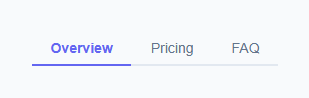
Ordinary tab bars lose their state on refresh — click "Pricing", hit F5, and you're back on the first tab. This snippet fixes that by storing the active tab in the URL hash (location.hash), so the browser itself remembers which tab was open. Refreshing, bookmarking, or sending a colleague a link to yoursite.com/page#pricing all open the correct panel.
How the hash becomes the source of truth
Clicking a tab doesn't directly toggle classes — it calls goToTab(tabName), which simply sets location.hash = tabName. Setting the hash is what triggers the browser's native hashchange event, which fires a listener calling readHashAndActivate(). That function reads location.hash, strips the leading #, and calls activateTab(name) to update the visible tab and panel. The result: the hash change is the only thing that ever changes the visible tab — clicking a tab bar button and typing a hash directly into the address bar go through the exact same code path.
How back/forward buttons work for free
Every time location.hash is set to a new value, the browser pushes a new entry onto the session history. That means the native Back and Forward buttons walk through your tab history automatically — no manual history.pushState bookkeeping required. This is one of the main advantages of hash-based state over a plain JS variable.
How the initial load is handled
On first load there may be no hash at all (a fresh visit to the page) or an invalid one (a stale bookmark). activateTab guards against this with a valid.includes(tabName) check, falling back to 'overview' if the hash is missing or unrecognized. readHashAndActivate() is called once immediately on script load, in addition to being wired to the hashchange event, so the correct tab is shown even before the user clicks anything.
Extending to more tabs
Add the tab name to the valid array, add a matching data-tab/data-panel pair in the HTML, and the hash-driven activation continues to work with no other logic changes.
Build with AI
Build, Understand, Optimize, and Extend It With AI
Ask an AI assistant to trace exactly why goToTab only ever sets location.hash rather than directly toggling classes — the point is that the hash change becomes the single source of truth, so clicking a button and manually editing the URL bar produce identical behavior. It's also worth asking the assistant to convert this to History API-based routing with pushState/popstate for cleaner URLs without a leading #, or to add support for a query parameter alongside the hash (e.g. #pricing?plan=pro) that the panel content can read.
Prompt to recreate it
Copy this into your AI assistant of choice to build the effect from scratch, or as a jumping-off point for your own variant:
Build a "tabs with URL sync" component in plain HTML, CSS, and vanilla JavaScript, with no router library.

Requirements:
- A tab bar of at least three buttons where clicking a tab does not directly toggle CSS classes but instead sets location.hash to the tab's name.
- A single hashchange event listener that reads location.hash, validates it against a known list of tab names, falls back to a default tab if the hash is missing or invalid, and then toggles the active class on the matching tab button and content panel.
- The same activation function must run once on initial page load (not just on hashchange) so a page opened directly with a hash like #pricing shows the correct tab immediately.
- Verify that clicking through tabs creates browser history entries so the native Back and Forward buttons move between previously visited tabs.
- Style the tabs with a colored active-tab underline consistent with a standard tab bar, and keep the whole thing dependency-free.
Want to tighten it up first? Run this prompt through the AI Prompt Studio to score it across 8 quality dimensions, catch anti-patterns, and tune the wording for Claude, ChatGPT, or Gemini before you paste it in.
Step by step
How to Use
- 1Load the snippetClick "Tabs with URL Sync" in the sidebar Library tab to load the panels and preview.
- 2Click a tab and check the hashClick Pricing or FAQ — notice the "Current hash" text and the browser URL bar (in the exported HTML file) both update.
- 3Test refresh persistenceExport to an HTML file, open it, switch tabs, and refresh — the same tab reopens because the hash survives a reload.
- 4Test back/forwardClick through a couple of tabs then press the browser Back button — it steps back through your tab history.
- 5Add a tabAdd the new name to the valid array in JS and add matching data-tab/data-panel elements in HTML.
- 6Export and saveUse the export buttons for a standalone file or component, or click "Save as" to keep your version.
Real-world uses
Common Use Cases
Got questions?
Frequently Asked Questions
A plain variable resets on every page load. location.hash is part of the URL, so it survives refreshes, gets included when the link is shared or bookmarked, and integrates with the browser's native back/forward history for free.
No. Setting location.hash does not trigger a network request or full page reload — it only fires the hashchange event, which the script listens for to update the visible tab.
activateTab checks the requested tab name against a valid array. If it is not recognized (or the hash is empty), it falls back to showing the default "overview" tab instead of showing nothing.
Every hash assignment pushes a new browser history entry automatically. The Back and Forward buttons move through those entries, which re-fires hashchange and re-activates the corresponding tab — no extra code needed.
Yes, conceptually. Replace location.hash assignments with history.pushState calls and listen for the popstate event instead of hashchange, then read location.pathname instead of location.hash.
Add its name to the valid array in the JS panel, then add a matching button with data-tab="name" and a panel with data-panel="name" in the HTML panel.
No — like any dynamically-toggled tab pattern, it requires JavaScript to read the hash and toggle the active classes. Without JS, no panel would ever become visible.