Learn Coding Visually
Learn to code with interactive, live-preview playgrounds — HTML, CSS, JavaScript, React & more.
 HTML Playground42 lessons · Click-based · Live preview
 CSS PlaygroundLearn CSS with a live editor
 JavaScript Playground60 lessons · DOM · Async · Canvas
 React PlaygroundLearn React with a live code editor
 GSAP PlaygroundLearn GSAP animation interactively
 SVG Playground44 lessons · shapes · paths · animation
 SCSS Playground45 lessons · Sass modules · tokens
 Tailwind PlaygroundLearn Tailwind CSS with a live editor
 Bootstrap 5 Playground50 lessons · live preview
medium-zoom Article Image Zoom — Free JS Snippet
medium-zoom Article Image Zoom with Hi-Res Swap · Media · Plain HTML, CSS & JS · Live preview
What's included
Features
About this UI Snippet
medium-zoom Article Image Zoom — HTML, CSS & JavaScript
A lightbox is the wrong tool for an image inside an article. It yanks the reader into a separate mode, hides the text they were reading and asks them to find their way back. What readers want is the behaviour Medium made famous: click a figure, it grows smoothly from exactly where it sits to fill the screen over a dimmed backdrop, and any scroll or click puts it back. medium-zoom is a tiny library that reproduces that, and a single call — mediumZoom('.mz-img') — makes every matching image zoomable.
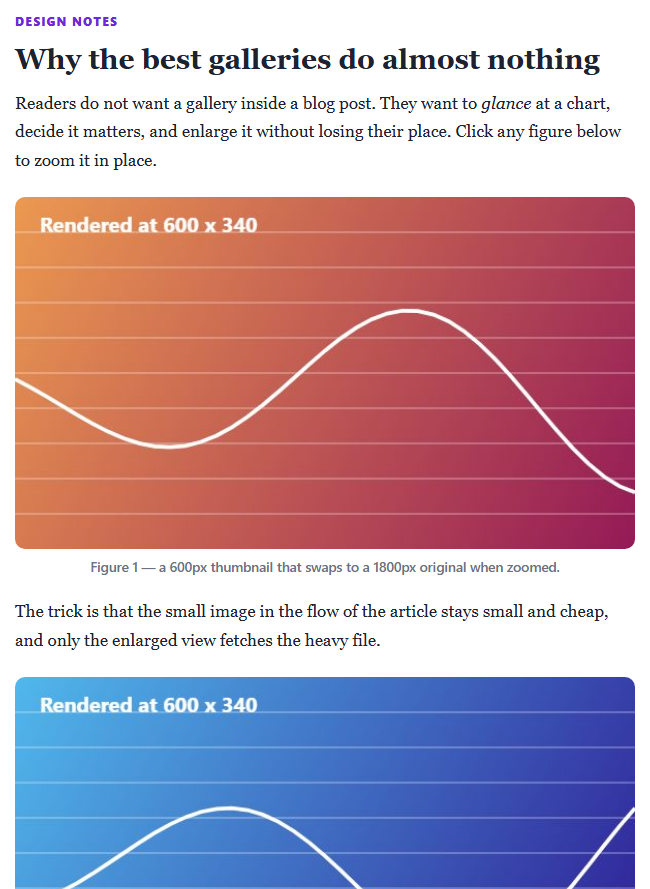
The efficiency trick is the data-zoom-src attribute. Article images should be small so the page loads fast, but a small image looks blurry when enlarged to full screen, which defeats the purpose of zooming. medium-zoom solves this by letting each image name a second, higher-resolution file; the enlarged copy starts from the thumbnail and swaps in the original as soon as it loads. The reader pays the bandwidth cost only if they actually zoom. The snippet demonstrates this by rendering the same artwork twice, at 600 and 1800 pixels, and the status line reports the natural pixel width of the zoomed image so the swap is observable.
The library returns an instance with a small event API. opened and closed are used here to update the status message, and getZoomedImage() exposes the enlarged element. Other lifecycle events exist for open, close, detach and detached if you need to pause videos or track analytics. Options control the feel: margin sets the space around the enlarged image, background sets the overlay colour, and scrollOffset sets how far a reader can scroll before the zoom closes on its own — the behaviour that makes it feel like part of the page rather than a modal.
A few styling details prevent classic problems. The zoomed image and overlay get explicit z-index values so sticky headers cannot cover them, and the cursor is set to zoom-in on the thumbnails to signal that they are interactive. Escape closes the zoom, and because the original image stays in the document flow, the layout never jumps when it opens.
Build with AI
Build, Understand, Optimize, and Extend It With AI
Ask an AI assistant like Claude to make every image inside your post content zoomable automatically, add a caption inside the zoomed view, or lazy-generate the hi-res source URL from the thumbnail.
Prompt to recreate it
Copy this into your AI assistant of choice to build the effect from scratch, or as a jumping-off point for your own variant:
Build click-to-zoom article images with medium-zoom 1.1 loaded from a CDN.

Requirements:
- Create an article with two figures whose <img> elements have a small src and a data-zoom-src pointing to a larger file.
- Call mediumZoom('.mz-img', { margin: 28, background: 'rgba(12,14,26,.92)', scrollOffset: 40 }).
- Use zoom.on('opened') and zoom.on('closed') to update a status line showing zoom.getZoomedImage().naturalWidth.
- Add cursor: zoom-in on the images and explicit z-index values for the overlay and opened image.
- Generate both image sizes on canvases so the demo needs no files.
Want to tighten it up first? Run this prompt through the AI Prompt Studio to score it across 8 quality dimensions, catch anti-patterns, and tune the wording for Claude, ChatGPT, or Gemini before you paste it in.
Source Code
<article class="mz-article">
<p class="mz-kicker">Design notes</p>
<h2>Why the best galleries do almost nothing</h2>
<p>Readers do not want a gallery inside a blog post. They want to <em>glance</em> at a chart, decide it matters, and enlarge it without losing their place. Click any figure below to zoom it in place.</p>
<figure>
<img class="mz-img" id="mzA" alt="Sunrise gradient chart">
<figcaption>Figure 1 — a 600px thumbnail that swaps to a 1800px original when zoomed.</figcaption>
</figure>
<p>The trick is that the small image in the flow of the article stays small and cheap, and only the enlarged view fetches the heavy file.</p>
<figure>
<img class="mz-img" id="mzB" alt="Ocean gradient chart">
<figcaption>Figure 2 — press Escape, scroll, or click again to dismiss.</figcaption>
</figure>
<div class="mz-status" id="mzStatus" role="status" aria-live="polite">Nothing zoomed yet.</div>
</article>body { background: #fff; padding: 26px 18px; font-family: Georgia, 'Times New Roman', serif; }
.mz-article { max-width: 620px; margin: 0 auto; color: #1e2230; line-height: 1.7; font-size: 17px; }
.mz-kicker { margin: 0 0 6px; font: 800 12px/1 system-ui, sans-serif; letter-spacing: .1em; text-transform: uppercase; color: #6d28d9; }
.mz-article h2 { margin: 0 0 12px; font-size: 28px; line-height: 1.2; }
.mz-article p { margin: 0 0 16px; }
figure { margin: 22px 0; }
.mz-img { display: block; width: 100%; height: auto; border-radius: 10px; cursor: zoom-in; }
figcaption { margin-top: 8px; font: 500 13.5px/1.4 system-ui, sans-serif; color: #6b7183; text-align: center; }
.mz-status { margin-top: 8px; padding: 10px 14px; border-radius: 10px; background: #f4f0ff; color: #4c1d95; font: 600 13px/1.4 system-ui, sans-serif; }
/* the zoomed image should never be dimmed by the page's own styles */
.medium-zoom-overlay { z-index: 20; }
.medium-zoom-image--opened { z-index: 21; border-radius: 6px; }// Draw a picture at any size, so the same artwork can be a light thumbnail and a heavy original.
function art(w, h, hues) {
const c = document.createElement('canvas'); c.width = w; c.height = h;
const x = c.getContext('2d');
const g = x.createLinearGradient(0, 0, w, h);
g.addColorStop(0, 'hsl(' + hues[0] + ',80%,62%)'); g.addColorStop(1, 'hsl(' + hues[1] + ',70%,34%)');
x.fillStyle = g; x.fillRect(0, 0, w, h);
x.strokeStyle = 'rgba(255,255,255,.35)'; x.lineWidth = Math.max(1, w / 400);
for (let i = 1; i < 10; i++) { x.beginPath(); x.moveTo(0, h * i / 10); x.lineTo(w, h * i / 10); x.stroke(); }
x.strokeStyle = '#fff'; x.lineWidth = Math.max(3, w / 160); x.beginPath();
for (let i = 0; i <= 40; i++) { const px = w * i / 40, py = h * (0.55 - 0.3 * Math.sin(i / 5 + hues[0]) * (0.4 + i / 70)); i ? x.lineTo(px, py) : x.moveTo(px, py); }
x.stroke();
x.fillStyle = '#fff'; x.font = '700 ' + Math.round(h * 0.06) + 'px system-ui, sans-serif';
x.fillText('Rendered at ' + w + ' x ' + h, w * 0.04, h * 0.1);
return c.toDataURL('image/jpeg', 0.82);
}
const a = document.getElementById('mzA'), b = document.getElementById('mzB');
a.src = art(600, 340, [28, 330]); a.dataset.zoomSrc = art(1800, 1020, [28, 330]);
b.src = art(600, 340, [200, 250]); b.dataset.zoomSrc = art(1800, 1020, [200, 250]);
const status = document.getElementById('mzStatus');
const zoom = mediumZoom('.mz-img', {
margin: 28, // breathing room around the enlarged image
background: 'rgba(12, 14, 26, 0.92)',
scrollOffset: 40, // scrolling more than 40px closes it
});
// While open there are two <img> copies in <body>: a clone of the thumbnail, and a second
// one loading data-zoom-src that fades in over it. getZoomedImage() is the original thumbnail,
// so to see the swap, read the largest natural width among the opened copies.
let poll = null;
function report() {
const w = Math.max.apply(null, Array.prototype.map.call(document.querySelectorAll('.medium-zoom-image--opened'), function (i) { return i.naturalWidth; }));
status.textContent = w > 600
? 'Zoomed. The hi-res original has loaded: ' + w + ' natural pixels wide (thumbnail is 600).'
: 'Zoomed. Loading the hi-res original...';
return w > 600;
}
zoom.on('opened', function () {
clearInterval(poll);
if (!report()) poll = setInterval(function () { if (report()) clearInterval(poll); }, 100);
});
zoom.on('closed', function () { clearInterval(poll); status.textContent = 'Closed. Back to the lightweight 600px thumbnails.'; });Step by step
How to Use
- 1Read the articleTwo figures sit inline as light 600-pixel thumbnails.
- 2Click a figureIt scales up from its exact position to fill the screen over a dark backdrop.
- 3Check the status lineIt reports the natural pixel width of the zoomed image — the 1800-pixel original, not the thumbnail.
- 4Dismiss itPress Escape, click again, or scroll a little. It shrinks back into place.
- 5Try the second figureZoom the other chart to see the same behaviour with a different source image.
Real-world uses
Common Use Cases
Got questions?
Frequently Asked Questions
Add data-zoom-src="large.jpg" to the image. medium-zoom swaps to it after opening, so the large file is only downloaded if the reader zooms.
Avoid wrapping zoomable images in links, or use a separate trigger; otherwise the click navigates instead of zooming.
Pass a background option, for example mediumZoom(".img", { background: "rgba(0,0,0,.9)" }).
Yes. Call zoom.attach(newImages) on the instance, or create a new mediumZoom call for them.
Use zoom.on("opened", handler) and zoom.on("closed", handler), or the open and close events for the start of each transition.
Yes. Tapping an image zooms it, and tapping or scrolling dismisses it.
Yes. Use the JSX, Vue, Angular or Tailwind export buttons on this page to convert the markup and styles. The behaviour comes from medium-zoom, so in a framework project install it with npm install medium-zoom instead of the CDN tag, create it in useEffect / onMounted / ngAfterViewInit after the images render, and release it with detach() when the component unmounts.