Learn Coding Visually
Learn to code with interactive, live-preview playgrounds — HTML, CSS, JavaScript, React & more.
 HTML Playground42 lessons · Click-based · Live preview
 CSS PlaygroundLearn CSS with a live editor
 JavaScript Playground60 lessons · DOM · Async · Canvas
 React PlaygroundLearn React with a live code editor
 GSAP PlaygroundLearn GSAP animation interactively
 SVG Playground44 lessons · shapes · paths · animation
 SCSS Playground45 lessons · Sass modules · tokens
 Tailwind PlaygroundLearn Tailwind CSS with a live editor
 Bootstrap 5 Playground50 lessons · live preview
Viewer.js Product Image Viewer — Free JS Snippet
Viewer.js Product Image Viewer with Toolbar · Media · Plain HTML, CSS & JS · Live preview
What's included
Features
About this UI Snippet
Viewer.js Product Image Viewer — HTML, CSS & JavaScript
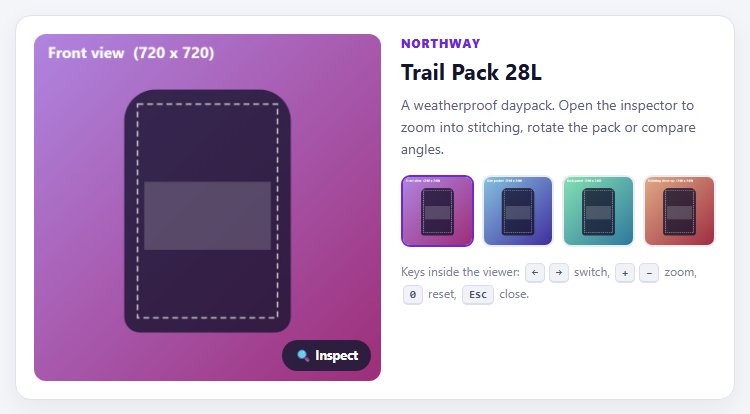
Product pages need more than a lightbox. A shopper deciding whether a bag has good stitching wants to zoom to 100%, pan around, rotate the object and flip back and forth between angles — the tools of an image inspector, not a slideshow. Viewer.js is built for that. Where most lightboxes give you next, previous and close, Viewer.js ships a full toolbar: zoom in and out, one-to-one pixel view, reset, rotate left and right, flip horizontal and vertical, play as a slideshow, plus a navbar of thumbnails and keyboard shortcuts for all of it.
The setup mirrors how a product page is structured. A container element holds thumbnail images, and new Viewer(container, options) indexes them. The performance-minded option is url: 'data-original'. By default the viewer would display the thumbnail's own src, which is small and blurry when zoomed; pointing url at an attribute lets each thumbnail name its full-resolution file, which is fetched only when the viewer is opened. A page with four 240-pixel thumbnails therefore stays light, and the 1800-pixel originals cost nothing until a shopper looks closely.
The toolbar option shows how granular the control is. Each button is set to 1 or 0 — or an object like { show: 1, size: 'large' } to change its size — so a simple product viewer can hide flip and slideshow buttons while a design tool keeps them. The title option takes a function that receives the image element and its data, which is how the caption includes the true natural pixel size of the file being shown: a useful confidence signal that the zoomed image really is high resolution.
The page also keeps its own hero image in sync. The viewed callback fires each time a slide finishes showing, and the snippet uses it to highlight the active thumbnail and update the hero, so closing the viewer leaves the page showing the last angle looked at. Clicking the hero or the Inspect button opens the viewer at that same index with viewer.view(index). Thumbnails and originals are generated on canvases so the snippet is self-contained.
Build with AI
Build, Understand, Optimize, and Extend It With AI
Ask an AI assistant like Claude to add a 360-degree spin using a frame sequence, download and share buttons in the toolbar, or a magnifier lens on hover.
Prompt to recreate it
Copy this into your AI assistant of choice to build the effect from scratch, or as a jumping-off point for your own variant:
Build a product image inspector with Viewer.js 1.11 loaded from a CDN (script and CSS).

Requirements:
- Create a list of four thumbnail images, each with a data-original attribute pointing to a large image, and construct new Viewer(container, { url: 'data-original', ... }).
- Configure the toolbar with zoomIn, zoomOut, oneToOne, reset, prev, play, next, rotateLeft, rotateRight, flipHorizontal and flipVertical, plus navbar, keyboard, loop and transition.
- Use a title function that shows the image alt text and its natural width and height.
- Use the viewed callback to highlight the active thumbnail and update a hero image on the page.
- Open the viewer at the current index with viewer.view(index) from the hero image and an Inspect button.
Want to tighten it up first? Run this prompt through the AI Prompt Studio to score it across 8 quality dimensions, catch anti-patterns, and tune the wording for Claude, ChatGPT, or Gemini before you paste it in.
Source Code
<div class="vw-wrap">
<div class="vw-main">
<img id="vwHero" alt="" class="vw-hero">
<button type="button" class="vw-open" id="vwOpen"><span aria-hidden="true">🔍</span> Inspect</button>
</div>
<div class="vw-info">
<p class="vw-brand">Northway</p>
<h3>Trail Pack 28L</h3>
<p class="vw-desc">A weatherproof daypack. Open the inspector to zoom into stitching, rotate the pack or compare angles.</p>
<ul class="vw-thumbs" id="vwThumbs"></ul>
<p class="vw-tip">Keys inside the viewer: <kbd>←</kbd><kbd>→</kbd> switch, <kbd>+</kbd><kbd>−</kbd> zoom, <kbd>0</kbd> reset, <kbd>Esc</kbd> close.</p>
</div>
</div>body { background: #f4f5f8; padding: 22px; font-family: system-ui, sans-serif; }
.vw-wrap { max-width: 720px; margin: 0 auto; display: grid; grid-template-columns: 1.1fr 1fr; gap: 20px; background: #fff; border: 1px solid #e0e3ec; border-radius: 16px; padding: 18px; box-shadow: 0 8px 24px rgba(30,30,70,.06); }
@media (max-width: 600px) { .vw-wrap { grid-template-columns: 1fr; } }
.vw-main { position: relative; border-radius: 12px; overflow: hidden; background: #e9ecf3; aspect-ratio: 1; }
.vw-hero { display: block; width: 100%; height: 100%; object-fit: cover; cursor: zoom-in; }
.vw-open { position: absolute; right: 10px; bottom: 10px; font: 700 12.5px/1 system-ui, sans-serif; color: #fff; background: rgba(20,24,48,.82); border: 0; border-radius: 999px; padding: 9px 13px; cursor: pointer; }
.vw-open:hover { background: rgba(20,24,48,.95); }
.vw-brand { margin: 4px 0 0; font: 800 11.5px/1 system-ui, sans-serif; letter-spacing: .1em; text-transform: uppercase; color: #6d28d9; }
.vw-info h3 { margin: 6px 0 8px; font-size: 22px; color: #12152b; }
.vw-desc { margin: 0 0 14px; font-size: 14px; line-height: 1.6; color: #58607a; }
.vw-thumbs { list-style: none; margin: 0 0 14px; padding: 0; display: grid; grid-template-columns: repeat(4, 1fr); gap: 8px; }
.vw-thumbs li { aspect-ratio: 1; border-radius: 9px; overflow: hidden; border: 2px solid transparent; cursor: pointer; background: #e9ecf3; }
.vw-thumbs li.on { border-color: #6d28d9; }
.vw-thumbs img { width: 100%; height: 100%; object-fit: cover; display: block; }
.vw-tip { margin: 0; font-size: 12px; color: #7b839b; line-height: 1.8; }
kbd { font: 700 11px/1 ui-monospace, Menlo, monospace; background: #f0f2f8; border: 1px solid #d9dded; border-bottom-width: 2px; border-radius: 5px; padding: 2px 6px; margin: 0 2px; color: #4a5270; }const VIEWS = [
{ name: 'Front view', hues: [268, 320] },
{ name: 'Side pocket', hues: [200, 250] },
{ name: 'Back panel', hues: [150, 200] },
{ name: 'Stitching close-up', hues: [25, 350] },
];
function art(i, hues, w, h) {
const c = document.createElement('canvas'); c.width = w; c.height = h;
const x = c.getContext('2d');
const g = x.createLinearGradient(0, 0, w, h);
g.addColorStop(0, 'hsl(' + hues[0] + ',60%,70%)'); g.addColorStop(1, 'hsl(' + hues[1] + ',55%,40%)');
x.fillStyle = g; x.fillRect(0, 0, w, h);
// a pack-shaped body
const bx = w * 0.26, by = h * 0.16, bw = w * 0.48, bh = h * 0.7, r = w * 0.09;
x.fillStyle = 'rgba(20,18,45,.78)';
x.beginPath(); x.moveTo(bx + r, by); x.arcTo(bx + bw, by, bx + bw, by + bh, r); x.arcTo(bx + bw, by + bh, bx, by + bh, r * 0.5); x.arcTo(bx, by + bh, bx, by, r * 0.5); x.arcTo(bx, by, bx + bw, by, r); x.fill();
x.fillStyle = 'rgba(255,255,255,.18)'; x.fillRect(bx + bw * 0.12, by + bh * 0.38, bw * 0.76, bh * 0.28);
x.strokeStyle = 'rgba(255,255,255,.7)'; x.lineWidth = Math.max(2, w / 220); x.setLineDash([w / 60, w / 90]);
x.strokeRect(bx + bw * 0.08, by + bh * 0.06, bw * 0.84, bh * 0.88);
x.setLineDash([]);
x.fillStyle = '#fff'; x.font = '700 ' + Math.round(h * 0.045) + 'px system-ui, sans-serif';
x.fillText(VIEWS[i].name + ' (' + w + ' x ' + h + ')', w * 0.04, h * 0.07);
return c.toDataURL('image/jpeg', 0.85);
}
const thumbs = document.getElementById('vwThumbs');
const hero = document.getElementById('vwHero');
// Thumbnails are the images Viewer.js indexes; each carries the full-size source in data-original.
thumbs.innerHTML = VIEWS.map(function (v, i) {
const small = art(i, v.hues, 240, 240);
const big = art(i, v.hues, 1800, 1800);
return '<li data-i="' + i + '"><img src="' + small + '" data-original="' + big + '" alt="' + v.name + '"></li>';
}).join('');
// Medium-size images for the page hero, so it stays sharp without loading the 1800px originals.
const HERO = VIEWS.map(function (v, i) { return art(i, v.hues, 720, 720); });
const viewer = new Viewer(thumbs, {
url: 'data-original', // load the big file only when the viewer is opened
title: [1, function (image, data) { return image.alt + ' (' + data.naturalWidth + ' × ' + data.naturalHeight + ')'; }],
navbar: true,
transition: true,
keyboard: true,
loop: true,
toolbar: {
zoomIn: 1, zoomOut: 1, oneToOne: 1, reset: 1,
prev: 1, play: { show: 1, size: 'large' }, next: 1,
rotateLeft: 1, rotateRight: 1, flipHorizontal: 1, flipVertical: 1,
},
viewed: function () { markActive(viewer.index); },
});
function markActive(i) {
thumbs.querySelectorAll('li').forEach(function (li, n) { li.classList.toggle('on', n === i); });
const img = thumbs.querySelectorAll('img')[i];
hero.src = HERO[i]; hero.alt = img.alt;
}
markActive(0);
// The big "hero" image and the button open the same viewer at the right slide.
document.getElementById('vwOpen').addEventListener('click', function () { viewer.view(viewer.index >= 0 ? viewer.index : 0); });
hero.addEventListener('click', function () { viewer.view(viewer.index >= 0 ? viewer.index : 0); });Step by step
How to Use
- 1Open the inspectorClick the main image or the Inspect button. The viewer opens with a toolbar and a thumbnail strip.
- 2Zoom and panUse the + and − buttons, the mouse wheel or 0 to reset, then drag the image to look around.
- 3Rotate and flipUse the rotate and flip buttons to view the product from a different orientation.
- 4Switch anglesClick a thumbnail in the navbar or use the arrow keys. The title shows the true pixel size of each image.
- 5Close and comparePress Escape. The page hero and highlighted thumbnail show the last angle you viewed.
Real-world uses
Common Use Cases
Got questions?
Frequently Asked Questions
Set the url option to an attribute name such as "data-original" and put the full-size file URL in that attribute on each thumbnail.
Pass a toolbar object with each button set to 1 (show) or 0 (hide), or an object like { show: 1, size: "large" }.
Call viewer.view(index) from your handler, using the instance you created.
Use the title option with a function receiving (image, imageData) and returning a string, as this snippet does to show the natural size.
Arrow keys switch images, + and − zoom, 0 resets or toggles the one-to-one view, and Escape closes the viewer.
Yes. Pass inline: true and give it a container to show the viewer embedded in the page.
Yes. Use the JSX, Vue, Angular or Tailwind export buttons on this page to convert the markup and styles. The behaviour comes from Viewer.js, so in a framework project install it with npm install viewerjs instead of the CDN tag, create it in useEffect / onMounted / ngAfterViewInit on the image container, and release it with destroy() when the component unmounts.