
Learn Coding Visually
Learn to code with interactive, live-preview playgrounds — HTML, CSS, JavaScript, React & more.
 HTML Playground42 lessons · Click-based · Live preview
 CSS PlaygroundLearn CSS with a live editor
 JavaScript Playground60 lessons · DOM · Async · Canvas
 React PlaygroundLearn React with a live code editor
 GSAP PlaygroundLearn GSAP animation interactively
 SVG Playground44 lessons · shapes · paths · animation
 SCSS Playground45 lessons · Sass modules · tokens
 Tailwind PlaygroundLearn Tailwind CSS with a live editor
 Bootstrap 5 Playground50 lessons · live preview
SheetJS Table to Excel Export and Import (.xlsx) — Free JavaScript Snippet
SheetJS Table to Excel Export and Import (.xlsx) · Tools · Plain HTML, CSS & JS · Live preview
What's included
Features
About this UI Snippet
SheetJS — Real Excel Files From the Browser, Formulas and Formats Included
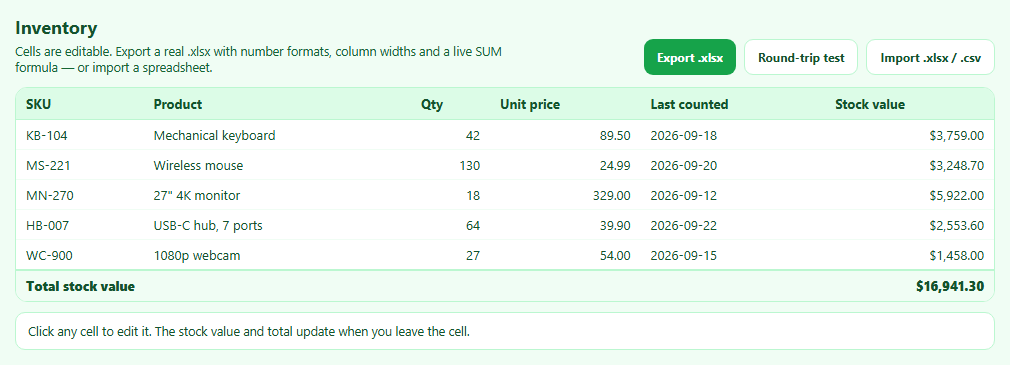
"Export to Excel" is one of the most requested features in any admin panel, and a CSV often isn't good enough: numbers lose their formats, dates become text, and totals are frozen values. SheetJS writes genuine .xlsx workbooks in the browser. This snippet exports an inventory table with everything a spreadsheet user expects, and imports workbooks back.
Cells are objects with a type and a format
In SheetJS a worksheet is an object keyed by cell address ("C2"), where each cell has a type t (n for number, s for string, d for date), a value v, and optionally a number format z. Setting z: '"$"#,##0.00' makes Excel display 24.99 as $24.99 while keeping it a number you can sum. Dates are written as real dates with cellDates, formatted with yyyy-mm-dd.
Formulas carry a cached value
A cell with f: 'SUM(F2:F6)' stores a formula Excel recalculates when opening the file. The snippet also sets v, the cached result: readers that don't calculate formulas (including SheetJS itself, and many previews) show that value instead of an empty cell.
The used range and column widths
Cells written directly outside the original array are invisible to Excel unless the sheet's !ref range includes them, so it is widened after the total row is added. !cols sets column widths in characters with wch.
Two sheets
A second "About" sheet records the export time and row count, a common pattern for audit trails.
Round-trip test
XLSX.write(wb, { type: 'array' }) produces the file's bytes without downloading; XLSX.read parses them straight back. The log reports the sheet names, the type and number format of a quantity cell (read back only because cellNF: true is passed — SheetJS drops formats by default), that the date survived as a Date, and the formula with its value — proof of what's inside the file. This also works inside sandboxed previews that block downloads.
Importing
A chosen .xlsx, .xls, .csv or .ods file is read with XLSX.read; sheet_to_json with header: 1 returns arrays of rows, and raw: false applies the file's number formats so values look as they did in Excel. Multi-sheet workbooks get a sheet selector.
Build with AI
Build, Understand, Optimize, and Extend It With AI
Paste this snippet into an AI assistant like Claude and ask it why formulas need a cached value and why !ref must be updated. Ask it to add adding and deleting rows, importing into the editable table with column mapping, exporting only filtered rows, or generating one sheet per category. It can also compare this with exporting CSV and explain when each is appropriate.
Prompt to recreate it
Copy this into your AI assistant of choice to build the effect from scratch, or as a jumping-off point for your own variant:
Build an editable inventory table with Excel export and import using SheetJS (loaded from cdn.sheetjs.com) in plain HTML, CSS and JavaScript.

Requirements:
- Five products with SKU, name, quantity, unit price and last-counted date in an editable table (contenteditable cells, Enter to commit) with a computed stock value column and total.
- Export to .xlsx: numbers as numeric cells with formats (thousands for quantity, currency for price), dates as real dates formatted yyyy-mm-dd, a per-row formula for stock value and a SUM formula total row, each with a cached value; update the sheet's used range and set column widths; add a second "About" sheet with export time and row count; save with compression.
- A round-trip test that writes the workbook to an array, reads it back, and reports sheet names, a price cell's type and format, whether the date is a Date, and the total's formula and value.
- Import .xlsx, .xls, .csv or .ods files, show a sheet selector for multi-sheet workbooks, and render up to 200 rows read-only using formatted values.
- Escape all displayed values and note that sandboxed previews block downloads.
Want to tighten it up first? Run this prompt through the AI Prompt Studio to score it across 8 quality dimensions, catch anti-patterns, and tune the wording for Claude, ChatGPT, or Gemini before you paste it in.
Source Code
<div class="sx">
  <header class="sx-head">
    <div>
      <h2>Inventory</h2>
      <p>Cells are editable. Export a real .xlsx with number formats, column widths and a live SUM formula — or import a spreadsheet.</p>
    </div>
    <div class="sx-actions">
      <button type="button" id="sxExport">Export .xlsx</button>
      <button type="button" id="sxRound" class="ghost">Round-trip test</button>
      <label class="sx-file ghost">Import .xlsx / .csv<input type="file" id="sxFile" accept=".xlsx,.xls,.csv,.ods"></label>
    </div>
  </header>
  <div class="sx-sheetbar" id="sxSheets" hidden><label>Sheet <select id="sxSheet"></select></label></div>
  <div class="sx-wrap"><table class="sx-table" id="sxTable"></table></div>
  <div class="sx-log" id="sxLog" role="status" aria-live="polite"></div>
</div>*{box-sizing:border-box;margin:0;padding:0}
body{font-family:system-ui,-apple-system,sans-serif;background:#f0fdf4;color:#14532d;min-height:100vh;padding:20px}
.sx{max-width:980px;margin:0 auto}
.sx-head{display:flex;justify-content:space-between;align-items:flex-end;gap:12px;flex-wrap:wrap;margin-bottom:12px}
.sx h2{font-size:18px}
.sx-head p{font-size:12.5px;color:#166534;margin-top:4px;max-width:520px}
.sx-actions{display:flex;gap:8px;flex-wrap:wrap}
.sx button,.sx-file{border:0;border-radius:9px;padding:9px 13px;font:700 12px system-ui;background:#16a34a;color:#fff;cursor:pointer;display:inline-flex;align-items:center}
.sx .ghost{background:#fff;color:#14532d;border:1px solid #bbf7d0}
.sx-file input{position:absolute;width:1px;height:1px;opacity:0}
.sx :focus-visible,.sx-file:focus-within{outline:2px solid #22c55e;outline-offset:2px}
.sx-sheetbar{margin-bottom:8px;font-size:12.5px;font-weight:600}
.sx-sheetbar select{font:600 12px system-ui;border:1px solid #bbf7d0;border-radius:7px;padding:4px 6px;margin-left:6px}
.sx-wrap{overflow:auto;background:#fff;border:1px solid #bbf7d0;border-radius:12px;max-height:420px;scrollbar-width:thin}
.sx-table{border-collapse:collapse;width:100%;font-size:13px}
.sx-table th{position:sticky;top:0;background:#dcfce7;color:#14532d;text-align:left;padding:7px 10px;font-weight:700;border-bottom:1px solid #bbf7d0;white-space:nowrap}
.sx-table td{padding:6px 10px;border-bottom:1px solid #f0fdf4;white-space:nowrap}
.sx-table td[contenteditable]{outline:none}
.sx-table td[contenteditable]:focus{background:#fefce8;box-shadow:inset 0 0 0 2px #facc15}
.sx-table td.num{text-align:right;font-variant-numeric:tabular-nums}
.sx-table tfoot td{font-weight:800;background:#f0fdf4;border-top:2px solid #bbf7d0}
.sx-log{margin-top:10px;font-size:12.5px;line-height:1.6;background:#fff;border:1px solid #bbf7d0;border-radius:10px;padding:8px 12px;min-height:38px}
.sx-log code{font:600 11.5px ui-monospace,monospace;background:#f0fdf4;padding:1px 4px;border-radius:4px}var COLS = [
{ key: 'sku', label: 'SKU', w: 12 },
{ key: 'name', label: 'Product', w: 28 },
{ key: 'qty', label: 'Qty', w: 8, num: true, fmt: '#,##0' },
{ key: 'price', label: 'Unit price', w: 12, num: true, fmt: '"$"#,##0.00' },
{ key: 'updated', label: 'Last counted', w: 14, date: true, fmt: 'yyyy-mm-dd' },
];
var rows = [
{ sku: 'KB-104', name: 'Mechanical keyboard', qty: 42, price: 89.5, updated: '2026-09-18' },
{ sku: 'MS-221', name: 'Wireless mouse', qty: 130, price: 24.99, updated: '2026-09-20' },
{ sku: 'MN-270', name: '27" 4K monitor', qty: 18, price: 329, updated: '2026-09-12' },
{ sku: 'HB-007', name: 'USB-C hub, 7 ports', qty: 64, price: 39.9, updated: '2026-09-22' },
{ sku: 'WC-900', name: '1080p webcam', qty: 27, price: 54, updated: '2026-09-15' },
];
var table = document.getElementById('sxTable');
var logEl = document.getElementById('sxLog');
var editable = true;
function money(v) { return '$' + Number(v || 0).toLocaleString('en-US', { minimumFractionDigits: 2, maximumFractionDigits: 2 }); }
function esc(s) { return String(s == null ? '' : s).replace(/[&<>]/g, function (c) { return { '&': '&', '<': '<', '>': '>' }[c]; }); }
function render() {
var total = rows.reduce(function (s, r) { return s + (Number(r.qty) || 0) * (Number(r.price) || 0); }, 0);
table.innerHTML = '<thead><tr>' + COLS.map(function (c) { return '<th>' + c.label + '</th>'; }).join('') + '<th>Stock value</th></tr></thead><tbody>' +
rows.map(function (r, i) {
return '<tr>' + COLS.map(function (c) {
var v = c.key === 'price' ? Number(r.price).toFixed(2) : r[c.key];
return '<td' + (editable ? ' contenteditable="true"' : '') + ' data-r="' + i + '" data-k="' + c.key + '" class="' + (c.num ? 'num' : '') + '">' + esc(v) + '</td>';
}).join('') + '<td class="num">' + money((Number(r.qty) || 0) * (Number(r.price) || 0)) + '</td></tr>';
}).join('') + '</tbody><tfoot><tr><td colspan="' + COLS.length + '">Total stock value</td><td class="num">' + money(total) + '</td></tr></tfoot>';
}
table.addEventListener('blur', function (e) {
var td = e.target;
if (!td.dataset || td.dataset.r === undefined) return;
var col = COLS.find(function (c) { return c.key === td.dataset.k; });
var text = td.textContent.trim();
rows[td.dataset.r][td.dataset.k] = col.num ? (Number(text.replace(/[^0-9.-]/g, '')) || 0) : text;
render();
}, true);
table.addEventListener('keydown', function (e) { if (e.key === 'Enter') { e.preventDefault(); e.target.blur(); } });
// Build the workbook cell by cell so each cell carries a TYPE and a number
// FORMAT. aoa_to_sheet would guess types; being explicit keeps prices as
// numbers (so Excel can sum them) and dates as real dates.
function buildWorkbook() {
var aoa = [COLS.map(function (c) { return c.label; }).concat('Stock value')];
rows.forEach(function (r) {
aoa.push(COLS.map(function (c) {
if (c.date) return new Date(r[c.key] + 'T00:00:00Z');
return c.num ? Number(r[c.key]) || 0 : r[c.key];
}).concat(null));
});
var ws = XLSX.utils.aoa_to_sheet(aoa, { cellDates: true });
var last = rows.length + 1; // header is row 1
rows.forEach(function (r, i) {
var row = i + 2;
COLS.forEach(function (c, ci) {
var addr = XLSX.utils.encode_cell({ r: row - 1, c: ci });
if (c.fmt && ws[addr]) ws[addr].z = c.fmt;
});
// A per-row formula. f is what Excel stores; v is the cached value
// shown by readers that don't calculate (including SheetJS itself).
ws['F' + row] = { t: 'n', f: 'C' + row + '*D' + row, v: (Number(r.qty) || 0) * (Number(r.price) || 0), z: '"$"#,##0.00' };
});
var totalRow = last + 1;
ws['A' + totalRow] = { t: 's', v: 'Total stock value' };
ws['F' + totalRow] = { t: 'n', f: 'SUM(F2:F' + last + ')', v: rows.reduce(function (s, r) { return s + (Number(r.qty) || 0) * (Number(r.price) || 0); }, 0), z: '"$"#,##0.00' };
// !ref is the sheet's used range; widen it to include the added row.
ws['!ref'] = XLSX.utils.encode_range({ s: { r: 0, c: 0 }, e: { r: totalRow - 1, c: 5 } });
ws['!cols'] = COLS.map(function (c) { return { wch: c.w }; }).concat({ wch: 14 });
var wb = XLSX.utils.book_new();
XLSX.utils.book_append_sheet(wb, ws, 'Inventory');
var notes = XLSX.utils.aoa_to_sheet([['Exported', new Date().toISOString()], ['Rows', rows.length], ['Source', 'SheetJS in the browser']]);
notes['!cols'] = [{ wch: 10 }, { wch: 28 }];
XLSX.utils.book_append_sheet(wb, notes, 'About');
return wb;
}
document.getElementById('sxExport').addEventListener('click', function () {
XLSX.writeFile(buildWorkbook(), 'inventory.xlsx', { compression: true });
logEl.innerHTML = 'Saving <code>inventory.xlsx</code> (2 sheets). Sandboxed previews block downloads — use <b>Round-trip test</b> to check the file here, or open the demo in its own tab.';
});
// Write the workbook to bytes and immediately parse them back: proves what
// the .xlsx really contains without needing a download.
document.getElementById('sxRound').addEventListener('click', function () {
var bytes = XLSX.write(buildWorkbook(), { type: 'array', bookType: 'xlsx', compression: true });
// cellNF keeps each cell's number format (z); it is dropped by default.
var wb = XLSX.read(bytes, { cellDates: true, cellFormula: true, cellNF: true });
var ws = wb.Sheets.Inventory;
var totalAddr = 'F' + (rows.length + 2);
logEl.innerHTML = 'Wrote <b>' + (bytes.byteLength / 1024).toFixed(1) + ' KB</b> and read it back: sheets <code>' + wb.SheetNames.join('</code>, <code>') +
'</code> · C2 type <code>' + ws.C2.t + '</code> format <code>' + esc(ws.C2.z) + '</code> · E2 is a <code>' + (ws.E2.v instanceof Date ? 'Date' : typeof ws.E2.v) + '</code>' +
' · ' + totalAddr + ' formula <code>=' + esc(ws[totalAddr].f) + '</code> = ' + money(ws[totalAddr].v) + '.';
});
var currentWb = null;
function showWorkbook(wb, label) {
currentWb = wb;
var bar = document.getElementById('sxSheets');
var sel = document.getElementById('sxSheet');
sel.innerHTML = wb.SheetNames.map(function (n) { return '<option>' + esc(n) + '</option>'; }).join('');
bar.hidden = wb.SheetNames.length < 2;
renderSheet(wb.SheetNames[0]);
}
// Imported sheets are shown read-only, exactly as SheetJS parsed them.
// sheet_to_json with header:1 returns rows as arrays; raw:false applies the
// cell number formats so values look the way they did in Excel.
function renderSheet(name) {
editable = false;
var data = XLSX.utils.sheet_to_json(currentWb.Sheets[name], { header: 1, raw: false, blankrows: false, defval: '' });
if (!data.length) { table.innerHTML = '<tbody><tr><td>This sheet is empty.</td></tr></tbody>'; return; }
table.innerHTML = '<thead><tr>' + data[0].map(function (h) { return '<th>' + esc(h) + '</th>'; }).join('') + '</tr></thead><tbody>' +
data.slice(1, 201).map(function (r) { return '<tr>' + r.map(function (v) { return '<td>' + esc(v) + '</td>'; }).join('') + '</tr>'; }).join('') + '</tbody>';
}
document.getElementById('sxSheet').addEventListener('change', function (e) { renderSheet(e.target.value); });
document.getElementById('sxFile').addEventListener('change', function (e) {
var f = e.target.files[0];
if (!f) return;
f.arrayBuffer().then(function (buf) {
var wb = XLSX.read(buf, { cellDates: true });
logEl.innerHTML = 'Imported <b>' + esc(f.name) + '</b>: ' + wb.SheetNames.length + ' sheet(s). Showing up to 200 rows, read-only. Reload to return to the editable inventory.';
showWorkbook(wb, f.name);
}).catch(function (err) { logEl.textContent = 'Could not read ' + f.name + ': ' + err.message; });
e.target.value = '';
});
render();
logEl.innerHTML = 'Click any cell to edit it. The stock value and total update when you leave the cell.';Step by step
How to Use
- 1Edit cellsClick a cell, type, press Enter; values and totals update.
- 2Export .xlsxDownloads a two-sheet workbook with formats and formulas.
- 3Run the round-trip testWrites and re-reads the file to show exactly what it contains.
- 4Import a spreadsheetChoose .xlsx, .xls, .csv or .ods; pick a sheet if there are several.
- 5Adapt the columnsEdit COLS for labels, widths and number formats.
Real-world uses
Common Use Cases
Got questions?
Frequently Asked Questions
With SheetJS, build a worksheet (for example with XLSX.utils.aoa_to_sheet or table_to_sheet), add it to a workbook with book_append_sheet, and call XLSX.writeFile(wb, 'file.xlsx').
Set the z property on a cell to an Excel format string, such as '"$"#,##0.00' for currency or 'yyyy-mm-dd' for dates. The cell must hold a number (or date) for the format to apply.
Set a cell's f property to the formula without the equals sign, for example { t: 'n', f: 'SUM(F2:F6)' }. Also set v to a cached value so viewers that don't calculate show the result.
Excel reads only the range in the sheet's !ref property. When you add cells outside the original range, update !ref with XLSX.utils.encode_range to include them.
The free Community Edition reads and writes data, formats and formulas but not cell styles. Styling requires SheetJS Pro or a styling-capable fork.