


Learn Coding Visually
Learn to code with interactive, live-preview playgrounds — HTML, CSS, JavaScript, React & more.
 HTML Playground42 lessons · Click-based · Live preview
 CSS PlaygroundLearn CSS with a live editor
 JavaScript Playground60 lessons · DOM · Async · Canvas
 React PlaygroundLearn React with a live code editor
 GSAP PlaygroundLearn GSAP animation interactively
 SVG Playground44 lessons · shapes · paths · animation
 SCSS Playground45 lessons · Sass modules · tokens
 Tailwind PlaygroundLearn Tailwind CSS with a live editor
 Bootstrap 5 Playground50 lessons · live preview
Text Particles HTML CSS JS — Canvas Particle Text
Text Particles · Animations · Plain HTML, CSS & JS · Live preview
What's included
Features
About this UI Snippet
How to Build a Canvas Particle Text Effect with Spring Physics
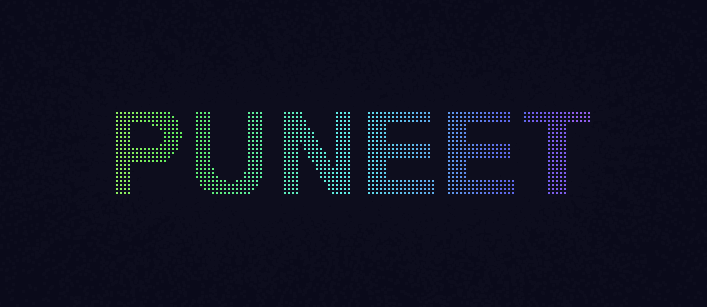
A particle text effect renders a word as thousands of tiny dots that fly in, assemble into the letters, hold the shape, and can scatter apart on click before reforming. It is one of the most eye-catching canvas effects and, despite looking complex, comes down to two ideas: sampling glyph pixels from an offscreen canvas to find target positions, and spring physics to move particles toward those targets. This walkthrough explains the whole pipeline, built with the HTML5 Canvas 2D API and requestAnimationFrame, no libraries.
Sampling text into target points
The particles need to know where the letters are. To find out, the code draws the word onto a hidden offscreen canvas with a large bold font using fillText, then calls getImageData to read back the entire pixel buffer. The returned Uint8ClampedArray holds four bytes per pixel (R, G, B, A). The code scans this buffer on a stride — stepping several pixels at a time in both x and y rather than every pixel — and for each sampled location checks the alpha byte: if data[index + 3] > 128, that pixel is part of a letter and becomes a particle target. The stride controls density: a smaller stride yields more particles and crisper text at higher cost, a larger stride is sparser and faster. Roughly three thousand particles at a stride of a few pixels gives a clean word while staying smooth.
Each detected text pixel produces a target position (tx, ty). Existing particles are reused and assigned new targets when the word changes, and extra particles are spawned or trimmed so the count matches the new glyph's pixel count.
The particle and spring physics
Every particle stores a current position (x, y), a velocity (vx, vy) and its target (tx, ty). The motion toward the target is a damped spring, the classic ease-with-overshoot integrator:
vx += (tx - x) * SPRING vy += (ty - y) * SPRING vx *= DAMPING vy *= DAMPING x += vx y += vy
The spring term accelerates the particle in proportion to how far it is from its target, like a rubber band — far particles rush in fast, close particles slow down. The damping factor (slightly less than 1) bleeds off velocity each frame so particles settle instead of oscillating forever. Tuning SPRING and DAMPING changes the feel from snappy to floaty. Because every particle runs this independently, the cloud organically converges into readable text.
The state machine: FORM and EXPLODE
The effect is driven by a small state machine. In the FORM state, particles spring toward their text targets and the word assembles. On click (or a timed trigger), it switches to EXPLODE: each particle is given a random outward velocity — a random angle and speed pushing it away from its position — and gravity is added each frame (vy += GRAVITY) so the particles burst and arc downward like fireworks. After a short interval the state flips back to FORM, the spring physics re-engages, and the particles fly home to rebuild the word. This explode-and-reform loop is what makes the effect feel alive.
Rendering efficiently
In the animation loop, the canvas is cleared (or faded for a trail), then every particle is drawn. For performance with thousands of particles, each is rendered as a tiny filled square via fillRect(x, y, 2, 2) rather than arc, because rectangles skip the path and circle math that would dominate the frame budget. Color is assigned per particle from its horizontal position — mapping x across the canvas width to a hue in HSL — so the assembled word shows a smooth left-to-right rainbow gradient that follows the particles even as they move. Drawing flat 2px squares keeps roughly three thousand particles comfortably at 60fps.
Changing the word
A text input lets users type a new word. On apply, the offscreen canvas is recleared, the new text is drawn and re-sampled into a fresh set of targets, and the particle array is reconciled to the new target count. Because particles keep their current positions and simply receive new targets, the transition from one word to the next is itself a smooth animated morph rather than a hard cut.
Why this approach scales
The key insight is decoupling the *what* from the *how*: the offscreen canvas and getImageData answer where the text is, producing a list of target points, while the spring-and-damping integrator answers how particles get there. Neither part needs to know about the other. That separation, plus drawing cheap squares and using requestAnimationFrame, lets a few lines of math animate thousands of particles into any text you type, all on the client with no dependencies.
Build with AI
Build, Understand, Optimize, and Extend It With AI
You don't need to trace the spring math or the state machine line by line on your own. Paste this snippet's HTML, CSS, and JS into an AI coding assistant like Claude and ask it to explain exactly how the spring constant and damping factor interact, or why the stride value trades particle density for frame rate. The same assistant is useful for optimizing it — asking whether the particle array could be pooled instead of rebuilt on every word change, or whether the fixed 2px squares could be batched into fewer draw calls for even bigger particle counts. And it's a fast way to extend the effect: ask it to make particles snap toward a logo's silhouette instead of text, add a second explosion mode with a different force shape, or wire the word input up to a live data source so the display updates itself. Treat the code less like a finished artifact and more like a starting point for a conversation.
Prompt to recreate it
Copy this into your AI assistant of choice to build the effect from scratch, or as a jumping-off point for your own variant:
Build a "particle text" effect in plain HTML, CSS, and JavaScript using only the Canvas 2D API and requestAnimationFrame — no libraries, no WebGL, no build step.

Requirements:
- A full-bleed canvas element, sized in JS from its offsetWidth/offsetHeight (not CSS alone), plus a text input and an Apply button.
- To find where the letters are: draw the word onto a hidden, never-appended offscreen canvas with a large bold font, then read the pixels back with getImageData. Walk that pixel buffer on a stride (skip several pixels at a time, not every pixel) and treat any sampled pixel with an alpha above roughly 128 as part of a letter.
- For every sampled letter-pixel, create one particle whose target (tx, ty) is that pixel's coordinate, starting at a random position on the canvas with zero velocity.
- Each frame, move every particle toward its target with a damped spring: add (target - position) times a spring constant to velocity, then multiply velocity by a damping factor just under 1, then add velocity to position. Expose the spring constant and damping factor as easily tunable numbers.
- Clicking the canvas (or a toggle button) should explode the particles: give each one a random horizontal velocity and an upward-biased vertical velocity, then apply constant downward gravity to vy every frame, fade each particle's alpha out over time, and remove particles once they're transparent or fall off the bottom.
- Clicking again (or calling reform) should throw every particle back to a random position with zero velocity and hand control back to the spring-toward-target logic, so it reassembles into the word.
- Draw particles as small filled rectangles (not circles or arcs) for performance, and paint a semi-transparent rectangle over the whole canvas each frame instead of clearing it outright, so fast-moving particles leave a short motion trail.
- Typing a new word and pressing Apply should re-sample the offscreen canvas and reassign every particle a new target without resetting their current on-screen positions, so the transition plays as a morph rather than a hard cut.
Want to tighten it up first? Run this prompt through the AI Prompt Studio to score it across 8 quality dimensions, catch anti-patterns, and tune the wording for Claude, ChatGPT, or Gemini before you paste it in.
Source Code
<div class="app">
  <canvas id="canvas"></canvas>
  <div class="controls">
    <input type="text" id="textInput" value="HELLO" maxlength="10" placeholder="Enter text..." spellcheck="false">
    <button id="applyBtn">Apply</button>
    <button id="toggleBtn">Explode</button>
    <span class="hint">Click canvas to toggle</span>
  </div>
</div>
* { margin: 0; padding: 0; box-sizing: border-box; }
body { background: #0d0d1a; font-family: system-ui, sans-serif; height: 100vh; overflow: hidden; }
.app { display: flex; flex-direction: column; height: 100vh; }
#canvas { flex: 1; display: block; cursor: pointer; }
.controls {
display: flex; align-items: center; gap: 10px; padding: 10px 16px;
background: #16213e; border-top: 1px solid #0f3460; flex-wrap: wrap;
}
#textInput {
padding: 7px 12px; background: #0d0d1a; border: 1px solid #0f3460;
border-radius: 6px; color: #e0e0ff; font-size: 15px; letter-spacing: 2px;
text-transform: uppercase; outline: none; width: 160px; font-family: inherit;
}
#textInput:focus { border-color: #4a90d9; }
button {
padding: 7px 16px; background: #16213e; border: 1px solid #0f3460;
border-radius: 6px; color: #a0a0c0; font-size: 13px; cursor: pointer; transition: all 0.15s;
}
button:hover { background: #0f3460; color: #e0e0ff; border-color: #4a90d9; }
#toggleBtn { border-color: #4a90d9; color: #a0c0ff; background: #1a3060; }
#toggleBtn.exploding { border-color: #e05555; color: #ff8080; background: #3a1a1a; }
.hint { font-size: 12px; color: #404060; }const canvas = document.getElementById('canvas');
const ctx = canvas.getContext('2d');
let W, H;
function resize() {
W = canvas.width = canvas.offsetWidth;
H = canvas.height = canvas.offsetHeight;
}
resize();
window.addEventListener('resize', () => { resize(); buildParticles(currentText); });
let particles = [];
let state = 'FORM'; // FORM | EXPLODE
let currentText = 'HELLO';
function buildParticles(text) {
currentText = text;
const off = document.createElement('canvas');
const FONT_SIZE = Math.min(120, W * 0.25);
off.width = W; off.height = H;
const oc = off.getContext('2d');
oc.fillStyle = '#fff';
oc.font = `bold ${FONT_SIZE}px Arial, sans-serif`;
oc.textAlign = 'center';
oc.textBaseline = 'middle';
oc.fillText(text.toUpperCase(), W/2, H/2);
const imageData = oc.getImageData(0, 0, W, H);
const data = imageData.data;
const stride = 4;
particles = [];
for (let y = 0; y < H; y += stride) {
for (let x = 0; x < W; x += stride) {
const idx = (y * W + x) * 4;
if (data[idx + 3] > 128) {
const hue = (x / W) * 360;
particles.push({
tx: x, ty: y,
x: Math.random() * W,
y: Math.random() * H,
vx: 0, vy: 0,
hue,
alpha: 1,
});
}
}
}
}
function explode() {
state = 'EXPLODE';
document.getElementById('toggleBtn').textContent = 'Reform';
document.getElementById('toggleBtn').classList.add('exploding');
particles.forEach(p => {
p.vx = (Math.random() - 0.5) * 16;
p.vy = -5 - Math.random() * 10;
p.alpha = 1;
});
}
function reform() {
state = 'FORM';
document.getElementById('toggleBtn').textContent = 'Explode';
document.getElementById('toggleBtn').classList.remove('exploding');
particles.forEach(p => {
p.x = Math.random() * W;
p.y = Math.random() * H;
p.vx = 0; p.vy = 0;
p.alpha = 1;
});
}
function update() {
if (state === 'FORM') {
particles.forEach(p => {
p.vx += (p.tx - p.x) * 0.08;
p.vy += (p.ty - p.y) * 0.08;
p.vx *= 0.85;
p.vy *= 0.85;
p.x += p.vx;
p.y += p.vy;
p.alpha = Math.min(1, p.alpha + 0.05);
});
} else {
particles.forEach(p => {
p.vy += 0.15;
p.x += p.vx;
p.y += p.vy;
p.alpha -= 0.008;
});
particles = particles.filter(p => p.alpha > 0 && p.y < H + 50);
}
}
function draw() {
ctx.fillStyle = 'rgba(13,13,26,0.25)';
ctx.fillRect(0, 0, W, H);
particles.forEach(p => {
ctx.globalAlpha = Math.max(0, p.alpha);
ctx.fillStyle = `hsl(${p.hue}, 80%, 65%)`;
ctx.fillRect(p.x, p.y, 2, 2);
});
ctx.globalAlpha = 1;
}
function loop() {
update();
draw();
requestAnimationFrame(loop);
}
buildParticles(currentText);
loop();
canvas.addEventListener('click', () => {
if (state === 'FORM') explode(); else reform();
});
document.getElementById('toggleBtn').addEventListener('click', () => {
if (state === 'FORM') explode(); else reform();
});
document.getElementById('applyBtn').addEventListener('click', () => {
const val = document.getElementById('textInput').value.trim() || 'HELLO';
buildParticles(val);
state = 'FORM';
document.getElementById('toggleBtn').textContent = 'Explode';
document.getElementById('toggleBtn').classList.remove('exploding');
});
document.getElementById('textInput').addEventListener('keydown', e => {
if (e.key === 'Enter') document.getElementById('applyBtn').click();
});Step by step
How to Use
- 1Watch it formOn load, scattered particles spring inward and assemble into the word.
- 2Click to explodeClick the canvas to scatter the particles outward with gravity before they reform.
- 3Type new textEnter a different word in the input field, up to the character limit.
- 4Apply the wordPress apply or Enter to re-sample the new glyphs and morph the particles into them.
- 5Observe the gradientNotice the left-to-right hue gradient that colors particles by their x position.
- 6Tune the feelAdjust SPRING, DAMPING and the sampling stride in the JS to change density and motion.
Real-world uses
Common Use Cases
Got questions?
Frequently Asked Questions
The word is drawn to a hidden canvas and read back with getImageData. The code scans the pixel buffer on a stride and any pixel whose alpha exceeds a threshold becomes a target position for a particle.
Each particle uses a damped spring: its velocity gains a push toward the target proportional to the remaining distance, then is multiplied by a damping factor under 1 so it eases in and settles instead of overshooting forever.
fillRect is much cheaper than building an arc path per particle. With thousands of particles, skipping the circle math is what keeps the animation at a smooth frame rate.
On click the state switches to EXPLODE and each particle gets a random outward velocity plus gravity added every frame, so they burst and arc down. After a brief delay the state returns to FORM and the spring physics pulls them back into the word.
Yes. Lower the sampling stride to test more pixels, producing more particles and crisper letters at a higher CPU cost, or raise it for a sparser, faster effect. The particle count automatically follows the number of sampled pixels.
Yes. The JSX, Vue, Angular, and Tailwind exports convert the snippet automatically. In React, run the canvas particle loop in useEffect with cancelAnimationFrame cleanup, store the particle array in a ref, and re-sample the text pixels whenever the displayed word prop changes.