

Learn Coding Visually
Learn to code with interactive, live-preview playgrounds — HTML, CSS, JavaScript, React & more.
 HTML Playground42 lessons · Click-based · Live preview
 CSS PlaygroundLearn CSS with a live editor
 JavaScript Playground60 lessons · DOM · Async · Canvas
 React PlaygroundLearn React with a live code editor
 GSAP PlaygroundLearn GSAP animation interactively
 SVG Playground44 lessons · shapes · paths · animation
 SCSS Playground45 lessons · Sass modules · tokens
 Tailwind PlaygroundLearn Tailwind CSS with a live editor
 Bootstrap 5 Playground50 lessons · live preview
Sticky Cart Drawer — Free HTML CSS JS Snippet
Sticky Cart Drawer · Layouts · Plain HTML, CSS & JS · Live preview
What's included
Features
translateX(100%) to translateX(0) with a custom cubic-bezier easing keeps the motion on the GPU compositor thread for a smooth glide on any device.open class toggle drives both the drawer's slide-in and the backdrop's fade-in/click-to-dismiss behavior, the same two-element pattern behind every modal and dropdowndata-price attributes and quantity spans, so totals can never drift out of sync with what is on screen+/− button uses one click handler distinguished only by data-step, so adding more cart rows requires zero new JavaScriptMath.max(1, ...) prevents quantities from dropping below 1, avoiding the classic "stuck at zero" or negative-quantity edge cases in cart UIsAbout this UI Snippet
How this sticky cart drawer was built — CSS transforms, a single recalc loop, and data attributes as the source of truth
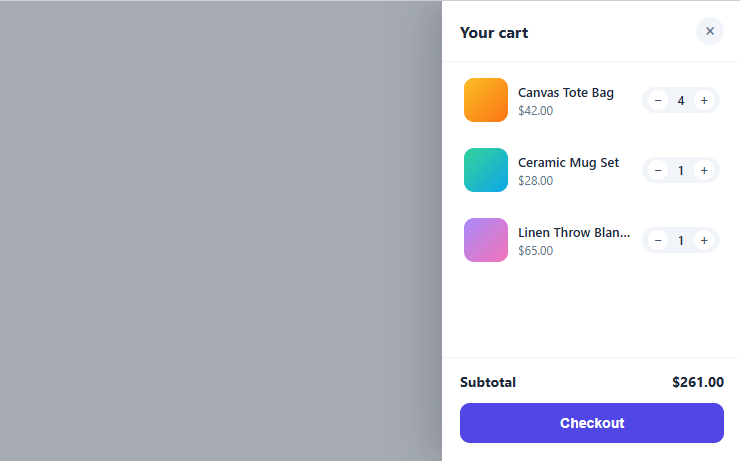
This snippet recreates the slide-in "mini cart" panel that sits behind the cart icon on nearly every e-commerce site — click the trigger and a drawer glides in from the right edge with line items, quantity steppers, a live subtotal, and a checkout button, while a dimmed backdrop lets you tap anywhere to dismiss it. It's built with plain HTML, CSS transitions, and about 45 lines of vanilla JavaScript — no cart framework or state library required.
Sliding the drawer with a transform, not layout properties
The drawer is positioned absolute with right: 0 and starts off-screen via transform: translateX(100%). Toggling a single .open class flips that to translateX(0), and a cubic-bezier(.22,.9,.3,1) transition animates the move — the same "ease-out with a slight overshoot-then-settle" curve that gives slide-in panels a polished, weighted feel rather than a linear slide. Animating transform instead of right or width keeps the motion on the compositor thread, so it stays smooth even on slower devices. The Drag Resize Panels snippet explores a related layout-animation idea — driving panel dimensions interactively rather than on a toggle.
A backdrop that's both a dimmer and a dismiss target
A full-bleed .backdrop div sits beneath the drawer with opacity: 0 and pointer-events: none by default. Opening the drawer adds an .open class to *both* elements simultaneously — the backdrop fades to a translucent dark overlay via CSS transition and becomes clickable, so a single click listener on it doubles as the "click outside to close" interaction. This two-element, two-class pattern (panel + backdrop, each toggled by the same state change) is the standard approach behind every modal, drawer, and dropdown that needs a dismiss-on-outside-click behavior.
One recalc() function as the single source of truth
Rather than tracking running totals in separate variables that could drift out of sync, recalc() re-derives *everything* from the DOM on every change: it loops over all .cart-item elements, reads each one's data-price attribute and current .qty-val text, multiplies and sums them into a fresh subtotal and count, then writes both the formatted subtotal ($135.00) and the badge count back to the page. Each quantity button click just mutates the .qty-val text and calls recalc() again — there is no separate "cart state" object to keep in sync; the DOM *is* the state, and recalc() is the only function that ever reads or writes the totals.
Quantity steppers driven by a single data attribute
Both the − and + buttons in every row share one .qty-btn class and are distinguished only by a data-step="-1" / data-step="1" attribute. One shared click handler reads btn.dataset.step, adds it to the current quantity, clamps the result to a minimum of 1 with Math.max(1, ...), and writes it back — meaning adding a fourth or fifth product to the cart requires no new JavaScript at all, just another <li class="cart-item" data-price="..."> block in the markup.
Build with AI
Build, Understand, Optimize, and Extend It With AI
You don't have to reconstruct the DOM-as-state approach here from scratch in your head. Paste this snippet's HTML, CSS, and JS into an AI coding assistant like Claude and ask it to explain precisely why recalc reads price and quantity fresh from the DOM on every call instead of maintaining a running subtotal variable, and how the shared data-step attribute lets one click handler serve both the plus and minus buttons. The same assistant can help you optimize it — for example whether recalc looping over every cart item on every single quantity click becomes a bottleneck with dozens of line items, or whether the drawer's open state should be reflected in an aria-hidden attribute for accessibility. It's also a fast way to extend the interaction: ask it to add a remove-item button, a quantity input the user can type into directly, or persist cart contents to localStorage across page loads. Treat the code less like a finished artifact and more like a starting point for a conversation.
Prompt to recreate it
Copy this into your AI assistant of choice to build the effect from scratch, or as a jumping-off point for your own variant:
Build a slide-in "cart drawer" in plain HTML, CSS, and JavaScript using only CSS transforms and transitions — no animation library, no cart framework.

Requirements:
- A drawer panel positioned absolute or fixed to the right edge, hidden by default via transform: translateX(100%), with an .open class that sets translateX(0) and a cubic-bezier transition so it glides in rather than snapping.
- A full-bleed backdrop element behind the drawer, invisible and non-interactive by default (opacity 0, pointer-events none), that fades in and becomes clickable when the drawer opens — clicking it must close the drawer via the same function the explicit close button uses.
- Each cart line item must store its price in a data-price attribute on its container element and display its current quantity in a dedicated span, not in any separate JavaScript variable or array.
- Every quantity row needs two buttons sharing one CSS class, distinguished only by a data-step attribute of "1" or "-1"; wire a single click handler (attached per button or via delegation) that reads dataset.step, computes the next quantity clamped to a minimum of 1 with Math.max, and writes it back to the DOM.
- Write one recalc function that, whenever called, loops over every line item fresh, reads its data-price attribute and current quantity text, sums them into a subtotal and a total item count, and writes both the formatted subtotal and the item-count badge back to the page — call this same function after every quantity change so there is never a separately tracked running total that could drift out of sync with the DOM.
- Add a cart-trigger button that opens the drawer and a close button inside the drawer header that closes it.
Want to tighten it up first? Run this prompt through the AI Prompt Studio to score it across 8 quality dimensions, catch anti-patterns, and tune the wording for Claude, ChatGPT, or Gemini before you paste it in.
Source Code
<div class="demo">
<button class="cart-trigger" type="button">
<svg viewBox="0 0 24 24" width="18" height="18" fill="none" stroke="currentColor" stroke-width="2"><circle cx="9" cy="21" r="1"/><circle cx="20" cy="21" r="1"/><path d="M1 1h4l2.7 13.4a2 2 0 0 0 2 1.6h9.7a2 2 0 0 0 2-1.6L23 6H6"/></svg>
<span>Cart</span>
<span class="count-badge">3</span>
</button>
<div class="backdrop"></div>
<aside class="drawer">
<div class="drawer-head">
<h3>Your cart</h3>
<button class="close-btn" aria-label="Close cart">×</button>
</div>
<ul class="cart-items">
<li class="cart-item" data-price="42">
<div class="thumb" style="background:linear-gradient(135deg,#fbbf24,#f97316)"></div>
<div class="info">
<span class="name">Canvas Tote Bag</span>
<span class="price">$42.00</span>
</div>
<div class="qty">
<button class="qty-btn" data-step="-1">−</button>
<span class="qty-val">1</span>
<button class="qty-btn" data-step="1">+</button>
</div>
</li>
<li class="cart-item" data-price="28">
<div class="thumb" style="background:linear-gradient(135deg,#34d399,#0ea5e9)"></div>
<div class="info">
<span class="name">Ceramic Mug Set</span>
<span class="price">$28.00</span>
</div>
<div class="qty">
<button class="qty-btn" data-step="-1">−</button>
<span class="qty-val">1</span>
<button class="qty-btn" data-step="1">+</button>
</div>
</li>
<li class="cart-item" data-price="65">
<div class="thumb" style="background:linear-gradient(135deg,#a78bfa,#f472b6)"></div>
<div class="info">
<span class="name">Linen Throw Blanket</span>
<span class="price">$65.00</span>
</div>
<div class="qty">
<button class="qty-btn" data-step="-1">−</button>
<span class="qty-val">1</span>
<button class="qty-btn" data-step="1">+</button>
</div>
</li>
</ul>
<div class="drawer-foot">
<div class="subtotal-row">
<span>Subtotal</span>
<span class="subtotal-val">$135.00</span>
</div>
<button class="checkout-btn">Checkout</button>
</div>
</aside>
</div>.demo {
position: relative;
font-family: 'Segoe UI', system-ui, sans-serif;
display: flex;
justify-content: flex-end;
padding: 24px;
min-height: 460px;
background: #f8fafc;
overflow: hidden;
}
.cart-trigger {
align-self: flex-start;
display: flex;
align-items: center;
gap: 8px;
border: 1px solid #e2e8f0;
background: #fff;
color: #1e293b;
font-size: 13px;
font-weight: 600;
padding: 9px 16px;
border-radius: 999px;
cursor: pointer;
position: relative;
box-shadow: 0 6px 16px rgba(15,23,42,0.06);
}
.count-badge {
background: #ef4444;
color: #fff;
font-size: 11px;
font-weight: 700;
width: 18px;
height: 18px;
border-radius: 50%;
display: flex;
align-items: center;
justify-content: center;
}
.backdrop {
position: absolute;
inset: 0;
background: rgba(15,23,42,0.35);
opacity: 0;
pointer-events: none;
transition: opacity 0.3s ease;
}
.backdrop.open {
opacity: 1;
pointer-events: auto;
}
.drawer {
position: absolute;
top: 0;
right: 0;
bottom: 0;
width: 300px;
background: #fff;
box-shadow: -16px 0 40px rgba(15,23,42,0.18);
display: flex;
flex-direction: column;
transform: translateX(100%);
transition: transform 0.35s cubic-bezier(.22,.9,.3,1);
}
.drawer.open { transform: translateX(0); }
.drawer-head {
display: flex;
align-items: center;
justify-content: space-between;
padding: 16px 18px;
border-bottom: 1px solid #f1f5f9;
}
.drawer-head h3 {
margin: 0;
font-size: 16px;
color: #1e293b;
}
.close-btn {
border: none;
background: #f1f5f9;
color: #64748b;
width: 28px;
height: 28px;
border-radius: 50%;
font-size: 18px;
line-height: 1;
cursor: pointer;
}
.cart-items {
list-style: none;
margin: 0;
padding: 8px 14px;
display: flex;
flex-direction: column;
gap: 10px;
overflow-y: auto;
flex: 1;
}
.cart-item {
display: flex;
align-items: center;
gap: 10px;
padding: 8px;
border-radius: 10px;
}
.cart-item:hover { background: #f8fafc; }
.thumb {
width: 44px;
height: 44px;
border-radius: 10px;
flex-shrink: 0;
}
.info {
display: flex;
flex-direction: column;
gap: 2px;
flex: 1;
min-width: 0;
}
.info .name {
font-size: 13px;
font-weight: 600;
color: #1e293b;
white-space: nowrap;
overflow: hidden;
text-overflow: ellipsis;
}
.info .price {
font-size: 12px;
color: #64748b;
}
.qty {
display: flex;
align-items: center;
gap: 6px;
background: #f1f5f9;
border-radius: 999px;
padding: 3px 6px;
}
.qty-btn {
width: 20px;
height: 20px;
border-radius: 50%;
border: none;
background: #fff;
color: #475569;
font-size: 13px;
cursor: pointer;
line-height: 1;
}
.qty-val {
font-size: 12px;
font-weight: 600;
color: #1e293b;
min-width: 14px;
text-align: center;
}
.drawer-foot {
padding: 14px 18px 18px;
border-top: 1px solid #f1f5f9;
}
.subtotal-row {
display: flex;
justify-content: space-between;
font-size: 14px;
font-weight: 700;
color: #1e293b;
margin-bottom: 12px;
}
.checkout-btn {
width: 100%;
border: none;
background: #4f46e5;
color: #fff;
font-size: 14px;
font-weight: 600;
padding: 12px;
border-radius: 10px;
cursor: pointer;
transition: background 0.2s ease;
}
.checkout-btn:hover { background: #4338ca; }const trigger = document.querySelector('.cart-trigger');
const drawer = document.querySelector('.drawer');
const backdrop = document.querySelector('.backdrop');
const closeBtn = document.querySelector('.close-btn');
const items = document.querySelectorAll('.cart-item');
const subtotalEl = document.querySelector('.subtotal-val');
const countBadge = document.querySelector('.count-badge');
function openDrawer() {
drawer.classList.add('open');
backdrop.classList.add('open');
}
function closeDrawer() {
drawer.classList.remove('open');
backdrop.classList.remove('open');
}
function recalc() {
let subtotal = 0;
let count = 0;
items.forEach((item) => {
const price = parseFloat(item.dataset.price);
const qty = parseInt(item.querySelector('.qty-val').textContent, 10);
subtotal += price * qty;
count += qty;
});
subtotalEl.textContent = '$' + subtotal.toFixed(2);
countBadge.textContent = count;
}
trigger.addEventListener('click', openDrawer);
closeBtn.addEventListener('click', closeDrawer);
backdrop.addEventListener('click', closeDrawer);
items.forEach((item) => {
item.querySelectorAll('.qty-btn').forEach((btn) => {
btn.addEventListener('click', () => {
const valEl = item.querySelector('.qty-val');
const next = Math.max(1, parseInt(valEl.textContent, 10) + parseInt(btn.dataset.step, 10));
valEl.textContent = next;
recalc();
});
});
});
recalc();
openDrawer();Step by step
How to Use
- 1Position the drawer off-screen with a transformGive the
<aside class="drawer">position: absolute; right: 0andtransform: translateX(100%), then add a.openclass rule that setstranslateX(0)with acubic-beziertransition for a smooth slide-in. - 2Pair it with a clickable backdropAdd a full-bleed
.backdropdiv withopacity: 0; pointer-events: noneby default, and an.openvariant that fades it in and makes it clickable — toggle both elements' classes together so the backdrop always matches the drawer's state. - 3Mark up cart items with a price data attributeGive each
<li class="cart-item" data-price="42">its price as adata-priceattribute and a.qty-valspan for its quantity — these two values are everything the recalculation logic needs to read. - 4Build a single recalc() that re-derives totals from the DOMLoop over every
.cart-item, readdataset.priceand the current.qty-valtext, sumprice * qtyinto a subtotal and quantities into a count, then write both back to the subtotal element and the badge — call this same function after every change. - 5Wire shared quantity-stepper buttonsGive every
+/−button a shared.qty-btnclass plus adata-step="1"ordata-step="-1"attribute. One click handler readsdataset.step, appliesMath.max(1, current + step), writes the new value, and callsrecalc(). - 6Open, close, and dismiss-on-backdrop-clickAdd
.opento both the drawer and backdrop on trigger click; remove it on close-button click *and* on backdrop click — giving visitors three natural ways to manage the panel's visibility.
Real-world uses
Common Use Cases
recalc() treats the DOM itself as the source of truth rather than a separate JS state object — a lightweight approach worth understanding before reaching for heavier state-management patterns.Got questions?
Frequently Asked Questions
Animating transform lets the browser handle the motion on the GPU compositor thread without triggering layout recalculation on every frame, which keeps the slide smooth even on lower-powered devices. Animating right, width, or margin forces the browser to recompute layout for the drawer (and potentially its siblings) on every frame, which is far more likely to stutter — especially with a long item list inside.
A full-bleed .backdrop element sits behind the drawer with pointer-events: none while closed (so it does not intercept clicks meant for the page) and pointer-events: auto plus a translucent fill once the .open class is added. A single click listener on that backdrop calls the same closeDrawer() function as the explicit close button — so "click outside" and "click the × button" both lead to the same state change.
Every quantity-button click calls recalc(), which loops over *all* .cart-item elements fresh, reads each one's data-price attribute and current quantity text, and recomputes the subtotal and item count from scratch. Because nothing is incrementally added or subtracted from a running total, there is no way for the displayed numbers to drift out of sync with the actual cart contents — the DOM is read as the single source of truth on every update.
Copy an existing <li class="cart-item" data-price="..."> block, change its thumbnail, name, price text, and — most importantly — its data-price attribute (the number recalc() actually reads). No JavaScript changes are required: the quantity buttons, recalculation, and count badge all work generically off the .cart-item/.qty-val/data-price structure, however many rows you add.
It clamps the result so a quantity can never drop below 1 by repeatedly clicking the − button — preventing the classic cart bug where an item silently becomes "0 of something" or goes negative while still occupying a row. If you want a "remove item" affordance at zero, you would handle that as an explicit transition rather than letting the stepper produce a zero or negative value.
Yes — copy the HTML, CSS, and JS with the buttons on this page and use them anywhere, including commercial storefronts, with no attribution required. It is built entirely with vanilla JavaScript, native CSS transitions, and data-* attributes — no cart framework, state library, or build tooling to license or configure.