Source Code
<div class="container py-5">
  <div class="d-flex align-items-center justify-content-between mb-4">
    <h1 class="bscard-title">Desk Essentials</h1>
    <div class="bscard-cart">
      <svg width="17" height="17" viewBox="0 0 24 24" fill="none" stroke="currentColor" stroke-width="2" stroke-linecap="round" stroke-linejoin="round"><circle cx="9" cy="21" r="1"/><circle cx="20" cy="21" r="1"/><path d="M1 1h4l2.68 13.39a2 2 0 0 0 2 1.61h9.72a2 2 0 0 0 2-1.61L23 6H6"/></svg>
      Cart · <span id="bscardCartCount">0</span> · $<span id="bscardCartTotal">0.00</span>
    </div>
  </div>

  <div class="row g-4" id="bscardGrid">
    <div class="col-sm-6 col-lg-4">
      <div class="card bscard-card h-100">
        <div class="bscard-media" style="--h1:245;--h2:280"><span class="badge bg-dark bscard-badge">New</span></div>
        <div class="card-body d-flex flex-column">
          <h5 class="card-title mb-1">Walnut Desk Organizer</h5>
          <p class="bscard-price mb-3">$38.00</p>
          <button class="btn btn-outline-dark mt-auto bscard-add" data-name="Walnut Desk Organizer" data-price="38.00">Add to cart</button>
        </div>
      </div>
    </div>
    <div class="col-sm-6 col-lg-4">
      <div class="card bscard-card h-100">
        <div class="bscard-media" style="--h1:20;--h2:60"></div>
        <div class="card-body d-flex flex-column">
          <h5 class="card-title mb-1">Ceramic Pen Cup</h5>
          <p class="bscard-price mb-3">$14.00</p>
          <button class="btn btn-outline-dark mt-auto bscard-add" data-name="Ceramic Pen Cup" data-price="14.00">Add to cart</button>
        </div>
      </div>
    </div>
    <div class="col-sm-6 col-lg-4">
      <div class="card bscard-card h-100">
        <div class="bscard-media" style="--h1:150;--h2:190"><span class="badge bg-danger bscard-badge">-20%</span></div>
        <div class="card-body d-flex flex-column">
          <h5 class="card-title mb-1">Brass Task Lamp</h5>
          <p class="bscard-price mb-3"><span class="text-decoration-line-through text-muted small me-1">$95.00</span>$76.00</p>
          <button class="btn btn-outline-dark mt-auto bscard-add" data-name="Brass Task Lamp" data-price="76.00">Add to cart</button>
        </div>
      </div>
    </div>
    <div class="col-sm-6 col-lg-4">
      <div class="card bscard-card h-100">
        <div class="bscard-media" style="--h1:310;--h2:100"></div>
        <div class="card-body d-flex flex-column">
          <h5 class="card-title mb-1">Linen Desk Mat</h5>
          <p class="bscard-price mb-3">$29.00</p>
          <button class="btn btn-outline-dark mt-auto bscard-add" data-name="Linen Desk Mat" data-price="29.00">Add to cart</button>
        </div>
      </div>
    </div>
    <div class="col-sm-6 col-lg-4">
      <div class="card bscard-card h-100">
        <div class="bscard-media" style="--h1:200;--h2:230"></div>
        <div class="card-body d-flex flex-column">
          <h5 class="card-title mb-1">Oak Monitor Stand</h5>
          <p class="bscard-price mb-3">$52.00</p>
          <button class="btn btn-outline-dark mt-auto bscard-add" data-name="Oak Monitor Stand" data-price="52.00">Add to cart</button>
        </div>
      </div>
    </div>
    <div class="col-sm-6 col-lg-4">
      <div class="card bscard-card h-100">
        <div class="bscard-media" style="--h1:80;--h2:260"><span class="badge bg-dark bscard-badge">New</span></div>
        <div class="card-body d-flex flex-column">
          <h5 class="card-title mb-1">Felt Cable Organizer</h5>
          <p class="bscard-price mb-3">$18.00</p>
          <button class="btn btn-outline-dark mt-auto bscard-add" data-name="Felt Cable Organizer" data-price="18.00">Add to cart</button>
        </div>
      </div>
    </div>
  </div>
</div>
body { background: #fafafa; }
.bscard-title { font-weight: 800; letter-spacing: -0.01em; margin: 0; }
.bscard-cart {
display: flex;
align-items: center;
gap: 8px;
font-size: 13.5px;
font-weight: 600;
color: #1f2937;
background: #fff;
border: 1px solid #e5e7eb;
border-radius: 20px;
padding: 7px 14px;
}
.bscard-card {
border: 1px solid #eceef1;
border-radius: 12px;
overflow: hidden;
transition: box-shadow .2s ease, transform .2s ease;
}
.bscard-card:hover { transform: translateY(-3px); box-shadow: 0 12px 28px rgba(15,23,42,.08); }
.bscard-media {
position: relative;
height: 160px;
background: linear-gradient(135deg, hsl(calc(var(--h1)) 55% 88%), hsl(calc(var(--h2)) 55% 80%));
}
.bscard-badge { position: absolute; top: 10px; left: 10px; font-size: 10.5px; }
.bscard-price { font-weight: 700; color: #111827; }
.bscard-add { transition: background .15s, color .15s, transform .1s; }
.bscard-add.bscard-added {
background: #16a34a;
border-color: #16a34a;
color: #fff;
}
.bscard-add.bscard-pulse { transform: scale(0.96); }const grid = document.getElementById('bscardGrid');
const cartCountEl = document.getElementById('bscardCartCount');
const cartTotalEl = document.getElementById('bscardCartTotal');
let count = 0;
let total = 0;
grid.addEventListener('click', e => {
const btn = e.target.closest('.bscard-add');
if (!btn) return;
const price = parseFloat(btn.dataset.price);
count += 1;
total += price;
cartCountEl.textContent = count;
cartTotalEl.textContent = total.toFixed(2);
// Brief "Added" confirmation on the button itself, then back to normal —
// real feedback that the click registered, without a toast or alert.
const original = btn.textContent;
btn.textContent = 'Added ✓';
btn.classList.add('bscard-added', 'bscard-pulse');
btn.disabled = true;
setTimeout(() => btn.classList.remove('bscard-pulse'), 150);
setTimeout(() => {
btn.textContent = original;
btn.classList.remove('bscard-added');
btn.disabled = false;
}, 1100);
});Learn Coding Visually
Learn to code with interactive, live-preview playgrounds — HTML, CSS, JavaScript, React & more.
 HTML Playground42 lessons · Click-based · Live preview
 CSS PlaygroundLearn CSS with a live editor
 JavaScript Playground60 lessons · DOM · Async · Canvas
 React PlaygroundLearn React with a live code editor
 GSAP PlaygroundLearn GSAP animation interactively
 SVG Playground44 lessons · shapes · paths · animation
 SCSS Playground45 lessons · Sass modules · tokens
 Tailwind PlaygroundLearn Tailwind CSS with a live editor
 Bootstrap 5 Playground50 lessons · live preview
Bootstrap Product Card Grid with Quick Add to Cart — Free Snippet
Bootstrap Product Card Grid with Quick Add to Cart · Cards · Plain HTML, CSS & JS · Live preview
What's included
Features
About this UI Snippet
Bootstrap Product Card Grid with Quick Add to Cart — HTML, CSS & JavaScript
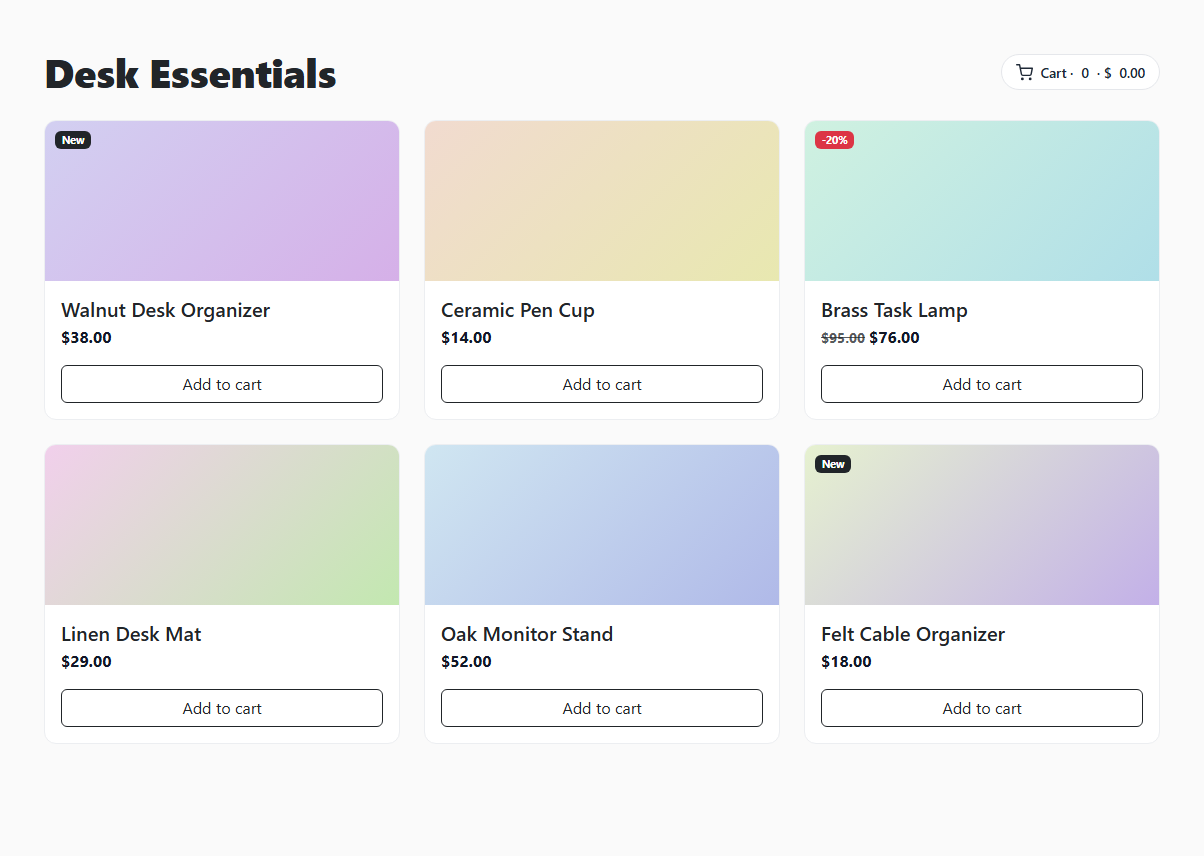
Most "product grid" snippets stop at looking like a shop — cards with prices and an inert Add to cart button that does nothing when clicked. This one uses real Bootstrap 5.3, the actual grid (row/col-lg-4) and .card component loaded from the CDN, and wires every one of its six Add to cart buttons to a genuinely live cart: a running item count and dollar total in the header that update the instant a button is clicked.
One delegated click handler, not six
Rather than attaching a click listener to each of the six .bscard-add buttons individually, a single listener sits on the parent #bscardGrid and uses e.target.closest('.bscard-add') to work out which button — if any — was actually clicked. This is event delegation: it means adding a seventh, eighth, or hundredth product card to the grid needs zero JavaScript changes, because the listener was never bound to individual buttons in the first place.
Reading price data from the DOM, not a separate array
Each button carries its own data-price attribute matching that card's price, so the click handler reads parseFloat(btn.dataset.price) directly off the element that was clicked — there's no separate lookup table to keep in sync with the visible prices, which is exactly the kind of drift bug that creeps into real product grids over time.
The "Added ✓" confirmation
Clicking a button doesn't just silently update the cart — the button itself swaps its text to "Added ✓", turns green, and briefly disables itself for about a second before reverting, via three chained setTimeout calls. That's the feedback loop that makes a click feel like it actually did something, instead of a header number changing somewhere the user might not even be looking.
The gradient thumbnails
Rather than shipping real product photography (which every reader would need to replace anyway), each card's image area is a CSS linear-gradient whose two colors come from a pair of custom properties (--h1, --h2) set per card — giving six visually distinct placeholder thumbnails from one shared CSS rule.
Build with AI
Build, Understand, Optimize, and Extend It With AI
Hand this snippet's HTML, CSS, and JS to an AI coding assistant like Claude and ask it to add a quantity stepper per card (so clicking twice on the same product increments its quantity rather than adding it as two separate lines), or to build out a real slide-in cart panel — pairing well with the Bootstrap Offcanvas Shopping Cart snippet in this same category — that lists every added item individually instead of just a running count and total. It's also a good exercise to ask the assistant to persist the cart to localStorage so it survives a page reload.
Prompt to recreate it
Copy this into your AI assistant of choice to build the effect from scratch, or as a jumping-off point for your own variant:
Build a Bootstrap 5.3 product card grid with a working "Add to cart" interaction, using the real Bootstrap CDN framework (bootstrap.min.css and bootstrap.bundle.min.js), not custom CSS made to resemble Bootstrap.

Requirements:
- A responsive grid of at least 6 product cards using Bootstrap's row/col grid classes and the real .card component, each with a title, a price, a CSS-gradient placeholder thumbnail (no external images), and an "Add to cart" button carrying a data-price attribute.
- A cart summary in the page header showing a running item count and a running dollar total, both starting at zero.
- Use a single delegated click event listener on the grid's parent container (not one listener per button) that identifies which Add to cart button was clicked via e.target.closest(), reads its data-price, and updates the cart count and total accordingly — new cards added later must work without any JavaScript changes.
- Clicking a button must give real visual feedback: the button's text should briefly change to confirm the item was added, then revert to its original state after roughly one second, during which it should be disabled to prevent duplicate rapid clicks.
- At least one card should demonstrate a sale-price pattern (a struck-through original price next to a lower sale price) and at least one should show a "New" badge.
Want to tighten it up first? Run this prompt through the AI Prompt Studio to score it across 8 quality dimensions, catch anti-patterns, and tune the wording for Claude, ChatGPT, or Gemini before you paste it in.
Step by step
How to Use
- 1Load the snippetClick "Bootstrap Product Card Grid with Quick Add to Cart" in the sidebar Library tab. The preview loads a six-card grid with an empty cart in the header.
- 2Add an item to the cartClick any "Add to cart" button — it turns green and reads "Added ✓" for about a second, and the cart count/total in the header updates immediately.
- 3Add several moreClick a few different buttons in a row to see the running count and total accumulate correctly from real click events.
- 4Add a new product cardCopy one .col-sm-6.col-lg-4 block in the HTML panel, edit its title, price, and data-price attribute — no JavaScript changes are needed for it to work with the cart.
- 5Restyle the thumbnailsAdjust the --h1 and --h2 custom properties on any .bscard-media to change that card's gradient color pair.
- 6Export in your formatClick "HTML" for a standalone file, "JSX" for React, or "Tailwind" for React + Tailwind CSS.
Real-world uses
Common Use Cases
Got questions?
Frequently Asked Questions
It's real — a single delegated click listener reads each button's data-price attribute, increments a running count and total, and updates the header display, all from genuine click events, not a scripted demo.
It's attached to the parent grid container, not each button. On any click inside the grid, e.target.closest('.bscard-add') checks whether an Add to cart button (or something inside it) was actually clicked, and does nothing if it wasn't — this is called event delegation.
Yes — copy an existing .col-sm-6.col-lg-4 card block, change its title, price text, and the data-price attribute on its button. The delegated click listener picks up the new button automatically with zero JS edits.
Replace the count/total logic in the click handler with a call to your cart API or state management (fetch, a Redux/Zustand action, etc.) — keep the data-price reading and the "Added ✓" visual feedback, since both are independent of where the data ultimately goes.
They're not images — each is a CSS linear-gradient between two colors set by --h1 and --h2 custom properties per card, so the snippet works immediately with no product photography needed. Replace .bscard-media's background with a real background-image when you have photos.
Yes — prices are parsed with parseFloat() and the running total is formatted with .toFixed(2) on every update, so it displays correctly to two decimal places regardless of how many items are added.