You Might Also Like
Learn Coding Visually
Learn to code with interactive, live-preview playgrounds — HTML, CSS, JavaScript, React & more.
 HTML Playground42 lessons · Click-based · Live preview
 CSS PlaygroundLearn CSS with a live editor
 JavaScript Playground60 lessons · DOM · Async · Canvas
 React PlaygroundLearn React with a live code editor
 GSAP PlaygroundLearn GSAP animation interactively
 SVG Playground44 lessons · shapes · paths · animation
 SCSS Playground45 lessons · Sass modules · tokens
 Tailwind PlaygroundLearn Tailwind CSS with a live editor
 Bootstrap 5 Playground50 lessons · live preview
Drag & Drop Reorder List — Free HTML CSS JS Sortable List Snippet
Drag & Drop Reorder List · Layouts · Plain HTML, CSS & JS · Live preview
What's included
Features
About this UI Snippet
Drag & Drop Reorder List — HTML, CSS & JavaScript Sortable List
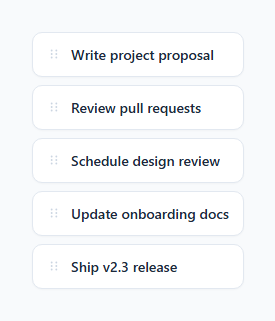
Task lists, playlists, and priority queues often need to be manually reordered by the user. Rather than reaching for a sortable-list library, the browser already ships everything needed for this: the native HTML5 Drag and Drop API, available on any element with a draggable="true" attribute.
This snippet builds a fully working reorderable list using only that native API plus a handful of DOM events — dragstart, dragover, drop, and dragend — with no external sortable library.
How dragging an item works
Every <li class="item"> has draggable="true". When a drag begins, the dragstart listener (attached once, to the list itself, using event delegation via e.target.closest('.item')) records the dragged element in a draggedItem variable and adds a .dragging class that fades it to 40% opacity, giving clear visual feedback about which item is currently being moved.
How the insertion indicator works
The interesting part is figuring out *where* to drop the item relative to the row currently under the cursor. On every dragover event, the code calls target.getBoundingClientRect() to get the hovered row's position, then compares e.clientY (the cursor's vertical position) against the row's vertical midpoint: e.clientY - rect.top > rect.height / 2. If the cursor is in the bottom half of the row, a .drag-over-bottom class draws a colored line under it; if it's in the top half, .drag-over-top draws the line above it. This gives the user a precise, continuously updating preview of exactly where the item will land before they release the mouse.
How the actual reorder happens
The drop handler repeats the same top/bottom midpoint check, then uses the native insertAdjacentElement('beforebegin' | 'afterend', draggedItem) to physically move the dragged <li> in the DOM relative to the target row. Because insertAdjacentElement moves an existing node rather than cloning it, there's no need to remove-and-reinsert manually or worry about losing event listeners attached to the item.
Reading the list order afterward
To persist the new order, iterate list.querySelectorAll('.item') after any drop and read each element's data-id in document order — that gives you the array to send to your backend or save to local storage.
Build with AI
Build, Understand, Optimize, and Extend It With AI
Paste this snippet's HTML, CSS, and JS into an AI coding assistant like Claude and ask it to walk through exactly how the getBoundingClientRect midpoint comparison in dragover decides between inserting before or after the hovered row, and why insertAdjacentElement is used instead of removing and re-appending the dragged node. Since native HTML5 drag-and-drop has patchy support on touch devices, it's also worth asking the assistant to help you build a Pointer Events-based version for mobile, or to add the FLIP animation technique so reordered items smoothly slide into their new position instead of jumping instantly — both are natural next steps once the base interaction is working.
Prompt to recreate it
Copy this into your AI assistant of choice to build the effect from scratch, or as a jumping-off point for your own variant:
Build a reorderable vertical list in plain HTML, CSS, and JavaScript using only the native HTML5 Drag and Drop API — no sortable-list library.

Requirements:
- A list of items, each with draggable="true", a drag handle icon, a label, and a unique data-id attribute.
- Use event delegation: attach dragstart, dragover, drop, and dragend listeners once on the list container, not on each individual item, using closest('.item') to resolve the actual row from the event target.
- On dragover, compare the cursor's vertical position against the hovered row's vertical midpoint (via getBoundingClientRect) to determine whether the dragged item should land above or below that row, and show a clear visual insertion line indicating the exact drop position — update it continuously as the cursor moves between rows.
- On drop, physically move the dragged element to its new position using insertAdjacentElement so the original DOM node (and any state attached to it) is preserved rather than cloned or recreated.
- Give the currently dragged item a distinct visual state (such as reduced opacity) for the duration of the drag, and clear all insertion-line indicators on dragend regardless of whether a drop succeeded.
- The list must support any number of items with no changes to the JavaScript, and it must be straightforward to read out the final order via each item's data-id after a reorder.
Want to tighten it up first? Run this prompt through the AI Prompt Studio to score it across 8 quality dimensions, catch anti-patterns, and tune the wording for Claude, ChatGPT, or Gemini before you paste it in.
Step by step
How to Use
- 1Load the snippetClick "Drag & Drop Reorder List" in the sidebar Library tab. The preview shows five draggable task items.
- 2Drag an itemPress and hold an item, then drag it up or down. Watch the indigo insertion line show exactly where it will land.
- 3Drop itRelease the mouse to drop the item in its new position — the list reorders immediately with no page reload.
- 4Add more itemsIn the HTML panel, copy an existing <li class="item" draggable="true"> block and give it a unique data-id — no JS changes are needed.
- 5Persist the new orderIn the JS panel, add a function that reads querySelectorAll('.item') after each drop and saves the resulting data-id order to your backend or localStorage.
- 6Export in your formatClick "HTML" for a standalone file, "JSX" for React, or "Tailwind" for React + Tailwind CSS.
Real-world uses
Common Use Cases
Got questions?
Frequently Asked Questions
No. It is built entirely on the browser's native HTML5 Drag and Drop API — the draggable attribute plus dragstart, dragover, drop, and dragend events. No external library is loaded.
On every dragover event, the code compares the cursor's vertical position (e.clientY) against the hovered row's vertical midpoint, calculated from getBoundingClientRect(). Above the midpoint inserts before the row; below it inserts after.
Browsers do not allow dropping on an element by default — calling preventDefault() in dragover is required to signal that this element is a valid drop target, and calling it in drop prevents the browser's default action (like navigating to a dragged link).
After any drop, call list.querySelectorAll('.item') and map each element's data-id attribute in document order — that array reflects the current order and can be sent to your backend or saved to localStorage.
The native HTML5 Drag and Drop API has inconsistent touch support across mobile browsers. For a touch-friendly version, use Pointer Events (pointerdown/pointermove/pointerup) instead, tracking position manually rather than relying on native drag events.
Yes. Remove draggable="true" from the .item and add it to the .handle span instead, then adjust dragstart to walk up to the parent .item with closest('.item') as it already does.
Fading with opacity: 0.4 rather than hiding it entirely keeps the list layout stable and gives the user a persistent visual anchor for which item they are moving, matching the behavior users expect from native OS drag interactions.
Yes, using the FLIP technique: record each item's bounding rect before the reorder, perform the DOM move, then read the new positions and animate from the old position to the new one with a CSS transform transition.