You Might Also Like
Learn Coding Visually
Learn to code with interactive, live-preview playgrounds — HTML, CSS, JavaScript, React & more.
 HTML Playground42 lessons · Click-based · Live preview
 CSS PlaygroundLearn CSS with a live editor
 JavaScript Playground60 lessons · DOM · Async · Canvas
 React PlaygroundLearn React with a live code editor
 GSAP PlaygroundLearn GSAP animation interactively
 SVG Playground44 lessons · shapes · paths · animation
 SCSS Playground45 lessons · Sass modules · tokens
 Tailwind PlaygroundLearn Tailwind CSS with a live editor
 Bootstrap 5 Playground50 lessons · live preview
Resizable Split Pane — Free HTML CSS JS Draggable Divider Snippet
Resizable Split Pane · Layouts · Plain HTML, CSS & JS · Live preview
What's included
Features
About this UI Snippet
Resizable Split Pane — HTML, CSS & JavaScript Draggable Layout Divider
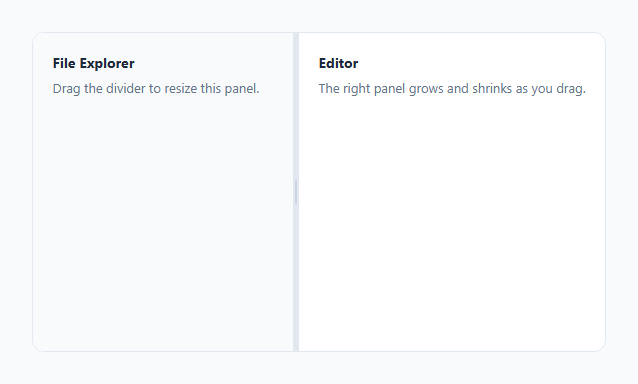
Code editors, file managers, and email clients all use the same layout primitive: two panels side by side, separated by a thin divider you can drag to give one panel more room. This snippet implements that pattern in about twenty lines of JavaScript using nothing but the three classic drag events — mousedown, mousemove, and mouseup.
How the drag resize works
The left pane has a fixed pixel width set via inline style, while the right pane uses flex: 1 to consume whatever space remains. On mousedown over the .divider, a dragging flag is set to true. While that flag is on, a mousemove listener attached to the whole document (not just the divider) calculates e.clientX - rect.left — the mouse's horizontal position relative to the container's left edge — and sets that as the left pane's new width directly. Attaching the listener to document rather than the divider itself is what lets dragging continue smoothly even if the mouse briefly moves faster than the divider's own bounding box, which is a common bug in naive implementations.
Why the width is clamped
Math.max(120, Math.min(newWidth, rect.width - 160)) prevents the left pane from shrinking below 120px or growing so large that the right pane has less than 160px left. Without this clamp, an aggressive drag could collapse one panel to zero width or push the divider off-screen entirely.
How the drag session ends cleanly
mouseup (also attached to document, so it fires even if the cursor has left the divider) resets dragging to false and removes the .dragging class, which restores the divider's resting color. Because both mousemove and mouseup are on document, releasing the mouse anywhere on the page — not just precisely on the divider — correctly ends the drag.
Keyboard accessibility
The divider has role="separator", aria-orientation="vertical", and tabindex="0" so it's reachable and identifiable via keyboard and assistive tech. Left/Right arrow keys resize the pane by a fixed 20px step, using the same clamp logic as the mouse drag, so keyboard-only users have full access to the same functionality mouse users get.
Build with AI
Build, Understand, Optimize, and Extend It With AI
Ask an AI assistant to explain why the mousemove and mouseup listeners are attached to document rather than to the divider element itself — it's a subtle but important detail that trips up many first attempts at drag-resize UI. You can also ask it to add localStorage persistence so the chosen pane width survives a page refresh, to convert the layout to a vertical top/bottom split, or to add a double-click-to-reset gesture on the divider that snaps the panels back to a 50/50 split.
Prompt to recreate it
Copy this into your AI assistant of choice to build the effect from scratch, or as a jumping-off point for your own variant:
Build a "resizable split pane" layout in plain HTML, CSS, and vanilla JavaScript using only mousedown, mousemove, and mouseup — no drag-and-drop API, no library.

Requirements:
- Two side-by-side panels inside a flex container: a left panel with an explicit pixel width set via JavaScript, and a right panel using flex:1 to fill remaining space automatically.
- A thin vertical divider between them that changes cursor to col-resize and visually highlights while being dragged.
- On mousedown over the divider, begin tracking a dragging state. While dragging, a mousemove listener attached to the document (not the divider) must compute the new left-panel width from the cursor's horizontal position relative to the container, and clamp it so neither panel can shrink below a reasonable minimum width or force the other panel below its own minimum.
- A mouseup listener attached to the document must end the drag reliably even if the cursor is no longer directly over the divider.
- Full keyboard accessibility: the divider must have role="separator", aria-orientation="vertical", and be focusable, with Left/Right arrow keys resizing the left panel by a fixed step using the same clamping logic as the mouse drag.
- Prevent text selection in the container while dragging is active.
Want to tighten it up first? Run this prompt through the AI Prompt Studio to score it across 8 quality dimensions, catch anti-patterns, and tune the wording for Claude, ChatGPT, or Gemini before you paste it in.
Step by step
How to Use
- 1Load the snippetClick "Resizable Split Pane" in the sidebar Library tab to load the two-panel layout.
- 2Drag the dividerClick and drag the thin bar between the panels in the preview to resize them live.
- 3Try keyboard resizingTab to the divider and press the Left/Right arrow keys to resize in fixed increments.
- 4Adjust the minimum widthsChange the 120 and 160 values in the JS clamp logic to set different minimum widths for each pane.
- 5Convert to a vertical splitSwap flex-direction to column, change width calculations to height, and use clientY instead of clientX in the JS.
- 6Export and saveExport as HTML/JSX/Tailwind, or click "Save as" to keep this layout for future projects.
Real-world uses
Common Use Cases
Got questions?
Frequently Asked Questions
If the mouse moves quickly, it can briefly leave the thin divider element even while the button is still held down. Listening on document ensures the drag continues to track correctly and reliably ends on mouseup no matter where the cursor is on the page.
The calculated new width is passed through Math.max(120, Math.min(newWidth, rect.width - 160)), which clamps it between a 120px floor for the left pane and a value that guarantees at least 160px remains for the right pane.
Yes. Change the container's flex-direction to column, resize the top pane's height instead of the left pane's width, and use e.clientY relative to the container's top instead of e.clientX relative to its left.
The base version uses mouse events only. For touch support, add matching touchstart/touchmove/touchend listeners that read e.touches[0].clientX instead of e.clientX, using the same clamp logic.
The divider has tabindex="0" and role="separator". Once focused (by clicking or tabbing to it), the Left and Right arrow keys resize the left pane by a 20px step using the same clamping rules as mouse dragging.
Yes — add a second divider and a third pane, and track two separate drag sessions (which divider is currently being dragged) instead of one, applying the same mousedown/mousemove/mouseup pattern to each.
Without it, dragging quickly across the panels would also select the text content inside them, which looks broken and interrupts the resize gesture. Disabling text selection during the drag keeps the interaction clean.