


Learn Coding Visually
Learn to code with interactive, live-preview playgrounds — HTML, CSS, JavaScript, React & more.
 HTML Playground42 lessons · Click-based · Live preview
 CSS PlaygroundLearn CSS with a live editor
 JavaScript Playground60 lessons · DOM · Async · Canvas
 React PlaygroundLearn React with a live code editor
 GSAP PlaygroundLearn GSAP animation interactively
 SVG Playground44 lessons · shapes · paths · animation
 SCSS Playground45 lessons · Sass modules · tokens
 Tailwind PlaygroundLearn Tailwind CSS with a live editor
 Bootstrap 5 Playground50 lessons · live preview
Snap.svg Morphing Icon Button — Path-to-Path Icon Animation Snippet
Snap.svg Morphing Icon Button · Buttons · Plain HTML, CSS & JS · Live preview
What's included
Features
About this UI Snippet
Snap.svg Morphing Icon Button — How Path Morphing Actually Works
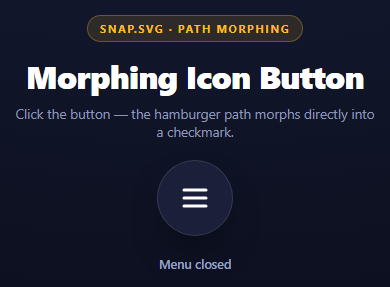
Most "icon morph" buttons on the web fake it: two separate icons cross-fade, or a hamburger's three lines individually rotate and translate into an X via CSS transforms. This snippet does something more literal — the underlying d attribute of a single <path> element morphs directly from one shape's coordinates into another's, using Snap.svg's path.animate({ d: newPath }, ...).
What .animate({ d: ... }) actually interpolates
SVG path data is a sequence of commands (M, L, C, etc.) each carrying coordinate points. When you animate the d attribute, Snap.svg does not understand the *shapes* geometrically — it walks the current path's list of points and the target path's list of points, in order, and linearly interpolates each corresponding pair over the animation's duration. Point 1 of the start path glides toward point 1 of the end path, point 2 toward point 2, and so on.
Why this snippet's two paths morph cleanly
HAMBURGER = 'M6,9 L28,9 M6,17 L28,17 M6,25 L28,25' — three separate 2-point line segments (M start point, L end point), six points total.
A checkmark is naturally just two strokes — one short diagonal down, one long diagonal up — which would be only four points, structurally mismatched with the hamburger's six. This snippet's CHECKMARK string deliberately splits the first, shorter stroke into two collinear segments (M6,17 L10,21 M10,21 L14,25) purely to pad the point count back up to six, then adds the second stroke (M14,25 L28,9) — three M/L pairs, six points, matching the hamburger exactly. The extra midpoint at 10,21 sits exactly on the line between 6,17 and 14,25, so it changes nothing about how the checkmark *looks*; it only exists to give the morph a point to interpolate toward. Because both strings have the same number of commands in the same order with the same number of coordinate pairs, each point maps onto a sensible corresponding point on the other shape, and the interpolation reads as one coherent shape smoothly folding into another.
What happens when path structures don't match
If the two path strings had a different number of points or a different sequence of command types (say, one uses M/L/L and the other M/C/C with curves), Snap.svg's simple linear point interpolation has no semantic understanding of "this line corresponds to that curve." It still animates *something* — but the correspondence becomes arbitrary point-index pairing, and the mid-animation frames often look like the path is being dragged inside out or crossing over itself in an ugly, unpredictable way. Clean morphs are a path-authoring discipline, not an automatic feature: you get a good morph by deliberately constructing both path strings with matching command counts and orders, often by adding "dummy" points to the simpler shape so it structurally mirrors the more complex one.
The rest of the interaction
stroke is switched in the same click handler and eased by a CSS transition on the path, so the icon's color fades from white to green in step with the shape change (it is deliberately not animated through Snap, which reads the current rgb() value back and fails on it), and mina.easeinout (Snap's built-in easing namespace) shapes the timing curve so the morph accelerates then decelerates rather than moving at constant speed.
Build with AI
Build, Understand, Optimize, and Extend It With AI
The one thing worth really understanding in this snippet is why the two path strings were deliberately authored with matching structure. Paste the code into an AI assistant like Claude and ask it to explain, point by point, how Snap.svg\u2019s path.animate maps the six coordinate points of the hamburger path onto the six coordinate points of the checkmark path, and then ask it to predict (and you can verify by editing the code) what the mid-animation frame looks like if you deliberately mismatch the point count, say by making the checkmark path only 4 points instead of 6. To extend it: add a third morph target (like a plus or trash icon) with a menu of states, animate rotation alongside the path morph via a transform, wire the button to an actual mobile nav drawer's open/close state, or build the same effect with GSAP's MorphSVG-style approach and compare which produces a cleaner interpolation on curved paths.
Prompt to recreate it
Copy this into your AI assistant of choice to build the effect from scratch, or as a jumping-off point for your own variant:
Build a morphing icon button using Snap.svg (v0.5.1, from a CDN) in plain HTML, CSS, and JavaScript.

Requirements:
- A round button containing an inline SVG with a single <path> element, initially drawn as a 3-line hamburger icon using a path string with exactly three M/L line segments (6 coordinate points total), e.g. "M6,9 L28,9 M6,17 L28,17 M6,25 L28,25".
- A second path string for a checkmark icon. Since a checkmark naturally has only two strokes (4 points), deliberately split its shorter stroke into two collinear segments so the string ALSO resolves to three M/L segments with 6 total coordinate points, structurally matching the hamburger path for a clean morph.
- On click, toggle a boolean state and call path.animate({ d: targetPathString }, 420, mina.easeinout) via Snap.svg to morph the path's d attribute directly from one shape's coordinates to the other's. Set the stroke color with path.attr({ stroke }) and add a CSS transition on the path's stroke (about 420ms) so it fades in step; do not animate stroke through Snap, as Snap 0.5.1 throws on the computed rgb() value.
- Update a small status text label to reflect the current logical state (menu open/closed) after each toggle.
- Style the button as a dark circular icon button with a soft shadow and a subtle hover background change.
- In the component's documentation, explain that this direct path-to-path animation only produces a clean morph because both path strings have the same number of path commands in the same order with the same number of coordinate points \u2014 Snap.svg interpolates points by index, not by geometric shape understanding, so mismatched path structures produce an ugly, arbitrary-looking interpolation.
Want to tighten it up first? Run this prompt through the AI Prompt Studio to score it across 8 quality dimensions, catch anti-patterns, and tune the wording for Claude, ChatGPT, or Gemini before you paste it in.
Source Code
<div class="smi-stage">
  <div class="smi-head">
    <span class="smi-tag">Snap.svg · path morphing</span>
    <h2>Morphing Icon Button</h2>
    <p>Click the button — the hamburger path morphs directly into a checkmark.</p>
  </div>
  <button class="smi-btn" id="smiBtn" aria-label="Toggle menu">
    <svg id="smiSvg" width="34" height="34" viewBox="0 0 34 34">
      <path id="smiPath" d="M6,9 L28,9 M6,17 L28,17 M6,25 L28,25" stroke="#fff" stroke-width="3" stroke-linecap="round" fill="none"></path>
    </svg>
  </button>
  <p class="smi-state" id="smiState">Menu closed</p>
</div>*{box-sizing:border-box;margin:0;padding:0}
body{font-family:system-ui,-apple-system,sans-serif;background:radial-gradient(120% 100% at 50% 0%,#161d38,#080a14);color:#fff;min-height:100vh;display:flex;align-items:center;justify-content:center;padding:24px}
.smi-stage{display:flex;flex-direction:column;align-items:center;gap:20px}
.smi-head{text-align:center;max-width:360px}
.smi-tag{display:inline-block;font-size:11px;font-weight:700;letter-spacing:.14em;text-transform:uppercase;color:#fbbf24;background:rgba(251,191,36,.12);border:1px solid rgba(251,191,36,.3);padding:5px 12px;border-radius:99px;margin-bottom:12px}
.smi-head h2{font-size:clamp(24px,5vw,32px);font-weight:800;letter-spacing:-.02em}
.smi-head p{font-size:13.5px;color:#8e97b8;margin-top:7px}
.smi-btn{width:76px;height:76px;border-radius:50%;border:1px solid rgba(255,255,255,.12);background:#1b1f3a;display:flex;align-items:center;justify-content:center;cursor:pointer;box-shadow:0 18px 40px -18px rgba(0,0,0,.7);transition:background .2s}
.smi-btn:hover{background:#242a4e}
#smiPath{transition:stroke .42s ease-in-out}
.smi-state{font-size:12.5px;color:#9aa3c4;font-weight:600}var s = Snap('#smiSvg');
var path = s.select('#smiPath');
var HAMBURGER = 'M6,9 L28,9 M6,17 L28,17 M6,25 L28,25';
// Split into 3 M/L segments (6 points total) to structurally match the
// hamburger path above -- the midpoint 10,21 is collinear with the real
// checkmark stroke, so visually it is still a single clean diagonal.
var CHECKMARK = 'M6,17 L10,21 M10,21 L14,25 M14,25 L28,9';
var isCheck = false;
document.getElementById('smiBtn').addEventListener('click', function () {
isCheck = !isCheck;
var target = isCheck ? CHECKMARK : HAMBURGER;
var color = isCheck ? '#34d399' : '#ffffff';
// Snap's path.animate morphs by interpolating each point of the CURRENT
// path toward the corresponding point of the target path string, in
// order. It works cleanly here because both strings describe three
// 2-point line segments \u2014 same command count, same point count.
path.animate({ d: target }, 420, mina.easeinout);
// Stroke color fades via the CSS transition on #smiPath. Animating stroke through
// Snap too makes it read the computed rgb() value back as a selector and throw.
path.attr({ stroke: color });
document.getElementById('smiState').textContent = isCheck ? 'Menu closed (checkmark)' : 'Menu closed';
});Step by step
How to Use
- 1Add the Snap.svg CDNInclude snap.svg-min.js from the CDN panel — it attaches a global Snap function.
- 2Paste HTML, CSS, and JSA round icon button renders with a hamburger path.
- 3Click the buttonThe path morphs into a checkmark and the stroke eases to green.
- 4Click againIt morphs back to the hamburger, reversing color too.
- 5Swap in your own icon pairWrite two path strings with matching command counts and order.
- 6Adjust timingChange the 420ms duration or swap mina.easeinout for another mina easing.
Real-world uses
Common Use Cases
Got questions?
Frequently Asked Questions
path.animate({ d: newPathString }, duration, easing) walks the current path\u2019s sequence of coordinate points and the target path\u2019s sequence of coordinate points, in order, and linearly interpolates each corresponding pair over the animation duration. It is point-index interpolation, not shape-aware.
Snap\u2019s interpolation maps point N of the start path to point N of the end path. A checkmark naturally has only two strokes (four points), so this snippet splits its shorter stroke into two collinear segments purely to pad it to three M/L pairs (six points), matching the hamburger. Matching command counts and orders means each point has a sensible counterpart on the other shape, so the animation reads as one coherent shape folding into the other instead of an arbitrary point shuffle.
Snap.svg still animates, but the point correspondence becomes arbitrary \u2014 point 4 of a 6-point path might map onto a point that is not remotely near it visually on the target shape, and the path can look like it is being dragged inside out mid-animation instead of morphing cleanly.
Not cleanly with a direct Snap.animate({ d }) call \u2014 the command types themselves need to line up, or you need to convert both paths to the same command vocabulary (e.g. express straight lines as degenerate cubic curves) before animating, since Snap interpolates points within matching commands rather than translating between command types.
Snap.svg 0.5.1 reads the current stroke back as a computed rgb() string when animating it, and its color parser then passes that string to querySelector, which throws a Script error. Setting the stroke with path.attr and letting a CSS transition on the path fade it, over the same ~420ms, avoids the bug and stays in sync with the morph.
Author a third path string with the same three-M/L-segment structure (six points), track a small state enum instead of a boolean, and pass the appropriate target path/color to path.animate based on the current state on each click.