


Learn Coding Visually
Learn to code with interactive, live-preview playgrounds — HTML, CSS, JavaScript, React & more.
 HTML Playground42 lessons · Click-based · Live preview
 CSS PlaygroundLearn CSS with a live editor
 JavaScript Playground60 lessons · DOM · Async · Canvas
 React PlaygroundLearn React with a live code editor
 GSAP PlaygroundLearn GSAP animation interactively
 SVG Playground44 lessons · shapes · paths · animation
 SCSS Playground45 lessons · Sass modules · tokens
 Tailwind PlaygroundLearn Tailwind CSS with a live editor
 Bootstrap 5 Playground50 lessons · live preview
Number-Key Jump Carousel — HTML CSS JS Snippet
Number-Key Jump Carousel · Cards · Plain HTML, CSS & JS · Live preview
What's included
Features
About this UI Snippet
Number-Key Jump Carousel — A Direct Index, Not Sequential Steps
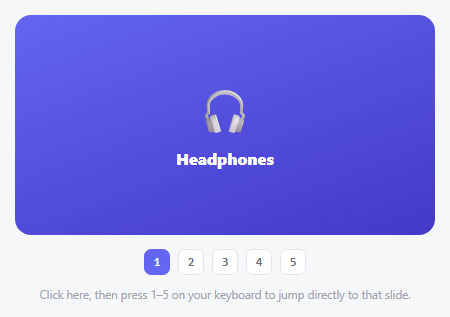
Arrow-key navigation is sequential — five presses of Right to reach slide six. This carousel adds a genuinely different keyboard model on top of that: pressing a number key jumps *directly* to that exact slide in one keystroke, no matter how far away it currently is, mirroring how a browser's Cmd/Ctrl+1 through 9 jumps straight to a specific tab.
Reading a digit out of the key event, not a separate keymap
The keydown handler doesn't maintain a lookup table of key codes — it just runs parseInt(e.key, 10) on whatever key was pressed. If that parses to a valid number within the slide count's range, goTo(n - 1) fires immediately (converting the human-facing 1-based number to a 0-based array index). Any key that *doesn't* parse to a usable number — a letter, a modifier, punctuation — simply falls through to the separate arrow-key check below it, so the two navigation styles coexist in the same handler without interfering.
Visible badges as a discoverability aid, not just a display
A keyboard shortcut nobody knows exists provides no value — the row of numbered badges beneath the carousel isn't just a duplicate of the arrow controls seen elsewhere in this library, it's a legend confirming exactly which digit maps to which slide, and each badge doubles as a clickable target for anyone who'd rather point and click than memorize a number.
Why the wrapper needs `tabindex="0"`
Keydown events only fire on elements that can hold keyboard focus — a plain <div> can't, by default. Giving the wrapper tabindex="0" makes it a real, tappable-into focus target, and the focus-visible outline confirms to a keyboard user exactly when their number-key presses are actually being heard by the carousel.
Build with AI
Build, Understand, Optimize, and Extend It With AI
Paste this snippet's HTML, CSS, and JS into an AI coding assistant like Claude and ask it to explain why the keydown handler uses parseInt(e.key, 10) to interpret a pressed key generically rather than maintaining a hardcoded switch statement or lookup table mapping specific key codes to slide indices, and what happens for keys that don't parse to a usable number. It's also worth asking the assistant to extend the shortcut to support more than 9 slides via multi-digit input with a short typing timeout, or to add an aria-live announcement confirming which slide was just jumped to for screen reader users.
Prompt to recreate it
Copy this into your AI assistant of choice to build the effect from scratch, or as a jumping-off point for your own variant:
Build a carousel in plain HTML, CSS, and vanilla JavaScript that supports jumping directly to any specific slide by pressing its corresponding number key on the keyboard (1 for the first slide, 2 for the second, and so on) — no library.

Requirements:
- A carousel of slide elements stacked on top of each other, crossfading via opacity/scale transitions, with only the current slide visible at a time.
- The carousel's outer wrapper must be given the appropriate attribute to make it keyboard-focusable, since keydown events only fire on focusable elements, and a visible focus indicator must appear when it has keyboard focus.
- A keydown handler attached to that wrapper (not the whole document, so number-key jumps only apply while the carousel itself has focus) that parses the pressed key generically as an integer rather than checking against a hardcoded list of specific keys — if the parsed number falls within the valid range of existing slides (1 through however many slides exist), the carousel must jump directly to that exact slide's index in a single action, regardless of how far away the current slide is.
- The same handler must also support Left/Right arrow keys for conventional sequential previous/next navigation, coexisting cleanly alongside the number-jump behavior without either interfering with the other.
- A row of visible numbered badge elements below the carousel, generated dynamically to match however many slides exist, where each badge displays its corresponding number and is also independently clickable to jump to that same slide, and the badge matching the currently active slide is visually distinguished from the others.
- The valid range of jumpable numbers must be derived from the actual number of slide elements present, not hardcoded, so the behavior adapts correctly if slides are added or removed.
Want to tighten it up first? Run this prompt through the AI Prompt Studio to score it across 8 quality dimensions, catch anti-patterns, and tune the wording for Claude, ChatGPT, or Gemini before you paste it in.
Source Code
<div class="nkj-wrap" id="nkjWrap" tabindex="0">
  <div class="nkj-track" id="nkjTrack">
    <div class="nkj-slide" style="background:linear-gradient(160deg,#6366f1,#4338ca)"><span>🎧</span>Headphones</div>
    <div class="nkj-slide" style="background:linear-gradient(160deg,#0ea5e9,#0369a1)"><span>📷</span>Camera</div>
    <div class="nkj-slide" style="background:linear-gradient(160deg,#ec4899,#9d174d)"><span>⌚</span>Watch</div>
    <div class="nkj-slide" style="background:linear-gradient(160deg,#10b981,#047857)"><span>🎮</span>Console</div>
    <div class="nkj-slide" style="background:linear-gradient(160deg,#f59e0b,#b45309)"><span>🔊</span>Speaker</div>
  </div>
  <div class="nkj-badges" id="nkjBadges"></div>
  <p class="nkj-hint">Click here, then press 1–5 on your keyboard to jump directly to that slide.</p>
</div>*{box-sizing:border-box;margin:0;padding:0}
body{font-family:system-ui,-apple-system,sans-serif;background:#f6f7f9;min-height:100vh;display:flex;align-items:center;justify-content:center;padding:24px}
.nkj-wrap{width:100%;max-width:420px;outline:none}
.nkj-wrap:focus-visible .nkj-track{box-shadow:0 0 0 3px #6366f1}
.nkj-track{position:relative;height:220px;overflow:hidden;border-radius:16px;transition:box-shadow .15s}
.nkj-slide{position:absolute;inset:0;display:flex;flex-direction:column;align-items:center;justify-content:center;gap:10px;color:#fff;font-weight:800;font-size:16px;opacity:0;transform:scale(.96);transition:opacity .35s ease,transform .35s ease}
.nkj-slide.nkj-active{opacity:1;transform:scale(1);z-index:1}
.nkj-slide span{font-size:44px}
.nkj-badges{display:flex;justify-content:center;gap:8px;margin-top:14px}
.nkj-badge{width:26px;height:26px;border-radius:7px;background:#fff;border:1.5px solid #e3e5ea;color:#6b7080;font:700 12px ui-monospace,monospace;display:flex;align-items:center;justify-content:center;cursor:pointer;transition:border-color .15s,color .15s,background .15s}
.nkj-badge:hover{border-color:#6366f1;color:#6366f1}
.nkj-badge.active{background:#6366f1;border-color:#6366f1;color:#fff}
.nkj-hint{text-align:center;color:#9ca3af;font-size:11.5px;margin-top:12px}var wrap = document.getElementById('nkjWrap');
var slides = document.querySelectorAll('.nkj-slide');
var badgesWrap = document.getElementById('nkjBadges');
var current = 0;
slides.forEach(function (s, i) {
var badge = document.createElement('button');
badge.className = 'nkj-badge';
badge.textContent = String(i + 1);
badge.setAttribute('aria-label', 'Jump to slide ' + (i + 1));
badge.addEventListener('click', function () { goTo(i); });
badgesWrap.appendChild(badge);
});
var badges = document.querySelectorAll('.nkj-badge');
function render() {
slides.forEach(function (s, i) { s.classList.toggle('nkj-active', i === current); });
badges.forEach(function (b, i) { b.classList.toggle('active', i === current); });
}
function goTo(i) { current = i; render(); }
wrap.addEventListener('keydown', function (e) {
var n = parseInt(e.key, 10);
if (!isNaN(n) && n >= 1 && n <= slides.length) { goTo(n - 1); return; }
if (e.key === 'ArrowRight') goTo((current + 1) % slides.length);
else if (e.key === 'ArrowLeft') goTo((current - 1 + slides.length) % slides.length);
});
render();Step by step
How to Use
- 1Paste HTML, CSS, and JSA carousel appears with five numbered badges (1–5) underneath it.
- 2Click into the carousel areaA focus ring appears, confirming keyboard input will now be heard.
- 3Press any number key from 1 to 5The carousel jumps directly to that exact slide — no matter how far away it currently is.
- 4Try the arrow keys tooLeft/Right still work for normal sequential stepping alongside the number-jump shortcut.
- 5Click a badge directlySame result as pressing its number key, for anyone who prefers pointing and clicking.
Real-world uses
Common Use Cases
Got questions?
Frequently Asked Questions
A single keypress can only ever represent one digit, so number-key jumping naturally caps at 9 slides this way — for more, either limit the shortcut to the first 9 with arrow keys covering the rest, or extend the handler to accumulate multi-digit input with a short typing timeout.
Keydown events only fire on elements capable of receiving keyboard focus. A plain div has no default focusability — adding tabindex="0" makes it a real, focusable, tab-reachable element so its own keydown listener actually receives key presses once it's focused.
No, and that's deliberate — the listener is attached to the wrapper itself, not the whole document, so number keys only trigger a jump while the carousel specifically has focus, avoiding accidental jumps while a user is typing a number somewhere else on the page.
Replace the parseInt check with a lookup against a fixed array of letters (e.g. ["a","b","c",...]), finding the pressed key's index in that array instead of parsing it as a number.
Badges are real, labeled buttons offering a mouse/touch equivalent to every keyboard shortcut, and the focus-visible outline gives clear visual confirmation of keyboard focus — pair with an aria-live region announcing the newly active slide's title for screen reader users.