


Learn Coding Visually
Learn to code with interactive, live-preview playgrounds — HTML, CSS, JavaScript, React & more.
 HTML Playground42 lessons · Click-based · Live preview
 CSS PlaygroundLearn CSS with a live editor
 JavaScript Playground60 lessons · DOM · Async · Canvas
 React PlaygroundLearn React with a live code editor
 GSAP PlaygroundLearn GSAP animation interactively
 SVG Playground44 lessons · shapes · paths · animation
 SCSS Playground45 lessons · Sass modules · tokens
 Tailwind PlaygroundLearn Tailwind CSS with a live editor
 Bootstrap 5 Playground50 lessons · live preview
Discrete Snap-Stop Slider — HTML CSS JS Snippet
Discrete Snap-Stop Slider · Forms · Plain HTML, CSS & JS · Live preview
What's included
Features
About this UI Snippet
Discrete Snap-Stop Slider — An Index, Not a Continuous Value
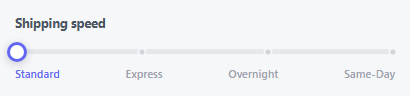
A price-range slider outputs any number between its min and max. This one is a completely different kind of control: it holds an *index* into a fixed list of labeled options — Standard, Express, Overnight, Same-Day — and can only ever land on exactly one of those four positions. There is no such thing as "index 1.5" here; every interaction, whatever triggers it, ends by calling setIndex() with a whole number.
Percentage is derived from the index, never the reverse
render() computes the thumb's visual position with one line: pct = (current / (count - 1)) * 100. Dragging works the opposite direction — it converts a raw pointer position into a percentage, then *rounds* that percentage into the nearest whole index with Math.round(pct * (count - 1)), and only that rounded index is ever written to current. The thumb visually eases to the exact stop position via a CSS transition on left, but the underlying state was never anything other than a clean integer.
Every input path converges on one function
Clicking a stop dot, clicking a text label, dragging the thumb, and pressing an arrow key are four completely different gestures, but every one of them ends by calling setIndex(i) — which is the only place that clamps the value into range and re-renders. That's what guarantees the slider can never visually or logically land between two stops, no matter which input method was used.
Build with AI
Build, Understand, Optimize, and Extend It With AI
Paste this snippet's HTML, CSS, and JS into an AI coding assistant like Claude and ask it to explain why every interaction path — dragging, clicking a stop, clicking a label, pressing an arrow key — is written to funnel through one single setIndex function rather than each updating the thumb position independently, and what bug that pattern prevents as more input methods get added. It's also worth asking the assistant to make the stops unevenly spaced (e.g. logarithmic) by replacing the even-percentage formula with a per-stop lookup table, or to add a live tooltip above the thumb showing the current label while dragging.
Prompt to recreate it
Copy this into your AI assistant of choice to build the effect from scratch, or as a jumping-off point for your own variant:
Build a discrete, stop-only slider in plain HTML, CSS, and vanilla JavaScript that can only ever land on one of a small fixed set of labeled positions — never a continuous in-between value — no library.

Requirements:
- A plain JavaScript array of label strings representing the available discrete options (e.g. shipping speed tiers), with a "current index" integer variable representing which one is selected — this index must be the single source of truth, never a raw pixel or percentage position.
- A visual track with small stop-marker dots positioned at even percentage intervals matching the number of labels, a fill bar showing progress from the start to the current stop, and a draggable thumb.
- A render function that computes the thumb's and fill bar's percentage position purely by dividing the current index by (number of options minus 1) — this must be the only place visual position is calculated from the index.
- Dragging the thumb must track the pointer's live position, convert it to a percentage of the track's width, round that percentage to the nearest valid stop index in real time (not only on release), and immediately update the current index to that rounded value so the thumb visibly eases toward and settles on the nearest stop rather than following the cursor to an arbitrary in-between position.
- Clicking any stop dot, or clicking a text label naming that option, must jump the current index directly to that exact stop.
- Keyboard support: with the thumb focused, Left/Down arrow keys decrement the index and Right/Up arrow keys increment it (both clamped within valid range), and Home/End jump to the first and last index respectively.
- The thumb must carry proper ARIA slider role and attributes, including a human-readable aria-valuetext reflecting the currently selected label, not just a raw numeric value.
Want to tighten it up first? Run this prompt through the AI Prompt Studio to score it across 8 quality dimensions, catch anti-patterns, and tune the wording for Claude, ChatGPT, or Gemini before you paste it in.
Source Code
<div class="dss-wrap">
  <label class="dss-label">Shipping speed</label>
  <div class="dss-track-wrap">
    <div class="dss-track">
      <div class="dss-fill" id="dssFill"></div>
      <button class="dss-stop" data-i="0" style="left:0%"></button>
      <button class="dss-stop" data-i="1" style="left:33.33%"></button>
      <button class="dss-stop" data-i="2" style="left:66.66%"></button>
      <button class="dss-stop" data-i="3" style="left:100%"></button>
      <div class="dss-thumb" id="dssThumb" tabindex="0" role="slider" aria-valuemin="0" aria-valuemax="3" aria-valuenow="0"></div>
    </div>
  </div>
  <div class="dss-ticks" id="dssTicks"></div>
</div>*{box-sizing:border-box;margin:0;padding:0}
body{font-family:system-ui,-apple-system,sans-serif;background:#f6f7f9;min-height:100vh;display:flex;align-items:center;justify-content:center;padding:24px}
.dss-wrap{width:100%;max-width:380px}
.dss-label{display:block;font-size:12.5px;font-weight:700;color:#4b5563;margin-bottom:18px}
.dss-track-wrap{padding:0 2px}
.dss-track{position:relative;height:5px;border-radius:6px;background:#e5e7eb}
.dss-fill{position:absolute;top:0;left:0;height:100%;border-radius:6px;background:#6366f1;width:0%;transition:width .25s cubic-bezier(.4,0,.2,1)}
.dss-stop{position:absolute;top:50%;width:9px;height:9px;border-radius:50%;background:#d1d5db;border:2px solid #f6f7f9;transform:translate(-50%,-50%);cursor:pointer;z-index:1}
.dss-thumb{position:absolute;top:50%;left:0%;width:20px;height:20px;border-radius:50%;background:#fff;border:3px solid #6366f1;box-shadow:0 2px 8px rgba(15,23,42,.2);transform:translate(-50%,-50%);cursor:grab;transition:left .25s cubic-bezier(.4,0,.2,1);z-index:2}
.dss-thumb:active{cursor:grabbing}
.dss-thumb:focus-visible{outline:2px solid #6366f1;outline-offset:3px}
.dss-ticks{display:flex;justify-content:space-between;margin-top:12px}
.dss-ticks span{font-size:11px;font-weight:600;color:#9ca3af;transition:color .2s}
.dss-ticks span.active{color:#6366f1}var LABELS = ['Standard', 'Express', 'Overnight', 'Same-Day'];
var track = document.querySelector('.dss-track');
var thumb = document.getElementById('dssThumb');
var fill = document.getElementById('dssFill');
var ticksWrap = document.getElementById('dssTicks');
var count = LABELS.length;
var current = 0;
LABELS.forEach(function (label, i) {
var t = document.createElement('span');
t.textContent = label;
ticksWrap.appendChild(t);
});
var tickEls = document.querySelectorAll('.dss-ticks span');
function render() {
var pct = (current / (count - 1)) * 100;
thumb.style.left = pct + '%';
fill.style.width = pct + '%';
thumb.setAttribute('aria-valuenow', current);
thumb.setAttribute('aria-valuetext', LABELS[current]);
tickEls.forEach(function (t, i) { t.classList.toggle('active', i === current); });
}
function setIndex(i) {
current = Math.max(0, Math.min(count - 1, i));
render();
}
document.querySelectorAll('.dss-stop').forEach(function (stop) {
stop.addEventListener('click', function () { setIndex(parseInt(stop.dataset.i, 10)); });
});
tickEls.forEach(function (t, i) {
t.style.cursor = 'pointer';
t.addEventListener('click', function () { setIndex(i); });
});
function pctFromEvent(clientX) {
var rect = track.getBoundingClientRect();
var x = Math.max(0, Math.min(rect.width, clientX - rect.left));
return x / rect.width;
}
var dragging = false;
function onMove(e) {
if (!dragging) return;
var clientX = e.touches ? e.touches[0].clientX : e.clientX;
var pct = pctFromEvent(clientX);
var nearest = Math.round(pct * (count - 1));
if (nearest !== current) setIndex(nearest);
}
function startDrag(e) {
dragging = true;
thumb.style.transition = 'none';
onMove(e);
}
function endDrag() {
if (!dragging) return;
dragging = false;
thumb.style.transition = '';
render();
}
thumb.addEventListener('pointerdown', startDrag);
window.addEventListener('pointermove', onMove);
window.addEventListener('pointerup', endDrag);
thumb.addEventListener('touchstart', startDrag, { passive: true });
window.addEventListener('touchmove', onMove, { passive: true });
window.addEventListener('touchend', endDrag);
thumb.addEventListener('keydown', function (e) {
if (e.key === 'ArrowRight' || e.key === 'ArrowUp') { setIndex(current + 1); e.preventDefault(); }
else if (e.key === 'ArrowLeft' || e.key === 'ArrowDown') { setIndex(current - 1); e.preventDefault(); }
else if (e.key === 'Home') { setIndex(0); e.preventDefault(); }
else if (e.key === 'End') { setIndex(count - 1); e.preventDefault(); }
});
render();Step by step
How to Use
- 1Paste HTML, CSS, and JSA 4-stop slider appears, set to "Standard" with the label highlighted below it.
- 2Drag the thumbIt follows your cursor smoothly, but always eases to and settles on the nearest labeled stop — never in between.
- 3Click a dot or labelJump straight to that exact stop with a smooth transition.
- 4Use arrow keysFocus the thumb and press Left/Right to move one stop at a time; Home/End jump to the first or last.
- 5Add a fifth tierAdd one label to LABELS and one .dss-stop button positioned at its new percentage — the math adjusts automatically.
Real-world uses
Common Use Cases
Got questions?
Frequently Asked Questions
Add one string to the LABELS array and one matching .dss-stop button in the HTML, positioned at its new even percentage (100 / (new count - 1) per step) — count updates automatically from LABELS.length.
Yes — give each .dss-stop button a custom left percentage instead of even spacing, and replace the render() percentage formula with a lookup table mapping each index to its actual custom percentage.
Rounding live (during the drag, not just at the end) is what makes the fill bar and any live label always show the stop you're about to land on, giving immediate feedback rather than a jarring correction only at release.
LABELS[current] gives the selected label at any time; hook a callback or custom event dispatch inside setIndex if you need to react to changes elsewhere in a real application.
Yes — the thumb carries role="slider" with aria-valuemin/max/now plus aria-valuetext for the human-readable label, and is fully operable via Left/Right/Up/Down/Home/End without a mouse.