Learn Coding Visually
Learn to code with interactive, live-preview playgrounds — HTML, CSS, JavaScript, React & more.
 HTML Playground42 lessons · Click-based · Live preview
 CSS PlaygroundLearn CSS with a live editor
 JavaScript Playground60 lessons · DOM · Async · Canvas
 React PlaygroundLearn React with a live code editor
 GSAP PlaygroundLearn GSAP animation interactively
 SVG Playground44 lessons · shapes · paths · animation
 SCSS Playground45 lessons · Sass modules · tokens
 Tailwind PlaygroundLearn Tailwind CSS with a live editor
 Bootstrap 5 Playground50 lessons · live preview
Video Modal — Lightbox Video Player HTML CSS JS
Video Modal · Modals · Plain HTML, CSS & JS · Live preview
What's included
Features
About this UI Snippet
Video Modal — Poster Thumbnail to Autoplaying Lightbox Player
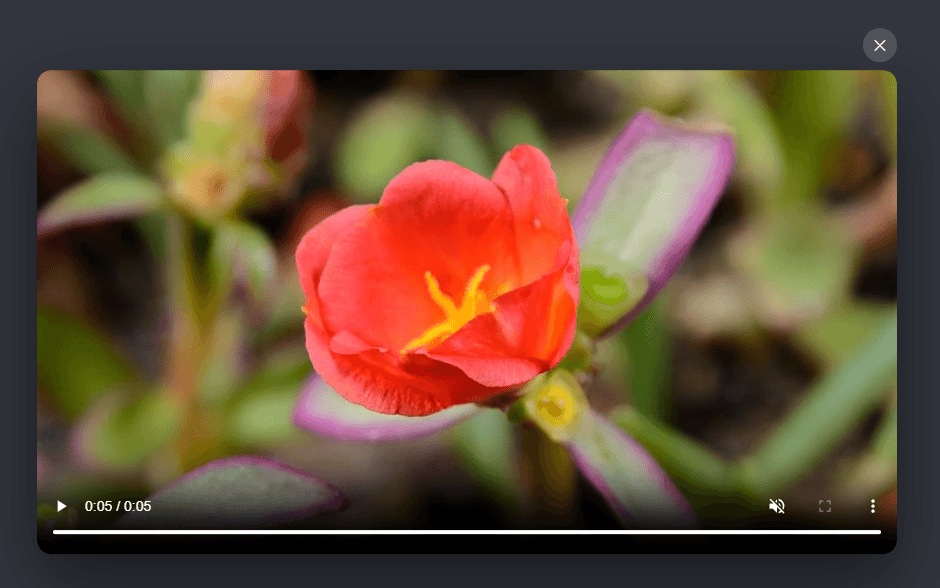
A video modal turns a poster thumbnail with a play button into a full lightbox player — the pattern used for product demos, hero videos, and tutorials everywhere, because it keeps the page light (no heavy video player until the user wants it) while making "watch the video" one click. This snippet builds it in plain HTML, CSS, and vanilla JavaScript, with the one detail that's easy to get wrong: removing the player on close so the video actually stops.
Lazy: the player loads only on click
The thumbnail is a styled button with a poster background, a play badge, and a title overlay — no <iframe> or <video> exists until the user clicks. open() injects the embed iframe at that moment, so the page doesn't pay the cost (network, scripts, memory) of a YouTube or Vimeo player on load — only when someone actually wants to watch. This is the right default: most visitors never play the video, so loading it eagerly wastes bandwidth and slows the page for everyone. The iframe URL includes autoplay=1 so playback starts immediately on open.
Removing the iframe on close — the critical detail
The most common video-modal bug is the video continuing to play (audible) after the modal is closed, because hiding the modal doesn't stop the player. The fix is to *remove* the iframe entirely on close, not just hide it — close() clears frame.innerHTML (after the fade-out finishes, so it doesn't flash empty). Destroying the iframe stops playback, frees the player's memory, and guarantees no background audio. It also means each open starts the video fresh from the beginning. This injection-on-open, removal-on-close lifecycle is the whole trick to a correct video modal.
A proper 16:9 lightbox
The modal centers a 16:9 frame (via aspect-ratio) on a near-black backdrop, sized to a large but viewport-capped width so it's cinematic on desktop and fits on mobile. The close button sits just above the frame's corner (the YouTube/Vimeo lightbox convention), and the modal animates in with opacity and transform only — a slight scale-and-rise — keeping it smooth across every framework export. The darker backdrop (vs a typical modal) suits video, focusing attention on the player.
Scroll lock and full dismissal
Opening locks body scroll (overflow: hidden) so the page behind doesn't scroll while watching, restored on close. The modal closes via the ✕, a backdrop click, or Escape — all through one close() that handles the animation, scroll restore, and iframe removal together. role="dialog" with aria-modal="true" and a labeled close button keep it accessible.
Works with any video source
The demo uses a YouTube embed, but the same structure works for Vimeo (swap the embed URL), a self-hosted <video> tag (inject <video src autoplay controls> instead of an iframe), or any player — the lazy-inject and remove-on-close pattern applies identically. The allow="autoplay; fullscreen" and allowfullscreen attributes ensure autoplay and the fullscreen control work. Swap the EMBED URL or injection markup for your source and it's ready.
Build with AI
Build, Understand, Optimize, and Extend It With AI
Instead of tracing the lifecycle by hand, paste this snippet's HTML, CSS, and JS into an AI coding assistant like Claude and ask it to explain exactly why close() waits roughly 280ms before clearing frame.innerHTML rather than clearing it immediately, and how that delay relates to the modal's own CSS transition duration. It's also worth asking about a real gap in the current approach — the video element is injected fresh with muted autoplay every time open() runs, so ask what would need to change to remember the user's volume or playback position across repeated opens within the same session. For extending it, have it add a loading spinner shown while the injected video buffers, support swapping between multiple videos from one modal instance, or add focus-trapping so Tab cycles only within the modal while it's open. Treat the code less like a finished artifact and more like a starting point for a conversation.
Prompt to recreate it
Copy this into your AI assistant of choice to build the effect from scratch, or as a jumping-off point for your own variant:
Build a click-to-play video lightbox modal in plain HTML, CSS, and vanilla JavaScript with no libraries, where the video player element only exists in the DOM while the modal is open.

Requirements:
- A poster/thumbnail trigger button showing a background image or gradient, a centered circular play icon, and a title/subtitle overlay — no video or iframe element anywhere in the initial markup.
- Clicking the trigger must inject a video or iframe element into an empty container at that moment (not before), set it to autoplay, and reveal a backdrop and a centered modal frame with matching CSS transitions (opacity plus a scale/transform) driven by a "show" class toggle.
- The modal frame must maintain a 16:9 aspect ratio, be capped to a reasonable maximum width, and include a close button positioned just outside its top-right corner.
- Closing the modal (via the close button, clicking the backdrop, or pressing Escape) must first remove the "show" class to play the closing transition, and only after that transition's duration has elapsed, actually clear the injected video/iframe element from the DOM — so the player is genuinely destroyed and any playback stops, rather than just being visually hidden.
- Opening the modal must lock the page's body scroll, and closing it must restore the previous scroll behavior.
- The modal container must use role="dialog" and aria-modal="true" with an accessible label, and the close button must have an aria-label.
Want to tighten it up first? Run this prompt through the AI Prompt Studio to score it across 8 quality dimensions, catch anti-patterns, and tune the wording for Claude, ChatGPT, or Gemini before you paste it in.
Step by step
How to Use
- 1Paste HTML, CSS, and JSA 16:9 video poster with a play button and title renders — no video player loaded yet.
- 2Click to playClick the thumbnail — the player iframe is injected and the video opens in a centered lightbox, autoplaying.
- 3Close itClick ✕, the backdrop, or press Escape — the modal closes and the iframe is removed so the video stops.
- 4Confirm it stopsNote there's no lingering audio after close, because the player is destroyed rather than just hidden.
- 5Set your videoReplace the EMBED URL with your YouTube/Vimeo embed, or inject a <video> tag for a self-hosted file.
- 6Add a real posterSwap the gradient/emoji poster for your video's thumbnail image on the trigger button.
Real-world uses
Common Use Cases
Got questions?
Frequently Asked Questions
Hiding a modal (display:none or opacity) doesn't stop an embedded video — YouTube/Vimeo players keep playing, so the user hears audio with no visible video, the most common video-modal bug. Removing the iframe from the DOM destroys the player, which stops playback, frees its memory, and ensures the next open starts fresh. This snippet clears frame.innerHTML on close (after the fade) for exactly this reason.
For YouTube, set EMBED to https://www.youtube.com/embed/VIDEO_ID?autoplay=1&rel=0; for Vimeo, https://player.vimeo.com/video/VIDEO_ID?autoplay=1. For a self-hosted file, inject a <video src="..." autoplay controls></video> instead of the iframe in open(). The inject-on-open and remove-on-close logic is identical regardless of source.
An embedded YouTube/Vimeo player pulls in significant scripts and network requests on page load, slowing the page for every visitor — most of whom never play the video. Loading the player only when the user clicks play keeps the initial page light and fast, which improves Core Web Vitals and the experience for non-watchers, at the cost of nothing for those who do watch (the click triggers the load).
Because the user clicked to open, this is a user-initiated action, so browsers generally allow autoplay with sound — unlike autoplay on page load, which is blocked or muted. Include allow="autoplay" on the iframe. If you ever autoplay without a click, browsers require the video to be muted, so design around that constraint when there's no user gesture.
In React, hold an open boolean in useState and conditionally render the iframe ({open && <iframe .../>}) so it mounts on open and unmounts on close — React's unmount removes it and stops the video automatically; in Vue, use v-if on the iframe; in Angular, use *ngIf. This is even cleaner than the vanilla version, since the framework's conditional rendering handles the inject/remove lifecycle for you.