Learn Coding Visually
Learn to code with interactive, live-preview playgrounds — HTML, CSS, JavaScript, React & more.
 HTML Playground42 lessons · Click-based · Live preview
 CSS PlaygroundLearn CSS with a live editor
 JavaScript Playground60 lessons · DOM · Async · Canvas
 React PlaygroundLearn React with a live code editor
 GSAP PlaygroundLearn GSAP animation interactively
 SVG Playground44 lessons · shapes · paths · animation
 SCSS Playground45 lessons · Sass modules · tokens
 Tailwind PlaygroundLearn Tailwind CSS with a live editor
 Bootstrap 5 Playground50 lessons · live preview
Matter.js Newton's Cradle — Free Interactive Physics Snippet
Matter.js Newton's Cradle (Drag to Swing) · Animations · Plain HTML, CSS & JS · Live preview
What's included
Features
About this UI Snippet
Newton's Cradle in Matter.js — Getting a Physics Engine to Behave Like Physics
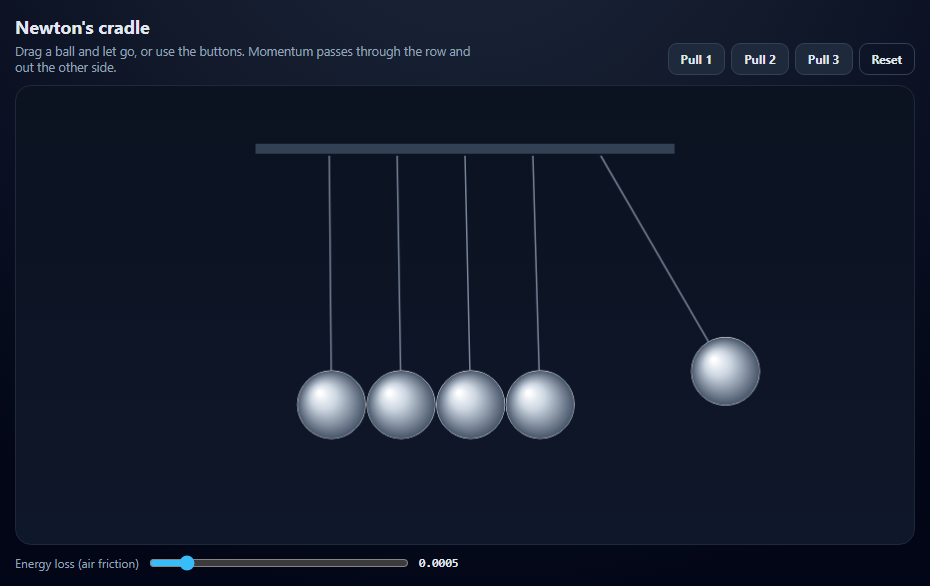
A Newton's cradle is the classic demonstration of conservation of momentum: lift one ball, let it go, and one ball flies out of the other end. It's also a good test of a physics engine, because every small source of energy loss or error shows up immediately as balls drifting together. This snippet builds the cradle from Matter.js bodies and constraints and explains each setting that makes it work.
Strings are constraints
Each ball is a circle hung from a fixed point with Constraint.create({ pointA, bodyB, length, stiffness: 1 }). A constraint keeps two points a fixed distance apart, which is exactly what a taut string does. Increasing engine.constraintIterations makes the solver enforce that distance more accurately every step.
The settings that keep energy in the system
- restitution: 1 makes collisions perfectly elastic.
- friction, frictionStatic and frictionAir default to non-zero values; they're set to 0 (air friction is adjustable) so the swing doesn't die immediately.
- inertia: Infinity prevents the balls from rotating. Without it, part of each collision's energy turns into spin and the momentum no longer passes cleanly through the row.
- A small slop keeps contact overlap tight, which keeps the collision chain crisp.
Custom drawing on top of Matter.Render
Matter's renderer draws the bodies; the afterRender event draws the frame, the strings and shaded metal balls with radial gradients. The context is scaled by the renderer's pixel ratio so drawings stay sharp on high-DPI screens.
Dragging without breaking the page
MouseConstraint lets you grab and pull any ball. It also listens to the mouse wheel and prevents page scrolling while the pointer is over the canvas — a common annoyance in embedded physics demos — so the snippet removes those wheel listeners. The canvas is scaled with CSS, and Matter's mouse maps positions correctly because the renderer records the pixel ratio on the canvas.
Energy loss slider
Raising air friction shows how quickly a real cradle's swing decays.
Build with AI
Build, Understand, Optimize, and Extend It With AI
Paste this snippet into an AI assistant like Claude and ask why inertia: Infinity matters for momentum transfer. Ask it to add a live momentum and energy readout, sound on each collision using the Web Audio API, a seven-ball version, or a slow-motion toggle with engine.timing.timeScale. It can also explain the difference between constraint stiffness and solver iterations.
Prompt to recreate it
Copy this into your AI assistant of choice to build the effect from scratch, or as a jumping-off point for your own variant:
Build an interactive Newton's cradle with Matter.js 0.20 (from a CDN) in plain HTML, CSS and JavaScript on a dark background.

Requirements:
- Five touching circles, each hung from a fixed world point by a distance constraint of equal length (constraints not drawn by Matter).
- Ball options: restitution 1, friction, static friction and air friction 0 (air friction adjustable by a slider), small slop and infinite inertia; raise the engine's constraint and position iterations.
- Buttons to reset or pull the first 1, 2 or 3 balls up along their arc to about 43 degrees and release them; start with one ball pulled unless the user prefers reduced motion.
- Draw a top bar, the strings and radial-gradient metal balls in the renderer's afterRender event, scaled by the pixel ratio.
- A mouse constraint to drag balls, with the wheel listeners removed so the page still scrolls over the canvas, and a responsive canvas scaled with CSS.
Want to tighten it up first? Run this prompt through the AI Prompt Studio to score it across 8 quality dimensions, catch anti-patterns, and tune the wording for Claude, ChatGPT, or Gemini before you paste it in.
Source Code
<div class="nc">
  <div class="nc-top">
    <div>
      <h2>Newton's cradle</h2>
      <p>Drag a ball and let go, or use the buttons. Momentum passes through the row and out the other side.</p>
    </div>
    <div class="nc-btns">
      <button type="button" data-pull="1">Pull 1</button>
      <button type="button" data-pull="2">Pull 2</button>
      <button type="button" data-pull="3">Pull 3</button>
      <button type="button" id="ncReset" class="ghost">Reset</button>
    </div>
  </div>
  <div class="nc-stage" id="ncStage"></div>
  <label class="nc-loss">Energy loss (air friction) <input type="range" id="ncAir" min="0" max="0.004" step="0.0005" value="0.0005"><output id="ncAirOut"></output></label>
</div>*{box-sizing:border-box;margin:0;padding:0}
body{font-family:system-ui,-apple-system,sans-serif;background:radial-gradient(circle at 50% 0%,#1e293b,#020617 70%);color:#e2e8f0;min-height:100vh;display:flex;align-items:center;justify-content:center;padding:20px}
.nc{width:100%;max-width:900px}
.nc-top{display:flex;justify-content:space-between;align-items:flex-end;gap:12px;flex-wrap:wrap;margin-bottom:10px}
.nc h2{font-size:18px}
.nc-top p{font-size:12.5px;color:#94a3b8;margin-top:4px;max-width:460px}
.nc-btns{display:flex;gap:6px;flex-wrap:wrap}
.nc button{border:1px solid #334155;background:#1e293b;color:#e2e8f0;border-radius:9px;padding:7px 12px;font:700 12px system-ui;cursor:pointer}
.nc button:hover{border-color:#94a3b8}
.nc button.ghost{background:transparent}
.nc :focus-visible{outline:2px solid #38bdf8;outline-offset:2px}
.nc-stage{border:1px solid #1e293b;border-radius:16px;overflow:hidden;background:linear-gradient(#0b1220,#0f172a)}
.nc-stage canvas{display:block;width:100%;height:auto;cursor:grab;touch-action:none}
.nc-stage canvas:active{cursor:grabbing}
.nc-loss{display:flex;align-items:center;gap:10px;font-size:12px;color:#94a3b8;margin-top:10px}
.nc-loss input{flex:1;max-width:260px;accent-color:#38bdf8}
.nc-loss output{font:600 12px ui-monospace,monospace;color:#e2e8f0}var M = Matter, Engine = M.Engine, Render = M.Render, Runner = M.Runner, Bodies = M.Bodies,
Body = M.Body, Composite = M.Composite, Constraint = M.Constraint, Mouse = M.Mouse, MouseConstraint = M.MouseConstraint, Events = M.Events;
var W = 900, H = 460;
var engine = Engine.create();
// More constraint iterations = stiffer strings (less stretch under load).
engine.constraintIterations = 6;
engine.positionIterations = 10;
var render = Render.create({
element: document.getElementById('ncStage'),
engine: engine,
options: { width: W, height: H, wireframes: false, background: 'transparent', pixelRatio: window.devicePixelRatio || 1 },
});
var COUNT = 5, R = 34, LEN = 250, TOP = 70;
var balls = [], strings = [];
var air = 0.0005;
// The cradle is built by hand from bodies and constraints (Matter still
// ships Composites.newtonsCradle, but building it shows every setting).
function build() {
Composite.clear(engine.world, false);
balls = []; strings = [];
var startX = W / 2 - (COUNT - 1) * R;
for (var i = 0; i < COUNT; i++) {
var x = startX + i * R * 2;
var ball = Bodies.circle(x, TOP + LEN, R, {
restitution: 1, // perfectly bouncy collisions
friction: 0,
frictionAir: air, // the only energy loss in the system
frictionStatic: 0,
slop: 0.5, // allowed overlap; small keeps contacts crisp
inertia: Infinity, // no spinning: all energy stays in the swing
render: { fillStyle: '#cbd5e1', strokeStyle: '#f8fafc', lineWidth: 1 },
});
// A constraint pins the ball to a fixed world point at string length.
var string = Constraint.create({ pointA: { x: x, y: TOP }, bodyB: ball, length: LEN, stiffness: 1, render: { visible: false } });
balls.push(ball); strings.push(string);
}
Composite.add(engine.world, balls.concat(strings));
}
// Lift the first n balls up to the left along their arc and release.
function pull(n) {
build();
var angle = -Math.PI / 4.2;
for (var i = 0; i < n; i++) {
var anchor = strings[i].pointA;
Body.setPosition(balls[i], { x: anchor.x + Math.sin(angle) * LEN, y: anchor.y + Math.cos(angle) * LEN });
Body.setVelocity(balls[i], { x: 0, y: 0 });
}
}
// Draw strings, frame and highlights on top of Matter's own rendering.
Events.on(render, 'afterRender', function () {
var ctx = render.context;
var pr = render.options.pixelRatio;
ctx.save();
ctx.scale(pr, pr);
ctx.fillStyle = '#334155';
ctx.fillRect(W / 2 - COUNT * R - 40, TOP - 12, COUNT * R * 2 + 80, 10);
ctx.strokeStyle = 'rgba(148,163,184,.8)';
ctx.lineWidth = 1.5;
strings.forEach(function (s, i) {
var b = balls[i].position;
ctx.beginPath(); ctx.moveTo(s.pointA.x, s.pointA.y); ctx.lineTo(b.x, b.y); ctx.stroke();
});
balls.forEach(function (b) {
var g = ctx.createRadialGradient(b.position.x - R * 0.35, b.position.y - R * 0.35, 2, b.position.x, b.position.y, R);
g.addColorStop(0, '#ffffff'); g.addColorStop(0.35, '#cbd5e1'); g.addColorStop(1, '#475569');
ctx.fillStyle = g;
ctx.beginPath(); ctx.arc(b.position.x, b.position.y, R, 0, Math.PI * 2); ctx.fill();
});
ctx.restore();
});
var mouse = Mouse.create(render.canvas);
var drag = MouseConstraint.create(engine, { mouse: mouse, constraint: { stiffness: 0.2, render: { visible: false } } });
// MouseConstraint listens to the wheel and swallows page scrolling while the
// pointer is over the canvas. Remove those listeners so the page scrolls.
['mousewheel', 'DOMMouseScroll', 'wheel'].forEach(function (t) { mouse.element.removeEventListener(t, mouse.mousewheel); });
Composite.add(engine.world, drag);
render.mouse = mouse;
document.querySelectorAll('[data-pull]').forEach(function (b) {
b.addEventListener('click', function () { pull(Number(b.dataset.pull)); });
});
document.getElementById('ncReset').addEventListener('click', build);
var airIn = document.getElementById('ncAir');
function showAir() { document.getElementById('ncAirOut').textContent = Number(airIn.value).toFixed(4); }
airIn.addEventListener('input', function () {
air = Number(airIn.value);
balls.forEach(function (b) { b.frictionAir = air; });
showAir();
});
showAir();
build();
Render.run(render);
Runner.run(Runner.create(), engine);
// Start with one ball already swinging (unless the user prefers less motion).
if (!window.matchMedia('(prefers-reduced-motion: reduce)').matches) pull(1);Step by step
How to Use
- 1Watch it swingOne ball starts swinging on load.
- 2Pull ballsUse Pull 1, 2 or 3 and watch the same number fly out the other side.
- 3Drag a ballGrab any ball, pull it along its arc and release.
- 4Adjust energy lossRaise air friction to see the swing decay.
- 5ExperimentChange restitution or remove inertia: Infinity in the code and compare.
Real-world uses
Common Use Cases
Got questions?
Frequently Asked Questions
Create a row of touching circles, hang each from a fixed world point with a Constraint of the same length, and set restitution to 1, friction and air friction to 0 and inertia to Infinity on each ball. Then pull the first ball up along its arc and release it.
Friction, air friction, rotation and solver error all remove energy. Set restitution: 1, friction: 0, frictionAir: 0, inertia: Infinity and increase engine.constraintIterations and positionIterations.
MouseConstraint's mouse listens to wheel events and prevents scrolling. Remove them: mouse.element.removeEventListener('mousewheel', mouse.mousewheel) and the same for 'DOMMouseScroll' (and 'wheel').
Listen to the render's afterRender event and draw on render.context. Scale by render.options.pixelRatio first so your drawings line up with the bodies.
No physics engine does exactly, because it steps in discrete time and resolves contacts approximately. With the right settings it's close enough for a convincing cradle, but a long run will slowly drift.