
Learn Coding Visually
Learn to code with interactive, live-preview playgrounds — HTML, CSS, JavaScript, React & more.
 HTML Playground42 lessons · Click-based · Live preview
 CSS PlaygroundLearn CSS with a live editor
 JavaScript Playground60 lessons · DOM · Async · Canvas
 React PlaygroundLearn React with a live code editor
 GSAP PlaygroundLearn GSAP animation interactively
 SVG Playground44 lessons · shapes · paths · animation
 SCSS Playground45 lessons · Sass modules · tokens
 Tailwind PlaygroundLearn Tailwind CSS with a live editor
 Bootstrap 5 Playground50 lessons · live preview
Category Drill-Down Carousel — HTML CSS JS Snippet
Category Drill-Down Carousel · Cards · Plain HTML, CSS & JS · Live preview
What's included
Features
About this UI Snippet
Category Drill-Down Carousel — Tabs That Rebuild the Deck, Not Just Filter It
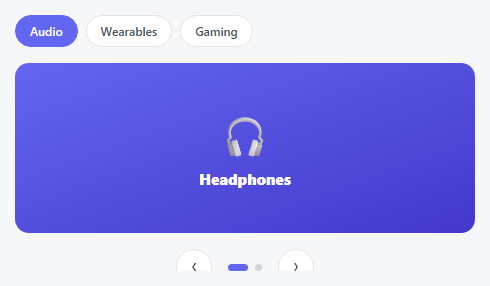
This is a two-level navigation structure disguised as one carousel: a row of category tabs sits above a slide deck, and clicking a tab doesn't filter the *existing* slides — it discards them and builds an entirely *new* deck from that category's own item list. Unlike the Filter-Reactive Carousel elsewhere in this library (which filters one flat pool of items down by tag), this one's categories don't share a pool at all — "Audio" has two items, "Gaming" has three, and the carousel's own length, dot count, and bounds all adjust to match whichever category is active.
Slides are rebuilt, dots are rebuilt, position always resets
switchCategory() does three things every time: sets activeCat, resets current back to 0, and calls buildSlides(), which clears and regenerates *both* the slide track and the dots from DATA[activeCat].items. That reset-to-zero is deliberate — carrying over an index from a 3-item category into a 2-item one could point at a slide that no longer exists, so switching categories always lands cleanly on that category's first item.
One data structure, two levels of navigation
DATA is a plain object keyed by category id, each holding a label (for the tab) and an items array (for the slides) — the tabs are generated from Object.keys(DATA), and the slide deck is generated from whichever category's items is currently active. Adding a whole new category, with its own independent item count, is one new key in that object — no other code changes.
Build with AI
Build, Understand, Optimize, and Extend It With AI
Paste this snippet's HTML, CSS, and JS into an AI coding assistant like Claude and ask it to explain why switchCategory() always resets current back to 0 rather than trying to preserve the previous position, and what bug would occur if that reset were removed when switching from a category with more items to one with fewer. It's also worth asking the assistant to add proper ARIA tablist/tab/tabpanel roles to the category tabs for full accessibility semantics, or to add a subtle transition when the deck rebuilds so the category switch doesn't feel like an abrupt content swap.
Prompt to recreate it
Copy this into your AI assistant of choice to build the effect from scratch, or as a jumping-off point for your own variant:
Build a two-level carousel in plain HTML, CSS, and vanilla JavaScript where a row of category tabs above the carousel completely swaps which independent set of slides it displays — no library.

Requirements:
- A nested JavaScript data structure where each category has its own display label and its own independent array of slide items (icon, title, and styling), with different categories allowed to have different numbers of items from each other.
- A row of tab buttons generated dynamically from the category keys in that data structure, with the currently active category's tab visually distinguished from the others.
- Clicking a tab must: mark that tab as active and the previous one as inactive, completely clear and rebuild the slide track's contents from that category's own items array (not filter or hide slides from a different category's set), completely regenerate the indicator dots to match that category's item count, and reset the current slide position back to the first item — since a previously-active position from a category with more items could otherwise point past the end of a shorter category's item list.
- Previous/next buttons and the dynamically generated indicator dots that navigate within whichever category is currently active, correctly bounded by that category's own item count.
- Left/Right arrow key support performing the same next/previous navigation within the active category.
- The whole component must support adding an entirely new category (with its own label and its own independently-sized item list) by adding one new entry to the data structure, without any other code changes being required.
Want to tighten it up first? Run this prompt through the AI Prompt Studio to score it across 8 quality dimensions, catch anti-patterns, and tune the wording for Claude, ChatGPT, or Gemini before you paste it in.
Source Code
<div class="cdd-wrap">
  <div class="cdd-tabs" id="cddTabs"></div>
  <div class="cdd-viewport">
    <div class="cdd-track" id="cddTrack"></div>
  </div>
  <div class="cdd-controls">
    <button class="cdd-btn" id="cddPrev" aria-label="Previous">‹</button>
    <div class="cdd-dots" id="cddDots"></div>
    <button class="cdd-btn" id="cddNext" aria-label="Next">›</button>
  </div>
</div>*{box-sizing:border-box;margin:0;padding:0}
body{font-family:system-ui,-apple-system,sans-serif;background:#f6f7f9;min-height:100vh;display:flex;align-items:center;justify-content:center;padding:24px}
.cdd-wrap{width:100%;max-width:460px}
.cdd-tabs{display:flex;gap:8px;margin-bottom:16px;flex-wrap:wrap}
.cdd-tab{font:600 12px system-ui,sans-serif;padding:7px 14px;border-radius:20px;border:1.5px solid #e3e5ea;background:#fff;color:#4b5563;cursor:pointer;transition:border-color .15s,color .15s,background .15s}
.cdd-tab:hover{border-color:#6366f1;color:#6366f1}
.cdd-tab-active{background:#6366f1;border-color:#6366f1;color:#fff}
.cdd-viewport{overflow:hidden;border-radius:14px}
.cdd-track{display:flex;transition:transform .4s cubic-bezier(.4,0,.2,1)}
.cdd-slide{flex:0 0 100%;height:170px;display:flex;flex-direction:column;align-items:center;justify-content:center;gap:8px;color:#fff}
.cdd-slide span{font-size:40px}
.cdd-slide strong{font-size:15px;font-weight:800}
.cdd-controls{display:flex;align-items:center;justify-content:center;gap:16px;margin-top:16px}
.cdd-btn{width:36px;height:36px;border-radius:50%;background:#fff;border:1.5px solid #e3e5ea;color:#4b5563;font-size:17px;cursor:pointer;display:flex;align-items:center;justify-content:center;transition:border-color .15s,color .15s}
.cdd-btn:hover{border-color:#6366f1;color:#6366f1}
.cdd-dots{display:flex;gap:7px}
.cdd-dot{width:7px;height:7px;border-radius:50%;background:#d1d5db;border:none;cursor:pointer;transition:background .2s,width .2s}
.cdd-dot.active{background:#6366f1;width:20px;border-radius:4px}var DATA = {
audio: { label: 'Audio', items: [
{ icon: '🎧', title: 'Headphones', bg: '#6366f1,#4338ca' },
{ icon: '🔊', title: 'Speaker', bg: '#4f46e5,#312e81' },
] },
wearables: { label: 'Wearables', items: [
{ icon: '⌚', title: 'Smartwatch', bg: '#ec4899,#9d174d' },
{ icon: '🕶️', title: 'Smart Glasses', bg: '#db2777,#831843' },
] },
gaming: { label: 'Gaming', items: [
{ icon: '🎮', title: 'Controller', bg: '#10b981,#047857' },
{ icon: '🕹️', title: 'Console', bg: '#059669,#065f46' },
{ icon: '🎧', title: 'Gaming Headset', bg: '#14b8a6,#0f766e' },
] },
};
var tabsWrap = document.getElementById('cddTabs');
var track = document.getElementById('cddTrack');
var dotsWrap = document.getElementById('cddDots');
var activeCat = 'audio';
var current = 0;
Object.keys(DATA).forEach(function (key) {
var tab = document.createElement('button');
tab.className = 'cdd-tab' + (key === activeCat ? ' cdd-tab-active' : '');
tab.textContent = DATA[key].label;
tab.addEventListener('click', function () { switchCategory(key); });
tabsWrap.appendChild(tab);
});
var tabs = document.querySelectorAll('.cdd-tab');
function buildSlides() {
track.innerHTML = '';
dotsWrap.innerHTML = '';
DATA[activeCat].items.forEach(function (it, i) {
var slide = document.createElement('div');
slide.className = 'cdd-slide';
slide.style.background = 'linear-gradient(160deg,' + it.bg + ')';
slide.innerHTML = '<span>' + it.icon + '</span><strong>' + it.title + '</strong>';
track.appendChild(slide);
var dot = document.createElement('button');
dot.className = 'cdd-dot';
dot.setAttribute('aria-label', 'Go to item ' + (i + 1));
dot.addEventListener('click', function () { goTo(i); });
dotsWrap.appendChild(dot);
});
}
function render() {
track.style.transform = 'translateX(' + (-current * 100) + '%)';
document.querySelectorAll('.cdd-dot').forEach(function (d, i) { d.classList.toggle('active', i === current); });
}
function switchCategory(key) {
activeCat = key;
current = 0;
tabs.forEach(function (t) { t.classList.toggle('cdd-tab-active', t.textContent === DATA[key].label); });
buildSlides();
render();
}
function goTo(i) { current = i; render(); }
function next() { goTo((current + 1) % DATA[activeCat].items.length); }
function prev() { goTo((current - 1 + DATA[activeCat].items.length) % DATA[activeCat].items.length); }
document.getElementById('cddNext').addEventListener('click', next);
document.getElementById('cddPrev').addEventListener('click', prev);
document.addEventListener('keydown', function (e) {
if (e.key === 'ArrowRight') next();
else if (e.key === 'ArrowLeft') prev();
});
buildSlides();
render();Step by step
How to Use
- 1Paste HTML, CSS, and JSThree category tabs appear above a carousel showing "Audio"'s two items, starting on the first.
- 2Click "Gaming"The whole deck rebuilds — now three items, three dots, reset to the first one.
- 3Navigate within a categoryArrows, dots, and arrow keys move through that category's own items normally.
- 4Switch categories againPosition always resets to the first item of whichever category you land on.
- 5Add a fourth categoryAdd one new key to DATA with its own label and items array — a matching tab appears automatically.
Real-world uses
Common Use Cases
Got questions?
Frequently Asked Questions
Filter-Reactive Carousel filters ONE shared pool of items down by a tag — the underlying item set never changes, only which subset is shown. This snippet's categories are genuinely separate item lists with independent counts; switching categories discards the old deck and builds a completely different one.
Because each category can have a different number of items, carrying over an index from a longer category into a shorter one could point past the end of the new deck. Resetting to 0 guarantees the carousel always lands on a valid, existing slide.
Add one new key to the DATA object with its own label and its own items array (icons/titles/backgrounds) — a matching tab is generated automatically from Object.keys(DATA), with no other code changes required.
Yes — just include the same item object (or an equivalent duplicate) in both categories' items arrays; the data model treats each category's list independently, so overlap is entirely allowed.
Tabs, arrows, and dots are all real, labeled buttons, and the whole carousel is operable via Left/Right arrow keys; for full accessibility, add aria-selected to the active tab and consider role="tablist"/role="tab" semantics on the tab row.