Learn Coding Visually
Learn to code with interactive, live-preview playgrounds — HTML, CSS, JavaScript, React & more.
 HTML Playground42 lessons · Click-based · Live preview
 CSS PlaygroundLearn CSS with a live editor
 JavaScript Playground60 lessons · DOM · Async · Canvas
 React PlaygroundLearn React with a live code editor
 GSAP PlaygroundLearn GSAP animation interactively
 SVG Playground44 lessons · shapes · paths · animation
 SCSS Playground45 lessons · Sass modules · tokens
 Tailwind PlaygroundLearn Tailwind CSS with a live editor
 Bootstrap 5 Playground50 lessons · live preview
Video Scrub Comparison Slider — HTML CSS JS Snippet
Video Scrub Comparison Slider · Misc · Plain HTML, CSS & JS · Live preview
What's included
Features
About this UI Snippet
Video Scrub Comparison Slider — Two Independent Axes of Control
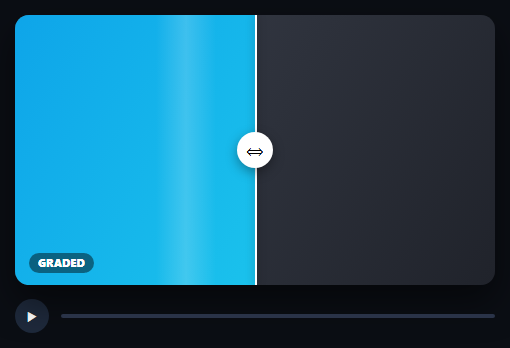
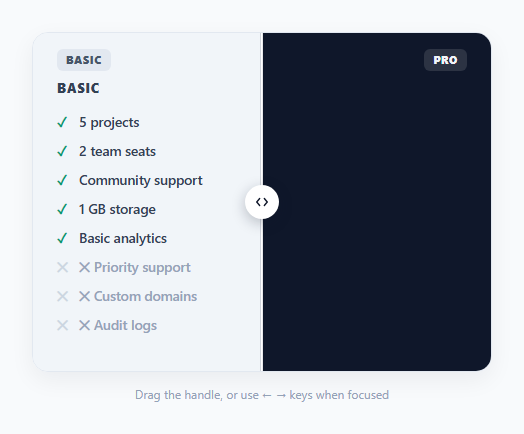
A static before/after image slider only has one control: where the divider sits. This one has two, layered independently on top of each other — the *horizontal divider* controls how much of "after" is revealed over "before" (exactly like an image comparison slider), while a completely separate *scrubber bar underneath* controls where both clips are in their own timeline. Dragging the divider left or right never touches playback position, and scrubbing the bar never touches the divider — the two controls read from and write to entirely different pieces of state.
Why the "after" layer is double-width, not full-width
.vsc-layer-after is clipped to width: splitPct% — but the actual clip inside it (.vsc-fake-video) is fixed at 200% of *that* parent's width, not of the frame. That's the standard reveal-slider trick: because the inner clip is sized relative to the full frame while its parent is clipped to a fraction of it, the visible portion of the "after" clip always lines up pixel-for-pixel with the "before" layer underneath, at any divider position — the clip doesn't scale or distort as you drag, only how much of it is revealed changes.
A scrubber timed with requestAnimationFrame, not a video element
This snippet illustrates the pattern with CSS-animated placeholder "clips" rather than real <video> elements, so the scrubber bar's fill is driven by requestAnimationFrame computing elapsed time against a fixed DURATION — in a real implementation, that same scrubber would instead read and write a real <video> element's .currentTime, keeping the two videos' playback perfectly synced to each other since both would share the exact same scrub position.
Build with AI
Build, Understand, Optimize, and Extend It With AI
Paste this snippet's HTML, CSS, and JS into an AI coding assistant like Claude and ask it to explain exactly why the "after" clip is sized at 200% width inside a parent clipped to a percentage — and what would visually go wrong if that inner width were left at 100% instead. It's also worth asking the assistant to swap the placeholder CSS clips for real <video> elements with synchronized currentTime and play/pause state, or to add a hover-preview thumbnail that appears above the scrubber bar showing a frame at the hovered timeline position.
Prompt to recreate it
Copy this into your AI assistant of choice to build the effect from scratch, or as a jumping-off point for your own variant:
Build a before/after comparison slider designed for two playing video clips (using placeholder animated elements standing in for real video), with two fully independent controls — a reveal divider and a playback scrubber — in plain HTML, CSS, and vanilla JavaScript, no library.

Requirements:
- A frame containing two stacked layers representing a "before" clip and an "after" clip, where the after layer is clipped to a percentage width controlled by a draggable vertical divider handle — dragging the divider left or right must reveal more or less of the after layer over the before layer beneath it, using the standard double-width-inner-element clipping technique so the revealed content stays pixel-aligned at any divider position rather than appearing stretched or squeezed.
- The divider must be draggable via both pointer and touch events, tracking horizontal position within the frame's bounds.
- A completely separate playback scrubber control below the frame, consisting of a play/pause button and a clickable/seekable progress bar, representing shared timeline position for both clips — this scrubber's state must be entirely independent of the divider's position; dragging the divider must never affect playback position, and interacting with the scrubber must never affect the divider position.
- Playback progress must be driven by requestAnimationFrame computing real elapsed time against a fixed total duration, not a fixed-interval timer, so timing stays accurate regardless of frame rate.
- Clicking anywhere along the scrubber bar must seek playback directly to that position.
- Left/Right arrow key support that nudges the comparison divider by a small percentage, without affecting playback.
Want to tighten it up first? Run this prompt through the AI Prompt Studio to score it across 8 quality dimensions, catch anti-patterns, and tune the wording for Claude, ChatGPT, or Gemini before you paste it in.
Source Code
<div class="vsc-wrap">
  <div class="vsc-frame" id="vscFrame">
    <div class="vsc-layer vsc-layer-before">
      <div class="vsc-fake-video vsc-fake-a">
        <div class="vsc-scan"></div>
        <span class="vsc-tag">RAW</span>
      </div>
    </div>
    <div class="vsc-layer vsc-layer-after" id="vscAfter">
      <div class="vsc-fake-video vsc-fake-b">
        <div class="vsc-scan"></div>
        <span class="vsc-tag">GRADED</span>
      </div>
    </div>
    <div class="vsc-handle" id="vscHandle">
      <div class="vsc-handle-line"></div>
      <div class="vsc-handle-grip">⟺</div>
    </div>
  </div>
  <div class="vsc-scrubber">
    <button class="vsc-play" id="vscPlay" aria-label="Play/pause">▶</button>
    <div class="vsc-bar" id="vscBar"><div class="vsc-bar-fill" id="vscBarFill"></div></div>
  </div>
</div>*{box-sizing:border-box;margin:0;padding:0}
body{font-family:system-ui,-apple-system,sans-serif;background:#0b0e14;min-height:100vh;display:flex;align-items:center;justify-content:center;padding:24px}
.vsc-wrap{width:100%;max-width:480px}
.vsc-frame{position:relative;width:100%;height:270px;border-radius:14px;overflow:hidden;box-shadow:0 16px 36px rgba(0,0,0,.5);cursor:ew-resize;touch-action:none}
.vsc-layer{position:absolute;inset:0}
.vsc-layer-after{overflow:hidden;width:50%}
.vsc-fake-video{position:relative;width:100%;height:100%;overflow:hidden}
.vsc-fake-a{background:linear-gradient(120deg,#3a3f4b,#20232b)}
.vsc-fake-b{background:linear-gradient(120deg,#0ea5e9,#22d3ee)}
.vsc-layer-after .vsc-fake-video{width:200%}
.vsc-scan{position:absolute;top:0;bottom:0;width:60px;background:linear-gradient(90deg,transparent,rgba(255,255,255,.18),transparent);animation:vscScan 3s linear infinite}
@keyframes vscScan{from{left:-60px}to{left:100%}}
.vsc-tag{position:absolute;bottom:12px;left:14px;font:800 10.5px system-ui,sans-serif;color:#fff;background:rgba(0,0,0,.45);padding:3px 9px;border-radius:20px;letter-spacing:.04em}
.vsc-handle{position:absolute;top:0;bottom:0;left:50%;width:0;transform:translateX(-50%);z-index:3}
.vsc-handle-line{position:absolute;top:0;bottom:0;left:0;width:2px;background:#fff;box-shadow:0 0 8px rgba(0,0,0,.4)}
.vsc-handle-grip{position:absolute;top:50%;left:0;width:36px;height:36px;margin:-18px 0 0 -18px;border-radius:50%;background:#fff;display:flex;align-items:center;justify-content:center;font-size:15px;box-shadow:0 4px 12px rgba(0,0,0,.35)}
.vsc-scrubber{display:flex;align-items:center;gap:12px;margin-top:14px}
.vsc-play{width:34px;height:34px;border-radius:50%;border:none;background:#1e293b;color:#fff;font-size:12px;cursor:pointer;display:flex;align-items:center;justify-content:center;flex-shrink:0}
.vsc-bar{position:relative;flex:1;height:4px;border-radius:4px;background:#2a3348;cursor:pointer}
.vsc-bar-fill{position:absolute;left:0;top:0;bottom:0;width:0%;border-radius:4px;background:#0ea5e9}var frame = document.getElementById('vscFrame');
var handle = document.getElementById('vscHandle');
var after = document.getElementById('vscAfter');
var playBtn = document.getElementById('vscPlay');
var bar = document.getElementById('vscBar');
var barFill = document.getElementById('vscBarFill');
var splitPct = 50;
var playing = false;
var playbackPct = 0;
var rafId = null;
var lastT = null;
var DURATION = 6000;
function renderSplit() {
after.style.width = splitPct + '%';
handle.style.left = splitPct + '%';
}
function setSplitFromClientX(clientX) {
var rect = frame.getBoundingClientRect();
var x = Math.max(0, Math.min(rect.width, clientX - rect.left));
splitPct = (x / rect.width) * 100;
renderSplit();
}
var dragging = false;
frame.addEventListener('pointerdown', function (e) { dragging = true; setSplitFromClientX(e.clientX); });
window.addEventListener('pointermove', function (e) { if (dragging) setSplitFromClientX(e.clientX); });
window.addEventListener('pointerup', function () { dragging = false; });
frame.addEventListener('touchstart', function (e) { dragging = true; setSplitFromClientX(e.touches[0].clientX); }, { passive: true });
window.addEventListener('touchmove', function (e) { if (dragging) setSplitFromClientX(e.touches[0].clientX); }, { passive: true });
window.addEventListener('touchend', function () { dragging = false; });
function renderPlayback() {
barFill.style.width = playbackPct + '%';
}
function tick(now) {
if (!playing) return;
if (lastT === null) lastT = now;
var dt = now - lastT;
lastT = now;
playbackPct += (dt / DURATION) * 100;
if (playbackPct >= 100) { playbackPct = 100; playing = false; playBtn.textContent = '▶'; }
renderPlayback();
if (playing) rafId = requestAnimationFrame(tick);
}
playBtn.addEventListener('click', function () {
playing = !playing;
playBtn.textContent = playing ? '❚❚' : '▶';
if (playing) { lastT = null; rafId = requestAnimationFrame(tick); }
});
bar.addEventListener('click', function (e) {
var rect = bar.getBoundingClientRect();
playbackPct = ((e.clientX - rect.left) / rect.width) * 100;
renderPlayback();
});
document.addEventListener('keydown', function (e) {
if (e.key === 'ArrowRight') { splitPct = Math.min(100, splitPct + 3); renderSplit(); }
else if (e.key === 'ArrowLeft') { splitPct = Math.max(0, splitPct - 3); renderSplit(); }
});
renderSplit();
renderPlayback();Step by step
How to Use
- 1Paste HTML, CSS, and JSA comparison frame appears with a "RAW" clip on the left and "GRADED" clip revealed on the right, divider at center.
- 2Drag the dividerSlide left or right to reveal more of either clip — this never affects playback position.
- 3Click PlayThe bottom scrubber bar starts filling, representing shared playback position for both clips.
- 4Click anywhere on the scrubber barJump playback to that point instantly.
- 5Use Left/Right arrow keysNudge the comparison divider without touching the scrubber.
Real-world uses
Common Use Cases
Got questions?
Frequently Asked Questions
Replace each .vsc-fake-video with a <video> element (both sized/cloned identically), and inside the scrubber bar's click handler and the play button, set both videos' .currentTime and call .play()/.pause() on both together — since they share the same DURATION and position, keep them in sync by driving both from one shared time value rather than letting each video run its own clock independently.
The parent .vsc-layer-after is clipped to only splitPct% of the frame's width — without compensating, the clip inside it would also shrink to that width and look squeezed. Setting the inner clip to 200% (double the frame's full width) and letting the parent clip it means the visible slice always represents the correct, undistorted portion of the full-width clip.
Yes — swap the width-based clipping for a height-based one (clip .vsc-layer-after to a percentage height instead of width), and change the pointer tracking from clientX/rect.width to clientY/rect.height.
Drive both from one shared time value on every scrubber update rather than letting each element play independently — set both videos' currentTime together, and consider listening for one video's timeupdate event to correct any drift in the other.
The play button and scrubber bar are real interactive elements; for full accessibility, add aria-valuenow reflecting scrubber position, make the comparison handle keyboard-focusable with its own aria-label, and provide captions/transcripts for any real video content used.