Learn Coding Visually
Learn to code with interactive, live-preview playgrounds — HTML, CSS, JavaScript, React & more.
 HTML Playground42 lessons · Click-based · Live preview
 CSS PlaygroundLearn CSS with a live editor
 JavaScript Playground60 lessons · DOM · Async · Canvas
 React PlaygroundLearn React with a live code editor
 GSAP PlaygroundLearn GSAP animation interactively
 SVG Playground44 lessons · shapes · paths · animation
 SCSS Playground45 lessons · Sass modules · tokens
 Tailwind PlaygroundLearn Tailwind CSS with a live editor
 Bootstrap 5 Playground50 lessons · live preview
Native Scroll-Snap Carousel with view-timeline Active-Slide Scale
Scroll-Snap Carousel (view-timeline Scale) · Scroll · Plain HTML, CSS & JS · Live preview
What's included
Features
About this UI Snippet
Scroll-Snap Carousel with view-timeline Scale — No Carousel Library, No JS Position Math
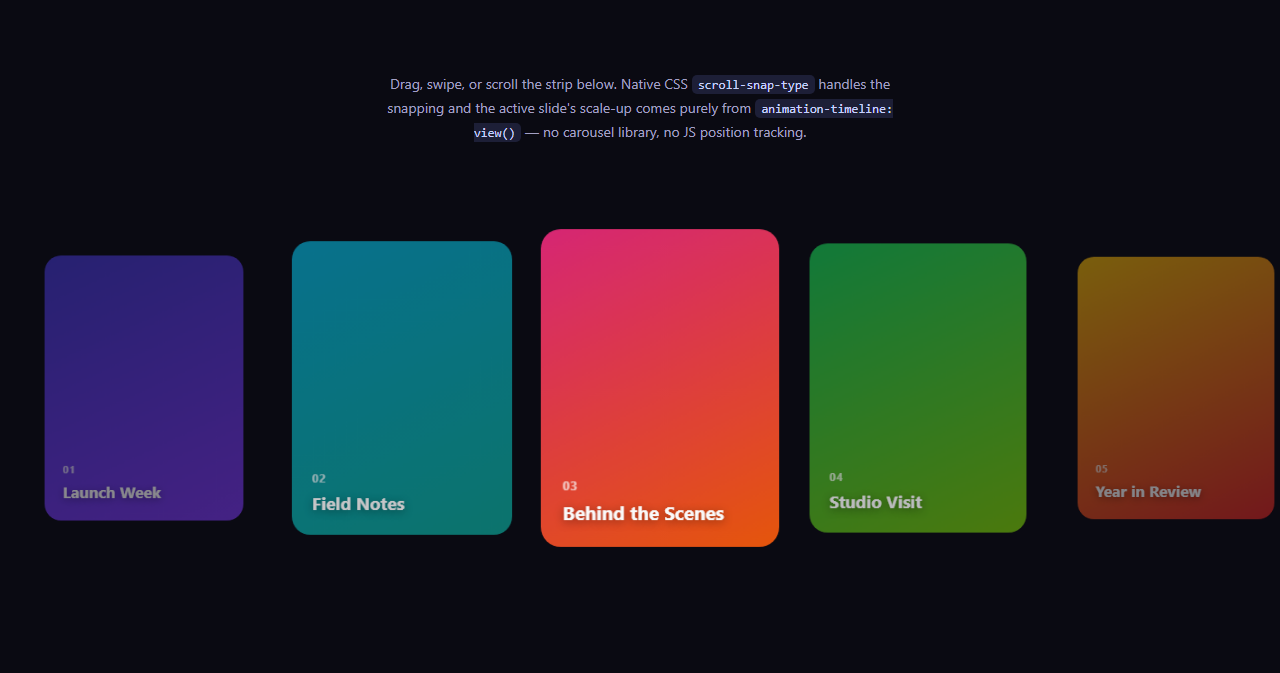
A "story" or "peek" carousel — a horizontal row of cards where the centered card is emphasized while neighbors sit smaller and dimmer at the edges — is normally built with a carousel library computing each slide's distance from center on scroll and writing an inline transform. This snippet builds the identical visual result with two entirely native CSS features working together: scroll-snap-type for the snapping mechanics, and a per-slide animation-timeline: view() for the scale-and-fade emphasis — zero JavaScript touches slide position at any point.
Two independent native systems, stacked
scroll-snap-type: x mandatory on .ssv-track plus scroll-snap-align: center on each .ssv-slide is the entire snapping mechanism — dragging, trackpad scrolling, and keyboard arrow navigation (once a slide receives focus) all snap crisply to the nearest slide's center with no JavaScript at all, the same technique behind Scroll Snap Peek Carousel. The scale-and-fade emphasis is a completely separate system layered on top: each slide's own view-timeline-axis: inline timeline, tracking that slide's transit across the horizontally scrolling track, drives a @keyframes animation that scales the slide up and fades it to full opacity right around the point it is centered.
Why contain instead of cover for animation-range
animation-range: contain 0% contain 100% uses the contain range rather than cover — contain represents the portion of the timeline during which the *entire* slide is contained within the scrollport, rather than any part of it being visible at all. For a slide that is narrower than the viewport, this produces a scale peak much closer to the slide's true centered position than cover would, since cover starts as soon as any single pixel of the slide is visible.
No carousel library, no active-index state
A typical JS carousel tracks an activeIndex in state and recomputes classes or inline styles for every slide whenever it changes. Here there is no index anywhere — each slide answers "how emphasized should I be right now" purely from its own view-timeline, so slides can be added, removed, or reordered in the DOM with no JavaScript changes required at all.
Browser support
scroll-snap-type has been supported everywhere for years and works today regardless of browser. The view-timeline-driven scale is the newer piece: Chromium-based browsers (Chrome, Edge, Opera, Brave) support animation-timeline: view() today, while Firefox and Safari support is still landing. An @supports not (animation-timeline: view()) block shows every slide at full scale and opacity in that case — the carousel still snaps and functions perfectly, it simply loses the scale emphasis.
Customizing it
Adjust the 0.82 minimum scale and .5 minimum opacity in @keyframes ssv-scale for a subtler or more dramatic emphasis, change the slide width or gap to control how many neighbors peek in at the edges, or add a small dot pagination indicator that mirrors scroll-snap-align targets via :target or a tiny scroll-position script for keyboard-only navigation. Pair it with Dot Pagination Carousel for an added position indicator.
Build with AI
Build, Understand, Optimize, and Extend It With AI
You don't have to work out the scroll-snap and view-timeline interplay by hand. Paste this snippet's HTML, CSS, and JS into an AI coding assistant like Claude and ask it to explain exactly why animation-range uses the contain keyword instead of cover for the active-slide scale peak, and how scroll-snap-align: center on each slide keeps that contain range's midpoint aligned with the slide's actual visually centered position. The same assistant is useful for extending the effect: ask it to add a small dot pagination row that stays in sync purely via CSS (or a tiny script) without maintaining duplicate index state, add autoplay via a periodic scrollIntoView call, or make the scale curve steeper so only the exact center slide stands out. Treat the code less like a finished artifact and more like a starting point for a conversation.
Prompt to recreate it
Copy this into your AI assistant of choice to build the effect from scratch, or as a jumping-off point for your own variant:
Build a horizontally scrolling "story" carousel where slides snap to center using native CSS scroll-snap, and the currently centered slide scales up and brightens purely from native CSS animation-timeline: view() — no carousel library, no JavaScript tracking of an active slide index or scroll position.

Requirements:
- A horizontally scrollable track with scroll-snap-type: x mandatory, containing several slide elements each with scroll-snap-align: center and a fixed flex-basis narrower than the track's visible width, so neighboring slides peek in at both edges.
- Every slide must declare view-timeline-axis: inline (not the default block) and its own view-timeline-name, then reference that timeline via animation-timeline on a keyframe animation applied to the same element.
- Use animation-range with the contain keyword (for example contain 0% contain 100%) rather than cover, so the scale peak aligns closely with the moment the slide is fully contained and centered in the scrollport, not just partially visible.
- The keyframes must animate transform: scale() and opacity so the slide starts smaller and dimmer, reaches full scale and full opacity at the midpoint of its contain range, and returns to smaller and dimmer as it exits — creating a continuous emphasis effect with no JavaScript computing which slide is "active."
- Do not maintain any activeIndex or similar JavaScript state — every slide must determine its own emphasis level purely from its own view timeline.
- Add an @supports not (animation-timeline: view()) fallback that shows every slide at full scale and full opacity (the carousel must remain fully functional via scroll-snap alone even without the scale effect).
- Keep any JavaScript limited to a CSS.supports('animation-timeline: view()') feature check logged to the console — it must not drive or track slide position itself.
Want to tighten it up first? Run this prompt through the AI Prompt Studio to score it across 8 quality dimensions, catch anti-patterns, and tune the wording for Claude, ChatGPT, or Gemini before you paste it in.
Step by step
How to Use
- 1Paste the HTML, CSS, and JSA five-slide horizontal scroll-snap carousel renders — no library needed.
- 2Drag or scroll the stripEach slide snaps to center; the centered slide scales up and brightens automatically.
- 3Try keyboard navigationFocus the track and use arrow keys or Tab — native scroll-snap handles keyboard scroll targets.
- 4Adjust the emphasis amountTune scale(.82) and opacity: .5 in @keyframes ssv-scale for a subtler or bolder effect.
- 5Change slide count or widthAdd, remove, or resize .ssv-slide elements — no JS index state to update anywhere.
- 6Export in your formatClick "HTML" for a standalone file, "JSX" for a React component, or "Tailwind" for a React + Tailwind version.
Real-world uses
Common Use Cases
Got questions?
Frequently Asked Questions
No. Snapping is entirely native scroll-snap-type and scroll-snap-align, and the scale/fade emphasis is entirely native animation-timeline: view(). The included JavaScript only logs whether the browser supports view() timelines — it never tracks slide position or drives the animation.
cover represents the range during which any part of the element is visible in the scrollport, starting the instant a single pixel appears. contain represents the range during which the entire element is fully contained within the scrollport at once. For a narrower-than-viewport slide, contain produces a peak much closer to the slide's true centered position than cover would.
It doesn't "know" in the sense of comparing itself to siblings — each slide's own view timeline simply reports how far through its contain range it currently is, and the @keyframes animation happens to peak in scale and opacity at the 50% keyframe stop, which corresponds to the middle of that range. Because scroll-snap-align: center pulls the active slide toward the viewport center, its contain range midpoint and its visually centered position coincide.
Yes. Every .ssv-slide computes its own emphasis from its own view-timeline-name, so there is no index array, no activeIndex state, and no per-slide JavaScript wiring to update — adding or removing a slide element in the HTML is the only change required.
The @supports not (animation-timeline: view()) block resets every slide to full scale and full opacity with no animation, so Firefox and Safari users still get a fully functional, native scroll-snap carousel — it simply does not scale the centered slide up.
Yes, all three work natively because scroll-snap-type is a browser-level scrolling feature, not a JS-simulated one. Touch drags, trackpad gestures, mouse wheel scrolling, and keyboard-driven scroll (once an element inside the track has focus) all trigger the same native snap behavior.