You Might Also Like
Learn Coding Visually
Learn to code with interactive, live-preview playgrounds — HTML, CSS, JavaScript, React & more.
 HTML Playground42 lessons · Click-based · Live preview
 CSS PlaygroundLearn CSS with a live editor
 JavaScript Playground60 lessons · DOM · Async · Canvas
 React PlaygroundLearn React with a live code editor
 GSAP PlaygroundLearn GSAP animation interactively
 SVG Playground44 lessons · shapes · paths · animation
 SCSS Playground45 lessons · Sass modules · tokens
 Tailwind PlaygroundLearn Tailwind CSS with a live editor
 Bootstrap 5 Playground50 lessons · live preview
Print-Optimized Table View — Real @media print Rules (HTML CSS JS)
Print-Optimized Table View · Tables · Plain HTML, CSS & JS · Live preview
What's included
Features
About this UI Snippet
Print-Optimized Table View — Clean Paper Output via Real @media print
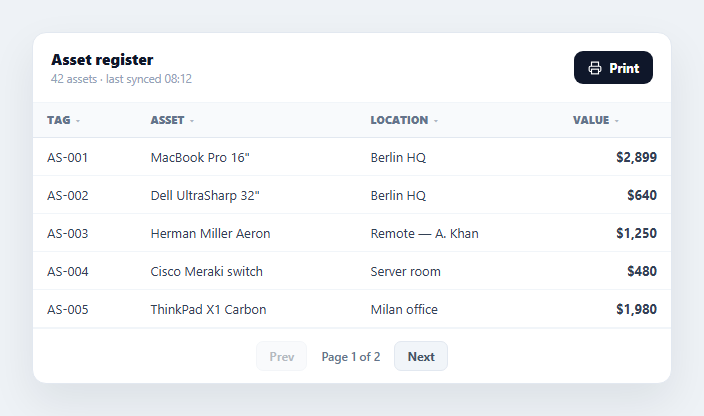
A table styled for a screen almost never looks right on paper — colored backgrounds waste ink, hover states and sort arrows are meaningless on a printed page, and rows can split awkwardly across a page break. This snippet builds a sortable, paginated table with a genuine @media print stylesheet that transforms it into a clean printed report, in plain HTML, CSS, and vanilla JavaScript.
Interactive chrome disappears on paper
The @media print block sets display: none on the header bar's Print button and the pagination controls — elements that mean nothing once ink is on paper. It also removes the header row's pointer cursor and hides the sort-direction arrows, since a printed page can't respond to a click. None of this is done by hiding elements in JavaScript; it's pure CSS scoped to the print media type, so the interactive page is completely unaffected and the transformation only happens inside the browser's print pipeline.
A dedicated print header, invisible on screen
A .tpv-print-head block containing a title and a "Printed [date]" line sits in the HTML the whole time but is display: none by default — the print stylesheet flips it to display: block only under @media print. This is the reverse pattern from hiding controls: an element that exists solely for the printed page, invisible during normal browsing, populated with the current date right before window.print() is called.
Forced black-on-white, ink-conscious styling
Screen styling uses colored header backgrounds and hover tints; the print block overrides all of that to plain black text on white with a simple black rule under the header, and turns off the hover background entirely (tbody tr:hover{background:none}) since a static printout can never be mid-hover. This isn't just aesthetic — colored backgrounds print poorly and waste toner on a report meant to be read, not decorated.
No row splits across a page break
page-break-inside: avoid on each <tr> tells the browser's print engine never to split a single row's content across two physical pages — without it, a taller row can render its top half on one page and the rest on the next, which is illegible. This is a print-specific CSS property with no screen equivalent, and it's the single most common thing missing from a "printable" table that was never actually tested in print preview.
Full data, not just the visible page
The visible UI paginates for on-screen usability (five rows per page with Prev/Next), but printing needs the complete dataset, not whichever page happens to be showing. Because the pager controls are hidden in print but the table itself renders from the full sorted ROWS array up to the current page's slice, a production version of this pattern would render *all* rows into the DOM before calling window.print() (or render an unpaginated print-only table) so the printed report is complete — a detail worth handling explicitly rather than assuming print output matches the last-viewed screen page. Pair this with a table export menu if you also want CSV/JSON alongside the print option.
Build with AI
Build, Understand, Optimize, and Extend It With AI
Instead of discovering print bugs only after actually printing, paste this snippet's HTML, CSS, and JS into an AI coding assistant like Claude and ask it to explain exactly why page-break-inside: avoid is applied to each table row rather than to the table as a whole, and why the print-only header block is kept in the DOM at all times with display: none instead of being injected dynamically only when printing. The same assistant can help extend it — ask it to render the full unpaginated dataset into a hidden print-only table right before window.print() so the printed report is always complete regardless of the on-screen page, add a page-number footer using CSS counters, or generate a real PDF via a headless-browser service instead of relying on the user's own print-to-PDF option. Treat the code less like a finished artifact and more like a starting point for a conversation.
Prompt to recreate it
Copy this into your AI assistant of choice to build the effect from scratch, or as a jumping-off point for your own variant:
Build a sortable, paginated data table with a working Print button and a real print-optimized stylesheet, in plain HTML, CSS, and JavaScript — no libraries.

Requirements:
- An on-screen table that supports click-to-sort column headers (toggling ascending/descending) and Prev/Next pagination over an in-memory array of row records.
- A Print button that, when clicked, populates a hidden print-only header element with the current date and then calls the browser's native window.print() function.
- A print-only header block (a title and a "Printed on [date]" line) that exists in the HTML at all times but is display: none by default, becoming visible only inside an @media print rule — verify it never appears during normal on-screen browsing.
- A real @media print CSS block that: hides the Print button and the pagination controls entirely (display: none); removes the sort-direction indicator icons and the header row's pointer cursor styling, since neither can do anything on paper; overrides any colored header backgrounds, borders, and hover-state backgrounds to plain black text on a white background, since a static printout can never be mid-hover and colored backgrounds waste ink.
- Apply page-break-inside: avoid to each table row specifically (not to the table as a whole) so that no single row's content is ever split across two physical pages when printed on paper with many rows.
- Verify using the browser's print preview that the on-screen sort/pagination controls, sort arrows, and Print button are completely absent from the printed output, while the print-only header with the stamped date is visible only there.
Want to tighten it up first? Run this prompt through the AI Prompt Studio to score it across 8 quality dimensions, catch anti-patterns, and tune the wording for Claude, ChatGPT, or Gemini before you paste it in.
Step by step
How to Use
- 1Paste HTML, CSS, and JSA sortable, paginated asset table renders with a Print button.
- 2Sort or page through itClick a header to sort; use Prev/Next to page — this is the normal on-screen view.
- 3Click PrintThe print date is stamped and window.print() opens the browser's print dialog.
- 4Check print previewThe Print button, pager, sort arrows, and hover states are all absent from the preview.
- 5Note the print headerA title and "Printed [date]" line appears only in the print output, never on screen.
- 6Look at row boundariespage-break-inside: avoid keeps each row intact even near a page break.
Real-world uses
Common Use Cases
Got questions?
Frequently Asked Questions
The @media print stylesheet sets display: none on the button's container, the .tpv-bar, and on the pagination controls, .tpv-pager. These rules only apply while the browser is rendering for print (print preview or an actual printer) — the on-screen page is completely unaffected, since the same elements have normal display values outside the media query.
It's a print-specific CSS property applied to each table row that instructs the browser's print engine not to split that row's content across two physical pages. Without it, a row that happens to fall near a page boundary can print its top half on one sheet and the remainder on the next, which is illegible — this property forces the whole row onto whichever page it fits on cleanly.
The .tpv-print-head element (a title and a "Printed [date]" line) exists in the DOM at all times but is display: none by default and only flips to display: block inside the @media print rules. This lets the printed page carry context — what the report is and when it was generated — without cluttering the on-screen interactive view, where that header would be redundant.
In this demo the table body reflects whatever page is currently sorted/paged on screen, since the pager is a live on-screen feature. For a production report you'd typically render the full dataset (or an unpaginated print-specific table) into the DOM right before calling window.print(), since a print reader expects the complete report, not just whichever page happened to be open.
Keep the @media print CSS exactly as global or component-scoped styles (print stylesheets aren't framework-specific), call window.print() from your Print button's click handler, and populate the print-only header's date via state right before printing. The sort/pagination logic and the print CSS are independent concerns and port separately.