You Might Also Like
Learn Coding Visually
Learn to code with interactive, live-preview playgrounds — HTML, CSS, JavaScript, React & more.
 HTML Playground42 lessons · Click-based · Live preview
 CSS PlaygroundLearn CSS with a live editor
 JavaScript Playground60 lessons · DOM · Async · Canvas
 React PlaygroundLearn React with a live code editor
 GSAP PlaygroundLearn GSAP animation interactively
 SVG Playground44 lessons · shapes · paths · animation
 SCSS Playground45 lessons · Sass modules · tokens
 Tailwind PlaygroundLearn Tailwind CSS with a live editor
 Bootstrap 5 Playground50 lessons · live preview
Table Inline Cell Validation — Real Per-Column Validators (HTML CSS JS)
Table Inline Cell Validation · Tables · Plain HTML, CSS & JS · Live preview
What's included
Features
About this UI Snippet
Table Inline Cell Validation — Genuine Per-Column Rules That Block Saving
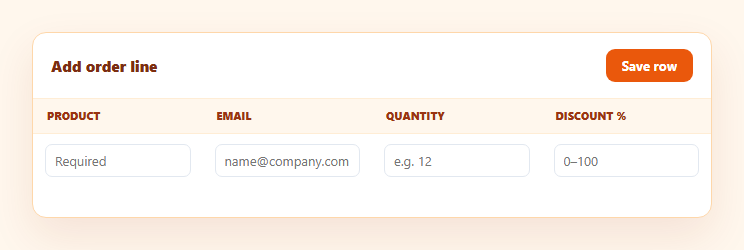
An editable table cell that accepts anything typed into it isn't actually editable data entry — it's a text box pretending to be a form. This snippet builds real per-column validation for an editable table row in plain HTML, CSS, and vanilla JavaScript: a dedicated validator function per field, a red outline and an inline error tooltip on invalid cells, and a Save action that's genuinely blocked until every cell in the row passes.
A real validator function per column
The VALIDATORS object maps each field name to a function that inspects the actual current value and returns an error message string (or an empty string when valid). product checks non-empty; email runs a real regex (/^[^\s@]+@[^\s@]+\.[^\s@]+$/) against the trimmed value; qty parses the value as a number and checks Number.isInteger(n) && n > 0; discount is optional but, if filled in, must parse to a number between 0 and 100. None of these are decorative — each genuinely inspects the live input value and computes a real pass/fail result, so typing "abc" into the quantity cell or "not-an-email" into the email cell is caught by actual logic, not styling alone.
Inline error tooltip, not just a red border
An invalid cell gets both a red input outline (.tcv-invalid .tcv-input) *and* a small speech-bubble-style message positioned directly beneath the offending input, showing the exact validator's message ("Enter a valid email address," "Quantity must be a positive whole number"). Color alone doesn't tell a user *why* a cell is wrong; the message does — and because it's populated by the validator's actual return value, the message always matches the real reason the cell failed.
Validated on input and blur, re-validated at save
Every input validates live as the user types (so the error clears the moment the value becomes correct) and again on blur. Clicking "Save row" runs validateAll() across every cell regardless of which was last touched, and only pushes the row into savedRows if every single validator passes — an invalid row is genuinely never accepted; the save function returns early and leaves the invalid cells highlighted rather than silently proceeding.
Real data on success, not a fake confirmation
A successfully validated row is pushed into a real savedRows array and rendered into a running log below the form, with a live count. This closes the loop: validation isn't a UI-only gate that then does nothing — passing it results in the row's data genuinely being captured, exactly the way a real save-to-server call would only fire after the same validation passed.
Extending to more columns or rules
Because every column's rule lives in one small function keyed by field name, adding a new validated column is one new VALIDATORS entry plus a matching cell and error span — no changes to validateField, validateAll, or the save handler. Pair this with an editable table for the broader inline-editing pattern, or a data table once validated rows need to live in a larger, sortable dataset.
Build with AI
Build, Understand, Optimize, and Extend It With AI
Rather than guessing which validation rules a real form should enforce, paste this snippet's HTML, CSS, and JS into an AI coding assistant like Claude and ask it to explain exactly what the email validator's regex does and doesn't catch, why the quantity validator uses Number.isInteger rather than just checking the value is truthy, and why the discount field's validator treats an empty string as valid while the other required fields don't. The same assistant can help extend it — ask it to add async validation (e.g. checking an email isn't already registered via a debounced API call), support validating and saving multiple rows at once instead of a single row, or add a "Discard changes" action that resets the row without saving. Treat the code less like a finished artifact and more like a starting point for a conversation.
Prompt to recreate it
Copy this into your AI assistant of choice to build the effect from scratch, or as a jumping-off point for your own variant:
Build an editable table row with real inline per-column validation in plain HTML, CSS, and JavaScript — no libraries.

Requirements:
- Four editable cells in one row: a required product-name text field, an email field, a quantity field, and an optional discount-percentage field.
- Implement a genuine validator function for each column (not decorative styling): the product validator must fail on an empty/whitespace-only value; the email validator must fail unless the trimmed value matches a real email-shaped regex pattern; the quantity validator must fail unless the value parses to a positive whole integer (reject empty, negative, decimal, and non-numeric input); the discount validator must pass on an empty value (it's optional) but, if a value is present, must fail unless it parses to a number between 0 and 100 inclusive.
- On every keystroke (input event) and on blur, re-run that specific field's validator against its current value and update that cell's UI: add a distinct red-outline style and show a small inline error tooltip positioned directly beneath the input when invalid, and remove both when the value becomes valid.
- The inline error tooltip's text must be the actual message returned by that field's validator, not a generic "invalid" label, so different failure reasons show different specific text.
- A "Save row" button must call every column's validator across the whole row (regardless of which field was last edited) and must NOT proceed with saving the row's data if any single cell fails — it should re-show the appropriate error state on every currently-invalid cell and stop.
- Only when every cell passes should the row's data actually be captured (e.g. pushed into an in-memory array and reflected in a small confirmation/log area), and the inputs should then clear for the next entry.
Want to tighten it up first? Run this prompt through the AI Prompt Studio to score it across 8 quality dimensions, catch anti-patterns, and tune the wording for Claude, ChatGPT, or Gemini before you paste it in.
Step by step
How to Use
- 1Paste HTML, CSS, and JSAn editable row renders with Product, Email, Quantity, and Discount % cells.
- 2Leave a field empty and click SaveRequired cells outline red with an inline error tooltip; the row is not saved.
- 3Type an invalid emailThe email cell fails its regex check and shows "Enter a valid email address."
- 4Type a negative or decimal quantityThe quantity cell fails its integer-and-positive check.
- 5Fix every cell and click SaveOnce all validators pass, the row is captured and appended to the log below.
- 6Add another ruleAdd a new key to VALIDATORS and a matching cell/error span for a new validated column.
Real-world uses
Common Use Cases
Got questions?
Frequently Asked Questions
They genuinely check it. Each entry in VALIDATORS is a function that receives the live input value and computes a real result — the email validator runs an actual regex test, the quantity validator calls Number.isInteger on the parsed value and checks it's greater than zero. The red outline and error message only appear because that function's return value was a non-empty error string, not because of any hardcoded styling rule.
No. Clicking Save row calls validateAll(), which runs every column's validator against its current value and returns false if any one fails. The save handler checks that return value and returns early without touching savedRows if it's false — so an invalid row genuinely never gets appended to the saved data or the log, it isn't just visually blocked.
Its validator returns no error for an empty value (since discounts aren't required), but if the user does type something, it must parse as a number between 0 and 100 — a non-numeric value or one outside that range still fails. This models a common real-world rule: a field can be optional while still needing to be well-formed whenever it is provided.
Exactly what the failing validator returned — "Product name is required," "Enter a valid email address," "Quantity must be a positive whole number," or "Discount must be a number from 0 to 100." Because the tooltip's text is set directly from the validator's return value, it always matches the real reason that specific cell is invalid rather than a generic "invalid input" message.
Keep the VALIDATORS map exactly as plain functions, store each field's current value and error message in component state, run the relevant validator on input/blur/save, and bind the invalid class and error text to that state. The validator functions themselves are framework-agnostic and don't need to change.