You Might Also Like
Learn Coding Visually
Learn to code with interactive, live-preview playgrounds — HTML, CSS, JavaScript, React & more.
 HTML Playground42 lessons · Click-based · Live preview
 CSS PlaygroundLearn CSS with a live editor
 JavaScript Playground60 lessons · DOM · Async · Canvas
 React PlaygroundLearn React with a live code editor
 GSAP PlaygroundLearn GSAP animation interactively
 SVG Playground44 lessons · shapes · paths · animation
 SCSS Playground45 lessons · Sass modules · tokens
 Tailwind PlaygroundLearn Tailwind CSS with a live editor
 Bootstrap 5 Playground50 lessons · live preview
Table Export Menu — CSV, JSON & Print, Real Working Downloads (JS)
Table Export Menu (CSV/JSON/Print) · Tables · Plain HTML, CSS & JS · Live preview
What's included
Features
About this UI Snippet
Table Export Menu — One Dropdown, Three Real Export Actions
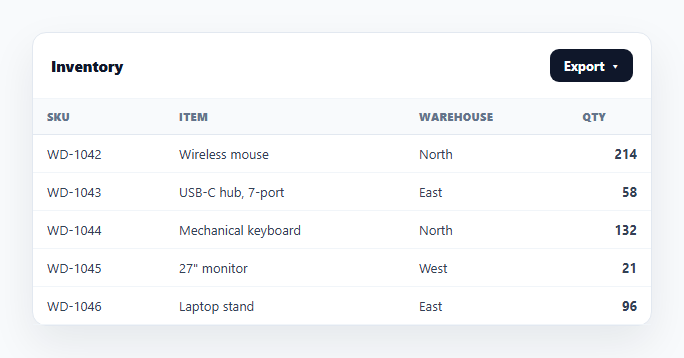
Most tables eventually need more than one export format — a CSV for spreadsheets, JSON for another tool to consume, and a clean printable page for a physical record. This snippet builds a single "Export ▾" dropdown with all three actions genuinely wired up in plain HTML, CSS, and vanilla JavaScript: correctly-escaped CSV, structured JSON matching the row data, and a real window.print() call against dedicated @media print rules — every action produces a real file or a real print dialog, nothing is a decorative button.
A real dropdown menu, not a static list
The "Export ▾" button toggles a positioned .tem-drop panel, closes on an outside click or Escape, and stops the toggle click from immediately re-triggering the document-level close listener via stopPropagation(). This is the standard, dependency-free dropdown pattern — no library, just a hidden attribute and two listeners.
CSV: RFC-4180 escaping, not naive joining
exportCsv() reuses the same csvCell() escaping rule as a dedicated CSV export table: values containing a comma, quote, or newline are wrapped in quotes with internal quotes doubled. A UTF-8 BOM is prepended so Excel reads accented characters correctly, and the result is downloaded via a Blob + temporary <a download> — entirely client-side.
JSON: the same row data as an array of objects
exportJson() calls JSON.stringify(ROWS, null, 2) directly on the same object array that renders the table — not a re-shaped or hand-written copy — so the exported JSON is guaranteed to match what's on screen, keyed by the same field names (sku, item, warehouse, qty). This is the format another script, API, or tool would actually want to consume, as opposed to the flat rows CSV needs.
Print: real @media print rules, not a fake preview
exportPrint() calls the browser's native window.print(). The page defines an @media print block that hides the export menu and the confirmation note, removes shadows/borders/hover backgrounds, and forces black-on-white table text — so what prints is a clean report, not a screenshot of the interactive UI with a floating button baked in. Because it's real @media print CSS and a real window.print() call, it works in the browser's actual print preview and any physical printer, not just as a stylized "looks printable" mockup.
One source of truth, three outputs
All three actions read from the same ROWS/COLUMNS/KEYS — there's no separate hardcoded string for any format, so adding a column or row updates all three exports and the visible table simultaneously. Pair this with a data table for sorting/filtering before export, or a dedicated print view if print is your primary export format.
Build with AI
Build, Understand, Optimize, and Extend It With AI
Instead of guessing which parts of a multi-format export menu are real, paste this snippet's HTML, CSS, and JS into an AI coding assistant like Claude and ask it to explain exactly how the same ROWS array feeds all three export paths — CSV via csvCell() escaping, JSON via a direct JSON.stringify, and print via a dedicated @media print stylesheet block — so none of the three formats can silently drift from what's rendered on screen. The same assistant can help extend it: ask it to add an XLSX export using a lightweight in-browser library, let the user pick which columns to include before exporting, or export only the currently filtered/selected rows instead of the full dataset. Treat the code less like a finished artifact and more like a starting point for a conversation.
Prompt to recreate it
Copy this into your AI assistant of choice to build the effect from scratch, or as a jumping-off point for your own variant:
Build a table with a single "Export ▾" dropdown menu offering three real, working export actions in plain HTML, CSS, and JavaScript — no libraries.

Requirements:
- A dropdown toggle button that shows/hides a menu panel with three items: Download CSV, Download JSON, Print view. The menu must close when clicking outside it or pressing Escape, and the toggle click must not immediately re-trigger the outside-click close handler.
- CSV export: build the CSV string with a proper RFC-4180 escaping function (quote and double-escape any field containing a comma, quote, or newline), prepend a UTF-8 byte-order-mark, and trigger a real file download via a Blob and a temporary anchor element with a download attribute — not a console.log or alert.
- JSON export: call JSON.stringify (pretty-printed) directly on the same in-memory array of row objects that renders the table, and trigger a real .json file download via the same Blob/anchor technique — the exported JSON must be an array of objects with the same keys as the table's data, not a hand-written or reshaped string.
- Print export: call the browser's native window.print() function, and define a real @media print CSS block that hides the export menu button and any confirmation/toast elements, removes box-shadows, colored backgrounds, and hover-only styles, and forces plain black text on a white background for the table — verify by using the browser's print preview that the menu is absent from the printed output.
- All three actions must derive from one shared array of row data — do not hardcode a separate string for any of the three formats — so adding or editing a row automatically updates all three export outputs and the visible table together.
- Show a brief confirmation message after CSV/JSON export stating how many rows were exported, auto-dismissing after a couple seconds, and make sure that message itself is hidden in the print output.
Want to tighten it up first? Run this prompt through the AI Prompt Studio to score it across 8 quality dimensions, catch anti-patterns, and tune the wording for Claude, ChatGPT, or Gemini before you paste it in.
Step by step
How to Use
- 1Paste HTML, CSS, and JSAn inventory table renders with an "Export ▾" button in the header.
- 2Open the menuClick Export to reveal Download CSV, Download JSON, and Print view.
- 3Download CSVA correctly-escaped, UTF-8 BOM-prefixed .csv file downloads immediately.
- 4Download JSONA .json file downloads containing the exact row objects as an array.
- 5Use Print viewTriggers the browser's print dialog against dedicated @media print styling that hides the menu.
- 6Close the menuClick outside or press Escape to dismiss the dropdown without exporting.
Real-world uses
Common Use Cases
Got questions?
Frequently Asked Questions
Yes. CSV and JSON both build a real Blob and trigger a genuine file download via a temporary anchor element — open the downloaded files and they contain the actual row data, correctly escaped for CSV and structured as an array of objects for JSON. Print calls the browser's real window.print() against dedicated @media print CSS, so it opens the actual print dialog, not a styled mockup.
Without @media print rules, printing the page would output the interactive UI as-is — the Export button, hover states, shadows, and colored backgrounds baked onto paper. The @media print block hides the menu and note entirely, strips shadows and borders, and forces plain black-on-white text so the printed page reads like a clean report.
Yes — exportJson() calls JSON.stringify directly on the same ROWS array of objects that renders the table body, with no reshaping. So the field names and values in the downloaded JSON are exactly what's rendered, keyed by sku/item/warehouse/qty.
Microsoft Excel doesn't assume UTF-8 by default and can mangle accented or non-Latin characters without a byte-order mark. Prepending \ufeff signals UTF-8 to Excel so names and text with accents open correctly, while remaining invisible to other tools like Google Sheets.
Keep drop-open state in a boolean, and put the exportCsv/exportJson/exportPrint logic in the menu item's click handlers — all three functions (Blob creation, anchor download, window.print) are plain browser APIs that work identically inside any framework's event handlers.