Learn Coding Visually
Learn to code with interactive, live-preview playgrounds — HTML, CSS, JavaScript, React & more.
 HTML Playground42 lessons · Click-based · Live preview
 CSS PlaygroundLearn CSS with a live editor
 JavaScript Playground60 lessons · DOM · Async · Canvas
 React PlaygroundLearn React with a live code editor
 GSAP PlaygroundLearn GSAP animation interactively
 SVG Playground44 lessons · shapes · paths · animation
 SCSS Playground45 lessons · Sass modules · tokens
 Tailwind PlaygroundLearn Tailwind CSS with a live editor
 Bootstrap 5 Playground50 lessons · live preview
Fly to Cart Button — Add-to-Cart Animation UI
Fly to Cart Button · Buttons · Plain HTML, CSS & JS · Live preview
What's included
Features
About this UI Snippet
Fly to Cart Button — Product-to-Cart Flight Animation with Count Bump
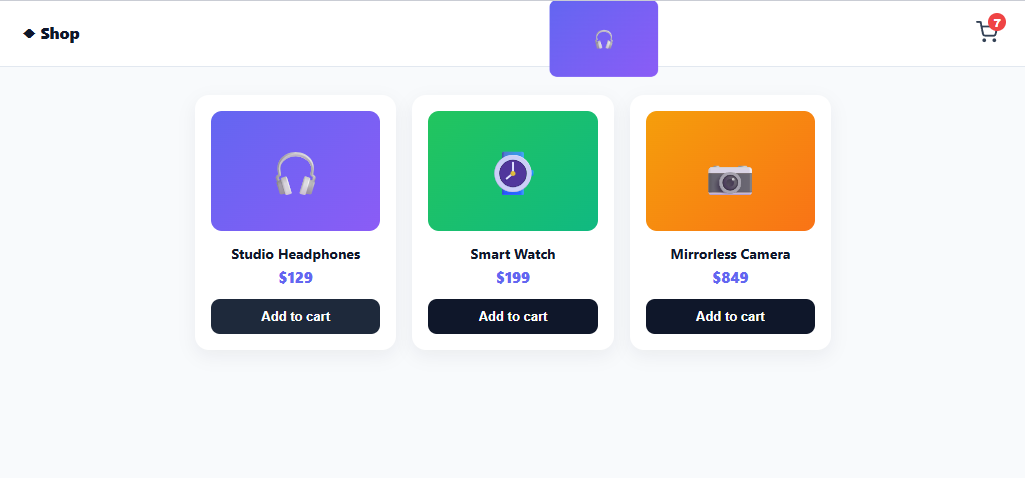
The little animation where, on "add to cart," a copy of the product arcs across the screen and lands in the cart icon — which then pops and increments — is a small moment of e-commerce delight that also does real work: it confirms the action and shows the user exactly where their item went. This snippet builds that fly-to-cart effect in plain HTML, CSS, and vanilla JavaScript using the Web Animations API, with no library.
A flying clone from source to target
When a product's "Add to cart" is clicked, fly() measures the product image's position with getBoundingClientRect() and the cart icon's position the same way, then creates a fixed-position clone of the product styled to match it. The clone animates from the product's location to the cart's center, computing the exact pixel delta (dx, dy) between the two so it lands precisely on the cart no matter where either sits on screen or how the page has scrolled. Because both positions are measured at click time, it works for any product card in any layout.
An arc, not a straight line
A straight line from product to cart looks robotic; real "thrown into the cart" motion follows an arc. The animation uses a three-keyframe path with a midpoint that lifts upward (dy × 0.5 − 80px) before descending to the cart, and a slightly overshooting cubic-bezier easing, so the clone curves up and over like a tossed object. It also shrinks (scale(1) → scale(.12)) and fades as it approaches, so it appears to "drop into" the cart rather than collide with it. This arc-and-shrink is what sells the illusion.
The cart reacts on arrival
The animation's onfinish callback is where the cart responds: the flying clone is removed, the cart count increments and becomes visible, and the cart icon plays a quick scale "bump" (via a forced-reflow class restart so it replays on every add). Timing the count bump to the *arrival* — not the click — is the key detail: the number changes exactly when the item visually lands, so cause and effect line up and the interaction reads as one continuous motion.
Web Animations API over CSS keyframes
The flight uses element.animate() (the Web Animations API) rather than CSS @keyframes because the keyframe values are computed at runtime — the dx/dy deltas differ for every product and every scroll position, so they can't be hardcoded in a stylesheet. WAA lets you pass dynamic keyframes as JavaScript objects and gives a clean onfinish promise/callback, which is exactly what a position-dependent, one-shot animation needs. The clone is also pointer-events: none so it never blocks clicks mid-flight.
Drop-in for any storefront
The effect attaches via one delegated listener on the product grid, so it works for any number of products and any dynamically-added cards. Each "Add" button carries the product's image reference; in a real store you'd also push the item to your cart state in the onfinish (right when the count bumps). Swap the emoji product images for real photos and the clone will fly the actual product image into the cart.
Build with AI
Build, Understand, Optimize, and Extend It With AI
You don't have to work out the flight geometry by hand. Paste this snippet's HTML, CSS, and JS into an AI coding assistant like Claude and ask it to explain exactly why the fly function computes dx and dy from getBoundingClientRect on both elements at click time rather than using any fixed offset, and why the middle keyframe subtracts 80 from half the vertical delta to create the arc instead of a straight two-keyframe tween. The same assistant can help optimize it — ask whether rapid repeated clicks on multiple Add to cart buttons could create overlapping animate() calls that need throttling, or whether cloning computed styles with getComputedStyle for the background is the cheapest way to match the product image's appearance. It's also useful for extending it: have it fly the actual product photo instead of an emoji, add a subtle rotation to the arc for more physicality, or trigger a wishlist-icon variant of the same flight using a second target element. Treat the code less like a finished artifact and more like a starting point for a conversation.
Prompt to recreate it
Copy this into your AI assistant of choice to build the effect from scratch, or as a jumping-off point for your own variant:
Build an "add to cart" flight animation in plain HTML, CSS, and JavaScript using the Web Animations API (element.animate) — no CSS keyframes, no libraries, since the animation path must be computed at runtime from live element positions.

Requirements:
- A page with a sticky header containing a cart icon button (with a small numeric badge, hidden until the first item is added) and a grid of product cards, each with an image area and an "Add to cart" button.
- On clicking a product's add button, measure that product's image element's bounding rectangle and the cart icon's bounding rectangle with getBoundingClientRect, then create a fixed-position clone element sized and positioned to exactly match the product image (matching its background via getComputedStyle), and append it to the document body.
- Compute the pixel delta between the center of the cart icon and the center of the product image, and animate the clone through three keyframes: starting at its original position and full scale and opacity, passing through a midpoint that is offset horizontally by half the total delta but vertically lifted well above the straight-line path (so the motion arcs upward before descending), and ending at the full delta translation with the clone shrunk to roughly a tenth of its size and partially faded — using an easing curve that overshoots slightly for a tossed, physical feel.
- The clone must have pointer-events disabled so it never blocks clicks while it's mid-flight.
- Only when the animation's onfinish callback fires (not on the initial click) should the clone be removed from the DOM, the cart count be incremented and made visible, and the cart icon play a quick scale "bump" animation restarted via a forced reflow (removing and re-adding an animation class) so it replays correctly on every single add, even in rapid succession.
- Wire this with a single delegated click listener on the product grid container (not one listener per button), so the same code works for any number of product cards.
Want to tighten it up first? Run this prompt through the AI Prompt Studio to score it across 8 quality dimensions, catch anti-patterns, and tune the wording for Claude, ChatGPT, or Gemini before you paste it in.
Source Code
<div class="ftc-page">
  <header class="ftc-bar">
    <span class="ftc-logo">◆ Shop</span>
    <button type="button" class="ftc-cart" id="ftcCart" aria-label="Cart">
      <svg width="22" height="22" viewBox="0 0 24 24" fill="none" stroke="currentColor" stroke-width="2" stroke-linecap="round" stroke-linejoin="round"><circle cx="9" cy="21" r="1"/><circle cx="20" cy="21" r="1"/><path d="M1 1h4l2.68 13.39a2 2 0 0 0 2 1.61h9.72a2 2 0 0 0 2-1.61L23 6H6"/></svg>
      <span class="ftc-count" id="ftcCount" hidden>0</span>
    </button>
  </header>

  <div class="ftc-products" id="ftcProducts">
    <article class="ftc-product">
      <div class="ftc-img" style="background:linear-gradient(135deg,#6366f1,#8b5cf6)">🎧</div>
      <h3>Studio Headphones</h3>
      <p class="ftc-price">$129</p>
      <button type="button" class="ftc-add" data-img="🎧">Add to cart</button>
    </article>
    <article class="ftc-product">
      <div class="ftc-img" style="background:linear-gradient(135deg,#22c55e,#10b981)">⌚</div>
      <h3>Smart Watch</h3>
      <p class="ftc-price">$199</p>
      <button type="button" class="ftc-add" data-img="⌚">Add to cart</button>
    </article>
    <article class="ftc-product">
      <div class="ftc-img" style="background:linear-gradient(135deg,#f59e0b,#f97316)">📷</div>
      <h3>Mirrorless Camera</h3>
      <p class="ftc-price">$849</p>
      <button type="button" class="ftc-add" data-img="📷">Add to cart</button>
    </article>
  </div>
</div>*{box-sizing:border-box;margin:0;padding:0}
body{font-family:system-ui,-apple-system,sans-serif;background:#f8fafc;min-height:100vh}
.ftc-bar{position:sticky;top:0;display:flex;align-items:center;justify-content:space-between;background:#fff;padding:14px 22px;border-bottom:1px solid #e2e8f0;z-index:10}
.ftc-logo{font-size:16px;font-weight:800;color:#0f172a}
.ftc-cart{position:relative;border:none;background:none;color:#334155;cursor:pointer;padding:6px;border-radius:10px;transition:transform .2s}
.ftc-cart.bump{animation:ftcBump .4s}
@keyframes ftcBump{0%,100%{transform:scale(1)}40%{transform:scale(1.25)}}
.ftc-count{position:absolute;top:-2px;right:-2px;min-width:18px;height:18px;background:#ef4444;color:#fff;font-size:10.5px;font-weight:800;border-radius:999px;display:flex;align-items:center;justify-content:center;padding:0 4px}
.ftc-count[hidden]{display:none}
.ftc-products{display:grid;grid-template-columns:repeat(auto-fit,minmax(180px,1fr));gap:16px;padding:28px 22px;max-width:680px;margin:0 auto}
.ftc-product{background:#fff;border-radius:14px;padding:16px;text-align:center;box-shadow:0 6px 18px rgba(15,23,42,.06)}
.ftc-img{height:120px;border-radius:11px;display:flex;align-items:center;justify-content:center;font-size:44px;margin-bottom:13px}
.ftc-product h3{font-size:14px;font-weight:700;color:#0f172a;margin-bottom:4px}
.ftc-price{font-size:15px;font-weight:800;color:#6366f1;margin-bottom:12px}
.ftc-add{width:100%;background:#0f172a;color:#fff;border:none;border-radius:9px;padding:10px;font-size:13px;font-weight:700;cursor:pointer;transition:background .15s}
.ftc-add:hover{background:#1e293b}
/* The flying clone that animates from the product to the cart. */
.ftc-fly{position:fixed;z-index:50;display:flex;align-items:center;justify-content:center;border-radius:12px;font-size:30px;pointer-events:none;will-change:transform,opacity}var cart = document.getElementById('ftcCart');
var countEl = document.getElementById('ftcCount');
var count = 0;
function bumpCart() {
count++;
countEl.hidden = false;
countEl.textContent = count;
cart.classList.remove('bump');
void cart.offsetWidth;
cart.classList.add('bump');
}
function fly(fromEl, emoji) {
var img = fromEl.closest('.ftc-product').querySelector('.ftc-img');
var start = img.getBoundingClientRect();
var end = cart.getBoundingClientRect();
var clone = document.createElement('div');
clone.className = 'ftc-fly';
clone.textContent = emoji;
clone.style.left = start.left + 'px';
clone.style.top = start.top + 'px';
clone.style.width = start.width + 'px';
clone.style.height = start.height + 'px';
clone.style.background = getComputedStyle(img).background;
document.body.appendChild(clone);
// Target: center of the cart icon, shrunk to a small dot.
var dx = (end.left + end.width / 2) - (start.left + start.width / 2);
var dy = (end.top + end.height / 2) - (start.top + start.height / 2);
var anim = clone.animate([
{ transform: 'translate(0,0) scale(1)', opacity: 1, offset: 0 },
{ transform: 'translate(' + dx * 0.5 + 'px,' + (dy * 0.5 - 80) + 'px) scale(.6)', opacity: 1, offset: 0.6 },
{ transform: 'translate(' + dx + 'px,' + dy + 'px) scale(.12)', opacity: .4, offset: 1 },
], { duration: 750, easing: 'cubic-bezier(.5,-0.2,.3,1)' });
anim.onfinish = function () { clone.remove(); bumpCart(); };
}
document.getElementById('ftcProducts').addEventListener('click', function (e) {
var btn = e.target.closest('.ftc-add');
if (btn) fly(btn, btn.dataset.img);
});Step by step
How to Use
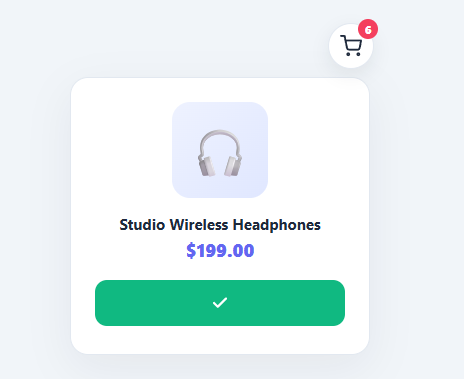
- 1Paste HTML, CSS, and JSA mini storefront renders with a sticky cart icon and three products, each with an "Add to cart" button.
- 2Add a productClick "Add to cart" — a clone of the product arcs up and across the screen into the cart icon.
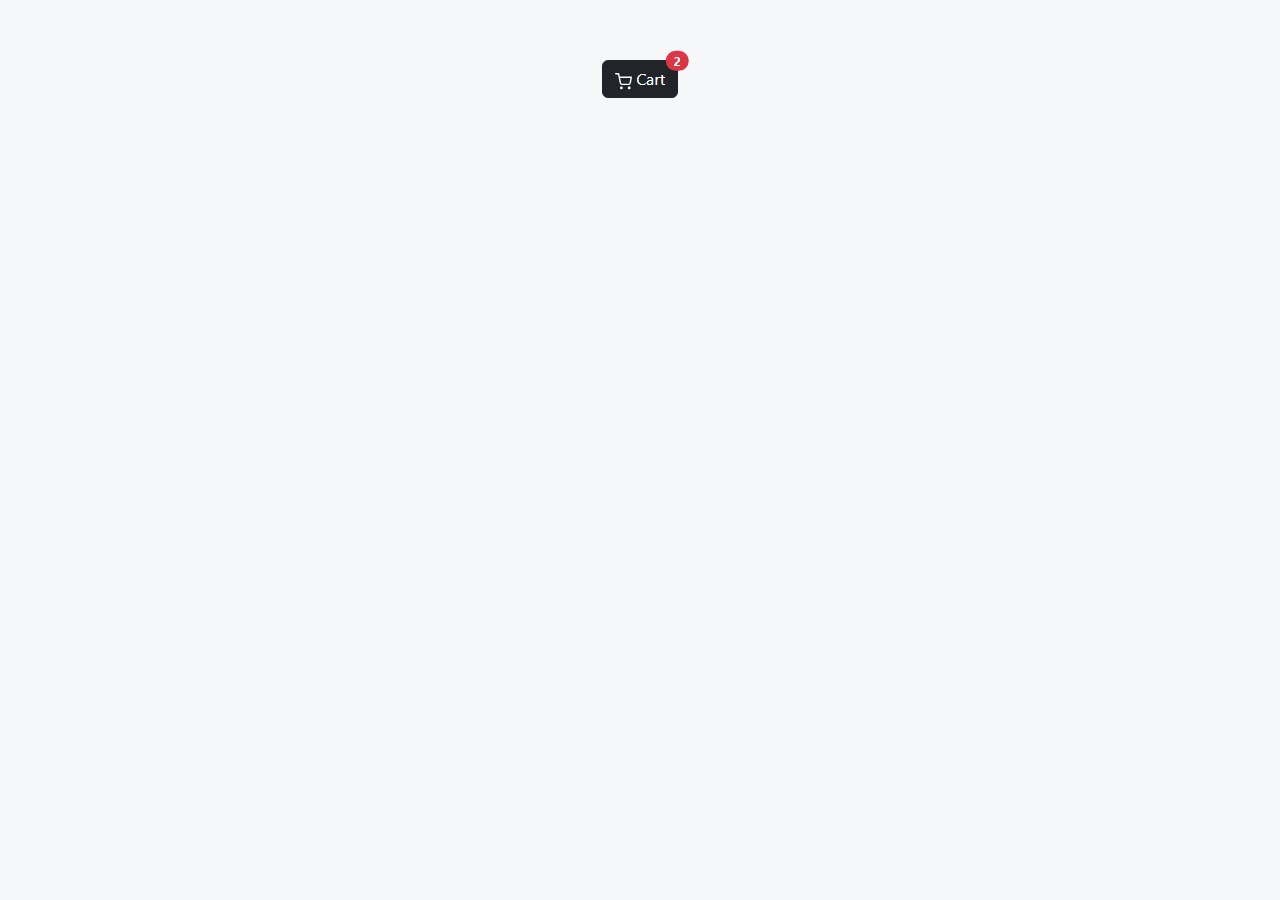
- 3Watch the cart reactAs the clone lands, the cart count increments and becomes visible, and the cart icon pops with a bump.
- 4Add severalAdd multiple products — each flight is independent and the count climbs, bumping on every arrival.
- 5Use real product imagesReplace the emoji/gradient images with real product photos — the clone flies the actual image.
- 6Hook up your cartIn the animation's onfinish, push the item to your real cart state right as the count bumps.
Real-world uses
Common Use Cases
Got questions?
Frequently Asked Questions
fly() reads both the product image's and the cart icon's bounding rectangles with getBoundingClientRect() at the moment of the click, then computes the pixel delta between their centers (dx, dy). The clone is fixed-positioned at the product's spot and animated by exactly that delta, so it lands on the cart regardless of layout, screen size, or scroll position — all measured fresh each time.
The keyframe values depend on runtime measurements — the dx/dy deltas are different for every product and every scroll position, so they can't be written into a static stylesheet. element.animate() accepts keyframes as JavaScript objects (so you can interpolate the computed deltas) and provides a clean onfinish callback to trigger the cart bump exactly when the flight ends, which CSS keyframes can't do as cleanly.
Increment the count in the animation's onfinish callback, not on the click — so the number changes precisely when the flying clone visually lands in the cart. Timing it to arrival makes the cause (item lands) and effect (count rises) read as one continuous motion; bumping on click would make the number jump before the item arrives.
In the onfinish callback (alongside the count bump), dispatch the add-to-cart action to your store/context or POST to your cart API with the product id. Keep the optimistic count bump so the UI feels instant; reconcile with the server response if needed. The animation is purely visual — your cart data is updated separately at the same moment.
In React, attach the click handler and run element.animate() imperatively with refs to the product and cart nodes, updating cart state in onfinish; in Vue, use template refs and @click; in Angular, use ViewChild and (click). The measurement and Web Animations API logic are framework-agnostic — only the cart count moves into reactive state, updated in the onfinish callback.