Learn Coding Visually
Learn to code with interactive, live-preview playgrounds — HTML, CSS, JavaScript, React & more.
 HTML Playground42 lessons · Click-based · Live preview
 CSS PlaygroundLearn CSS with a live editor
 JavaScript Playground60 lessons · DOM · Async · Canvas
 React PlaygroundLearn React with a live code editor
 GSAP PlaygroundLearn GSAP animation interactively
 SVG Playground44 lessons · shapes · paths · animation
 SCSS Playground45 lessons · Sass modules · tokens
 Tailwind PlaygroundLearn Tailwind CSS with a live editor
 Bootstrap 5 Playground50 lessons · live preview
Checkout Payment Form — Card UI HTML CSS JS Snippet
Checkout Payment Form · Forms · Plain HTML, CSS & JS · Live preview
What's included
Features
/(\d{4})(?=\d)/g inserts spaces every 4 digits — turns raw input into the familiar "1234 5678" format in real-time..valid) on correct input, red border (.invalid) on partial/invalid — fires on oninput for immediate positive feedback.applyPromo() updates the discount row, total row, and pay button label simultaneously — ensures all three stay in sync.position: sticky; top: 20px on the summary panel — stays visible while the form scrolls on tall viewports.About this UI Snippet
Checkout Form — Card Number Formatting, Expiry Mask, Card Type Detection & Order Summary
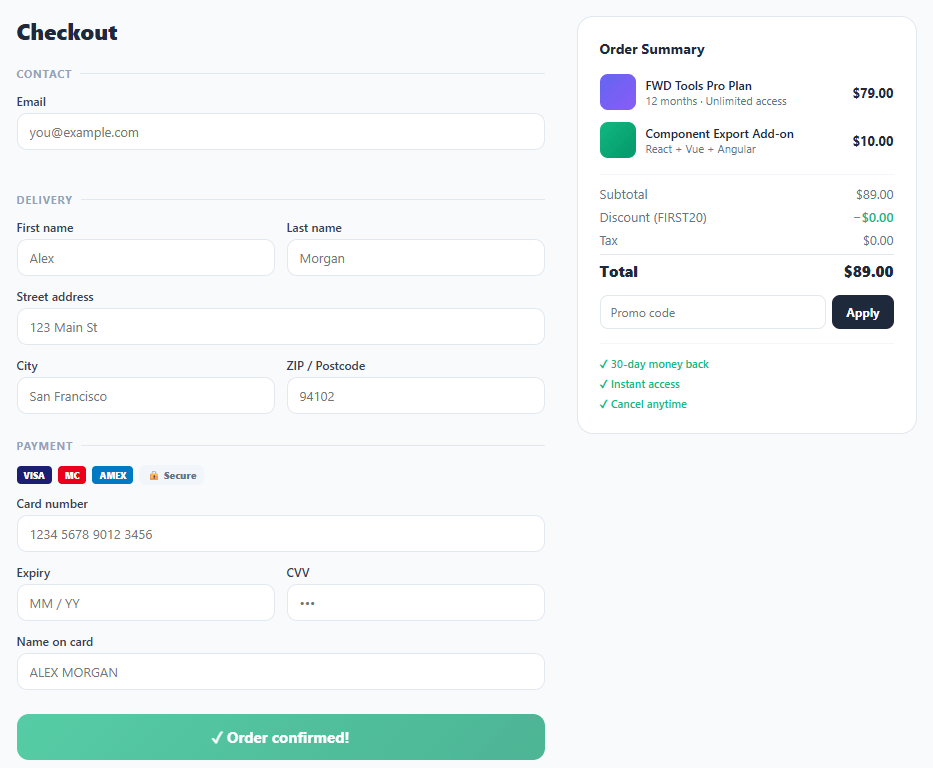
The checkout form is the most conversion-critical UI component in e-commerce — every friction point costs revenue. A production-quality checkout must handle card number formatting (auto-spaces every 4 digits), expiry masking (MM / YY format), CVV restriction (digits only), card type detection (Visa/Mastercard/Amex from first digit), inline field validation, loading state, success state, and an order summary with promo code input. This snippet delivers all of these in a two-panel checkout layout.
Checkout UX is one of the most studied areas of e-commerce conversion optimisation. According to Baymard Institute, 18% of cart abandonment is caused by "too long / complicated checkout process." The techniques in this snippet directly address the most common friction points: card number spacing (reduces input errors), live field validation (catches errors before submit), and a visible order summary (confirms what the user is paying for).
Card number auto-formatting
The formatCard function strips non-digits from the input, slices to 16 characters, then applies a regex replacement /(\d{4})(?=\d)/g to insert a space after every 4th digit. The result is the 1234 5678 9012 3456 format users expect from physical card numbers. The function also detects the card type from the first digit: 4 → Visa, 5 → Mastercard, 3 → Amex. The type indicator updates inline in the card number field, providing immediate feedback on which network the card belongs to.
Expiry date masking
The formatExpiry function strips non-digits, takes the first 4, and inserts / after position 2. The user types "1226" and sees "12 / 26" — the format that exactly matches the physical card. The maxlength="7" attribute limits input to "MM / YY" (7 characters including spaces and slash).
Inline validation with visual state
Each field gets .valid (green border) or .invalid (red border) class toggled on input. Email validation uses a simple regex /^[^\s@]+@[^\s@]+\.[^\s@]+$/. Text fields validate as valid when length ≥ 2. The validation fires on oninput (not onblur) to give immediate positive feedback as the user types, which has been shown to reduce form abandonment compared to blur-only validation.
Promo code with order total update
The promo code input triggers an applyPromo function that checks for known codes and updates the discount row and total in the order summary. The pay button label also updates to reflect the new total — ensuring the amount shown on the button always matches the order summary. In production, promo validation would be a server-side API call. Pair with a modal for a promo code success confirmation overlay.
Build with AI
Build, Understand, Optimize, and Extend It With AI
Rather than assuming the card formatting regex is self-explanatory, paste this snippet's HTML, CSS, and JS into an AI coding assistant like Claude and ask it to explain exactly how the lookahead in the card-number regex inserts a space after every fourth digit without adding a trailing space, and why formatCard() detects card type from just the first digit rather than the full BIN range real payment processors use. The same assistant can help you harden it — ask whether validating on oninput instead of onblur/submit could show a false "invalid" state while a user is still mid-typing a valid email, and how you'd fix that UX rough edge. It's also a good partner for extending the form: ask it to add real Luhn-algorithm validation on the card number, wire submitOrder() to actual Stripe Elements instead of a fake setTimeout, or add a billing-address-differs-from-shipping toggle. Treat the code less like a finished artifact and more like a starting point for a conversation.
Prompt to recreate it
Copy this into your AI assistant of choice to build the effect from scratch, or as a jumping-off point for your own variant:
Build a two-panel "checkout payment form" in plain HTML, CSS, and JavaScript — no payment library, this is UI only (no real card processing).

Requirements:
- A left column with contact, delivery, and payment sections, and a right column showing a sticky order summary (line items, subtotal, discount, tax, total) that stays visible while the left column scrolls on tall viewports, collapsing to a single stacked column below a defined breakpoint.
- A card number input that strips all non-digit characters on every keystroke, caps the digits at 16, and re-inserts a single space after every group of 4 digits using a regex with a lookahead (so a trailing space is never added after the last group), while simultaneously detecting and displaying the card network name (e.g. based on whether the digit string starts with 4, 5, or 3) in an inline indicator inside the same field.
- An expiry input that strips non-digits, caps at 4 digits, and automatically inserts " / " after the second digit as the user types, matching the physical card's MM/YY format.
- A CVV input restricted to digits only, stripping any non-numeric character immediately as it's typed.
- Per-field inline validation that toggles a valid or invalid CSS class (distinct border colors) as the user types: email validated against a simple pattern requiring an @ and a dot, other required text fields considered valid at 2+ characters.
- A promo code field that, when a specific code is entered and applied, updates the discount line, the total line, and the submit button's displayed amount all at once so the three never fall out of sync.
- A submit button that, on click, disables itself, shows a spinner icon with a label like "Processing…", and after a short simulated delay switches to a success state with different button text and a different background color.
Want to tighten it up first? Run this prompt through the AI Prompt Studio to score it across 8 quality dimensions, catch anti-patterns, and tune the wording for Claude, ChatGPT, or Gemini before you paste it in.
Step by step
How to Use
- 1Paste HTML, CSS, and JSA two-column checkout appears: form on the left (contact, delivery, payment), order summary on the right with two line items and a total.
- 2Type a card numberNumbers auto-format into groups of 4 (1234 5678...). Starting with 4 shows "VISA" in the field; 5 shows "MC"; 3 shows "AMEX".
- 3Type the expiry dateType "1226" — it formats to "12 / 26" automatically. Try any MM YY combination.
- 4Enter the promo codeType
FIRST20in the promo field and click Apply — the discount updates to −$17.80 and the pay button changes to "Pay $71.20". - 5Click PayThe button shows a spinning loader for 2.2 seconds, then changes to "✓ Order confirmed!" with a green gradient.
- 6Check inline validationType a partial email address — the field border turns red. Complete the email — it turns green. Same for all text fields with 2+ characters.
Real-world uses
Common Use Cases
Got questions?
Frequently Asked Questions
Replace the mock submitOrder with Stripe Elements or Stripe.js. Use stripe.createPaymentMethod({type: 'card', card: elements.getElement('card')}) to tokenise the card. Send the paymentMethod.id to your server, create a PaymentIntent via the Stripe API, and confirm it client-side. Never send raw card numbers to your server.
Add a checkbox "Same as delivery address" above the payment section. When checked, copy the delivery fields to hidden billing fields on submit. When unchecked, show the billing address fields below the payment section.
Add a validateAll() function that checks all required fields. Call it in submitOrder() before the loading state. Collect all invalid field IDs, focus the first one, and return early if any are invalid. Show a summary error message above the pay button listing what needs to be completed.
Use React Hook Form (useForm) for field management. Each input uses register('fieldName', {required: true, pattern: ...}). Card formatting uses onChange handlers calling the format functions. The pay button state is const [status, setStatus] = useState('idle') — 'idle', 'loading', 'success'. The order summary is a separate OrderSummary component accepting {items, discount, total} props.