Learn Coding Visually
Learn to code with interactive, live-preview playgrounds — HTML, CSS, JavaScript, React & more.
 HTML Playground42 lessons · Click-based · Live preview
 CSS PlaygroundLearn CSS with a live editor
 JavaScript Playground60 lessons · DOM · Async · Canvas
 React PlaygroundLearn React with a live code editor
 GSAP PlaygroundLearn GSAP animation interactively
 SVG Playground44 lessons · shapes · paths · animation
 SCSS Playground45 lessons · Sass modules · tokens
 Tailwind PlaygroundLearn Tailwind CSS with a live editor
 Bootstrap 5 Playground50 lessons · live preview
Add to Cart Button — Fly Animation HTML CSS JS Snippet
Add to Cart Button · Buttons · Plain HTML, CSS & JS · Live preview
What's included
Features
.loading and .done classes — idle → loading → success → reset, all in CSS opacity transitions.getBoundingClientRect measures button and cart; a fixed dot animates with translate + scale on an arc and removes itself on transitionend.position: fixed on body, so it lands accurately no matter where the product sits or how far the page is scrolled.cubic-bezier spring from scale(0) and re-bumps on each add via a forced-reflow class restart.atc-shake keyframe nudges the cart on arrival, reinforcing that an item just landed.busy flag and disabled button ignore clicks mid-animation, preventing overlapping cycles from rapid tapping.cubic-bezier(.2,1.5,.4,1) scale and a green button, an unmistakable success signal.About this UI Snippet
Add to Cart Button — Fly-to-Cart Dot, Loading→Success State Machine & Springing Badge
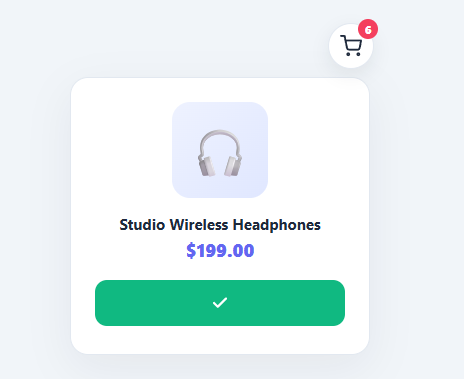
The add-to-cart button is the most important button in commerce. The moment it is clicked decides whether a browsing session becomes revenue, and the feedback it gives in that moment shapes whether the shopper trusts that the item was actually added. A button that silently does nothing for 400ms feels broken; a button that shows progress, confirms success, and visibly sends the product into the cart feels reliable and delightful. This snippet implements that full experience in plain HTML, CSS, and vanilla JavaScript: a three-state button, a dot that flies from the button into the cart icon, and a badge counter that springs and bumps.
Loading → success state machine
The button holds three overlaid elements — a label, a spinner, and a checkmark — all absolutely centred. addToCart walks them through a state machine using classes. On click it adds .loading (label fades out, spinner fades in and rotates), then after a short delay swaps to .done (spinner out, green background, checkmark pops in with a spring, label becomes "Added"), and finally reverts to idle. A busy guard ignores clicks while a cycle is in progress, so rapid clicking cannot desync the states.
Fly-to-cart dot
This is the signature effect. flyToCart measures the button and the cart icon with getBoundingClientRect, creates a fixed-position dot at the button's centre, and on the next animation frame applies a transform: translate(dx, dy) scale(.4) with a cubic-bezier transition that has a slight negative control point — giving the dot a subtle arc rather than a straight line. The dot fades as it travels and removes itself on transitionend. Because it is position: fixed and appended to body, it flies correctly regardless of scroll position or where the product sits on the page.
Springing, bumping badge
When the dot lands, landInCart increments the count, reveals the badge with a spring scale (it starts at scale(0)), and re-triggers a bump keyframe via a forced reflow so every subsequent add visibly pulses the number. The cart icon itself does a quick shake, reinforcing that something just arrived. Synchronising the badge update to the dot's arrival — not the button click — is the detail that makes the whole thing feel physically connected: the count goes up exactly when the product "drops in".
Production-ready structure
The 650ms loading delay stands in for a network request; replace it with your real add-to-cart API call and trigger the .done state on the resolved promise. The fly animation and badge logic stay exactly the same. Pair this button with a mini cart dropdown, a product card grid, a variant selector for size/colour, or an order summary at checkout.
Build with AI
Build, Understand, Optimize, and Extend It With AI
You don't have to trace the coordinate math on your own — paste this snippet's HTML, CSS, and JS into an AI coding assistant like Claude and ask it to explain exactly why flyToCart uses getBoundingClientRect with a fixed-position dot instead of computing offsetParent-relative coordinates, and why the badge count updates in landInCart (triggered by transitionend) rather than immediately on click. The same assistant is useful for optimizing it — asking whether the busy flag and disabled button fully prevent race conditions if the same product is added from two different buttons on the page, or whether the forced reflow via void badge.offsetWidth is the cleanest way to restart the bump keyframe. It's just as good for extending the button: ask it to fly multiple dots for a bulk "add 3" action, support the prefers-reduced-motion media query by skipping the flight animation, or connect the 650ms setTimeout to a real fetch call with proper error handling that reverts the button to idle on failure. Treat the code less like a finished artifact and more like a starting point for a conversation.
Prompt to recreate it
Copy this into your AI assistant of choice to build the effect from scratch, or as a jumping-off point for your own variant:
Build an "add to cart" button with a flying animation in plain HTML, CSS, and JavaScript — no libraries, using getBoundingClientRect and a fixed-position element for the flight.

Requirements:
- A button containing three absolutely-centered overlapping elements: a text label, a spinning loader icon, and a checkmark icon, only one of which is visible at a time based on CSS classes.
- Clicking the button must, in order: set a busy guard flag and disable the button so rapid clicks are ignored, switch to a loading state (label fades out, spinner fades in and rotates continuously), launch a small circular element that flies from the button's exact screen position to a cart icon's screen position, and after the flight completes, switch to a success state (green background, checkmark pops in with a spring easing, label changes to "Added") before reverting to idle after a couple of seconds.
- The flying element must be position: fixed, get its start coordinates from the button's getBoundingClientRect() and its end coordinates from the cart icon's getBoundingClientRect() (not from offsetTop/offsetLeft), so the flight lands accurately regardless of scroll position or layout.
- Animate the flying element's transform (translate plus a scale-down) using a cubic-bezier with a slightly negative control point so it travels in a subtle arc rather than a straight line, fading its opacity out simultaneously, and remove the element from the DOM on its transitionend event.
- Only increment a visible cart badge counter and play a shake animation on the cart icon at the moment the flying element's transitionend fires (i.e. when it "arrives"), not at the moment the button was clicked — so the counter change is visually synced to the object landing in the cart.
- Every time the badge updates, force a reflow (reading an element's offsetWidth) before re-adding its "bump" animation class, so the pulse animation restarts correctly even if the previous one hasn't finished.
Want to tighten it up first? Run this prompt through the AI Prompt Studio to score it across 8 quality dimensions, catch anti-patterns, and tune the wording for Claude, ChatGPT, or Gemini before you paste it in.
Step by step
How to Use
- 1Paste HTML, CSS, and JSA product card appears with a floating cart icon (badge at 0) and a purple "Add to cart" button.
- 2Click Add to cartThe label fades to a spinning loader, and a purple dot launches from the button on a gentle arc toward the cart icon.
- 3Watch the dot landWhen the dot reaches the cart, the icon shakes, the badge springs into view, and the count ticks to 1.
- 4See the success stateThe button turns green with a popping checkmark and reads "Added", confirming the item was added.
- 5Add againAfter the button resets, click again — the badge bumps with a pulse to 2, 3, and so on, each synced to the dot's arrival.
- 6Try rapid clicksClick repeatedly — the
busyguard ignores clicks mid-cycle so the states never overlap or desync.
Real-world uses
Common Use Cases
Got questions?
Frequently Asked Questions
Replace the 650ms setTimeout with your actual request: call your cart endpoint, and switch the button to the .done state in the promise's .then. Trigger flyToCart immediately on click for instant feedback (optimistic), or wait for success if you prefer; landInCart should set the badge to the count returned by the server rather than a local counter.
getBoundingClientRect returns viewport-relative coordinates, which match a position: fixed element's coordinate system exactly. That means the dot flies to the cart accurately regardless of page scroll, parent overflow, or transforms on ancestors — far more robust than computing offsets through nested offsetParent chains.
Wrap flyToCart in a check for window.matchMedia('(prefers-reduced-motion: reduce)').matches and skip the dot when true, calling landInCart directly. The button still shows the loading and success states, so the interaction stays clear without the travelling animation.
This snippet already guards with a busy flag and a disabled button during the cycle. For network-backed carts, also debounce the API call and rely on the server returning the authoritative quantity, so even if a click slips through, the displayed count stays correct.
In React, hold the button status ('idle' | 'loading' | 'done') and cartCount in useState, and run the fly animation in a click handler using a ref to the cart node. In Vue, use refs and bind :class from the status; trigger the dot in a method. In Angular, track status on the component and use [class.loading]/[class.done]. The fly and badge CSS port unchanged.