Learn Coding Visually
Learn to code with interactive, live-preview playgrounds — HTML, CSS, JavaScript, React & more.
 HTML Playground42 lessons · Click-based · Live preview
 CSS PlaygroundLearn CSS with a live editor
 JavaScript Playground60 lessons · DOM · Async · Canvas
 React PlaygroundLearn React with a live code editor
 GSAP PlaygroundLearn GSAP animation interactively
 SVG Playground44 lessons · shapes · paths · animation
 SCSS Playground45 lessons · Sass modules · tokens
 Tailwind PlaygroundLearn Tailwind CSS with a live editor
 Bootstrap 5 Playground50 lessons · live preview
Order Summary — Cart Totals HTML CSS JS Snippet
Order Summary · Cards · Plain HTML, CSS & JS · Live preview
What's included
Features
recalc reads the live DOM — every item's data-price and quantity — and rewrites line totals, subtotal, tax, total, and count so numbers can never drift apart.changeQty uses Math.max(1, ...) so a line never hits zero by mistake; the dedicated Remove action handles deletion explicitly..removing class runs a slide-collapse keyframe; animationend deletes the node, and totals exclude removing rows immediately via :not(.removing).applyPromo looks codes up in a PROMOS object of percentages, sets discountRate, and shows green success or red error feedback.fmt helper formats every figure with toFixed(2), so all prices display two decimals uniformly..empty class that shows an empty-cart message and disables the promo and checkout controls.About this UI Snippet
Order Summary — Quantity Steppers, Promo-Code Discount & Live Subtotal / Tax / Total
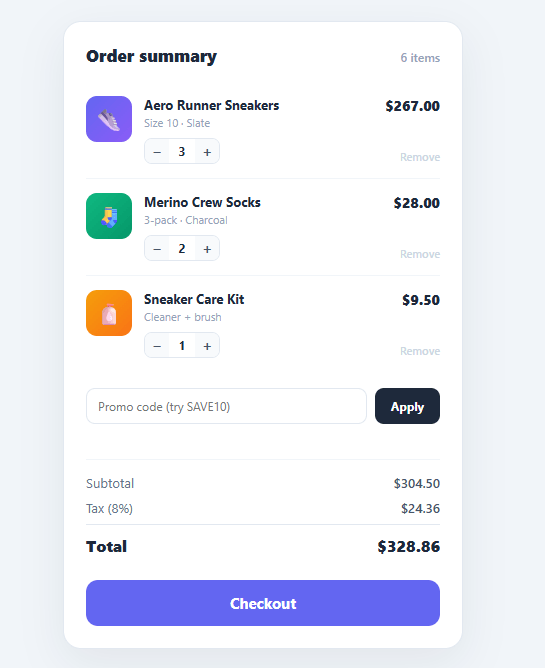
The order summary is the panel shoppers stare at before they commit. It has to answer three questions instantly and correctly: what am I buying, can I change it, and what will it cost? Any lag, rounding error, or stale total erodes trust at the exact moment it matters most. This snippet implements a complete, self-recalculating order summary in plain HTML, CSS, and vanilla JavaScript: line items with quantity steppers, remove buttons, a promo-code field with live discount, and subtotal, tax, and total rows that update on every change.
Everything flows through one recalc function. Rather than tracking totals in scattered variables, recalc reads the current DOM — every non-removing line item, its data-price, and its quantity — and rewrites every dependent number in one pass. That single-source-of-truth approach is what guarantees the displayed total can never drift out of sync with the line items.
Quantity steppers with per-line totals
Each item has a − / + stepper around a quantity value. changeQty clamps the quantity to a minimum of 1 (Math.max(1, ...)) so a line can never go to zero by accident, updates the value, and calls recalc. recalc multiplies each item's unit price by its quantity, writes the per-line total, and accumulates the subtotal — so the line price and the cart total always move together.
Remove with exit animation
The Remove button adds a .removing class that runs an os-out keyframe (slide, fade, and collapse height to zero). An animationend listener then removes the row from the DOM and recalculates. Because recalc selects .os-item:not(.removing), the row stops counting toward totals the instant it begins animating out — the numbers update immediately while the visual exit plays.
Promo code with live discount
applyPromo reads the code, upper-cases it, and looks it up in a PROMOS map of percentage discounts. A valid code sets discountRate and shows a green confirmation; an invalid one resets the rate and shows a red message. The discount row only appears (.show) when a discount is active, and its label reflects the exact percentage ("Discount (10%)"). Crucially, the order of operations is correct: discount comes off the subtotal first, then tax is calculated on the discounted amount — the standard, defensible way to compute a cart total.
Correct tax and total order of operations
recalc computes discount = subtotal × rate, then tax = (subtotal − discount) × TAX_RATE, then total = subtotal − discount + tax. All money is formatted through a single fmt helper using toFixed(2) so every figure shows two decimal places consistently.
Empty-cart state
When the last item is removed, recalc adds an .empty class that reveals an "Your cart is empty" message and dims the promo and checkout controls — a graceful end state instead of a broken-looking panel of zeros.
Pair this summary with a checkout payment form on the same page, a quantity stepper on product pages, or a mini cart dropdown in the header.
Build with AI
Build, Understand, Optimize, and Extend It With AI
You do not need to trace every dependent field update by hand. Paste this snippet's HTML, CSS, and JS into an AI coding assistant like Claude and ask it to walk through exactly why recalc reads from the live DOM data-price and quantity values instead of a stored total, and why the code computes tax as (subtotal minus discount) times the tax rate rather than taxing the full subtotal. The same assistant is useful for optimizing it, for example checking whether recalc doing a full querySelectorAll pass on every quantity click could be replaced with a per-row incremental update once the cart grows past a few dozen items. It is also a fast way to extend the summary: ask it to add a shipping row that changes with a threshold, support stacked promo codes instead of a single discountRate, or persist the cart to localStorage so quantities survive a refresh. Treat the code less like a finished artifact and more like a starting point for a conversation.
Prompt to recreate it
Copy this into your AI assistant of choice to build the effect from scratch, or as a jumping-off point for your own variant:
Build an "order summary" cart card in plain HTML, CSS, and JavaScript with no framework and no state library — all state lives in the DOM and a couple of module-level variables.

Requirements:
- A list of line items, each carrying its unit price in a data-price attribute, a quantity stepper (minus button, quantity span, plus button), a per-line total, and a remove button.
- A single recalc function that is the only place totals are computed: it must re-read every non-removing line item's data-price and current quantity from the DOM, recompute that row's line total, and sum a subtotal, then compute a discount from a discountRate variable, then compute tax as (subtotal minus discount) times a fixed tax rate constant — tax must be calculated on the post-discount amount, not the raw subtotal — then compute the final total as subtotal minus discount plus tax.
- The minus button must clamp quantity to a minimum of 1 using a Math.max guard, never allowing zero through the stepper; only the explicit Remove action deletes a row.
- Clicking Remove must add a CSS class that plays a slide-and-collapse exit keyframe animation, and only after that animation's animationend event fires should the row actually be removed from the DOM and recalc be called again — so the totals update the instant the row starts leaving, not after the animation finishes.
- A promo code text input and Apply button must look the code up in a plain object mapping codes to discount percentages, set discountRate accordingly, show a green success message or red error message, and call recalc; the discount row in the totals must only be visible when a discount is active.
- Format every displayed money value through one shared formatting helper so all figures consistently show two decimal places.
- When the last item is removed, the whole card must switch to an empty-cart state that shows a message and visually disables the promo and checkout controls.
Want to tighten it up first? Run this prompt through the AI Prompt Studio to score it across 8 quality dimensions, catch anti-patterns, and tune the wording for Claude, ChatGPT, or Gemini before you paste it in.
Step by step
How to Use
- 1Paste HTML, CSS, and JSAn order summary card appears with three line items, a promo field, and subtotal / tax / total rows already computed from the items.
- 2Adjust a quantityClick + or − on any item — the per-line price, the item count, the subtotal, tax, and total all update together. Quantities never drop below 1.
- 3Apply a promo codeType
SAVE10and click Apply — a green message confirms 10% off, a discount row appears, and the total drops with tax recomputed on the discounted amount. - 4Try an invalid codeType anything else and Apply — a red "Invalid promo code" message shows and no discount is applied.
- 5Remove an itemClick Remove — the row slides out and collapses, then disappears, and all totals recalculate instantly.
- 6Empty the cartRemove every item — the card switches to an "Your cart is empty" state and dims the promo and checkout buttons.
Real-world uses
Common Use Cases
Got questions?
Frequently Asked Questions
Render the .os-item rows from your cart data (server-side or via a template loop), setting each data-price and quantity from the cart, then call recalc() once on load. The function reads whatever rows exist, so it works with one item or fifty without any other change.
Replace the PROMOS lookup in applyPromo with a fetch to your endpoint that returns the discount rate (or rejects the code). Apply the returned rate to discountRate and call recalc. Always re-validate the code server-side at checkout — never trust a client-side discount as the final price.
In most jurisdictions tax is charged on the amount the customer actually pays, so the discount is applied to the subtotal first and tax is computed on the reduced figure. This snippet uses tax = (subtotal − discount) × rate. If your local rules tax the pre-discount amount, move the tax calculation above the discount subtraction.
Add a shipping row to the totals and a PROMOS entry that represents a flat amount or a free-shipping flag rather than a percentage. In recalc, branch on the discount type: subtract a fixed value, or set shipping to zero, before computing the total. Keep all of it inside recalc so the single-source-of-truth model holds.
In React, hold the items array and discountRate in useState and derive subtotal, tax, and total with useMemo so they recompute automatically — no manual recalc. In Vue, make items reactive and use computed totals. In Angular, store items on the component and compute totals in getters. The card layout and animations port unchanged.