


Learn Coding Visually
Learn to code with interactive, live-preview playgrounds — HTML, CSS, JavaScript, React & more.
 HTML Playground42 lessons · Click-based · Live preview
 CSS PlaygroundLearn CSS with a live editor
 JavaScript Playground60 lessons · DOM · Async · Canvas
 React PlaygroundLearn React with a live code editor
 GSAP PlaygroundLearn GSAP animation interactively
 SVG Playground44 lessons · shapes · paths · animation
 SCSS Playground45 lessons · Sass modules · tokens
 Tailwind PlaygroundLearn Tailwind CSS with a live editor
 Bootstrap 5 Playground50 lessons · live preview
Quantity Stepper — Free HTML CSS JS Snippet
Quantity Stepper · Forms · Plain HTML, CSS & JS · Live preview
What's included
Features
About this UI Snippet
Quantity Stepper — Four Variants, Spin Button Hidden, Min/Max Clamp & Live Price Update
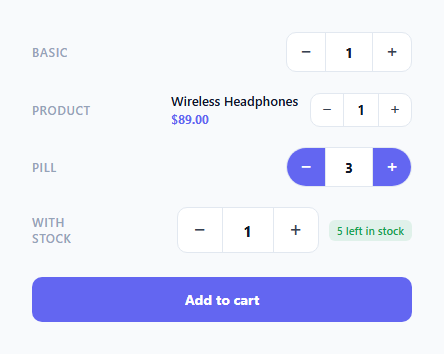
A quantity stepper is the essential form control for any e-commerce product page, cart, or booking form where users select a numeric quantity within a range. The native HTML number input with its browser-rendered spin buttons looks inconsistent across devices and cannot be styled to match a design system. This snippet provides four quantity stepper variants — basic, compact product row, pill style, and large with stock indicator — all with hidden native spinners, custom +/- buttons, min/max clamping, and live reactive updates.
Hiding the native spinner
The native up/down arrows on number inputs are hidden via two CSS rules: input::-webkit-outer-spin-button and ::-webkit-inner-spin-button with -webkit-appearance: none (for Chrome/Safari), and -moz-appearance: textfield on the input (for Firefox). This removes all browser-native styling, leaving a clean text-like input that only the custom buttons can increment.
The change() function
change(id, delta) reads the current input value, applies the delta (+1 or -1), clamps between min and max using Math.min(max, Math.max(min, val)), and writes back. Reading min and max from input.min and input.max attributes means the bounds are declared in HTML and read dynamically — no hardcoded values in JavaScript.
The clamp() function
Users can also type directly into the input. onchange fires when the input loses focus or Enter is pressed. clamp(input, min, max) validates and corrects any out-of-bounds value. This prevents users from entering 0, negative numbers, or values above the maximum stock.
Live reactive updates
The onUpdate() hook fires on every change event. In the product variant, it updates the displayed price (quantity × unit price). In the stock variant, it updates the remaining stock badge and changes its colour to red when fewer than 2 items remain — communicating urgency.
Accessibility
Each button has aria-label="Increase" and aria-label="Decrease". The input has aria-label="Quantity". Keyboard users can Tab to the input and type directly, or Tab to the buttons and press Space/Enter. The min/max attributes are also read by assistive technology.
Styling variants
All four variants share the same base .stepper CSS and JS — visual differences come from additional CSS classes (.compact, .pill, .large). This makes it easy to pick one variant and drop it into your project without carrying unused styles.
Connecting to a cart API
In the add() function (the same role as the add-to-cart button), replace the feedback animation with a fetch call: fetch("/api/cart", { method: "POST", headers: {"Content-Type":"application/json"}, body: JSON.stringify({ productId: "prod_123", qty: +document.getElementById("s4-val").value }) }). Show success state on resolve and revert to "Add to cart" on reject. The quantity value is always a valid number between min and max due to the clamp() guard.
Build with AI
Build, Understand, Optimize, and Extend It With AI
You do not have to trace every stepper variant by hand to understand how they share one JS core. Paste this snippet's HTML, CSS, and JS into an AI coding assistant like Claude and ask it to explain exactly how change() and clamp() both read min and max straight off the input's HTML attributes rather than hardcoded constants, and why that choice lets four visually different steppers share identical logic. The same assistant can help optimize it — ask whether onUpdate's if-chain keyed on element id would get unwieldy past a handful of steppers on one page, and how you'd refactor it into a per-stepper callback registered at creation time. It is just as useful for extending the widget: ask it to add press-and-hold to rapidly increment, disable the plus or minus button exactly at the bounds, or wire onUpdate to recompute a multi-line cart subtotal. Treat the code less like a finished artifact and more like a starting point for a conversation.
Prompt to recreate it
Copy this into your AI assistant of choice to build the effect from scratch, or as a jumping-off point for your own variant:
Build a quantity stepper control in plain HTML, CSS, and JavaScript with no library — a minus button, a numeric input, and a plus button.

Requirements:
- Hide the native number input spin arrows in every browser: use ::-webkit-outer-spin-button and ::-webkit-inner-spin-button with -webkit-appearance: none for Chrome/Safari/Edge, and -moz-appearance: textfield on the input itself for Firefox.
- A single change(id, delta) function must read the current value plus the min and max directly from the input element's own min/max HTML attributes (not hardcoded numbers), apply the delta, clamp the result with Math.min/Math.max, write it back, and call a shared onUpdate(id, value) hook.
- A separate clamp(input, min, max) function must run on the input's change event (fired on blur or Enter) so a value typed directly by keyboard is also validated and corrected into range.
- Implement onUpdate(id, value) as a single hook that different stepper instances can plug business logic into — for example recalculating a displayed line price as quantity times unit price, or updating a "N left in stock" badge that turns red when remaining stock drops to 2 or fewer.
- Build at least three visual variants (a plain default, a compact inline version for a product row, and a pill-shaped version with colored buttons) that all reuse the exact same change/clamp/onUpdate JavaScript — only CSS classes should differ between variants.
- Add both aria-label attributes on the increment/decrement buttons and on the input itself so the control is usable with a screen reader.
Want to tighten it up first? Run this prompt through the AI Prompt Studio to score it across 8 quality dimensions, catch anti-patterns, and tune the wording for Claude, ChatGPT, or Gemini before you paste it in.
Source Code
<div class="page">

  <!-- Basic stepper -->
  <div class="demo-row">
    <span class="demo-label">Basic</span>
    <div class="stepper" id="s1">
      <button class="step-btn" onclick="change('s1',-1)" aria-label="Decrease">−</button>
      <input class="step-val" id="s1-val" type="number" value="1" min="1" max="99" onchange="clamp(this,1,99)" aria-label="Quantity">
      <button class="step-btn" onclick="change('s1',1)" aria-label="Increase">+</button>
    </div>
  </div>

  <!-- With product info -->
  <div class="demo-row">
    <span class="demo-label">Product</span>
    <div class="product-row">
      <div class="product-info">
        <span class="product-name">Wireless Headphones</span>
        <span class="product-price" id="price">$89.00</span>
      </div>
      <div class="stepper compact" id="s2">
        <button class="step-btn" onclick="change('s2',-1)" aria-label="Decrease">−</button>
        <input class="step-val" id="s2-val" type="number" value="1" min="1" max="10" onchange="clamp(this,1,10)" aria-label="Quantity">
        <button class="step-btn" onclick="change('s2',1)" aria-label="Increase">+</button>
      </div>
    </div>
  </div>

  <!-- Pill style -->
  <div class="demo-row">
    <span class="demo-label">Pill</span>
    <div class="stepper pill" id="s3">
      <button class="step-btn" onclick="change('s3',-1)" aria-label="Decrease">−</button>
      <input class="step-val" id="s3-val" type="number" value="3" min="0" max="20" onchange="clamp(this,0,20)" aria-label="Quantity">
      <button class="step-btn" onclick="change('s3',1)" aria-label="Increase">+</button>
    </div>
  </div>

  <!-- Large with stock indicator -->
  <div class="demo-row">
    <span class="demo-label">With stock</span>
    <div class="stepper-wrap">
      <div class="stepper large" id="s4">
        <button class="step-btn" onclick="change('s4',-1)" aria-label="Decrease">−</button>
        <input class="step-val" id="s4-val" type="number" value="1" min="1" max="5" onchange="clamp(this,1,5)" aria-label="Quantity">
        <button class="step-btn" onclick="change('s4',1)" aria-label="Increase">+</button>
      </div>
      <span class="stock-badge" id="stock">5 left in stock</span>
    </div>
  </div>

  <button class="add-btn" onclick="addToCart()">Add to cart</button>
</div>
* { box-sizing: border-box; margin: 0; padding: 0; }
body { font-family: system-ui, sans-serif; background: #f8fafc; min-height: 100vh; display: flex; align-items: center; justify-content: center; padding: 32px 24px; }
.page { width: 100%; max-width: 380px; display: flex; flex-direction: column; gap: 20px; }
.demo-row { display: flex; align-items: center; justify-content: space-between; gap: 12px; }
.demo-label { font-size: 12px; font-weight: 600; color: #94a3b8; text-transform: uppercase; letter-spacing: 0.6px; width: 70px; flex-shrink: 0; }
/* Base stepper */
.stepper { display: inline-flex; align-items: center; background: #fff; border: 1.5px solid #e2e8f0; border-radius: 10px; overflow: hidden; }
.step-btn { width: 38px; height: 38px; border: none; background: transparent; color: #374151; font-size: 18px; font-weight: 300; cursor: pointer; display: flex; align-items: center; justify-content: center; transition: background 0.12s, color 0.12s; flex-shrink: 0; line-height: 1; }
.step-btn:hover { background: #f1f5f9; color: #0f172a; }
.step-btn:active { background: #e2e8f0; }
.step-val { width: 48px; height: 38px; border: none; border-left: 1px solid #e2e8f0; border-right: 1px solid #e2e8f0; text-align: center; font-size: 14px; font-weight: 700; color: #0f172a; background: transparent; outline: none; font-family: inherit; -moz-appearance: textfield; }
.step-val::-webkit-outer-spin-button, .step-val::-webkit-inner-spin-button { -webkit-appearance: none; }
/* Compact */
.stepper.compact .step-btn { width: 32px; height: 32px; font-size: 16px; }
.stepper.compact .step-val { width: 36px; height: 32px; font-size: 13px; }
/* Pill */
.stepper.pill { border-radius: 50px; border-color: #e2e8f0; }
.stepper.pill .step-btn { background: #6366f1; color: #fff; }
.stepper.pill .step-btn:hover { background: #4f46e5; }
.stepper.pill .step-val { border-color: #e2e8f0; }
/* Large */
.stepper.large .step-btn { width: 44px; height: 44px; font-size: 20px; }
.stepper.large .step-val { width: 52px; height: 44px; font-size: 16px; }
/* Product row */
.product-row { display: flex; align-items: center; gap: 12px; flex: 1; justify-content: flex-end; }
.product-info { display: flex; flex-direction: column; gap: 2px; }
.product-name { font-size: 13px; font-weight: 600; color: #0f172a; }
.product-price { font-size: 12px; color: #6366f1; font-weight: 700; }
/* Stepper wrap with stock */
.stepper-wrap { display: flex; align-items: center; gap: 10px; }
.stock-badge { font-size: 11px; font-weight: 600; color: #16a34a; background: rgba(22,163,74,0.1); padding: 3px 8px; border-radius: 6px; white-space: nowrap; }
/* Add to cart */
.add-btn { background: #6366f1; color: #fff; border: none; border-radius: 10px; padding: 13px; font-size: 14px; font-weight: 700; cursor: pointer; width: 100%; transition: background 0.15s; font-family: inherit; margin-top: 4px; }
.add-btn:hover { background: #4f46e5; }function change(id, delta) {
const input = document.getElementById(id + '-val');
const min = +input.min || 0;
const max = +input.max || 999;
const newVal = Math.min(max, Math.max(min, +input.value + delta));
input.value = newVal;
onUpdate(id, newVal);
}
function clamp(input, min, max) {
const v = Math.min(max, Math.max(min, +input.value || min));
input.value = v;
const id = input.closest('.stepper').id;
onUpdate(id, v);
}
function onUpdate(id, val) {
if (id === 's2') {
document.getElementById('price').textContent = '$' + (89 * val).toFixed(2);
}
if (id === 's4') {
const left = 5 - val + 1;
document.getElementById('stock').textContent = Math.max(0, 5 - val) + ' left in stock';
document.getElementById('stock').style.color = (5 - val) <= 2 ? '#dc2626' : '#16a34a';
}
}
function addToCart() {
const qty = +document.getElementById('s4-val').value;
const btn = document.querySelector('.add-btn');
btn.textContent = '✓ Added ' + qty + (qty > 1 ? ' items' : ' item') + ' to cart';
btn.style.background = '#16a34a';
setTimeout(() => { btn.textContent = 'Add to cart'; btn.style.background = ''; }, 2000);
}Step by step
How to Use
- 1Click + and − buttons to increment or decrement valuesEach stepper has independent min/max bounds. The large stepper (bottom) shows a live stock count that decrements. The product stepper updates the total price with each change.
- 2Set your min, max, and initial valueUpdate the min, max, and value attributes on each input element. The change() function reads these attributes dynamically — no JavaScript changes needed.
- 3Choose your visual variantUse class="stepper" for the default, "stepper compact" for small inline contexts, "stepper pill" for a rounded pill with accent-coloured buttons, or "stepper large" for high-visibility product pages.
- 4Wire the onUpdate hook to your logicAdd your business logic inside onUpdate(id, val). Update a cart subtotal, remaining stock count, days preview, or any other derived value that depends on the quantity.
- 5Connect to a shopping cart APIIn addToCart(), replace the feedback animation with a POST to your cart API: fetch("/api/cart", { method:"POST", body: JSON.stringify({ productId, qty: +input.value }) }). Show a success state on resolve.
- 6Export in your formatClick "HTML" for a standalone file, "JSX" for a React component with controlled useState value, or "Tailwind" for a React + Tailwind CSS version.
Real-world uses
Common Use Cases
Got questions?
Frequently Asked Questions
Two CSS rules are required. For Chrome, Safari, and Edge: input[type=number]::-webkit-outer-spin-button, input[type=number]::-webkit-inner-spin-button { -webkit-appearance: none; margin: 0; }. For Firefox: input[type=number] { -moz-appearance: textfield; }. Both rules are needed for cross-browser support. Without the -moz rule, Firefox still shows its own spin arrows. After hiding the native arrows, the custom + and - buttons become the only way to increment.
Click "JSX" to download. Replace the input with a controlled React input: <input type="number" value={qty} onChange={e => setQty(Math.min(max, Math.max(min, +e.target.value)))} />. The + button calls setQty(prev => Math.min(max, prev + 1)) and the - button calls setQty(prev => Math.max(min, prev - 1)). Pass min, max, and initial qty as props. Derive dependent values (price, stock) with useMemo from the qty state.
Add dynamic disabled state: the + button has :disabled { opacity: 0.35; cursor: not-allowed; }. In the change() function, after updating the value, update both button states: minBtn.disabled = newVal <= min; maxBtn.disabled = newVal >= max. Query both buttons by their relative position: const btns = stepper.querySelectorAll(".step-btn"); btns[0].disabled = newVal <= min; btns[1].disabled = newVal >= max.
Set the min attribute to the minimum order quantity (e.g., min="5"). In clamp(), if the entered value is below the minimum, show a warning: if (v < minQty) { warningEl.textContent = "Minimum order is " + minQty; warningEl.style.display = "block"; } else { warningEl.style.display = "none"; }. The warning disappears when the value meets the minimum. This pattern is common on wholesale B2B product pages.