Learn Coding Visually
Learn to code with interactive, live-preview playgrounds — HTML, CSS, JavaScript, React & more.
 HTML Playground42 lessons · Click-based · Live preview
 CSS PlaygroundLearn CSS with a live editor
 JavaScript Playground60 lessons · DOM · Async · Canvas
 React PlaygroundLearn React with a live code editor
 GSAP PlaygroundLearn GSAP animation interactively
 SVG Playground44 lessons · shapes · paths · animation
 SCSS Playground45 lessons · Sass modules · tokens
 Tailwind PlaygroundLearn Tailwind CSS with a live editor
 Bootstrap 5 Playground50 lessons · live preview
Invoice Preview UI — Free HTML CSS Snippet
Invoice Preview · Cards · Plain HTML & CSS · Live preview
What's included
Features
About this UI Snippet
Invoice Preview — Line Items Table, Tax, Discount, Totals, and Print to PDF
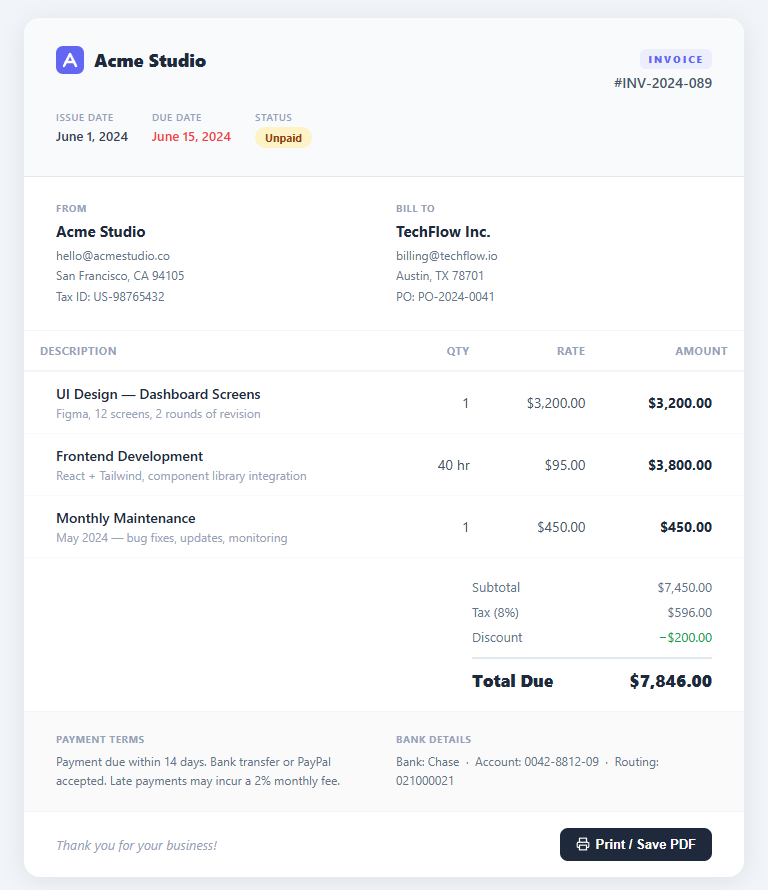
An invoice preview component is a fundamental element in any freelance tool, SaaS billing system, or e-commerce back office — at checkout, it is preceded by the order summary. This snippet renders a complete print-ready invoice document with a branded header, from/to party addresses, a multi-column line items table with description, quantity, rate, and amount columns, a totals block with subtotal, tax, discount, and total due, a payment terms + bank details footer, and a Print / Save PDF button that calls window.print().
The layout structure
The invoice is a single white-background .invoice container with max-width 720px — the standard printable content width. It is divided into semantic sections: .inv-head (brand + invoice number + dates), .parties grid, .items-table, .totals-wrap, .inv-footer (payment terms + bank), and .inv-bottom (thank-you + print button). Each section has a border-bottom: 1px solid separator.
The line items table
The items use a standard HTML table (not CSS Grid) for semantic correctness and natural column alignment — make the rows editable with the editable table pattern. The Qty, Rate, and Amount columns use text-align: right with padding-right: 32px to align numbers with the invoice edges. font-variant-numeric: tabular-nums on numeric cells prevents amount digits from jumping as values change.
Print to PDF via window.print()
The Print button calls window.print(). A @media print CSS block hides the button and removes the background and border-radius from the invoice container, producing a clean white printed document. Users can Save as PDF from the browser print dialog. For programmatic PDF generation, use libraries like jsPDF or Puppeteer.
The totals block
The totals are right-aligned in a 240px-wide column (matching the Amount column width). Subtotal, Tax (8%), and Discount rows use the same flex justify-content: space-between pattern. The Total Due row uses a bold font and a border-top separator to visually separate it from the line items.
Dynamic totals with JavaScript
To compute totals from the line items dynamically, iterate all item rows and extract qty and rate values: const rows = document.querySelectorAll(".item-row"); let subtotal = 0; rows.forEach(row => { const qty = parseFloat(row.querySelector(".item-qty").textContent) || 0; const rate = parseFloat(row.querySelector(".item-rate").textContent.replace(/[^0-9.]/g, "")) || 0; subtotal += qty * rate; }). Then compute tax as subtotal * TAX_RATE and discount as a fixed value or percentage. Write results to the .totals span elements. This approach makes the invoice fully dynamic — add or remove rows and the totals recalculate automatically.
Programmatic PDF generation beyond window.print()
For more control over the PDF output — custom page size, headers, footers, or watermarks — use a server-side approach with Puppeteer or headless Chrome: render the invoice HTML on the server, call page.pdf({ format: "A4", printBackground: true }) and stream the result as a PDF download. Client-side alternatives include jsPDF with html2canvas (converts the DOM to a canvas then to PDF) or the PDF.js render pipeline. For invoices requiring digital signatures, use a PDF library that supports PDF/A format and signature fields such as pdf-lib on Node.js.
Build with AI
Build, Understand, Optimize, and Extend It With AI
You do not need to work out every column alignment rule by inspection. Paste this snippet's HTML and CSS into an AI coding assistant like Claude and ask it to explain exactly why font-variant-numeric: tabular-nums is applied to the numeric table cells and what would visually break in the totals column without it, or why the totals block is deliberately built at 240px to match the Amount column rather than spanning the full width. The same assistant is useful for optimizing it, for example checking whether the static markup and the print stylesheet still hold up once line items are generated dynamically from an array of dozens of rows. It is just as good for extending the invoice, such as wiring the Subtotal, Tax, and Total Due values to compute live from the item rows instead of being hardcoded strings, adding a currency selector, or generating the PDF server-side with Puppeteer instead of relying on window.print(). Treat the code less like a finished artifact and more like a starting point for a conversation.
Prompt to recreate it
Copy this into your AI assistant of choice to build the effect from scratch, or as a jumping-off point for your own variant:
Build a printable "invoice preview" document in plain HTML and CSS, with only enough JavaScript to trigger printing — no PDF library required for the basic version.

Requirements:
- A single card container capped at a print-friendly max-width (around 720px), containing a header with a logo, brand name, an INVOICE badge, an invoice number, and issue/due dates plus a status chip.
- A two-column From and Bill To section using CSS Grid, each showing a party name, email, and address lines.
- A real semantic HTML table (not CSS Grid or flex rows) for line items, with Description, Qty, Rate, and Amount columns. The numeric columns must be right-aligned and use font-variant-numeric: tabular-nums so digits do not shift width as values change.
- A totals block, right-aligned and matching the Amount column's width, listing Subtotal, Tax, and Discount rows, then a visually distinct Total Due row with a top border and bolder weight separating it from the rest.
- A footer with payment terms text and bank transfer details, followed by a bottom bar with a thank-you message and a Print / Save PDF button that calls window.print().
- A @media print stylesheet block that removes the page background, drops the card's shadow and border radius so it prints as a flush white document, and hides the print button entirely so it never appears in the output.
Want to tighten it up first? Run this prompt through the AI Prompt Studio to score it across 8 quality dimensions, catch anti-patterns, and tune the wording for Claude, ChatGPT, or Gemini before you paste it in.
Step by step
How to Use
- 1Update the invoice detailsEdit the brand name, logo SVG, invoice number (#INV-2024-089), issue date, due date, and status chip. Change the From and Bill To party names, emails, and addresses.
- 2Edit the line itemsEach .item-row in the table contains a description, subtitle, qty, rate, and amount. Update these values. To add a new line, duplicate an .item-row and update its content.
- 3Update the totalsEdit the Subtotal, Tax (change the rate label and value), Discount, and Total Due values in the .totals block. These are hardcoded strings — for a dynamic invoice, compute them with JS from the items array.
- 4Print or save as PDFClick the Print / Save PDF button. In the browser print dialog, select "Save as PDF" as the destination. The @media print CSS hides the button and removes decorative styles for a clean printout.
- 5Make totals dynamicReplace the static totals with JS: read qty and rate from each row, compute line amounts and subtotal, apply tax rate and discount, and write the results to the .totals span elements.
- 6Export for your frameworkClick "JSX" to download a React InvoicePreview component that accepts an invoice prop object. Click "Vue" for a Vue 3 SFC. The JSX version separates the line items into a LineItem sub-component.
Real-world uses
Common Use Cases
Got questions?
Frequently Asked Questions
Click the Print / Save PDF button (or press Ctrl+P / Cmd+P). In the browser print dialog, set the Destination to "Save as PDF". The @media print CSS removes the background, border-radius, and button so the PDF looks like a clean white document.
Read each row: const items = [...document.querySelectorAll(".item-row")].map(r => ({ qty: parseFloat(r.cells[1].textContent), rate: parseFloat(r.cells[2].textContent.replace(/[^0-9.]/g,"")) })); const subtotal = items.reduce((s, i) => s + i.qty * i.rate, 0); Then apply taxRate and discount to compute the total.
Build an InvoicePreview component that accepts an invoice prop: { number, issueDate, dueDate, from, to, items[], taxRate, discount }. Compute subtotal with items.reduce((sum, i) => sum + i.qty * i.rate, 0). Apply tax as subtotal * taxRate and subtract the discount. Map items to table row elements. The print button calls window.print() directly — no extra library needed for basic PDF output. For a print preview mode, render the InvoicePreview inside a React Portal in a separate div with print-only CSS (@media not print { display: none }) so the preview can be shown in a modal on screen while the rest of the app remains hidden when the user triggers print.
No — the invoice is pure HTML and CSS. The line items, dates, and totals are static markup, which is exactly what you want when the invoice is a render target: your server template or framework loops real line items into the rows and prints computed totals into the summary cells. Because there is no runtime dependency, the same markup works in a print stylesheet, a PDF renderer like Puppeteer or wkhtmltopdf, and an email-safe variant with inlined styles. The React, Vue, and Angular exports give you the component shell to feed props into.
The logo is an inline SVG next to a .brand-name span — swap the SVG paths for your own mark (keep it around 28×28 with a rounded rect background) and edit the name text. The indigo accent used on the logo, the INVOICE badge, and the totals highlight is a hex value repeated in the CSS, so a find-and-replace on it rebrands the whole document; move it into a CSS custom property like --inv-accent if you theme invoices per client.