You Might Also Like
Learn Coding Visually
Learn to code with interactive, live-preview playgrounds — HTML, CSS, JavaScript, React & more.
 HTML Playground42 lessons · Click-based · Live preview
 CSS PlaygroundLearn CSS with a live editor
 JavaScript Playground60 lessons · DOM · Async · Canvas
 React PlaygroundLearn React with a live code editor
 GSAP PlaygroundLearn GSAP animation interactively
 SVG Playground44 lessons · shapes · paths · animation
 SCSS Playground45 lessons · Sass modules · tokens
 Tailwind PlaygroundLearn Tailwind CSS with a live editor
 Bootstrap 5 Playground50 lessons · live preview
Review Form — Star Rating Input HTML CSS JS Snippet
Review Form · Forms · Plain HTML, CSS & JS · Live preview
What's included
Features
previewRating fills stars on mouseenter; the container's mouseleave falls back to the committed selected value so stars never blank out unexpectedly.setRating maps 1–5 to "Poor" through "Excellent" and shows the word beside the stars, giving users semantic feedback, not just a number.<button> elements with per-star aria-labels, so it is focusable and announced correctly by screen readers.countChars updates an "N / 400" readout on every keystroke, paired with a native maxlength hard cap to prevent overflow.min-height reserved slot so the form never shifts when the message appears or clears.cubic-bezier(.2,1.5,.4,1) scale keyframe, echoing the submitted rating back for reassurance.resetForm clears native fields, the rating state, the star paint, the label, and the counter so "Write another" returns a pristine form.About this UI Snippet
Review Form — Hover-Preview Star Input, Character Counter & Animated Thank-You State
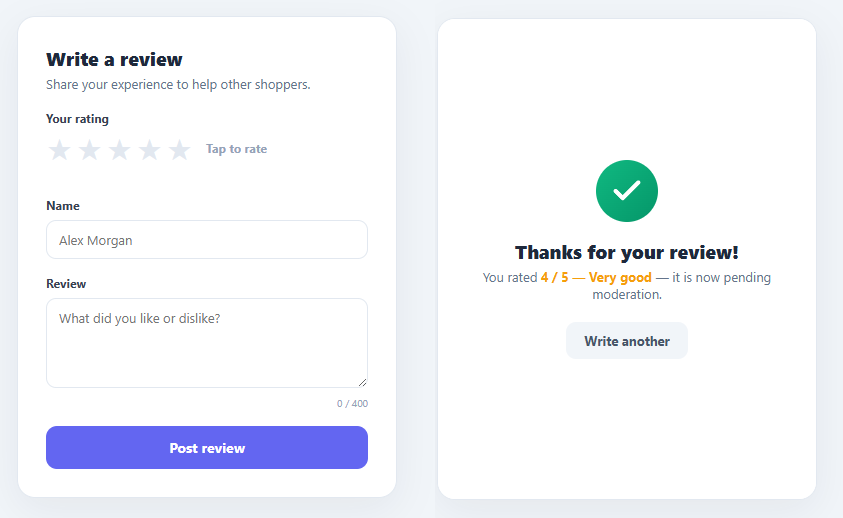
User reviews are among the highest-leverage content on any product page — they build trust, surface real feedback, and drive conversion. But the form that collects them is often an afterthought: a plain dropdown for the rating, no validation, and a jarring full-page reload on submit. This snippet implements a polished review form in plain HTML, CSS, and vanilla JavaScript: an interactive hover-preview star rating, a live rating label, a character-counted comment box, inline validation, and a smooth in-place transition to a thank-you state — no page navigation.
The interaction that makes or breaks a review form is the star input. A good star control previews the rating as the cursor moves across it, then locks the selection on click, and clearly distinguishes "hovering" from "chosen".
Hover-preview star rating
Five <button> elements make up the rating. Each fires previewRating(n) on mouseenter, filling stars up to position n by toggling an .on class via the shared paintStars helper. The container's mouseleave calls previewRating(0), which falls back to the committed selected value — so when the cursor leaves, the stars snap back to the chosen rating rather than going blank. Clicking calls setRating(n), which stores selected, repaints, and swaps the label text (Poor, Fair, Good, Very good, Excellent) so users get a word, not just a count. Using real buttons keeps the control keyboard-focusable and screen-reader friendly via per-star aria-labels.
Character-counted comment box
The textarea has maxlength="400" and an oninput="countChars(this)" handler that updates a live "N / 400" counter. The hard cap prevents overflow while the live count nudges users toward a substantive review without surprising them at submit time.
Inline validation
On submit, submitReview calls event.preventDefault() and checks that a rating was chosen. If not, it writes "Please choose a star rating." into a reserved .rv-error slot — reserved with min-height so the layout never jumps when the message appears. The name and comment fields use the native required attribute, so the browser handles those before the JS even runs.
Animated thank-you state
Instead of navigating away, the thank-you panel is absolutely positioned over the card and revealed by toggling a .show class — fading and sliding up while a green check badge springs in with a cubic-bezier pop. It echoes the submitted rating back to the user ("4 / 5 — Very good") for confirmation. A "Write another" button calls resetForm, which hides the panel, resets the native form, clears selected, repaints empty stars, and restores the counter — returning the card to a pristine state without a reload.
Pair this form with a star rating display for read-only scores, a rating breakdown histogram of all reviews, and a review card to render the submitted feedback.
Build with AI
Build, Understand, Optimize, and Extend It With AI
You do not have to trace the hover-versus-committed star logic by hand. Paste this snippet's HTML, CSS, and JS into an AI coding assistant like Claude and ask it to explain exactly why previewRating falls back to the committed selected value on mouseleave instead of clearing the stars to zero, and how that specific fallback is what prevents the rating from visually disappearing every time the cursor exits the star row. The same assistant can help you optimize it — ask whether querying all five star buttons from the DOM inside paintStars on every single mouseenter event is wasteful compared to caching that NodeList once at setup. It's also useful for extending the form: ask it to add photo attachment support to the review, wire submitReview to a real fetch call with a loading and error state instead of always showing the thank-you panel, or add arrow-key keyboard navigation across the star buttons. Treat the code less like a finished artifact and more like a starting point for a conversation.
Prompt to recreate it
Copy this into your AI assistant of choice to build the effect from scratch, or as a jumping-off point for your own variant:
Build a review submission form in plain HTML, CSS, and JavaScript with no library — a hover-preview star rating, a name field, a character-counted comment box, inline validation, and an animated thank-you confirmation.

Requirements:
- Build the star rating from five real button elements (not divs), each with an aria-label describing its position. On mouseenter of a star, fill every star up to and including that position using a shared class-toggling helper function. On mouseleave of the entire star row (not each individual star), revert the fill to whatever rating has actually been clicked and committed so far — not to zero — so the display never blanks out just because the cursor moved away.
- On clicking a star, permanently commit that rating, update a text label next to the stars to show a word description (e.g. mapping 1 through 5 to Poor, Fair, Good, Very good, Excellent), and clear any existing validation error message.
- Add a textarea with a native maxlength attribute (e.g. 400) and a live "current length / 400" counter that updates on every input event.
- On form submission, prevent the default page reload, and if no star rating has been committed yet, display an inline error message inside a permanently reserved-height slot (so its appearance never shifts the surrounding layout) instead of using a browser alert.
- On successful submission, do not navigate away: instead reveal an absolutely-positioned thank-you panel that fades and slides in over the form, echoes back the exact rating and word label the user chose, and includes a small checkmark icon that plays a bouncy scale-in entrance animation.
- Provide a "write another" action that hides the thank-you panel, calls the native form's reset method, and manually resets the JavaScript-tracked rating state, the star fill, the label text, and the character counter back to their original empty values.
Want to tighten it up first? Run this prompt through the AI Prompt Studio to score it across 8 quality dimensions, catch anti-patterns, and tune the wording for Claude, ChatGPT, or Gemini before you paste it in.
Step by step
How to Use
- 1Paste HTML, CSS, and JSA review card appears with an empty five-star input, a "Tap to rate" hint, a name field, and a comment box with a 0 / 400 counter.
- 2Hover across the starsStars fill amber up to the one under your cursor as a preview. Move away and they snap back to whatever you have committed (none yet).
- 3Click to lock a ratingClicking the fourth star fills four stars and the label changes to "Very good". The choice persists when you move the cursor away.
- 4Type a reviewEnter your name and a comment — the counter ticks up to a maximum of 400 characters as you type.
- 5SubmitClick "Post review". If you skipped the rating, an inline error appears; otherwise the card flips to a thank-you panel with a springing check and your rating echoed back.
- 6Write anotherHit "Write another" — the thank-you panel slides away and the entire form resets to its empty state with no page reload.
Real-world uses
Common Use Cases
Got questions?
Frequently Asked Questions
In submitReview, after validation, collect selected, the name input, and the comment textarea, then fetch('/api/reviews', { method: 'POST', body: JSON.stringify({ rating: selected, name, comment }) }). Show the thank-you panel on a successful response; on failure, surface an error instead of switching states so the user can retry without losing their text.
Switch the star buttons to track cursor position within each star (offsetX < width/2 = half) and store selected in 0.5 steps. Render halves by overlaying a clipped amber star or using a background gradient stopped at the fractional percentage, the same technique read-only star displays use.
Disable the submit button immediately on click and re-enable only if the request fails. On the server, rate-limit by user or IP and require authentication. For anonymous forms, add a honeypot field or a lightweight challenge before accepting the POST.
Yes — each star is a focusable <button> with an aria-label. Users can Tab to a star and press Enter or Space to select it. For arrow-key navigation, add a keydown handler on the container that moves focus and calls setRating so the whole control works without a mouse.
In React, hold selected, hover, and the field values in useState; derive star fill from hover || selected and toggle the thank-you panel with a boolean. In Vue, use refs with @mouseenter/@click bindings and v-if for the panel. In Angular, track state on the component and bind [class.on] and *ngIf. The keyframes and layout port unchanged.