You Might Also Like
Learn Coding Visually
Learn to code with interactive, live-preview playgrounds — HTML, CSS, JavaScript, React & more.
 HTML Playground42 lessons · Click-based · Live preview
 CSS PlaygroundLearn CSS with a live editor
 JavaScript Playground60 lessons · DOM · Async · Canvas
 React PlaygroundLearn React with a live code editor
 GSAP PlaygroundLearn GSAP animation interactively
 SVG Playground44 lessons · shapes · paths · animation
 SCSS Playground45 lessons · Sass modules · tokens
 Tailwind PlaygroundLearn Tailwind CSS with a live editor
 Bootstrap 5 Playground50 lessons · live preview
Clipboard Paste Button — Free navigator.clipboard Read & Write
Clipboard Paste Button · Buttons · Plain HTML, CSS & JS · Live preview
What's included
Features
About this UI Snippet
Clipboard Paste Button — Read & Write With a Manually-Usable Fallback
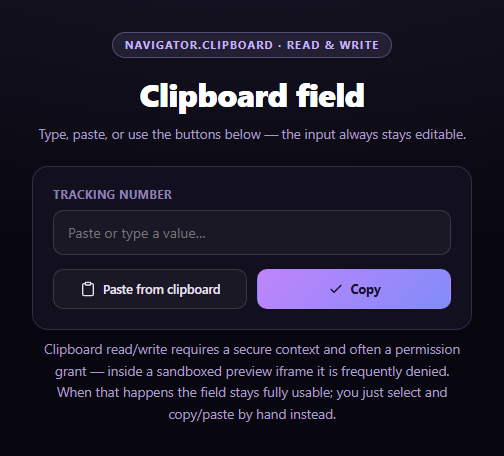
This snippet pairs a "Paste from clipboard" and a "Copy" button around a single text input, wired to the real navigator.clipboard API's readText() and writeText() methods. Clipboard access is a permission-gated capability — it needs a secure context, is often scoped to a user gesture, and is one of the APIs most commonly blocked entirely inside a sandboxed preview iframe — so the design goal here is that the input is a fully working text field regardless of whether the Clipboard API cooperates.
Reading the clipboard
pasteFromClipboard() first checks navigator.clipboard && navigator.clipboard.readText exists, then calls it inside a try/catch. On success, the resolved string fills the input directly. On a rejection — almost always a NotAllowedError from a denied permission prompt or a blocked clipboard-read permissions policy — an inline message appears explaining exactly that, and directs the viewer to the keyboard shortcut instead. The input is never disabled; a real Ctrl/Cmd+V paste always works independent of the button, because that's a native browser behavior the Clipboard API doesn't gate.
Writing the clipboard
copyToClipboard() mirrors the same shape: try navigator.clipboard.writeText() first, and if it's unavailable or throws, fall back to the classic technique of selecting a temporary off-screen <textarea> and calling document.execCommand('copy'). Only if that also fails does the UI ask the viewer to select the field and copy manually — and even then, it calls input.select() for them so the manual step is one keystroke, not a hunt.
Inline, not silent, failure
Every failure path writes a specific, visible sentence into an inline message element rather than failing silently or logging to the console. That's the same honesty principle behind this library's canvas audio frequency bars snippet, which names the exact getUserMedia error rather than just switching modes quietly — a viewer should always be able to tell why a permission-gated demo is behaving the way it is.
A field that never breaks
Because the <input> is a normal, always-editable form control, none of this matters to someone who simply types their value in or uses their OS's native copy/paste shortcuts. The Clipboard API only ever adds convenience buttons on top of a baseline that already works — which is the right way to layer a flaky permission-gated capability onto a form. Pair it with a plain copy button for a simpler one-directional case, or a Web Share button for sharing instead of copying.
Customizing it
Swap the input for a textarea to paste larger blocks, add a "clear" button, or validate the pasted value (e.g. a tracking-number format) before accepting it.
Build with AI
Build, Understand, Optimize, and Extend It With AI
Paste this snippet's HTML, CSS, and JS into an AI coding assistant like Claude and ask it to explain the layered fallback design: why the Paste button checks for navigator.clipboard.readText before calling it, why a denied or blocked read shows a specific inline message rather than disabling the input, and why the Copy button tries the modern writeText() API before falling back to the older execCommand('copy') technique on a temporary hidden textarea. It's a useful prompt for reasoning about permission-gated browser APIs generally — ask why these calls typically require both a secure context (HTTPS) and a direct user gesture, and why a sandboxed iframe (like the one likely rendering this demo) so often blocks them by default via its permissions policy. For extensions, ask it to add clipboard-format detection (e.g. only accept pasted text matching a pattern), a textarea variant for multi-line content, or a toast-style confirmation instead of the inline button state change. Treat the code less like a finished artifact and more like a starting point for a conversation.
Prompt to recreate it
Copy this into your AI assistant of choice to build the effect from scratch, or as a jumping-off point for your own variant:
Build a "Clipboard Paste Button" widget in plain HTML, CSS, and JavaScript — no libraries.

Requirements:
- A single text input alongside a "Paste from clipboard" button and a "Copy" button.
- The Paste button should check that navigator.clipboard and navigator.clipboard.readText exist before calling it, wrap the call in a try/catch, and on success set the input's value to the resolved text and focus the input.
- The Copy button should read the input's current value, guard against copying an empty string, and try navigator.clipboard.writeText() first; if the Clipboard API is unavailable or the call throws, fall back to creating a temporary off-screen textarea, selecting its content, and calling the legacy document.execCommand('copy'); show a brief "Copied!" confirmation state on the button (e.g. swapping its label and adding a success style for about two seconds) when either method succeeds.
- CRITICAL: on any clipboard permission denial or unsupported-browser case (a common and expected outcome, since this snippet may render inside a sandboxed preview iframe that blocks clipboard-read/clipboard-write via its permissions policy), show a specific inline message explaining what happened and that the field can still be used manually — never disable the input. If the copy fallback chain fully fails, select the input's text for the user so a manual Ctrl/Cmd+C is a single keystroke.
- Make sure a native browser paste (Ctrl/Cmd+V) into the input always works regardless of whether the Paste button's programmatic clipboard read succeeds, since that's a separate, ungated browser behavior the demo should not interfere with.
Want to tighten it up first? Run this prompt through the AI Prompt Studio to score it across 8 quality dimensions, catch anti-patterns, and tune the wording for Claude, ChatGPT, or Gemini before you paste it in.
Step by step
How to Use
- 1Paste HTML, CSS, and JSA labeled input with Paste and Copy buttons renders.
- 2Click "Paste from clipboard"The browser may prompt; on approval the field fills in.
- 3Click "Copy"The field's value copies; the button confirms with a checkmark.
- 4Deny or lack clipboard permissionAn inline message explains it, and the field stays editable.
- 5Use Ctrl/Cmd+V directlyNative browser paste always works regardless of the API.
- 6Type a value manuallyThe whole flow degrades to a plain, functional text input.
Real-world uses
Common Use Cases
Got questions?
Frequently Asked Questions
navigator.clipboard.readText() is permission-gated: the browser may show a one-time prompt, and many contexts — including sandboxed preview iframes like the one likely rendering this demo — block the "clipboard-read" permission entirely via their permissions policy, so the call rejects immediately with no prompt at all. When that happens the field stays fully editable; you can always paste with Ctrl/Cmd+V or type the value directly.
No, and browsers enforce that: navigator.clipboard.readText() normally requires an explicit user gesture, like a click on the Paste button itself, and typically shows a permission prompt the first time a site requests it. A page cannot silently poll your clipboard in the background — this snippet's Paste button only ever fires the request in direct response to a click.
The modern navigator.clipboard.writeText() can be unavailable in older browsers or blocked by the same kind of permissions policy that affects reading. When that happens, the snippet falls back to the classic technique of selecting a temporary hidden textarea and calling document.execCommand('copy'), which has much broader legacy support. Only if that also fails does it ask you to select the field and copy manually — and it pre-selects the text for you.
The buttons may not — many sandboxed iframes disable both clipboard-read and clipboard-write via their allow attribute or permissions policy header, which is the exact scenario this snippet is built to handle honestly. What always works regardless is typing directly into the field and using your browser's native Ctrl/Cmd+C and Ctrl/Cmd+V shortcuts, since those aren't gated by the JavaScript Clipboard API at all.
Bind the input's value to component state, and call the same readText()/writeText() logic from your click handlers, updating state instead of touching the DOM directly. Keep the inline error message and the "Copied!" confirmation as pieces of local state with a setTimeout reset, and make sure the input remains a fully controlled-or-uncontrolled field that works independent of whether the Clipboard API calls succeed.