Source Code
<div class="demo">
  <div class="code-block">
    <pre id="code">npm install @fwdtools/ui-snippets</pre>
    <button class="copy-btn" id="copy-btn" onclick="copyCode()">
      <svg class="icon-copy" width="15" height="15" viewBox="0 0 24 24" fill="none" stroke="currentColor" stroke-width="2" stroke-linecap="round"><rect x="9" y="9" width="13" height="13" rx="2"/><path d="M5 15H4a2 2 0 0 1-2-2V4a2 2 0 0 1 2-2h9a2 2 0 0 1 2 2v1"/></svg>
      <svg class="icon-check" width="15" height="15" viewBox="0 0 24 24" fill="none" stroke="currentColor" stroke-width="2.5" stroke-linecap="round"><polyline points="20 6 9 17 4 12"/></svg>
    </button>
  </div>

  <div class="tokens">
    <div class="token-row">
      <span class="token-label">API Key</span>
      <code class="token-val">sk-fwd-xxxxxxxxxxxxxxxxxxxx</code>
      <button class="small-copy" onclick="copyText(this,'sk-fwd-xxxxxxxxxxxxxxxxxxxx')">Copy</button>
    </div>
    <div class="token-row">
      <span class="token-label">Webhook URL</span>
      <code class="token-val">https://api.fwdtools.com/hook/v1</code>
      <button class="small-copy" onclick="copyText(this,'https://api.fwdtools.com/hook/v1')">Copy</button>
    </div>
  </div>
</div>
* { box-sizing: border-box; margin: 0; padding: 0; }
body { font-family: system-ui, sans-serif; background: #f8fafc; display: flex; align-items: center; justify-content: center; min-height: 100vh; padding: 20px; }
.demo { display: flex; flex-direction: column; gap: 16px; width: 380px; }
.code-block { display: flex; align-items: center; justify-content: space-between; background: #1e293b; border-radius: 10px; padding: 14px 16px; gap: 12px; }
pre { font-family: 'Courier New', monospace; font-size: 13px; color: #4ade80; flex: 1; white-space: nowrap; overflow: hidden; text-overflow: ellipsis; }
.copy-btn { width: 32px; height: 32px; border-radius: 7px; background: rgba(255,255,255,0.08); border: 1px solid rgba(255,255,255,0.1); color: #94a3b8; cursor: pointer; display: flex; align-items: center; justify-content: center; flex-shrink: 0; transition: background 0.15s, color 0.15s; }
.copy-btn:hover { background: rgba(255,255,255,0.15); color: #f1f5f9; }
.copy-btn.copied { background: rgba(74,222,128,0.15); border-color: rgba(74,222,128,0.3); color: #4ade80; }
.icon-check { display: none; }
.copy-btn.copied .icon-copy { display: none; }
.copy-btn.copied .icon-check { display: block; }
.tokens { background: #fff; border-radius: 10px; overflow: hidden; border: 1px solid #e2e8f0; }
.token-row { display: flex; align-items: center; gap: 10px; padding: 11px 14px; border-bottom: 1px solid #f1f5f9; }
.token-row:last-child { border-bottom: none; }
.token-label { font-size: 11px; font-weight: 600; color: #94a3b8; flex-shrink: 0; width: 80px; }
.token-val { flex: 1; font-family: monospace; font-size: 11px; color: #475569; overflow: hidden; text-overflow: ellipsis; white-space: nowrap; }
.small-copy { padding: 4px 10px; font-size: 11px; font-weight: 600; background: #f8fafc; border: 1px solid #e2e8f0; border-radius: 5px; color: #64748b; cursor: pointer; font-family: inherit; flex-shrink: 0; transition: all 0.15s; }
.small-copy:hover { border-color: #6366f1; color: #6366f1; }
.small-copy.ok { background: #f0fdf4; border-color: #86efac; color: #16a34a; }function copyCode() {
const text = document.getElementById('code').textContent;
navigator.clipboard.writeText(text).catch(() => {});
const btn = document.getElementById('copy-btn');
btn.classList.add('copied');
setTimeout(() => btn.classList.remove('copied'), 2000);
}
function copyText(btn, text) {
navigator.clipboard.writeText(text).catch(() => {});
btn.textContent = '✓ Copied'; btn.classList.add('ok');
setTimeout(() => { btn.textContent = 'Copy'; btn.classList.remove('ok'); }, 2000);
}Learn Coding Visually
Learn to code with interactive, live-preview playgrounds — HTML, CSS, JavaScript, React & more.
 HTML Playground42 lessons · Click-based · Live preview
 CSS PlaygroundLearn CSS with a live editor
 JavaScript Playground60 lessons · DOM · Async · Canvas
 React PlaygroundLearn React with a live code editor
 GSAP PlaygroundLearn GSAP animation interactively
 SVG Playground44 lessons · shapes · paths · animation
 SCSS Playground45 lessons · Sass modules · tokens
 Tailwind PlaygroundLearn Tailwind CSS with a live editor
 Bootstrap 5 Playground50 lessons · live preview
Copy Button — Free HTML CSS JS Clipboard Snippet
Copy to Clipboard Button · Buttons · Plain HTML, CSS & JS · Live preview
What's included
Features
About this UI Snippet
Copy Button — Clipboard API, SVG Icon Swap, Timeout Reset & Token Row Pattern
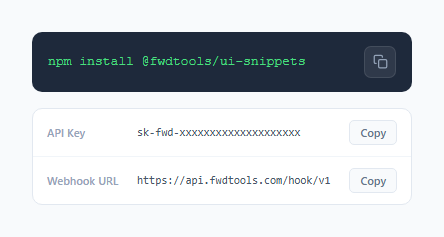
A copy to clipboard button is one of the most-used micro-interactions in developer-facing products. Any interface that displays a code snippet, API key, access token, webhook URL, terminal command, or share link needs a one-click copy mechanism — requiring users to manually select and copy text causes unnecessary friction and increases the chance of copying errors. This snippet implements two common copy button patterns: an icon button inside a dark code block, and inline text buttons in a credential list.
The Clipboard API and async promise handling
navigator.clipboard.writeText(text) is the modern Clipboard API. It's asynchronous — it returns a Promise that resolves when the text is successfully written to the clipboard. The .catch(() => {}) handles the case where clipboard access is denied — this happens in non-HTTPS contexts (except localhost), in browser privacy modes, or when the user has denied clipboard permission. For maximum compatibility, a fallback using document.execCommand('copy') can be placed inside the catch block: create a temporary textarea, set its value, select it, call execCommand, then remove it.
The SVG icon swap visual feedback
The copy button contains two SVG icons: a copy icon (.icon-copy) and a checkmark icon (.icon-check). In the default state, .icon-check { display: none }. When .copied is added: .copy-btn.copied .icon-copy { display: none } and .copy-btn.copied .icon-check { display: block }. This pure CSS icon swap requires no DOM manipulation — just a class toggle. Simultaneously, .copy-btn.copied applies a green background tint (rgba(74,222,128,0.15)) and a green border, providing a clear colour-coded confirmation state.
The setTimeout reset cycle
copyCode() calls btn.classList.add('copied') immediately on click, then setTimeout(() => btn.classList.remove('copied'), 2000) schedules the reset 2 seconds later. The 2-second window gives the user enough time to notice the confirmation feedback while keeping the button ready for repeated copying. If a user clicks copy again within the 2 seconds, the existing timeout is still active — the next call to classList.add adds the class that is already present (no visual change) and sets a new 2-second timeout, effectively extending the confirmation display.
The token row pattern
The second part of the demo shows a different copy pattern: small inline text buttons in a credential list. The copyText(btn, text) function takes the button reference and the text value directly. On click, it sets btn.textContent = '✓ Copied' and adds the .ok class for green styling, then resets after 2 seconds. This pattern is used in API key dashboards, environment variable panels, and developer settings pages where multiple copyable values are shown in a list.
Build with AI
Build, Understand, Optimize, and Extend It With AI
You don't have to dig through the Clipboard API docs to know exactly when writeText can silently fail here. Paste this snippet's HTML, CSS, and JS into an AI coding assistant like Claude and ask it to explain exactly why the catch block is empty rather than showing an error state, and why the icon swap between the copy and check SVGs needs no JavaScript beyond one classList.add call. The same assistant can help optimize it — for instance asking whether repeated rapid clicks correctly extend the two-second confirmation window given how the existing setTimeout is scheduled, or whether that could leave a stale timeout resetting the class early. It's also useful for extending the pattern: ask it to add a real document.execCommand fallback inside the catch block for non-HTTPS contexts, generalize copyCode to accept any target element ID so multiple independent code blocks on one page each get correct behavior, or surface a visible error state when the clipboard write is actually denied instead of failing silently. Treat the code less like a finished artifact and more like a starting point for a conversation.
Prompt to recreate it
Copy this into your AI assistant of choice to build the effect from scratch, or as a jumping-off point for your own variant:
Build a copy-to-clipboard button in plain HTML, CSS, and JavaScript using the async Clipboard API, in two variants (an icon button and an inline text button) — no clipboard library, no frameworks.

Requirements:
- An icon-based copy button placed inside a code block that reads the exact visible text content of the code element (not innerHTML, so no markup leaks into the copied value) and writes it to the clipboard via the Clipboard API's async write method, silently handling the case where that call is rejected (e.g. denied permission or non-secure context).
- The button must contain two SVG icons, a default copy icon and a checkmark icon, where only CSS visibility rules driven by a single toggled class control which one is shown — no direct style manipulation of the icons in JavaScript.
- Clicking the button must add that class immediately (synchronously, not waiting for the clipboard write to resolve) so the user gets instant visual feedback, and a timer must remove the class automatically after a couple of seconds to return to the default state.
- Ensure that clicking the button again while the confirmation state is still showing correctly resets and restarts that timer rather than leaving two competing timers that could reset the class early.
- A second, separate copy pattern: several rows of labeled credential values (like an API key and a webhook URL) each with their own inline "Copy" text button that copies that row's specific value (passed directly to the handler, not read from a shared DOM element) and temporarily swaps its own label text and styling to a confirmed state before reverting.
- Structure the code so that adding the same copy behavior to additional, independent code blocks on the same page requires passing a target identifier rather than duplicating the function.
Want to tighten it up first? Run this prompt through the AI Prompt Studio to score it across 8 quality dimensions, catch anti-patterns, and tune the wording for Claude, ChatGPT, or Gemini before you paste it in.
Step by step
How to Use
- 1Click the copy icon button in the code blockClick the copy icon button in the top-right of the dark code block. The icon immediately swaps from a copy icon to a green checkmark, and the button background changes to a green tint. After 2 seconds, it resets to the default copy icon state ready for the next click.
- 2Click the small Copy text buttons in the token listClick the Copy button next to the API Key or Webhook URL rows in the credential list below the code block. The button text changes to '✓ Copied' and turns green. After 2 seconds it resets. This demonstrates the inline text-button copy pattern used in API dashboard and credentials pages.
- 3Update the code block content to your own snippetIn the HTML panel, change the text inside the <pre id='code'> element to your own terminal command, code snippet, or configuration text. The copyCode() function reads pre.textContent, so whatever text you put in the pre element is what gets copied to the clipboard.
- 4Change the timeout duration for the Copied stateIn the JS panel, find the two setTimeout calls. Change the 2000 millisecond value to adjust how long the confirmation state displays. 1500ms feels snappier, 3000ms gives more time for users to read the confirmation. Use the same value in both setTimeout calls for consistency across both copy patterns.
- 5Add the copy button to multiple code blocks on a pageFor multiple independent copy buttons, refactor copyCode() to accept an element ID parameter: function copyCode(id) { const text = document.getElementById(id).textContent; navigator.clipboard.writeText(text).catch(()=>{}); const btn = document.querySelector('[data-target="' + id + '"]'); btn.classList.add('copied'); setTimeout(() => btn.classList.remove('copied'), 2000); }. Each button passes its target ID via onclick='copyCode("myCodeId")'.
- 6Export and integrate into your documentation or dashboardClick HTML for a standalone file, JSX for a React component with a useCopyButton() hook that manages the copied state, or Tailwind for a styled React version. The JSX export uses useState for the copied boolean and useEffect with a cleanup to handle unmounting during the timeout window.
Real-world uses
Common Use Cases
Got questions?
Frequently Asked Questions
navigator.clipboard.writeText(text) is an asynchronous function that uses the Permissions API to request clipboard write access, then writes the text to the system clipboard. It returns a Promise that resolves with undefined on success. It rejects (and the .catch() fires) in three cases: the page is not served over HTTPS (except localhost), the browser's clipboard permission for the site is denied in browser settings, or the browser doesn't support the Clipboard API (very old browsers). For a fallback, inside the catch block: const ta = document.createElement('textarea'); ta.value = text; document.body.appendChild(ta); ta.select(); document.execCommand('copy'); document.body.removeChild(ta).
The button contains two SVG icons with classes .icon-copy and .icon-check. The default CSS hides the checkmark: .icon-check { display: none }. When .copied is added to the button, two CSS rules fire simultaneously: .copy-btn.copied .icon-copy { display: none } hides the copy icon, and .copy-btn.copied .icon-check { display: block } shows the checkmark. No JavaScript DOM manipulation is needed for the icon swap — just the single classList.add('copied') call, and CSS handles the rest. The button background and border also change via .copy-btn.copied { background: rgba(74,222,128,0.15); border-color: rgba(74,222,128,0.3); color: #4ade80 } for a green confirmation state.
Refactor copyCode() to accept a target element ID: function copyCode(id) { const text = document.getElementById(id).textContent; navigator.clipboard.writeText(text).catch(()=>{}); const btn = event.currentTarget; btn.classList.add('copied'); setTimeout(() => btn.classList.remove('copied'), 2000); }. Pass the code block ID from the onclick: onclick='copyCode("example-1")'. Each code block gets a unique ID, and each copy button targets its own block. For a React implementation, use a ref on the pre element and pass it to the click handler.
Yes, in production. navigator.clipboard.writeText() requires either HTTPS or the localhost origin. It will not work on HTTP pages in modern browsers. During development, localhost (including ports like localhost:3000) works without HTTPS. On HTTP production sites, the API throws a NotAllowedError. The document.execCommand('copy') fallback works on HTTP but is deprecated and may be removed from browsers in future. The standard solution is to serve your site over HTTPS — all major hosting platforms (Netlify, Vercel, Cloudflare) provide HTTPS automatically.