You Might Also Like
Learn Coding Visually
Learn to code with interactive, live-preview playgrounds — HTML, CSS, JavaScript, React & more.
 HTML Playground42 lessons · Click-based · Live preview
 CSS PlaygroundLearn CSS with a live editor
 JavaScript Playground60 lessons · DOM · Async · Canvas
 React PlaygroundLearn React with a live code editor
 GSAP PlaygroundLearn GSAP animation interactively
 SVG Playground44 lessons · shapes · paths · animation
 SCSS Playground45 lessons · Sass modules · tokens
 Tailwind PlaygroundLearn Tailwind CSS with a live editor
 Bootstrap 5 Playground50 lessons · live preview
Candidate Pipeline Kanban — Free Recruiting Board With Real Drag & Drop
Candidate Pipeline Kanban · Dashboards · Plain HTML, CSS & JS · Live preview
What's included
Features
About this UI Snippet
Candidate Pipeline Kanban — Draggable Recruiting Stages
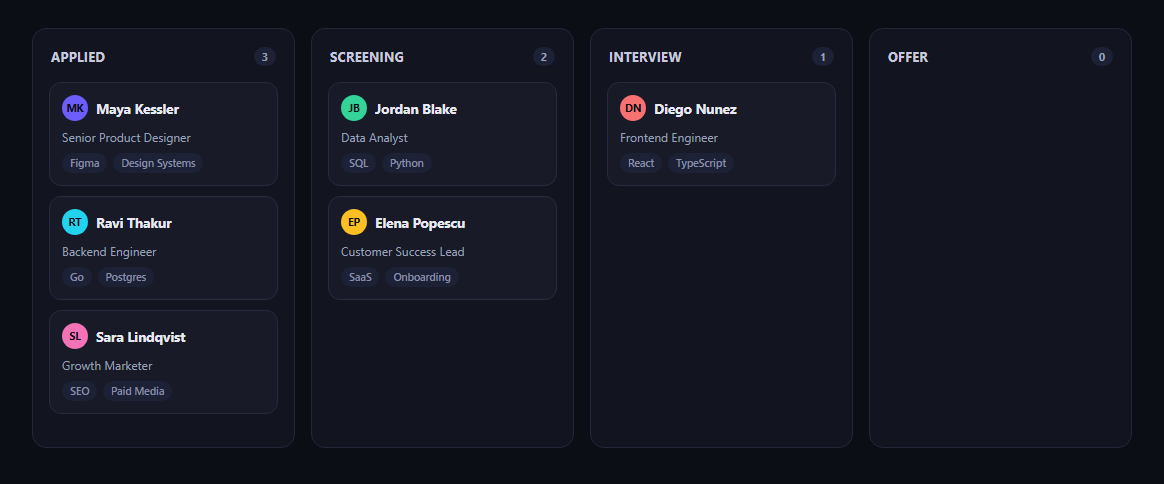
The candidate pipeline kanban is the recruiter's home screen: candidates as cards moving through Applied, Screening, Interview, and Offer columns. This snippet implements genuinely working drag-and-drop using the native HTML5 Drag and Drop API — no library, and no click-to-move fallback standing in for real dragging.
Real HTML5 drag events, not a simulation
Every card has draggable="true". dragstart records the dragged element and fades it with cpk-dragging; dragend cleans that state up. Each column's .cpk-dropzone listens for dragover (calling e.preventDefault(), which is what tells the browser this element is a valid drop target at all) and drop. Without that preventDefault call, the browser's default is to reject the drop entirely — it's the one line that makes the whole interaction possible.
Cards actually move in the DOM
On dragover, getDragAfterElement compares the pointer's Y position against the vertical midpoint of every other card in that column to find where the dragged card should land, then insertBefore/appendChild physically relocates the dragged element — the same node, not a clone — into its new position. That's what makes this real drag-and-drop: the element you picked up is the element that lands, mid-column reordering included, not just a column swap.
Visual feedback during the drag
The dragged card gets partial opacity via cpk-dragging, and the column currently under the pointer gets a dashed outline via cpk-dragover — both cleared on dragend/dragleave so the board never gets stuck in a mid-drag visual state.
Counts stay in sync
updateCounts() recounts each column's .cpk-card children and updates its badge after every drop, so the header numbers never drift from what's actually rendered.
Customizing it
Wire the drop handler to persist the new stage to your backend, add a confirmation before moving a candidate to Offer, or add a WIP limit per column. Pair it with a kanban board for a general task-board version, a drag-sort-list for single-column reordering, or a job listing card for the postings these candidates applied to.
Build with AI
Build, Understand, Optimize, and Extend It With AI
Drag-and-drop is one of those features that looks simple and has several easy-to-miss details, so it's worth pasting this snippet's HTML, CSS, and JS into an AI coding assistant like Claude and asking it to walk through why dragover must call preventDefault for a drop to be allowed at all, and how getDragAfterElement's midpoint comparison against getBoundingClientRect lets a card land in the correct position mid-column rather than only at the top or bottom. The same assistant can help you harden it for production — for example asking whether the drop handler should debounce or batch a persistence API call, how to add touch-device support since native HTML5 drag-and-drop does not work on mobile browsers out of the box, or how to announce moves to screen reader users who can't perform a mouse drag. It's also useful for extending the board: ask it to add a WIP (work-in-progress) limit per column that visually warns when exceeded.
Prompt to recreate it
Copy this into your AI assistant of choice to build the effect from scratch, or as a jumping-off point for your own variant:
Build a "candidate pipeline kanban" board in plain HTML, CSS, and JavaScript using the native HTML5 Drag and Drop API — no external library, and no click-to-move fallback standing in for real dragging.

Requirements:
- Four columns (e.g. Applied, Screening, Interview, Offer), each with a header showing a live count badge and a dropzone container holding candidate cards.
- Each candidate card has draggable="true" and real dragstart/dragend listeners: dragstart records a reference to the dragged element and applies a "dragging" visual style (reduced opacity); dragend clears that state.
- Each column's dropzone has a dragover listener that calls preventDefault() (required for the drop to be allowed), applies a visual "drag over" indicator to the column (e.g. dashed outline), and computes the correct insertion position within that column based on comparing the pointer's Y coordinate against the vertical midpoint of each existing card (via getBoundingClientRect) — then actually calls insertBefore or appendChild to relocate the real dragged DOM element into that position, so cards can be reordered within a column, not just moved between columns.
- A drop listener that calls preventDefault, removes the drag-over indicator, and updates the column count badges to reflect the real number of card children in each column afterward.
- The dragged element must be the same DOM node throughout — no cloning, no re-rendering from a separate data array — this must be genuine imperative DOM drag-and-drop.
- Keep it in a dark theme with distinct avatar colors per candidate, and ensure the JavaScript only references classnames/ids that exist in the HTML you write.
Want to tighten it up first? Run this prompt through the AI Prompt Studio to score it across 8 quality dimensions, catch anti-patterns, and tune the wording for Claude, ChatGPT, or Gemini before you paste it in.
Step by step
How to Use
- 1Paste the HTML, CSS, and JSFour columns of candidate cards render.
- 2Press and drag a cardIt fades slightly and follows your cursor.
- 3Drag over another columnThat column outlines with a dashed border.
- 4Drop the cardIt actually relocates into the DOM at that position.
- 5Drag within the same columnCards reorder based on where you drop.
- 6Watch the column countsBadges update to match the real card counts.
Real-world uses
Common Use Cases
Got questions?
Frequently Asked Questions
It is real HTML5 drag-and-drop. Cards carry draggable="true" and the script listens for the actual dragstart, dragover, and drop events the browser fires during a native drag gesture. The dragover handler calls e.preventDefault(), which is required by the spec to mark an element as a valid drop target — without it the browser's default behavior rejects the drop.
getDragAfterElement compares the current pointer Y position against the vertical midpoint of every other card in that column (excluding the one being dragged) using getBoundingClientRect, and finds the closest card whose midpoint is still below the pointer. The dragged element is then inserted before that card with insertBefore, or appended to the end if none qualifies — so mid-column reordering works, not just column-to-column moves.
The same DOM node moves. draggedCard holds a reference to the actual element clicked in dragstart, and dragover repeatedly calls insertBefore or appendChild on that exact reference as the pointer moves — so by the time drop fires, the card has already been physically relocated in the DOM tree, not swapped for a clone.
In the drop handler (after updateCounts() runs), read the dragged card's data-id and the dropzone's data-stage attribute, then send that pair to your API. Since the DOM move already happened during dragover, the drop handler is purely the moment to fire the network request — you don't need to move anything there yourself.
Native HTML5 drag-and-drop events work the same way inside any framework component — bind dragstart/dragover/drop with your framework's event syntax and keep a ref or local variable for the dragged item's id. On drop, update your state's stage field for that candidate rather than moving DOM nodes directly, and let the framework re-render the columns from state. The getDragAfterElement positioning logic ports as-is since it only reads layout geometry.