Source Code
<div class="scene">
  <h1 class="reveal-heading">
    <span id="typed"></span><span class="cursor" id="cursor">|</span>
  </h1>
  <button class="replay" onclick="playSequence()">Replay</button>
</div>
* { box-sizing: border-box; margin: 0; padding: 0; }
body { font-family: 'Courier New', monospace; background: #08080c; display: flex; align-items: center; justify-content: center; min-height: 100vh; padding: 20px; }
.scene { text-align: center; display: flex; flex-direction: column; align-items: center; gap: 26px; }
.reveal-heading {
font-size: clamp(28px, 7vw, 54px);
font-weight: 800;
letter-spacing: 0.02em;
color: #e2e8f0;
min-height: 1.3em;
}
.cursor { animation: blink 0.85s step-end infinite; font-weight: 300; color: #22d3ee; }
@keyframes blink { 0%, 100% { opacity: 1; } 50% { opacity: 0; } }
#typed.glitching {
animation: glitchShake 0.35s steps(2, jump-none) 4;
text-shadow: -2px 0 #ec4899, 2px 0 #22d3ee;
}
@keyframes glitchShake {
0% { transform: translate(0); }
25% { transform: translate(-2px, 1px); }
50% { transform: translate(2px, -1px); }
75% { transform: translate(-1px, -1px); }
100% { transform: translate(0); }
}
#typed.final {
background: linear-gradient(90deg, #22d3ee, #6366f1, #ec4899, #22d3ee);
background-size: 300% auto;
-webkit-background-clip: text; background-clip: text;
-webkit-text-fill-color: transparent;
text-shadow: none;
animation: shimmer 4s linear infinite;
}
@keyframes shimmer { 0% { background-position: 0% center; } 100% { background-position: 300% center; } }
.replay {
padding: 9px 20px; font-size: 13px; font-weight: 600;
background: #1e293b; color: #e2e8f0; border: 1px solid #334155; border-radius: 999px;
cursor: pointer; transition: background 0.15s, transform 0.1s; font-family: system-ui, sans-serif;
}
.replay:hover { background: #334155; }
.replay:active { transform: scale(0.96); }const TEXT = 'SHIP IT TODAY';
const GLITCH_CHARS = '#%&$@!*<>/?~';
const typed = document.getElementById('typed');
const cursor = document.getElementById('cursor');
function wait(ms) {
return new Promise((r) => setTimeout(r, ms));
}
async function typeOut(text) {
typed.textContent = '';
for (let i = 0; i < text.length; i++) {
typed.textContent += text[i];
await wait(55);
}
}
async function glitchBurst(text) {
typed.classList.add('glitching');
const frames = 10;
for (let f = 0; f < frames; f++) {
typed.textContent = text
.split('')
.map((ch) => (ch === ' ' ? ' ' : (Math.random() < 0.5 ? GLITCH_CHARS[Math.floor(Math.random() * GLITCH_CHARS.length)] : ch)))
.join('');
await wait(45);
}
typed.textContent = text;
typed.classList.remove('glitching');
}
async function playSequence() {
cursor.style.opacity = '1';
typed.className = '';
await typeOut(TEXT);
await wait(400);
cursor.style.opacity = '0';
await glitchBurst(TEXT);
typed.classList.add('final');
}
playSequence();Learn Coding Visually
Learn to code with interactive, live-preview playgrounds — HTML, CSS, JavaScript, React & more.
 HTML Playground42 lessons · Click-based · Live preview
 CSS PlaygroundLearn CSS with a live editor
 JavaScript Playground60 lessons · DOM · Async · Canvas
 React PlaygroundLearn React with a live code editor
 GSAP PlaygroundLearn GSAP animation interactively
 SVG Playground44 lessons · shapes · paths · animation
 SCSS Playground45 lessons · Sass modules · tokens
 Tailwind PlaygroundLearn Tailwind CSS with a live editor
 Bootstrap 5 Playground50 lessons · live preview
Typewriter Glitch Gradient Reveal — Kinetic Text JS
Typewriter Glitch Gradient Reveal · Animations · Plain HTML, CSS & JS · Live preview
What's included
Features
About this UI Snippet
Typewriter Glitch Gradient Reveal — Three-Stage Kinetic Typography Sequence
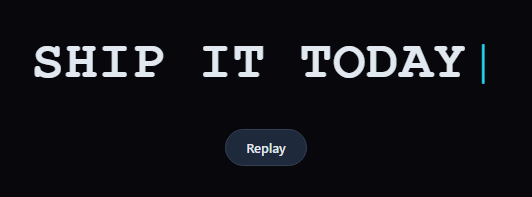
This snippet chains three distinct text effects into one choreographed sequence: a character-by-character typewriter reveal, a burst of glitch text noise, and a settle into a shimmering animated gradient — three techniques that normally exist as separate snippets, combined into a single kinetic typography moment with a clear beginning, middle, and end. The point is not any one stage alone but the transition between them: the eye reads the sequence as "the headline is typing... now it's malfunctioning... now it's resolved into something finished and premium," which is a stronger narrative arc than any single effect provides on its own.
Stage one: the typewriter
typeOut(text) appends one character to typed.textContent every 55ms inside an await wait(55) loop, identical in spirit to the standalone typewriter snippet's tick() approach but written with async/await since this sequence has several distinct phases that must run strictly in order.
Stage two: the glitch burst
Once typing finishes and a brief 400ms pause elapses, glitchBurst(text) adds a .glitching class (which layers a chromatic-aberration-style text-shadow in cyan and pink plus a shaky glitchShake keyframe using steps(2, jump-none) for a deliberately jittery, non-smooth motion) and runs 10 frames where roughly half of each character is randomly swapped for a symbol from GLITCH_CHARS before being restored to the real text. This is a condensed, faster cousin of the full text scramble decode — here the point is a quick visual "malfunction," not a gradual left-to-right reveal.
Stage three: the gradient settle
After the glitch burst restores the correct text and removes .glitching, .final is added. This applies the same four-declaration background-clip: text gradient shimmer technique used in animated gradient text — linear-gradient background, background-size: 300% auto, background-clip: text, and -webkit-text-fill-color: transparent — animated by the shimmer keyframe. Landing on this state reads as the headline "resolving" into its final, polished form after the disruption of the glitch.
Why async/await instead of chained setTimeout
Because this sequence has four ordered phases (type, pause, glitch, settle) each with its own internal timing, writing it as one async function playSequence() with await at each step keeps the control flow linear and readable top to bottom, and makes the "Replay" button a single, safe call — typed.className = '' at the top resets all state before the whole sequence reruns from scratch.
Build with AI
Build, Understand, Optimize, and Extend It With AI
Paste this snippet's HTML, CSS, and JS into an AI coding assistant like Claude and ask it to walk through exactly how playSequence() uses async/await to guarantee the four stages run strictly in order, and why glitchBurst() force-sets the text back to the correct string after its last frame rather than trusting the random loop to land on the right characters by chance. It's also worth an accessibility conversation: ask how you would respect prefers-reduced-motion by skipping straight to the final gradient state for users who have that preference enabled, since the type-glitch-shake sequence is a lot of motion. For extending it, ask for a version where the glitch intensity is proportional to headline length, one that adds a brief audio "static" sound synced to the glitch frames, or one where the final gradient state itself responds to scroll position instead of animating on a fixed loop. Treat the code less like a finished artifact and more like a starting point for a conversation.
Prompt to recreate it
Copy this into your AI assistant of choice to build the effect from scratch, or as a jumping-off point for your own variant:
Build a headline animation that types out character by character, briefly glitches through random symbols, and then settles into a continuously shimmering animated gradient, in plain HTML, CSS, and vanilla JavaScript — no animation library, sequenced with async/await.

Requirements:
- A typing stage that appends one character of a target phrase to a display element every fixed interval, with a separate blinking CSS cursor element visible only during this stage (hidden once typing completes and before the glitch stage begins).
- A short pause after typing finishes, before the glitch stage starts.
- A glitch stage that, for a fixed number of frames, replaces roughly half of the phrase's characters (chosen randomly each frame, preserving spaces) with random symbols from a small glitch character set, while a CSS class applies both a chromatic-aberration-style text-shadow (offset colored shadows) and a jittery shake animation using stepped (not smooth) timing; after the last frame, the text must be force-restored to the exact correct phrase and the glitch class removed.
- A final stage that applies a multi-stop animated linear-gradient text fill (using background-clip: text and a transparent text fill color, animated via background-position) that shimmers continuously and indefinitely once reached.
- The whole four-stage sequence (type, pause, glitch, gradient) must be written as a single async function using await between stages rather than nested setTimeout callbacks, and must be replayable via a button that resets all applied classes and state before rerunning the full sequence from the beginning.
Want to tighten it up first? Run this prompt through the AI Prompt Studio to score it across 8 quality dimensions, catch anti-patterns, and tune the wording for Claude, ChatGPT, or Gemini before you paste it in.
Step by step
How to Use
- 1Watch it load, then replayThe headline types out, glitches briefly, then settles into a shimmering gradient. Click "Replay" to reset and watch the full sequence again.
- 2Change the headline textIn the JS panel, update const TEXT = "SHIP IT TODAY" to your own phrase.
- 3Adjust the typing speedChange the 55 in await wait(55) inside typeOut() — smaller values type faster.
- 4Adjust the glitch intensityIn the JS panel, change frames (currently 10) for a longer or shorter glitch burst, or the 0.5 probability threshold for how many characters glitch per frame.
- 5Change the gradient colorsEdit the linear-gradient stops on #typed.final in the CSS panel to match your brand palette.
- 6Export in your formatClick "HTML" for a standalone file, "JSX" for a React component, or "Tailwind" for a React + Tailwind version.
Real-world uses
Common Use Cases
Got questions?
Frequently Asked Questions
playSequence() is written as a single async function that awaits each stage in turn: await typeOut(TEXT), a paused await wait(400), await glitchBurst(TEXT), then a synchronous class toggle for the gradient. Because each stage function itself returns a promise that resolves when its own internal timing finishes, the whole four-stage sequence reads as flat, linear code instead of deeply nested setTimeout callbacks.
glitchBurst() runs a fixed number of frames (10). On each frame, it maps over every character of the target text and, with roughly 50% probability per character (Math.random() < 0.5), replaces it with a random symbol from GLITCH_CHARS; otherwise it keeps the real character. After the last frame, the text is force-set back to the correct string so no glitch state can leak into the final display.
The blinking cursor is a visual cue that the headline is "still typing." Once typing is done, cursor.style.opacity is set to 0 before the glitch begins, since a blinking cursor next to a glitching, unstable string of characters would read as a bug rather than an intentional effect.
The glitchShake keyframe uses steps(2, jump-none) instead of the default smooth easing. steps() timing makes the transform jump between discrete positions rather than interpolating smoothly, which reads as a jittery, mechanical malfunction rather than a soft wobble.
In playSequence(), remove the await glitchBurst(TEXT) line and the cursor.style.opacity = "0" line before it, then call typed.classList.add("final") directly after the typing pause.
Yes. Click "JSX" for a React component. Manage a "stage" state (typing, glitching, final) with useState, drive the async sequence from a useEffect that runs once on mount, and derive the applied CSS class name from the current stage value.