You Might Also Like
Learn Coding Visually
Learn to code with interactive, live-preview playgrounds — HTML, CSS, JavaScript, React & more.
 HTML Playground42 lessons · Click-based · Live preview
 CSS PlaygroundLearn CSS with a live editor
 JavaScript Playground60 lessons · DOM · Async · Canvas
 React PlaygroundLearn React with a live code editor
 GSAP PlaygroundLearn GSAP animation interactively
 SVG Playground44 lessons · shapes · paths · animation
 SCSS Playground45 lessons · Sass modules · tokens
 Tailwind PlaygroundLearn Tailwind CSS with a live editor
 Bootstrap 5 Playground50 lessons · live preview
Smart TV Mockup — Free CSS TV Screen UI Snippet
Smart TV Mockup · Layouts · Plain HTML, CSS & JS · Live preview
What's included
Features
About this UI Snippet
Smart TV Mockup — CSS TV Frame with D-Pad Focus
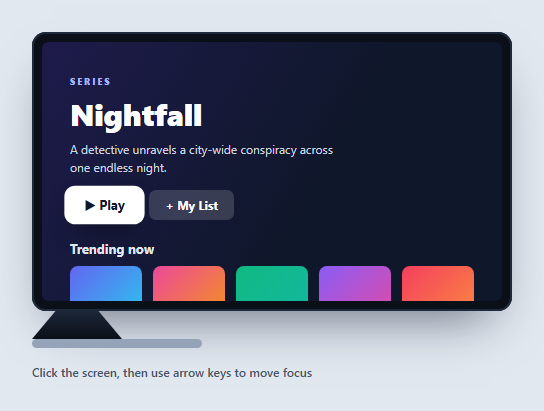
A smart TV mockup frames a streaming or app interface inside a television, complete with the focus-based navigation that remote-driven TV UIs rely on. This snippet builds a flat-screen TV in pure HTML and CSS — bezel, stand, foot — with a sample streaming home screen and real D-pad arrow-key navigation, in vanilla JavaScript with no dependency. It's a strong reference for the "10-foot UI" focus model that web TV apps (and devices like Apple TV or Android TV) use.
The TV body and stand
The set is a near-black rounded box with a thin inset bezel and a soft shadow, wrapping a 16/9 aspect-ratio screen so it keeps TV proportions at any width. Below it, a clip-path trapezoid forms the angled neck of the stand and a rounded bar is the foot — a recognizable TV silhouette built entirely from CSS shapes.
Focus-driven navigation, not a cursor
TV interfaces don't have a pointer; users move a *focus highlight* with a remote's directional pad. This mockup implements exactly that: every focusable element is tagged [data-f], and a setFocus(i) function moves a .focus class that scales the element and draws a white ring. Arrow keys drive it — Left/Right move within a group, Down jumps from the hero buttons into the tile row, Up returns — with the index clamped so focus never falls off the ends.
Spatial groups
The handler models two rows: the hero actions (indices 0–1) and the content tiles (2–6). Down from the hero lands on the first tile; Up from any tile returns to the first action. This is a simplified version of the spatial-navigation logic TV frameworks implement, and it shows the core idea — mapping directional input to the nearest focusable item — without a library.
Visible focus and Enter
The focus ring is deliberately bold (a white outline plus a lift), because on a TV viewed from across the room the focused item must be unmistakable. Pressing Enter gives a quick press animation, standing in for selecting a title. scrollIntoView({ block: 'nearest' }) keeps the focused tile in view if the row scrolls.
Reusing it
Replace the rows with your real content and tag focusable items with data-f; the navigation adapts to however many you add. Use it to prototype a streaming app, a kiosk, or any carousel-driven TV interface, and pair it with a laptop mockup to show a cross-device product.
Build with AI
Build, Understand, Optimize, and Extend It With AI
Instead of tracing the keydown handler by hand, paste this snippet's HTML, CSS, and JS into an AI coding assistant like Claude and ask it to explain exactly how the heroCount constant partitions focus into the hero row versus the tile row, and why ArrowDown and ArrowUp only fire their jump when focusIndex crosses that boundary rather than always moving by one. It's also worth asking about scaling the model — the current setFocus clamps against a single flat items array, so ask what changes if you add a third row of tiles, or many rows, and need up/down movement to land in the same column rather than always jumping to index heroCount. For extending it, have it add multi-row spatial navigation that remembers the last column per row, a back/exit key that leaves the tv-ui element, or a live "Now Playing" overlay that fades in on the currently focused tile. Treat the code less like a finished artifact and more like a starting point for a conversation.
Prompt to recreate it
Copy this into your AI assistant of choice to build the effect from scratch, or as a jumping-off point for your own variant:
Build a smart TV UI mockup in plain HTML, CSS, and vanilla JavaScript with no libraries, using CSS shapes for the physical TV frame and keyboard-driven focus navigation instead of mouse hover for the on-screen UI.

Requirements:
- A TV body built entirely from CSS: a dark rounded rectangle with an inset border for the bezel, a screen area locked to a 16:9 aspect-ratio, a stand neck built with clip-path as an angled trapezoid, and a separate rounded foot bar underneath — no raster images.
- Inside the screen, a hero section with a title, description, and two action elements, plus a horizontal row of several content tiles below it.
- Tag every element that should be focusable with a shared data attribute, and collect them into a single ordered array on load.
- Write a setFocus(index) function that clamps the index within the valid range, toggles a "focus" class on exactly the one element at that index (removing it from all others), and scrolls that element into view.
- Handle arrow keys on the screen container: Left/Right must move the focus index by one within the current array; Down must jump from anywhere in the hero group directly to the first tile; Up must jump from anywhere in the tile group back to the first hero action — model this as two distinct groups (a hero group and a tile group), not just a flat left/right list.
- The focused element must visibly scale up and gain a bold white outline/ring so it reads clearly as focused from a distance, matching how real TV remote-driven interfaces work.
- Pressing Enter must play a brief press/scale-down animation on the currently focused element before returning it to its focused state.
- Clicking any tile or hero action directly with a mouse must also update setFocus to that element's index, keeping mouse and keyboard focus in sync.
Want to tighten it up first? Run this prompt through the AI Prompt Studio to score it across 8 quality dimensions, catch anti-patterns, and tune the wording for Claude, ChatGPT, or Gemini before you paste it in.
Step by step
How to Use
- 1Paste HTML, CSS, and JSA CSS smart TV renders a streaming home screen.
- 2Click the screenFocus the UI so it can receive key input.
- 3Press arrow keysA focus ring moves between the hero buttons and tiles.
- 4Go down then acrossDown enters the tile row; Left/Right move along it.
- 5Press EnterThe focused item gives a quick select animation.
- 6Add your contentTag focusable items with data-f and the nav adapts.
Real-world uses
Common Use Cases
Got questions?
Frequently Asked Questions
Every focusable element is tagged with a data-f attribute and collected into an array. A setFocus(index) function toggles a focus class — scaling the item and drawing a white ring — and arrow keys change the index: Left/Right move within a row, Down jumps from the hero buttons into the tiles, and Up returns. The index is clamped so focus stays on a valid item.
TV interfaces are driven by a remote's directional pad, not a pointer, so navigation moves a visible focus highlight between elements. This mockup models that "10-foot UI" pattern, which is how Apple TV, Android TV, and web TV apps work. The bold focus ring exists because the focused item must be obvious from across a room.
No. The set is a rounded near-black box with an inset bezel, the screen uses a 16/9 aspect-ratio, and the stand is a clip-path trapezoid with a rounded foot bar. Everything is CSS, so it scales crisply and you can recolor or resize the frame freely.
Put your rows and tiles in the screen and add the data-f attribute to anything that should be focusable. The script collects all data-f elements automatically, so the navigation works with however many you add. You can extend the keydown handler to model more rows for richer spatial movement.
Render the rows from data and keep the focused index in state, applying the focus class conditionally. Handle arrow keys in a keydown listener on the container ref and update the index. For production TV apps, consider a spatial-navigation library, but this shows the core mapping of directional input to the nearest focusable item. Tailwind styles the frame and tiles with utilities.